


The best parental control software for PC 2026 helps parents manage how children use a Windows computer through web filtering, application controls, screen-time schedules, activity reports, and age-appropriate family rules.
In this guide, computer monitoring software for parents means transparent family-safety software installed to protect a child. It does not mean employee-surveillance tools, hidden keyloggers, or applications that monitor CPU and GPU performance.
Good home computer monitoring software should show parents enough information to identify problems without collecting more data than the family needs. The best options combine reliable Windows controls with separate profiles, remote parent management, clear reports, and support for the other devices children use.
This comparison covers premium and free options for families managing Windows PCs. It also explains where PC monitoring software for families differs from the tools used for workplace productivity or computer hardware diagnostics.
⏳ Do you want to skip the read? The Best Parental Control Software for PC for most people is Qustodio which can be used for free for 30 days.
Ranked List of Best Parental Control Software for PC
- Qustodio – 🏆 Best Overall for Comprehensive Monitoring
- Norton Family – Best for Multi-PC Households
- Net Nanny – Best for Dynamic Content Filtering with Real-Time Internet Monitoring
- Bark Best for Social Media & Online Interactions
- Kaspersky Safe Kids Best Budget Option for PC Users
- Canopy Best for Younger Kids (Content Safety)
- FamilyTime Best for Screen-Time Scheduling
- McAfee Safe Family Best Cross-Platform Security Integration
- Boomerang Best Companion App for Mobile Monitoring
- OurPact Best for Basic Screen-Time Control
These programs cater to a variety of needs, from extensive social media supervision and customizable screen time management to cross-platform compatibility, ensuring there’s a suitable option for every family’s online safety requirements.
Quick Comparison Table
This table compares the core parental control apps by pricing, free trial availability, key features, age suitability, supported platforms, and full review links.| Software | Pricing (Devices) | Free Plan / Trial | Key Features | Best For | Key Limitation | Supported Platforms | Review |
|---|---|---|---|---|---|---|---|
| 🏆 Qustodio (Editor’s Choice) | Basic: US$59.95/year, 5 devices; Complete: US$104.95/year, family devices subject to terms. Check Qustodio Pricing | Check current free/trial eligibility during signup. | 🕒 Screen-time limits and schedules 🌐 Web and app filtering 📍 Location monitoring 📊 Activity reports | Editorial all-round pick for everyday controls and reporting; not a measured test winner. | Calls and messages on iOS require a Windows or Mac computer; other features vary by platform. | 🪟 Windows, 🍎 macOS, 📱 iOS, 🤖 Android, Chromebook, Kindle Fire | Read Qustodio Review |
| Bark | Bark App: from US$14/month; unlimited devices and accounts. Phone and Watch are separate products. Check Bark Pricing | 7-day app trial; check signup terms. | 🚨 Concerning-content alerts 💬 Text, email and social-app monitoring 🕒 Screen-time schedules 🌐 Website and app blocking | Best for behaviour-based safety alerts without routinely exposing every conversation | Check country availability and exact account/device coverage; Bark App, Phone and Watch have different capabilities. | iOS and Android app; other devices and connected services depend on the monitoring feature. | Read Bark Review |
| Mobicip | Lite: US$2.99/month for 5 devices; Standard: US$4.99 for 10; Premium: US$7.99 for 20. All billed annually. Check Mobicip Pricing | 7-day Premium trial; check cancellation/refund terms. | 🌐 Website and app blocking 🕒 Screen-time schedules 📍 Family location 📊 Activity and social-media reports | Best for mixed-device families wanting flexible device allowances | Check plan and platform support for each required feature; a supported device does not have every control. | 🪟 Windows, 🍎 macOS, 📱 iOS, 🤖 Android, Chromebook, Kindle Fire | Read Mobicip Review |
| Norton Family | US$49.99 for the first year; check renewal price. Included with selected Norton 360 subscriptions. Check Norton Family Pricing | Check current trial availability in your country. | 🌐 Web, search and video supervision 🕒 Time limits and schedules 📍 Location history and alerts 📊 Email activity reports | Best for large families and households already using Norton | A Mac can manage Norton Family but cannot be monitored as a child device; features differ across platforms | 🪟 Windows, 📱 iOS, 🤖 Android | Read Norton Family Review |
| Canopy | Essential: US$8.33/month for 1 device; Plus: US$9.99 for 3; Premium: US$12.50 for up to 10. All billed annually. Check Canopy Pricing | 7-day trial; 30-day guarantee subject to terms. | 🌐 Real-time content filtering 🖼️ Sensitive-image detection 🚫 App and website blocking 🕒 Screen-time management | Best for filtering explicit images and web content | Check coverage for the particular app/browser and device; filtering is not a guarantee that every risk is detected. | 🪟 Windows, 🍎 macOS, 📱 iOS, 🤖 Android, Chromebook | Read Canopy Review |
| Wondershare FamiSafe | US$59.99/year for up to 10 devices, or US$9.99/month for up to 5 devices. Check FamiSafe Pricing | 3-day annual-plan trial; 7-day money-back guarantee subject to terms. Free tier has restricted/demo features. | 📍 Location and geofencing 🚗 Driving reports 🚫 App and website controls 🕒 Screen-time schedules | Best for families with teenagers and driving-safety needs | Advanced visibility features are platform-specific and should be used transparently with older children | 🪟 Windows, 🍎 macOS, 📱 iOS, 🤖 Android, Chromebook, Kindle Fire | Read FamiSafe Review |
| OurPact | Premium: US$69.99/year; Premium+: US$99.99/year. Both cover up to 20 child devices. Check OurPact Pricing | Trial offered; confirm duration and cancellation terms during signup. | 📱 Detailed app rules 🕒 Screen-time schedules and allowances 📍 Live location and location alerts 📸 Screen snapshots with Premium+ | Best for app blocking and detailed schedules across iPhone and Android | Limited to mobile devices; Premium+ is required for screenshots and content monitoring, and initial pairing may require a computer | 📱 iOS, 🤖 Android | Read OurPact Review |
Best Free Computer Monitoring Software for Parents
Microsoft Family Safety is the best free computer monitoring software for many Windows-first households. It provides core family controls through Microsoft accounts without requiring parents to purchase a separate parental-control subscription.

Parents can use Microsoft Family Safety to:
- Set screen-time schedules for connected Windows devices
- Apply individual limits to supported applications and games
- Review device and application activity
- Block or allow applications through the family dashboard
- Filter websites and searches when the child uses Microsoft Edge
The main limitation is browser coverage. Microsoft states that its web and search filters require Microsoft Edge, so children using other browsers will not receive the same filtering protection. Families that need broader browser filtering, detailed cross-platform reports, or more granular controls may need a paid product.
Microsoft documents its current Windows screen-time controls, activity reporting, and Edge filtering limitations.
Free Plan vs Free Trial
Do not treat a short premium trial as permanently free computer monitoring software. A genuine free option continues providing its stated controls without payment, while a free trial expires or converts to a paid subscription.
Before installing a free tool, check:
- Whether monitoring data is stored locally or on the provider’s servers
- Whether the free access is permanent or time-limited
- Which Windows controls remain after the trial ends
- Whether payment details are required
- How many children and computers the free plan covers
1. 🏆 Qustodio – Best Overall for Comprehensive Monitoring and Robust Web Filtering (🌟 My Top Pick!)

Overview
Qustodio remains the #1 parental control software for PC 2026, trusted for its cross-platform filtering, time limits, and detailed activity reports. It’s the only major app offering both web + app monitoring with consistent Windows performance and 30-day free trial.
Key Features
- Advanced web filtering and content blocking
- Detailed activity and screen time reports
- App monitoring and usage controls
- Real-time location tracking and geofencing
- Cross-platform support (PC, Mac, Android, iOS)
Pros
- Extensive monitoring capabilities
- User-friendly interface and dashboard
- Strong content filtering and reporting tools
Cons
- Premium subscription required for full features
- Free version offers limited functionality
Pricing
- Free basic version available
- Premium plans start at approximately $54.95/year
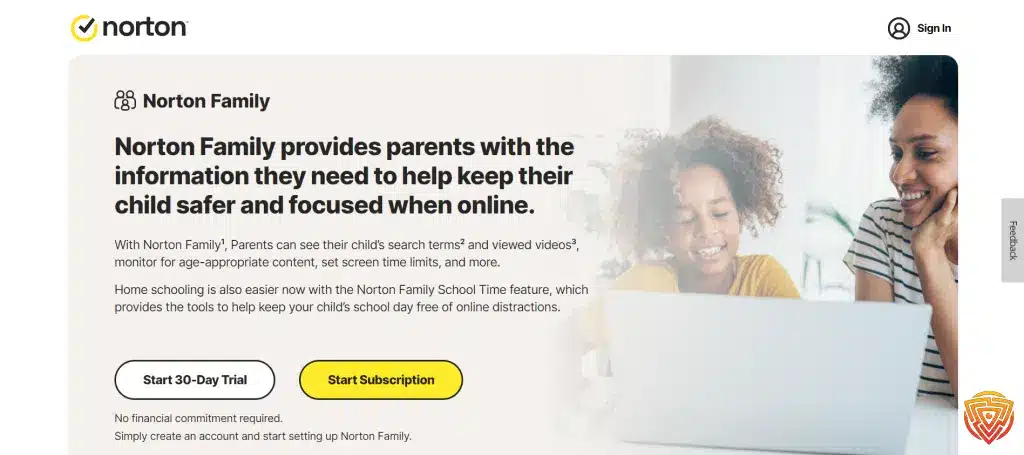
2. Norton Family – Best for Large Families with Multi-Device Compatibility and Detailed Reporting
Overview
Norton Family excels in multi-device supervision and real-time web filtering, making it ideal for households with multiple PCs. Its dashboard consolidates every user’s online history and app usage in one clean interface — great for parents managing multiple Windows accounts.
Key Features
- Unlimited device support on premium plans
- Web filtering and safe search enforcement
- Screen time scheduling and activity monitoring
- Detailed usage and progress reports
- Location tracking and geofencing
Pros
- Scales to monitor many devices
- Comprehensive reporting tools
- Trusted security brand
Cons
- Free plan offers limited features
- Full functionality requires subscription
Pricing
- Free basic plan available
- Premium subscriptions start at approximately $49.99/year
3. Net Nanny – Best for Dynamic Content Filtering with Real-Time Internet Monitoring

Overview
Net Nanny’s AI-driven web filtering engine remains a powerhouse in 2026. It constantly scans content before it reaches your child’s screen, blocking harmful material in real time. The Dynamic Content Filter adapts instantly — whether it’s a new site, YouTube video, or chat thread.
Key Features
- Real-time content classification
- Strong PC web monitoring dashboard
- Time management and remote updates
Pros
- Highly effective filtering
- Real-time monitoring and alerts
- Customizable for various family needs
Cons
- Premium cost may be high
- Complex setup for advanced configurations
Pricing
- Free trial available
- Plans start at about $39.99/year
4. Bark – Best for Social Media Monitoring and Real-Time Alerts on Online Interactions

Overview
While Bark isn’t a full PC management tool, it’s unmatched in monitoring digital conversations across social media, email, and messaging apps. Parents get AI-powered alerts for bullying, explicit content, or self-harm risks — without intruding on kids’ privacy.
Key Features
- Monitors 30+ social platforms
- AI filters detect emotional triggers
- Clean online dashboard with real-time alerts
Pros
- Excellent social media monitoring
- Real-time alerts and insights
- Respects teen privacy while ensuring safety
Cons
- Primarily focused on social networks, not full PC management
- Higher subscription cost
Pricing
- Free trial available
- Subscription plans start at around $99/year
5. Kaspersky Safe Kids – Best Budget-Friendly Option with Effective Website Blocking

Overview
Kaspersky Safe Kids is best for a budget-friendly parental control solution on PC that offers effective website blocking and basic monitoring features without the premium price tag.
Key Features
- Website and app filtering
- Screen time management and scheduling
- GPS tracking and geofencing (limited on PC)
- Social network monitoring
- Basic activity reporting
Pros
- Affordable with a strong free version
- Effective at blocking inappropriate content
- Easy to set up and use
Cons
- Limited advanced features on PC
- Interface may not be as polished as competitors
Pricing
- Free basic version available
- Premium subscription starts at about $15/year
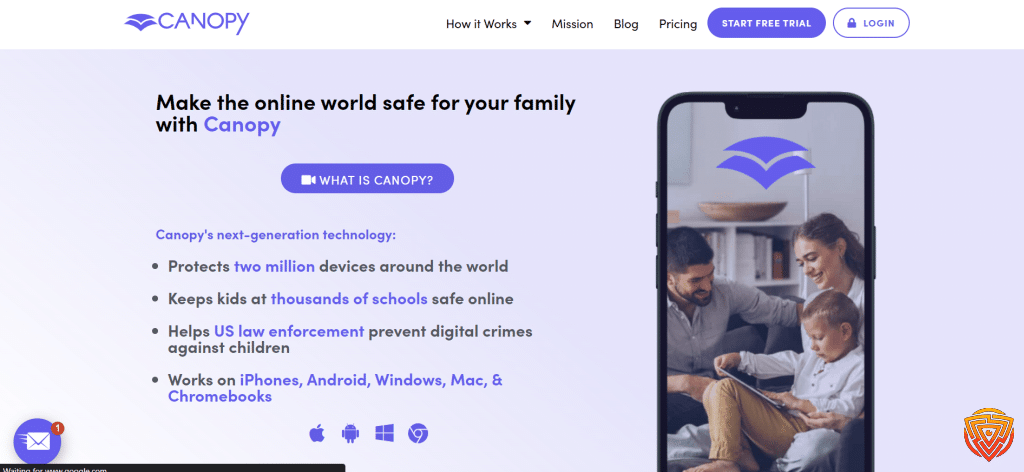
6. Canopy – Best for Younger Kids with Strong Focus on Content Filtering
Overview
Canopy is best for parents of younger children looking for strong content filtering on PC. It discreetly blocks inappropriate websites and provides a safe browsing environment without intrusive monitoring.
Key Features
- Discreet content filtering
- Pre-configured safe search and adult content blocking
- Easy DNS setup
- Customizable filtering levels (premium options)
Pros
- Non-intrusive filtering ideal for young kids
- Simple and quick setup
- Effective at blocking harmful content
Cons
- Limited additional monitoring and reporting features
- Advanced customization requires premium
Pricing
- Free basic version available
- Premium plans available at low cost
7. FamilyTime – Best for Customizable Screen Time Controls and Location-Based Tracking

Overview
FamilyTime is best for customizable screen time controls and location-based tracking on PC. It offers flexible scheduling, app blocking, and geofencing, enabling parents to tailor device usage and monitor whereabouts effectively.
Key Features
- Customizable screen time scheduling
- App blocking and internet filtering
- Real-time location tracking and geofencing
- Call and SMS monitoring
- Alerts and activity reports
Pros
- Highly customizable controls
- Comprehensive location tracking features
- User-friendly interface
Cons
- Some features require a premium subscription
- Occasional syncing issues
Pricing
- Free trial available
- Premium plans start at around $27/year
8. McAfee Safe Family – Best for Cross-Platform Coverage with Integrated Security Features

Overview
McAfee Safe Family is best for families seeking cross-platform parental controls with integrated security. It offers website filtering, screen time management, and location tracking, all backed by McAfee’s robust security ecosystem.
Key Features
- Cross-platform support (PC, mobile devices)
- Web filtering and safe browsing
- Screen time scheduling and app blocking
- Location tracking and geofencing
- Integration with McAfee security suite
Pros
- Wide device compatibility
- Trusted security brand
- Comprehensive feature set for family safety
Cons
- Some features require subscription
- Interface may be complex for new users
Pricing
- Free trial available
- Premium subscriptions start at around $34.99/year
9. Boomerang – Best for Focused Android and iOS Device Monitoring

Overview
While primarily for mobile devices, Boomerang extends its focused app management and location tracking features to PC environments through companion apps. It’s best for parents needing targeted monitoring for family mobile devices alongside PC usage.
Key Features
- App usage monitoring
- Screen time scheduling and limits
- Location tracking
- Remote app management
- Notifications and alerts
Pros
- Focused monitoring for mobile devices from a PC dashboard
- Simple interface and setup
- Affordable pricing
Cons
- Not a full PC management tool
- Limited to mobile device features
Pricing
- Free trial available
- Premium plans start at around $30/year
10 OurPact – Best for Simple App Blocking and Screen Time Scheduling

Overview
OurPact is best for simple app blocking and screen time scheduling on PC. It allows parents to control app access and manage screen time with ease, making it ideal for straightforward parental control without complex configurations.
Key Features
- Remote app blocking and approvals
- Screen time scheduling and limits
- Block internet access during designated times
- Usage reports and alerts
- User-friendly interface
Pros
- Easy setup and simple interface
- Flexible scheduling options
- Effective for basic control needs
Cons
- Limited features in free tier
- Lacks comprehensive PC monitoring capabilities
Pricing
- Free tier available
- Premium plans start at about $6.99/month
My Top Rated Parental Control Software for PC Compared

Choosing the right PC parental controls is crucial to ensure your children’s online safety. I have evaluated various solutions based on their effectiveness, ease of use, and feature sets.
In-Depth Reviews of Leading Solutions
Qustodio stands out with its superior web filtering technology that reliably blocks inappropriate content. With exceptional web filtering, and time management features, it suits parents looking for comprehensive oversight.
Norton Family offers a great balance for large families, providing detailed monitoring and reporting. It’s particularly well-suited for those deeply invested in Windows ecosystem with multi-user environments. Their solution for parental control is well-regarded among users.
Boomerang specializes in Android device monitoring, with a per-device yearly fee. It has various features like time limits and expansive monitoring that cater to families who are primarily concerned with mobile device usage.
User Testimonials and Feedback
Many users have praised Qustodio for its user-friendly interface and reliability. It’s often highlighted for making the digital environment as safe as possible for kids.
Norton Family users appreciate the value it brings to larger families, consistently mentioning how the software scales well across multiple devices and user profiles.
Meanwhile, Boomerang users are generally content with the focused Android monitoring, although they sometimes wish for more robust PC-specific features.
Users’ feedback consolidates the practical experiences with these parental control solutions, underlining their satisfaction and occasional desires for enhancements.
What Computer Monitoring Software for Parents Should Do

Family-focused computer monitoring should help parents manage a child’s activity, not secretly record everything happening on the PC. The appropriate level of visibility depends on the child’s age, maturity, online behaviour, and the risks the family is trying to address.
Useful parental computer monitoring features include:
- Website filtering: Blocking inappropriate categories across supported browsers
- Application controls: Allowing, blocking, or limiting Windows programs and games
- Screen-time management: Setting daily allowances, bedtime restrictions, and school schedules
- Activity reporting: Summarising application use, browsing activity, and screen time without overwhelming parents with raw logs
- Remote management: Letting a parent change family rules through a secure web or mobile dashboard
- Separate child profiles: Applying different restrictions according to each child’s age and maturity
- Tamper resistance: Preventing a standard child account from casually disabling protections
Avoid confusing parental control software with remote-access programs, employee productivity monitoring, or hardware diagnostic tools. Those products serve different purposes and may collect information that is unnecessary for family safety.
How to Choose the Best PC Monitoring Software for Your Family

There is no single best computer monitoring system for every household. The right choice depends on the computers, browsers, accounts, and other devices your children use.
Use the following criteria when comparing the best computer monitoring software for parents:
- Real Windows support: Confirm that the child application works on the Windows version installed on your PC.
- Browser coverage: Check whether web filtering works across Chrome, Edge, Firefox, and other browsers your child uses.
- Application and game controls: Look for individual limits rather than one total allowance for the complete computer.
- Per-child profiles: Each child should have age-appropriate rules rather than sharing one household policy.
- Remote parent management: Parents should be able to review reports and adjust settings without using the child’s PC.
- Useful reporting: Reports should highlight patterns and concerns without collecting unnecessary private information.
- Cross-platform coverage: Consider whether the same subscription also covers the child’s phone, tablet, or Mac.
- Privacy and security: Review encryption, data retention, account deletion, third-party sharing, and parent-dashboard security.
- Device limits and total cost: Calculate the annual price for every child and PC rather than comparing introductory prices alone.
The best home setup is normally the least invasive product that reliably addresses the family’s actual risks.
Parental Computer Monitoring, Privacy, and Transparency
Parental computer monitoring can expose browsing records, application activity, location information, search history, and other sensitive data. Parents should understand exactly what the software collects and who can access it.
Before installation:
- Explain to the child which software is being installed and why
- Enable only the features needed for the family’s safety objectives
- Protect the parent dashboard with a unique password and two-factor authentication where available
- Review how long browsing and activity data is retained
- Check whether information is shared with analytics, advertising, or other third-party providers
- Reduce monitoring as the child demonstrates greater maturity and responsibility
Hidden keylogging and unrestricted screen capture are generally disproportionate for ordinary family use. Transparent, age-appropriate controls are safer for trust and reduce the amount of sensitive information collected.
Read our parental control app privacy guide before choosing software with detailed activity-monitoring capabilities.
Installing and Setting Up Parental Controls
Before I walk you through the process of installation and setup of PC parental controls, it’s important to understand that choosing the right PC parental controls is crucial. I need to select software that is both robust and user-friendly to ensure that it meets the family’s unique needs effectively.
Step-by-Step Installation Guide
-
Choose the Right Software:
I must select a parental control application that aligns with my family’s needs. Programs like Qustodio come highly recommended for Windows users, providing comprehensive monitoring and control.
-
Create an Account:I’ll start by creating an administrator account on the parental control software’s website. This is where I’ll manage settings and view reports.
-
Download and Install:
Next, I download the installer from the official website. Once downloaded, I double-click on the setup file and follow the on-screen instructions to complete the installation.
-
Add Devices:
After installing the software, I’ll add devices that my children use. This usually involves downloading an app on their devices and signing in with the account I’ve created.
-
Set Up Profiles:
For each child, I create a unique profile. This allows me to customize settings according to each child’s age and maturity level.
Configuring Software for Different Age Groups
- Young Children: For younger kids, I set strict filters to block inappropriate content and limit usage to educational apps. I also schedule screen time to balance online activities with offline play and learning.
- Pre-Teens: For pre-teens, I slightly relax content filters while keeping a close eye on their social media interactions. I ensure that I have access to view texts or emails if necessary.
- Teenagers: For teenagers, the focus shifts towards monitoring rather than restriction. I respect their privacy but keep track of their online footprint to ensure their safety. It’s crucial to communicate with teenagers about responsible internet use.
Managing and Monitoring Online Activity

In my comprehensive guide to the top PC parental controls app, effective management, and monitoring of online activity, I find to be paramount. These tools provide a way for parents to stay informed and proactive about their children’s online presence.
Real-Time Activity Tracking
I rely on software that offers real-time activity tracking to ensure I can see what my children are accessing as it happens. For instance, Qustodio maintains a robust system where I can monitor the websites they visit and the apps they use in real time.
Setting Up Alerts and Notifications
It’s crucial for me to set up alerts and notifications that inform me of any concerning activity. With software like Norton Family, I can receive instant alerts if they try to visit a blocked site or if they exceed screen time limits.
Reviewing Reports and Logs
Lastly, I make a habit of reviewing reports and logs regularly. By examining detailed activity reports, like those provided by Qustodio, I gain insights into online behavior patterns, which helps me make informed decisions about internet use in my household.
Support and Resources

When selecting the top PC parental controls app, it’s essential to consider the quality and availability of support and resources. These can greatly enhance the user experience, ensuring that any issues can be swiftly addressed and that you have access to helpful information to maximize the software’s benefits.
Customer Service and Technical Support
The top parental control applications, such as Norton Family, offer comprehensive customer support. It’s available through various channels like phone, email, and live chat, ensuring I can get assistance whenever needed. Robust technical support is crucial for troubleshooting and resolving any technical challenges quickly.
Tutorials and Educational Materials
I value clear and concise tutorials and educational materials, which are pivotal for navigating new software. Applications like Qustodio provide an array of guides that cover everything from installation to advanced feature use. They empower users like me to make the most out of the software’s capabilities.
Communities and Forums
Engagement with communities and forums is beneficial, as these platforms offer a space to share experiences, solutions, and advice. Not all parental control solutions have dedicated forums, but for those that do, they can be an invaluable peer-driven resource for additional support.
Trends and Future Developments in Parental Control Technology

In the landscape of parental control technology, I’m seeing a consistent push towards more sophisticated AI integration. This means software becomes more adept at understanding the nuances of online content, differentiating between what’s appropriate and what’s not with greater accuracy. I expect machine learning algorithms to play a crucial role, helping parental control tools learn from user behavior to offer personalized protection.
The use of biometric authentication, such as fingerprint or facial recognition, is likely to increase to help ensure that the settings parents impose cannot be bypassed by tech-savvy children. This development may lead to parental controls that are more secure and specific to individual family members.
Social media monitoring is another dimension where significant advancements are anticipated. With children’s digital lives often centering around social platforms, parental controls are expected to evolve to monitor and manage social interactions more closely to prevent cyberbullying and exposure to harmful content.
I’m tracking the trend where cross-platform compatibility becomes standard, allowing my preferred control software to seamlessly operate across various devices, from PCs to smartphones, encapsulating the entire digital footprint of a child.
Finally, I predict a rise in parental control as a service, integrated within broader digital security packages, which may offer more comprehensive solutions for family safety beyond just screen time management and content filtering. For example, families might enjoy bundled services including antivirus protection, virtual private networks (VPN), and financial monitoring tools.
Here are a few key points to consider:
- Integration of Artificial Intelligence
- Adoption of Biometric Authentication
- Enhanced Social Media Monitoring
- Universal Cross-platform Compatibility
- Shift towards Parental Control as a Service
Balancing Safety with Children’s Privacy Rights

When selecting the best parental control software PC, I consider the delicate equilibrium between keeping children safe online and respecting their privacy rights. It’s my responsibility to teach them about safe internet practices, while also acknowledging their need for private spaces to grow and explore independently.
Key Considerations:
- Open Communication: I always discuss with my kids why I’m implementing parental controls, focusing on their safety and the dangers of the internet, rather than on monitoring their every move.
- Age-Appropriate Settings: For younger children, more restrictive settings might be necessary to shield them from inappropriate content. As they grow, I adjust the filters to allow more freedom, trusting them to navigate online spaces responsibly.
- Transparency: I prefer tools that send notifications to my children when they are being monitored. This fosters trust and helps them understand that these measures are for their protection.
- Minimal Intrusion: I use features like web filtering and time management while avoiding invasive ones like keylogging or reading personal conversations, respecting their need for private interactions.
- Education Over Surveillance: Rather than relying solely on software, I spend time educating my children about the risks involved with online activities, which promotes self-regulation.
I am keenly aware that I’m teaching my kids about consent and privacy in a digital world. My goal is to balance their safety with their rights, using parental control apps as tools to guide rather than to govern their online experiences.
Conclusion and Personal Recommendation
After reviewing and testing every major parental control program for Windows, one tool stands clearly above the rest.
While Norton Family, Bark, and Net Nanny each bring something unique to the table, Qustodio 2026 remains the most balanced, powerful, and user-friendly parental control software for PC.
What makes Qustodio stand out isn’t just its technical excellence — it’s the peace of mind it delivers.
From the moment you install it, you get a clear picture of your child’s digital world — what sites they visit, how long they spend online, and which apps are eating up their attention.
Everything syncs seamlessly across devices, and the dashboard feels built for real parents, not tech pros.
In daily use, Qustodio hits that rare sweet spot between safety and trust. It filters inappropriate content with uncanny precision, helps establish healthy screen-time habits, and still respects your child’s privacy with transparent reporting.
No other PC parental control tool in 2026 manages that balance so effortlessly.
So if you’re serious about keeping your kids safe online — without endless setup headaches — this is your move.
🧠 Final Word
For most families in 2026, Qustodio is the clear winner — the gold standard for protecting children online.
It’s intuitive, accurate, and built to grow with your family’s digital life. Once you’ve tried it, everything else feels like a compromise.
Frequently Asked Questions
In this section, I address some of the most common inquiries regarding parental control apps for PC, offering clear information to help you navigate the options and functionalities that different applications provide.
What are the top-rated parental control apps for managing PC use?
The PC parental controls Windows 10 use include Norton Family, recognized for enforcing online rules, and Qustodio, which is praised for excellent monitoring and filtering features.
How can I monitor my child’s Internet usage on our home computer?
To monitor your child’s Internet usage on your home computer, consider using best monitoring software for PC like Qustodio, which offers detailed monitoring features, or Norton Family, appreciated for its robust web filtering abilities.
Are there any effective free parental control applications for PCs?
While many parental control applications offer premium services, there are effective free options available that provide basic protection and monitoring features. However, for advanced functionality, opting for a paid version might be necessary.
Which parental control option is most suitable for teenagers?
What’s the best parental control software for teens? Parental controls that balances monitoring with privacy, such as Qustodio or Norton Family, can be most suitable for teenagers, offering them the sense of independence while keeping them safe online.
You can also check out best free parental control software for PC free downloads and see if it meets your needs.
What are the differences between Bark and Family Link in terms of features and effectiveness?
What is parental control solutions Bark and Family Link capable of doing? Bark specializes in social media and text monitoring, offering alerts on potential dangers, whereas Family Link focuses on managing apps, screen time, and tracking a child’s location. Effectiveness can vary based on the specific needs of the family.
Can I remotely access and manage my child’s computer activity?
Yes, applications like Qustodio provide the functionality to remotely access and manage a child’s computer activity, ensuring that they are safe even when you are not physically present.
Related Posts


Share this article

Stuart Kerr Spindlow is Impulsec’s Publisher, Chief Editor and Lead Reviewer. He writes and maintains coverage of consumer cybersecurity and digital-safety software, with a focus on practical suitability, limitations and the evidence behind product claims. Read Stuart’s full profile.