


Quick answer: Use your own verified Roblox account, link it to your child’s account, then manage the child’s available game, communication, screen-time and spending settings from Settings > Parental Controls. Roblox Kids and Roblox Select now apply different defaults by age. These controls help inside Roblox; they do not supervise every other app or guarantee that every game or conversation is suitable.
Roblox parental controls can feel like a maze when you’re trying to protect your child online. A linked parent account is the starting point, but the useful decisions come next: which games to allow, whether chat should be enabled, how much time to budget and how to prevent surprise spending. This guide explains the present setup and the limits that matter.
I’ve walked a lot of families through Roblox safety features over the years. My advice remains to start with tighter boundaries, play together where possible and loosen a setting when you can explain why it suits your child. Controls are most useful when everyone understands the rule. The steps and account changes below were checked against Roblox’s documentation on 10 October 2026.
What changed: Roblox Kids, Roblox Select and age checks
Roblox announced the global availability of Roblox Kids and Roblox Select on 16 June 2026. Roblox Kids is for ages 5–8 and Roblox Select for ages 9–15. Users 16 or older move into the broader Roblox account experience. Age checks and parental verification help determine the applicable account and permissions; simply typing an older birthday is not an appropriate way to unlock features.
Age-based access and content maturity are related but different. The account tier sets available games and communication defaults. Content labels describe material within an individual game. A parent can review specific game requests and impose additional limits where the child’s account supports them. Do not assume an old guide’s “under 13” rule describes every control now available to a 15-year-old.
For younger children, chat starts with stricter permissions. Roblox says under-9 users need parental consent for game chat, and under-13 users need consent for game direct chat. Access also depends on age checks and eligible age groups. A friend relationship alone does not make every form of communication available. See Roblox’s age-check explanation for the account’s current eligibility.
The full set of parental controls and the more limited controls for older teens are not interchangeable. Linked parents can retain activity insights as a child gets older; some direct-chat and individual-game decisions continue through Roblox Select. In most regions, Roblox says the full set of settings is managed through age 12; individual-game and Direct Chat controls continue through age 15. The native daily-time limit is for Roblox Kids and the 9–12 group in Roblox Select, rather than every teenager. Roblox’s teen insights guidance explains that distinction.
Choose the safeguard for the problem
| Decision | Inside Roblox | Outside that boundary |
|---|---|---|
| Which game? | Age-based access → maturity setting → allow or block a specific game | A label cannot guarantee every player’s behaviour |
| Who can talk? | Age check → available chat permission → review friends and blocks | Developer-made chat and other messaging apps need separate attention |
| How long? | Linked child account → available daily Roblox limit | Total phone or tablet use needs device-level rules |
| How much? | Available monthly spending cap + purchase notifications | Gift-card redemption is outside the monthly cap |
Use the rows as separate decisions rather than switching on one setting and assuming everything is covered. For example, blocking an unwanted game does not change the child’s total phone allowance, and a spending notification tells you about a purchase rather than automatically reversing it.
Set up your own parent account and link the child
Use a separate account for yourself. Sharing the child’s login makes it harder to keep adult credentials private and distinguish the settings you manage from the child’s ordinary play. You need parent privileges and Roblox’s adult verification process, which its current support instructions describe using a government-issued ID or credit card.
If Roblox emails you a request, choose Create account or Use existing account. The email on your Roblox account must match the address that received the request. Complete the onscreen age verification and choose Agree to link. A generic phone-number check is not a substitute for this documented parent-verification process.
You can also begin from your child’s settings. The existing setup procedure below is useful for that route:
Link an authorised parent account to the correct child account.
-
Open the child’s settings
On desktop, select the gear icon. On mobile, select More, then Settings.
-
Choose the parent connection
Open Parental Controls and select Add parent.
-
Use your own parent account
Follow the onscreen account and verification prompts; keep your adult login separate from the child’s.
-
Verify your age
Complete the required government-ID or credit-card verification shown by Roblox.
-
Confirm the link
Select Agree, then open Parental Controls in your own account and check that the intended child is listed.
Roblox’s account-linking instructions are the reference for changing interface labels. Enable two-step verification on the adult account and keep its recovery email secure. Do not publish your family’s names or private contact information in a username just to make the parent account recognisable.
For several children, select the correct child before changing a rule. A limit on one linked account does not establish the same limit on a sibling or an alternative account. After linking, check from your own device that you can see the intended child’s settings and activity.
Manage the controls remotely without sharing passwords
In your parent account, open Settings > Parental Controls and select the linked child. This is where you review the controls available for that child’s age and account. Roblox documents management from its website and mobile app, so you do not need the child’s device for every later adjustment.
Review the dashboard in separate passes: content, communication, screen time, spending and friends. A missing setting may be an age or eligibility issue rather than a failed installation. Compare the child’s current account information and Roblox’s support guidance before repeatedly unlinking and relinking.
Unlinking is a meaningful change. Roblox says you lose the ability to manage that child’s parental controls once the accounts are disconnected. To unlink intentionally, select the child in Parental Controls, choose the pencil icon and follow Unlink accounts and its confirmation. Do not use unlinking as the first troubleshooting step: it removes your management connection.
Choose games by content and individual fit
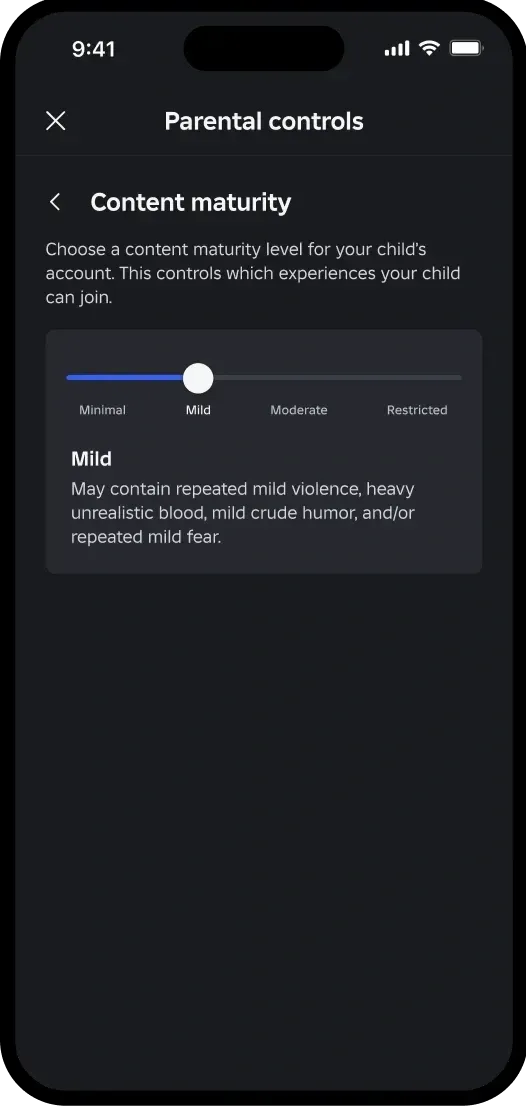
Content maturity labels help you make a decision before play. Roblox currently uses Minimal, Mild, Moderate and Restricted, rather than the older All Ages/9+/13+ labels that appeared in many guides. Minimal can still include mild violence or fear; it is not a guarantee of educational content or a risk-free game.
From the selected child’s controls, open Settings you manage > Content restrictions > Content maturity and choose the available level. Read the description beside it. Restricted content requires eligible adult age-checked access; do not treat it as an option to unlock for a child. Follow the age-check and account eligibility displayed by Roblox.
A broad maturity setting is only one layer. If a particular game does not fit your family, use Content restrictions > Blocked games, select the plus icon, search for the exact title and confirm the block. A blocked game can still appear in search results. Roblox says a block applied while a child is already playing takes effect the next time they enter the game; it is not an instant remote shutdown.
Roblox Kids and Select may also allow a parent to decide on a specific game that is unavailable by default. Review Pending requests or the request email, choose whether to allow it, then use Content restrictions > Allowed games to review or revoke that approval. Allowing one game should be a considered exception, rather than a reason to increase the general maturity level.
I prefer to look at a game’s description and try it together before loosening access. Ask what the child enjoys about it and watch how players interact. A rating describes the game’s declared content; it cannot promise that every user will behave appropriately. Keep checking favourite games as they change.
Set communication rules and review friends
Open the selected child’s Communication settings and examine each available chat type separately. Game chat, game direct chat, friends chat and party features have different eligibility and permissions. An old universal “Everyone/Friends/Off” menu does not describe the current age-based system.
For a younger child, leaving optional communication disabled is a reasonable starting point. If you enable it, explain who they may talk with and what they should never share. Age checks are required for eligible chat access, and parental consent is required for certain younger groups. Do not describe phone verification alone as sufficient to unlock voice or text communication.
One important boundary in Roblox’s communication guidance is that these settings do not apply to chat features developed independently by game developers. They also do not configure Discord, Snapchat or another app that children use alongside Roblox. Check the actual game and the other app rather than interpreting a chat toggle as complete protection.
I look over friend lists every week or so and ask about anyone I do not recognise. Use the parent dashboard’s Friends > Manage area to review profiles. Its three-dot menu provides blocking and reporting actions. Roblox says a blocked user cannot directly chat with the child or add them again without your permission; reporting is a separate step when conduct needs moderation.
Private-server access is another decision. Under Visibility & private servers, review the available private-server setting. An invitation or a familiar avatar is not evidence that everyone present is someone the family knows. Teach the child to leave and tell you when a conversation becomes uncomfortable, even if that person is already on their friends list.
Set spending limits without confusing money and Robux
The monthly spending limit concerns money spent on Roblox, including Robux and subscriptions to individual games. Roblox says it does not cover gift-card redemption. It is therefore misleading to describe a zero-money cap as a guarantee that the child cannot receive or use any Robux.
In the child’s available controls, open Settings you manage > Spending restrictions. Choose the permitted monthly amount and notification preferences. The monthly allowance resets at the end of the calendar month and does not roll over. Check the currency shown in your account rather than copying another country’s amount.
The Robux balance area lets linked parents view the balance and add Robux. A balance is different from the remaining monthly cash allowance. Before buying, explain what an item costs in Robux and whether a game’s subscription renews. Platform spending controls should not be represented as a universal approval screen for every transaction or a way to block every clothing or accessory category.
Payment rules on the App Store, Google Play or another purchase route may provide additional safeguards, but their settings and refunds are separate. Remove an unnecessary stored payment method where the relevant store permits it and review purchases together. A notification helps you notice spending; it is not a refund promise.
Use a Roblox time allowance and a separate device routine
Roblox’s screen-time instructions describe a daily limit for the linked child account. In Parental Controls, find Screen time, choose Manage next to the chart, then Screen time limit and an available Daily limit. Use the choices shown for that child rather than assuming every age receives identical controls.
Once the applicable daily limit is reached, Roblox says the child sees a message and cannot use Roblox for the rest of that day. The dashboard also shows a seven-day average and the child’s top games. Those insights help distinguish one long weekend session from a pattern that is interfering with sleep or school.
Choose a rule the child can understand: homework first, an agreed play allowance and a finish time that protects sleep. Roblox’s daily allowance is not necessarily a bedtime schedule or a total limit across all entertainment apps. For device-wide limits, use the appropriate iPhone Screen Time controls or Android supervision. Our screen-time guide compares the wider choices.
Avoid promising “no loopholes.” Controls depend on the account being used and the available feature. A different account, a different app or an older teen’s different permissions changes the scope. Check normal use together after setup and explain that finding a workaround is a reason to discuss the rule, not to make the device impossible to use.
Troubleshooting and recovery
- The child is missing: check the parent login, the intended child account and the completed link. Confirm that an email-request route used the matching parent email.
- A setting is unavailable: check the child’s age-based account and the current support documentation. Teen insights do not imply every younger-child restriction is available.
- A blocked game is still open: Roblox says a block during play applies on the next entry. Confirm the exact game and blocked list before assuming the save failed.
- A purchase exceeded your expectation: distinguish money spending from gift-card redemption, existing Robux and purchase-channel settings.
- A time rule did not behave as expected: confirm the child account, the saved daily limit and the activity shown in the dashboard; check device-level rules separately.
- You cannot access the parent account: use Roblox’s official recovery process and secure the recovery email. Never give an unofficial service passwords, verification codes or identity documents.
Old Parent PIN and Account Restrictions instructions should not be followed as the present setup method. Roblox has moved parental management to linked parent accounts and age-based controls. If an older screenshot or search result tells you to reset a PIN, begin with current account recovery and linking guidance instead. Do not invent a new PIN or remove protection to make an outdated procedure fit.
If the problem persists, use Roblox Support with a description of the account, platform and exact behaviour. Keep passwords and full identity documents out of public comments. Do not repeatedly unlink accounts or assume every change is instant; first check the saved setting and the behaviour Roblox documents.
My recommendation: start with Roblox, then cover other apps separately
Roblox’s own controls are the correct starting point for its games, communication permissions, play allowance and spending. I would secure and link the parent account first, choose conservative content and chat rules, then review a few favourite games with the child. The weekly friend-list check and a clear spending agreement matter as much as finding a toggle.
A separate parental-control product may be useful for supported device or web rules, but it should not be presented as reading every Roblox conversation or protecting every app. Choose additional software for a specific gap after checking its child-platform support.
Keep the review routine practical: revisit permissions after a birthday, an account-type change, a newly allowed game or a new device. Ask the child what has changed in their play. A gradual adjustment you can explain is more useful than an unrestricted setting followed by a surprise clampdown.
Frequently Asked Questions
Can I manage Roblox parental controls from my phone?
Yes. Link your own verified parent account to the child’s account, then use Roblox’s website or mobile app to manage the available controls. Select the correct child before making changes.
What should I check if a Roblox control is not working?
Check the linked account, the child’s age-based permissions and the saved setting. A game block applied during play takes effect on the next entry. Use official support if the documented behaviour still does not match; do not immediately unlink the accounts.
What should I set for a seven-year-old?
Review the Roblox Kids defaults, available content maturity, specific games, chat consent, spending and daily-time controls. Optional chat can remain disabled. Play together where possible; no setting guarantees that every interaction is suitable.
Does Roblox’s time limit cover the entire phone?
No. Roblox’s limit concerns the applicable child account’s Roblox use. Use device-level supervision for broader app time and bedtime rules, and check what is available for the child’s age.
Do I need a Parent PIN to set up current Roblox controls?
Use the present linked-parent account workflow. Old Parent PIN and Account Restrictions tutorials describe an older setup. If you lose parent-account access, use Roblox’s official account recovery and support.
Can I allow or block one game without changing the whole maturity level?
Roblox Kids and Select include individual game decisions. Review allowed-game requests and the Allowed games list, or add an exact title to Blocked games. A block can still leave the game visible in search, and an in-progress session is not ended immediately.
Share this article

Stuart Kerr Spindlow is Impulsec’s Publisher, Chief Editor and Lead Reviewer. He writes and maintains coverage of consumer cybersecurity and digital-safety software, with a focus on practical suitability, limitations and the evidence behind product claims. Read Stuart’s full profile.