


Quick answer: ChatGPT’s linked-account parental controls let a parent manage available settings and receive limited safety notifications for a teen. They do not provide chat-history access. Link the correct account, agree on privacy and learning rules, then check the settings together. Use device controls separately if you also need to restrict other apps.
Parental controls for ChatGPT work best as part of an open family agreement: what your teen can share, when AI help is appropriate and when to ask a person instead. This guide separates account settings from conversation access, and study support from an enforceable screen-time boundary.
The product details below were checked against OpenAI’s documentation on 17 October 2026. Setting names and availability can vary by account and interface; use the options actually offered in your linked account.
Set up the link with your teen
In ChatGPT, open Settings → Parental controls → Add family member, then send an invitation using the teen’s email or phone number. The teen must accept. A teen can also start the invitation. A parent can connect multiple teens; a teen can be linked to one parent. Follow the current official linking instructions.
- Confirm which personal account your teen actually uses before sending the invitation. A link to an unused account will not cover a different login.
- Accept the invitation together, then open the parent’s controls and check the available settings for that teen.
- Agree how you will discuss a worrying answer or notification. Avoid promising that the dashboard can show every exchange.
- Record a simple review date, such as after a school project or a change of device. Revisit the agreement rather than relying on a one-time setup.
Understand the privacy boundary

The linked-account controls manage selected settings and notifications; they do not provide access to a teen’s conversation history.
Parents cannot read conversations, chat history or real-time activity through these controls. Safety notifications cover limited serious-risk situations; they are not a complete or immediate detection service. Either account can unlink, which stops the controls and notifications; the parent is notified when a teen unlinks.
That boundary changes the family conversation. Ask your teen to show an answer voluntarily when they want help checking it. A missing alert is not evidence that every conversation was safe. If someone needs urgent help, use a trusted person or local emergency support instead of waiting for an app notification.
Choose settings by the problem you want to solve
Start with one concrete aim: reduce unsuitable responses, limit late-night access or improve homework habits. These are different jobs. Check the current account controls before assuming that one switch solves all three.
Sensitive content: OpenAI’s Reduce sensitive content documentation describes additional safeguards for graphic violence, risky challenges, sexual or romantic roleplay and harmful appearance or dieting advice. Teen accounts have this enabled by default and cannot disable it themselves; linked-parent options may differ. It reduces risk but does not guarantee that every answer is suitable. Turning it off does not remove every teen safeguard.
A useful family rule is to stop and ask for help when an answer feels frightening, sexual, coercive or unusually personal. For an unsuitable answer, use the response’s reporting option and explain the problem clearly. Do not keep prompting for more detail merely to see how far the system will go.
Quiet hours and study hours do different things
Quiet hours restrict ChatGPT access during a schedule. Study hours start eligible new main ChatGPT conversations in Study mode. They do not turn existing chats, GPTs or Projects into a locked homework-only environment. Some changes apply to new chats, so check the next conversation rather than assuming every open session changed immediately.
OpenAI’s Study mode guide describes guided questions, hints and checks for understanding. It is a learning aid, can make mistakes and does not enforce a school’s AI policy. Study mode is available in regular chats on supported web and mobile interfaces, but not every chat surface supports it.
For homework, agree on a process: attempt the problem, ask for a hint, explain the reasoning in your own words, then verify the answer against a textbook or teacher-approved source. For writing assignments, clarify whether brainstorming, grammar help or generated paragraphs are permitted. A helpful answer can still breach the assignment rules.
If your goal is a bedtime limit across games, browsers and messaging as well as ChatGPT, use the device’s family screen-time controls alongside the account link. Keep the schedules understandable; conflicting limits are harder for a family to troubleshoot.
Separate model training from memory
The Improve the model for everyone control governs whether eligible conversations can help train models. OpenAI’s Data Controls guidance says that turning it off prevents new conversations being used for training while retaining them in chat history. Signed-in changes apply across devices. Turning it off is not the same as deleting chats.
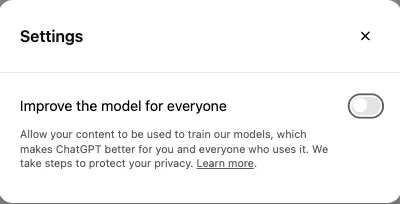
OpenAI’s example shows the model-training control, which is separate from memory and parental conversation access. Image source: OpenAI Help Center.
Memory personalizes responses using available context. Its controls and availability can vary by account, plan and region. Review the current Memory documentation and the options shown in the account. Turning personalization off should not be treated as a promise that previous conversations or saved information have been deleted.
Before uploading schoolwork or screenshots, remove classmates’ names, addresses, contact details and private messages. Teach the same rule for voice and images. A useful exercise is to rewrite a real question using fictional names and only the details needed to solve it.
Check the setup without invading privacy
- Check the invitation status in both accounts and make sure you are inspecting the intended teen profile.
- Review the available content, privacy and schedule settings together. If a control is absent, consult current support documentation rather than follow an older screenshot blindly.
- Start an ordinary new conversation to check the expected learning workflow. Do not create dangerous or distressing prompts to test safety notifications.
- Confirm where notifications should arrive and explain who will respond. Product documentation notes that activation can take several hours; do not assume an immediate setup alert.
- Recheck the link after account changes. If settings appear inconsistent, note the account, app version and setting involved before contacting official support.
For the wider family setup, use our parental-control setup checklist. Our parental-control privacy guide covers choosing proportionate monitoring and protecting the parent account.
A practical family agreement
Keep the agreement short enough to remember: no private information about other people, no relying on AI alone for important decisions, and a clear time to stop. Add a promise from the adult too: questions and mistakes can be discussed without secretly demanding access the product does not provide.
Revisit the rules as your teen becomes more independent. ChatGPT’s settings help implement parts of that agreement, while the relationship supplies the context a dashboard cannot.
Frequently asked questions
Can parents read a teen’s ChatGPT conversations?
No. Linked-account parental controls do not provide conversations, chat history or a real-time activity feed.
Does Study mode stop every non-homework conversation?
No. It supports learning through guided questions and explanations. Study hours apply to eligible new main chats, not every existing conversation, GPT or Project.
Does turning off model training delete chat history?
No. The training control and chat deletion are separate. Review memory and other privacy options separately as well.
Can a teen unlink the parent account?
Yes. Either account can unlink. Controls and safety notifications stop, and the parent is notified when the teen unlinks.
Do I need a paid monitoring app just to use ChatGPT’s parental controls?
Start with ChatGPT’s own available account controls. A separate device or family-control tool serves a different job, such as managing other apps or device-wide schedules; it does not automatically add access to ChatGPT conversations.
Share this article

Stuart Kerr Spindlow is Impulsec’s Publisher, Chief Editor and Lead Reviewer. He writes and maintains coverage of consumer cybersecurity and digital-safety software, with a focus on practical suitability, limitations and the evidence behind product claims. Read Stuart’s full profile.