


Roku devices are great for streaming, but some parents might worry about kids seeing unsuitable stuff. If that’s a concern, I’ve checked out Roku’s parental controls and can help you set them up. To activate parental controls on Roku, just create a PIN and set content filters for specific channels and Live TV. If you want to make sure your kids are safe while enjoying their favorite shows, this guide is just for you!
Roku offers several ways to manage what your kids can watch. You can create a PIN to restrict purchases and prevent kids from adding new channels. For Roku TVs, you can also set up content filters for live TV channels. These controls help you feel more at ease about what your children are watching.
The Roku parental controls tool is actually part of the main Roku mobile app. With it, you can easily manage settings, including parental controls, right from your phone. This makes it simple to adjust restrictions on the go or check what your kids are watching when you’re not at home.
Key Takeaways
- Roku allows parents to set up PINs and content filters to restrict access
- The Roku mobile app lets you manage parental controls from your phone
- Parental control options vary between Roku devices and Roku TVs
Understanding the Roku Channel Parental Controls

Does Roku have parental controls? Roku offers tools to manage content access. These features help control what kids can watch on the streaming platform.
Overview of Roku Platform
Roku is a popular streaming device and platform. It lets users access many streaming services through one interface.
Roku comes in different forms. There are Roku streaming sticks, boxes, and smart TVs with Roku built-in.
The platform hosts thousands of channels. These include free and paid options. Users can watch movies, shows, live TV, and more.
Fundamentals of Parental Controls
Roku has parental control options to limit content access. I can set up a PIN to restrict certain actions.
The main parental controls on Roku include:
- Content rating limits
- Channel addition restrictions
- Purchase prevention
I can set up a 4-digit PIN to lock these settings. This stops kids from changing them.
Some streaming services on Roku have their own parental controls too. I may need to set these up separately within each app.
Setting Up Parental Controls on Roku
Roku offers several ways to control content access. I’ll explain how to create a PIN, set preferences, enable controls on The Roku Channel, and manage content through streaming services.
Creating a PIN for Roku Account
Can you put parental controls on Roku? Yes. Here’s how to setup parental controls on Roku.
To set up parental controls on my Roku device, I need to create a 4-digit PIN first. This PIN helps protect my account and restrict unauthorized purchases or channel additions.
Here’s how I create a Roku PIN:
- I go to my.roku.com and sign in
- I click on “PIN preference”
- I select “Create PIN”
- I enter a 4-digit number
- I save the changes
It’s important to choose a PIN that’s easy for me to remember but hard for others to guess. I avoid using obvious numbers like birthdays or address digits.
Configuring PIN Preferences
After creating my Roku PIN, I can set up preferences for when it’s required. This step is crucial for managing what content can be accessed without my permission.
I can choose to require the PIN for:
- Making purchases
- Adding channels
- Both purchases and adding channels
To configure these settings, I:
- Go to my.roku.com
- Sign in to my account
- Click on “PIN preference”
- Select my desired options
- Save the changes
By setting these preferences, I ensure that my kids can’t add new channels or make purchases without my knowledge.
Activating Parental Controls for The Roku Channel
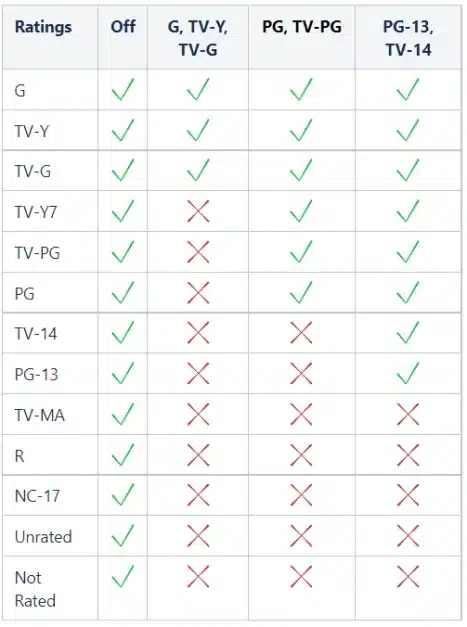
The Roku Channel has its own set of parental controls. I can enable these controls to restrict access to inappropriate content based on movie ratings.
To set this up:
Here’s a step-by-step guide for activating Roku parental controls:
-
I open The Roku Channel.
-
I go to Settings.
-
I select “Parental Controls.”
-
I enter my 4-digit PIN.
-
I choose the maximum allowed ratings for movies and TV shows.
This helps me filter out content that’s not suitable for my kids. I can always adjust these settings later if needed.
Controlling Content Through Streaming Services
Many streaming services on Roku have their own parental control options. I need to set these up individually for each service we use.
For example, to block YouTube, I can:
- Remove the YouTube channel from my Roku
- Set my PIN preferences to prevent re-adding channels
Other services like Netflix and Hulu have built-in parental controls. I access these through each app’s settings menu.
By combining Roku’s PIN system with individual app controls, I create a comprehensive content filtering system for my family.
Using the Roku Parental Controls Tool

The Roku parental control app gives parents more control over their children’s viewing habits. It offers an easy way to manage content and restrict access to inappropriate material.
Benefits of the Parental Control App
The Roku parental control app has several advantages. I find it helps keep kids safe while using Roku devices.
The app lets me set up profiles for each child. This means I can customize restrictions based on age and maturity level.
I can block specific channels or types of content. This keeps inappropriate shows and movies off-limits.
The app also lets me set time limits. I can decide how long kids can watch TV each day.
One great feature is the ability to monitor viewing activity. I can see what my kids are watching and for how long.
How to Install and Use the App
Installing the Roku parental control app is simple. I start by downloading it from my device’s app store.
Once installed, I link it to my Roku account. This gives the app access to my Roku devices.
To set up controls, I create a PIN. This prevents kids from changing the settings.
Next, I set up profiles for each child. I can choose age ratings and block specific content.
I can also restrict app purchases to avoid unexpected charges.
The app dashboard shows me an overview of all settings and activity. I can make changes anytime, from anywhere.
Regular updates keep me in control of my family’s viewing habits. It’s a powerful tool for managing screen time and content.
Managing Access and Content
Roku offers tools to control what content can be viewed and accessed. I’ll explain how to limit access to certain types of content and block or hide specific channels.
Limiting Access to Content
To restrict access to content on Roku, I can set up parental controls. This requires creating a 4-digit PIN. With the PIN, I can limit what shows and movies can be watched based on their ratings.
For Roku TVs, I can control access to live TV content. This blocks programs that fall outside the rating limits I set.
It’s important to note that parental controls only work for the Live TV input. They don’t affect other streaming apps.
To set this up, I press the Home button on my remote, go to Settings, then select Parental Controls.
Blocking and Hiding Channels
I can also manage access by blocking or hiding channels on my Roku device.
To block a channel:
- I go to the Roku Channel Store
- Find the channel I want to block
- Select “Remove channel”
For hidden channels, I can remove them from the Live TV Channel Guide. This is helpful if I only want to see over-the-air channels.
To hide channels:
- I go to Settings
- Select TV inputs
- Choose Hide streaming TV channels
By using these tools, I can better control what content is accessible on my Roku device.
Conclusion and Personal Recommendation
Roku offers useful parental control options to help keep kids safe. I think the PIN feature is especially handy for restricting mature content and purchases.
For families, I recommend setting up a PIN right away. It’s quick and gives peace of mind. The Kids & Family section is also great for curating kid-friendly content.
Don’t forget to set controls on individual streaming apps too. Many popular services have their own parental settings.
In my view, the Roku parental control app is a must-have tool. It lets you monitor activity and manage apps across devices.
For the best protection, I suggest using a combination of Roku’s built-in controls and app-specific settings. This creates multiple layers of safety.
Remember to talk with kids about online safety too. Parental controls work best when paired with open communication.
Overall, I find Roku’s parental control options to be user-friendly and effective. With a little setup, they can help create a safer streaming environment for the whole family.
Frequently Asked Questions
Roku offers several parental control options to help manage content access. I’ll cover how to set up and manage these controls, reset PINs, and troubleshoot common issues.
How do I set up parental controls on my Roku device?
To set up parental controls on Roku, I need to create a PIN first. I go to Settings > Parental controls and select “Create PIN.” Then I enter a 4-digit code. After that, I can choose which ratings to block for movies and TV shows.
Setting up a PIN is the key first step for Roku parental controls app.
What steps should I follow to reset my Roku parental controls PIN?
If I forget my PIN, I can reset it easily. I go to Settings > Parental controls > Reset PIN. I’ll need to enter my Roku account password to confirm. After that, I can create a new 4-digit PIN.
Are there any apps available to enhance parental controls on Roku?
Roku doesn’t have official parental control apps. But some streaming apps on Roku have their own parental settings. I can set controls in apps like Netflix or YouTube Kids separately.
Can I impose a time limit on Roku TV for child viewers?
Roku doesn’t have a built-in feature for time limits. I can use the parental controls to block content at certain times. Or I can set up a separate kids’ profile with limited content.
How do I enable parental controls for streaming apps on my Roku?
For most streaming apps, I need to set parental controls within the app itself. I open the app, go to its settings, and look for parental control options. Some apps may require a separate PIN.
Is there a way to fix issues when Roku parental control are not functioning properly?
If parental controls aren’t working, I first check if my Roku software is up to date. I can also try resetting the PIN. If problems continue, restarting my Roku device often helps. For ongoing issues, contacting Roku support is my best bet.
That’s All For Now
I hope this article has been helpful in explaining Roku parental controls. These features are important for families to manage content access. I’ve covered the key points about setting up PINs, blocking channels, and using the parental control options.
Thank you for taking the time to read this information. Parental controls play a big role in creating a safe viewing environment for kids. I encourage you to check back for any updates on this topic.
If you want to learn more, take a look at the related articles linked below. They go into more depth on specific parental control settings and how to use them effectively.
I appreciate your interest in this subject. Protecting young viewers is crucial in today’s digital world. Feel free to explore the other resources I’ve provided for extra tips and guidance.
Thanks again for reading! I hope you found this information useful for setting up Roku parental controls in your home.
Share this article

Stuart Kerr Spindlow is Impulsec’s Publisher, Chief Editor and Lead Reviewer. He writes and maintains coverage of consumer cybersecurity and digital-safety software, with a focus on practical suitability, limitations and the evidence behind product claims. Read Stuart’s full profile.
Hi Chris, I do not see an official Roku option to hide PIN entry on the TV screen itself. Roku’s support pages explain how to set parental controls and account PINs, but they do not mention a hidden-entry method, and Roku also separates the account PIN from Roku TV parental controls. So if the Roku mobile app is the only method you found that feels more private, that may simply be the most practical workaround rather than a setting you missed.
One thing worth keeping in mind is that Roku’s built-in parental controls mainly apply to The Roku Channel, while the Roku account PIN is for purchases and adding apps. So even with a PIN, Roku’s control options are narrower than many people expect.
Is it possible to put in your pin without it being displayed on the TV screen? The only way I found is to use the app which is a hassle, no remotes seem to work.