


Instagram is a popular social media platform that can present dangers for young users. As a guardian, I recognize the importance of safeguarding children’s online experiences. That’s why I want to share tips on setting up parental controls on Instagram. These tools allow you to monitor your child’s internet usage, set time limits, and restrict certain content. For parents seeking to protect their kids while using social media, activating these controls is crucial.
How to turn on parental controls on Instagram? I’ve looked into the different options Instagram offers for parents. The main feature is called Supervision, which connects your account to your child’s. This lets you see who they follow and how much time they spend on the app. You can also set daily time limits to manage screen time.
To get started on this guide on how to turn on parental controls on Instagram, you’ll need to create a separate account for yourself. Then you can link it to your child’s account through the Family Center. If you’re wondering how to put restrictions on Instagram, it’s pretty easy to set up, and I’ll walk you through the steps.
Key Takeaways
- Instagram’s Supervision feature lets parents monitor their child’s activity
- You can set daily time limits and content restrictions
- Communication with your child about online safety is crucial
Understanding How to Turn on Parental Controls on Instagram
Instagram is a popular social media app with many features. It can be fun but also has some risks. I’ll explain how it works, how to set up parental controls on Instagram and what to watch out for.
The Basics of Instagram Features
Instagram lets users share photos and videos. They can post to their profile or add Stories that vanish after 24 hours. Reels are short videos set to music.
Users can follow others to see their posts. The app shows content based on what you like and who you follow. Direct Messages let people chat privately.
Filters can change how photos look. Users can add captions, hashtags, and tag others in posts. The Explore page shows trending content.
Potential Risks on Social Media
Social media can affect mental health and self-esteem. Seeing curated posts may make teens feel bad about themselves. Cyberbullying is also a concern.
Online predators may try to contact minors. I advise being careful about who kids talk to online. Some users may share inappropriate content.
Too much screen time can disrupt sleep and daily life. It’s easy to get caught up scrolling for hours. Setting time limits can help create balance.
Privacy is another issue. I suggest reviewing Instagram’s privacy settings. Users can control who sees their posts and stories. That said, it’s important to know how to turn on parental controls on Instagram.
Setting up Instagram Parental Controls
So how to turn on parental controls on Instagram? Instagram offers several tools to help parents protect their children online. These features let you control privacy, manage content, and limit interactions.
Creating a Private Account
In this section of our guide on how to turn on parental controls on Instagram, I recommend setting up a private account for your child on Instagram. This keeps their posts and stories visible only to approved followers. To do this:
Here’s a step-by-step guide for how to put parental controls on Instagram:
-
Go to your child’s profile
-
Tap the three lines in the top right
-
Select Settings and privacy
-
Toggle on “Private account”
With a private account, your child must approve all follow requests. This gives them control over who sees their content.
Managing Content Exposure
Instagram lets you restrict what content your child can see. To adjust these settings:
- Go to Settings and privacy
- Tap Content preferences
- Select Sensitive content control
Here you can choose “Less” to reduce exposure to sensitive content. You can also use the Family Center to set time limits on app usage.
For added protection, turn on the “Hide Offensive Comments” feature. This uses AI to filter out potentially harmful comments.
Controlling Interactions
I suggest limiting who can interact with your child’s account. You can:
- Restrict direct messages to followers only
- Turn off comments on posts
- Block specific users
To manage these settings:
- Go to Privacy
- Select Messages
- Choose “Your followers on Instagram”
This prevents strangers from sending direct messages. You can also use the Comments section to control who can comment on posts.
By using these tools, you can create a safer Instagram experience for your child.
Supervision Features and Family Center

In this section of our guide on how to turn on parental controls on Instagram, Instagram offers tools to help parents keep their teens safe online. These Instagram content restrictions let parents see activity and set limits on their teen’s account.
Using Instagram’s Supervision Tools
How to put parental controls on Instagram? I can explain how to use Instagram’s supervision tools. Parents can view their teen’s followers and following lists. They can also see how much time their teen spends on the app each day.
To set up supervision, teens must start the process on their mobile device. They’ll need to approve their parent’s request to supervise the account.
Parents can set daily time limits for their teen’s Instagram use. If a teen reports someone, parents will be notified.
These tools help create a safer online experience. They open up conversations between parents and teens about social media use.

Accessing the Family Center
The Family Center is where parents manage supervision settings. I can guide you through accessing it.
To get to the Family Center, parents should open their Instagram app. Tap the menu icon, then select “Settings.” Look for “Supervision” and tap it.
In the Family Center, parents can view their teen’s Instagram activity. This includes new followers, accounts they follow, and time spent on the app.
Parents can also set up notifications here. They’ll be alerted if their teen changes certain privacy settings.
The Family Center aims to make Instagram safer for teens. It gives parents insight while respecting teens’ privacy.
Communication and Online Interactions
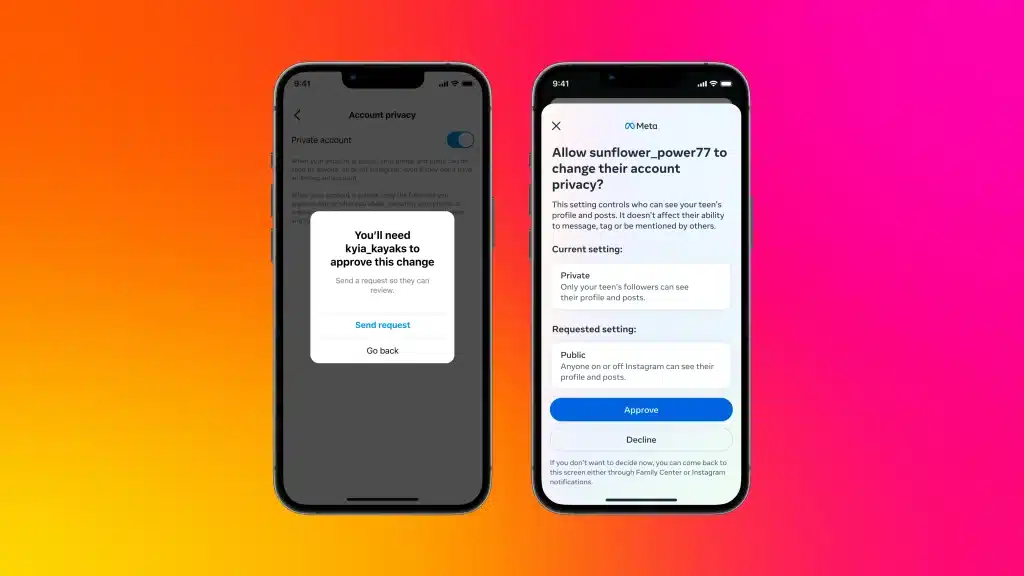
Instagram offers ways to keep kids safe while chatting and interacting online. Parents can set up controls to protect their children from harmful messages and bullying. In this section of our guide on how to turn on parental controls on Instagram, let’s explore how you can make this happen.
Direct Message Safety
I recommend turning on message controls for your child’s account. This limits who can send them direct messages. To do this, go to Settings > Privacy > Messages. Here, you can choose “Your Followers” or “Followers you follow back” instead of “Everyone.”
Vanish Mode is another feature to watch out for. It lets messages disappear after being seen. I suggest disabling this to keep a record of your child’s chats.
Parents should also talk to their kids about not sharing personal info in DMs. This helps protect them from online predators.
Combatting Online Harassment
Instagram has tools to fight bullying and harassment. I recommend using the Comment Controls feature. It lets you hide offensive comments automatically.
To turn this on, go to Settings > Privacy > Comments. Then, toggle on “Hide Offensive Comments.”
You can also block or restrict accounts that bother your child. Blocking stops all contact. Restricting is more subtle – it hides comments without the other person knowing.
Instagram’s supervision tools let parents see who their teen interacts with. This can help spot potential bullying early on.
Screen Time Management
Instagram offers tools to help parents manage their child’s time on the app. In this section of our guide on how to turn on parental controls on Instagram, I’ll explain how to set up time limits to promote healthy social media habits.
Implementing Time Limits
How to set screen time on Instagram? I can use Instagram’s built-in features to set daily time limits for my child’s account. To do this, I need to set up parental supervision in the Family Center. Once connected, I can choose a daily time limit between 15 minutes and 2 hours.
When the time limit is reached, my child will see a notification. They can choose to ignore it, but I’ll get an alert if they do. This helps me start conversations about healthy app use.
I can also use my device’s screen time settings to restrict Instagram usage. On iOS, I go to Settings > Screen Time > App Limits. On Android, I use Digital Wellbeing > App Timers. These options let me set stricter limits that block the app when time is up.
Conclusion and Personal Recommendation
Now let’s wrap up our guide on how to turn on parental controls on Instagram;
Setting up parental controls on Instagram teen accounts is a smart move for families. It helps keep kids safer online while teaching good digital habits.
I think the supervision features are really useful. They let parents see activity, set time limits, and get notifications about follows or reports.
To use them, both parent and teen need Instagram accounts. Then you can link them through the settings.
Here’s a quick checklist to set up Instagram restrictions:
- Create accounts for you and your teen
- Go to Settings > Supervision
- Follow the prompts to connect accounts
- Choose which controls to enable
I recommend starting with time limits and follow notifications. You can always adjust later as needed.
Remember, open communication is key. Talk to your teen about online safety and your reasons for using these tools.
With the right approach, parental controls can be a positive part of your family’s digital life. They provide peace of mind while still respecting your teen’s growing independence.
Frequently Asked Questions
Parents have many options to monitor and manage their child’s Instagram activity. In this section of our guide on how to turn on parental controls on Instagram, I’ll cover key details about how to put restrictions on Instagram, setting up supervision, viewing account information, and applying restrictions.
How to create a parent managed Instagram account?
To create a parent-managed account, I first need to set up supervision. I go to my Instagram profile, tap Settings, then “Supervision” under “Parental Controls.” I follow the prompts to connect my account to my teen’s. This lets me oversee their activity.
What can parents see on Instagram supervision?
How to turn on parental controls on Instagram so you can supervise your kids? With supervision, I can view my teen’s followers and who they follow. I also see how much time they spend on Instagram daily. I can set time limits and schedule breaks. However, I can’t see their private messages or content they’ve marked as sensitive.
How to accept supervision on Instagram?
As a teen, to accept supervision, I open the invitation sent by my parent. I tap “Accept” in the notification or go to Settings > Supervision. I review the permissions and tap “Allow” to give my parent access to monitor my account.
Instagram under 18 restrictions – what are they?
Instagram automatically sets accounts to private for users under 16. It limits who can message me and restricts adults from contacting teens who don’t follow them. Content controls also filter out sensitive material for younger users.
How to set up a family center on Instagram?
How to set up parental controls on Instagram? To set up Family Center, I open Instagram and go to Settings. I tap “Supervision” under “Parental Controls.” I follow the steps to invite my teen to connect our accounts. Once linked, I can access Family Center features to manage their Instagram use.
Can parents control who their child follows on Instagram?
I can’t directly control who my child follows. But I can see their follower list through supervision. If I’m concerned about a specific account, I can talk to my child about it. I can also encourage using privacy settings to limit who interacts with their profile.
That’s All For Now
I hope you found this guide on how to turn on parental controls on Instagram helpful. Setting up these safety measures is crucial for protecting young users online.
Thanks for taking the time to read through this important information. I encourage you to put these tips into practice if you have teens using Instagram.
Check back soon for more updates on social media safety features. This is an ever-changing landscape, so staying informed is key.
I’ve included links to related articles below with additional details on digital wellbeing and online safety for families. These topics are so vital in our connected world.
Your child’s online experience matters. Taking steps to create a safer environment shows you care. I’m glad I could provide some guidance on using Instagram’s tools.
Thanks again for reading! Let me know if you have any other questions about Instagram parental controls.
Share this article

Stuart Kerr Spindlow is Impulsec’s Publisher, Chief Editor and Lead Reviewer. He writes and maintains coverage of consumer cybersecurity and digital-safety software, with a focus on practical suitability, limitations and the evidence behind product claims. Read Stuart’s full profile.