


Quick answer: Apple Watch parental controls depend on how the watch is paired. Apple Watch For Your Kids lets a parent manage a supported child’s watch from their own iPhone, including contacts, Screen Time settings and Schooltime. It does not provide every feature of a watch paired to its owner’s iPhone. Schooltime can be exited temporarily, and location depends on the device and its connection.
As a parent, I want a child to be able to contact trusted people without giving them unrestricted access to another screen. A family-managed Apple Watch can fit that job, provided you check the setup and its limits before buying. Start with the child’s account, school rules and connection needs; the model name alone does not tell you what you can manage.
Choose the right Apple Watch setup
Apple calls its family-managed arrangement Apple Watch For Your Kids, formerly Family Setup. The child has their own Apple Account and a compatible watch, while the parent uses their iPhone to set up and manage it. The child does not need their own iPhone for this arrangement.
A watch paired normally to a child’s own iPhone is a different setup. Review the family and Screen Time settings on that iPhone and the features supported by the watch. Do not expect every Family Watches menu or restriction to behave identically across the two arrangements.
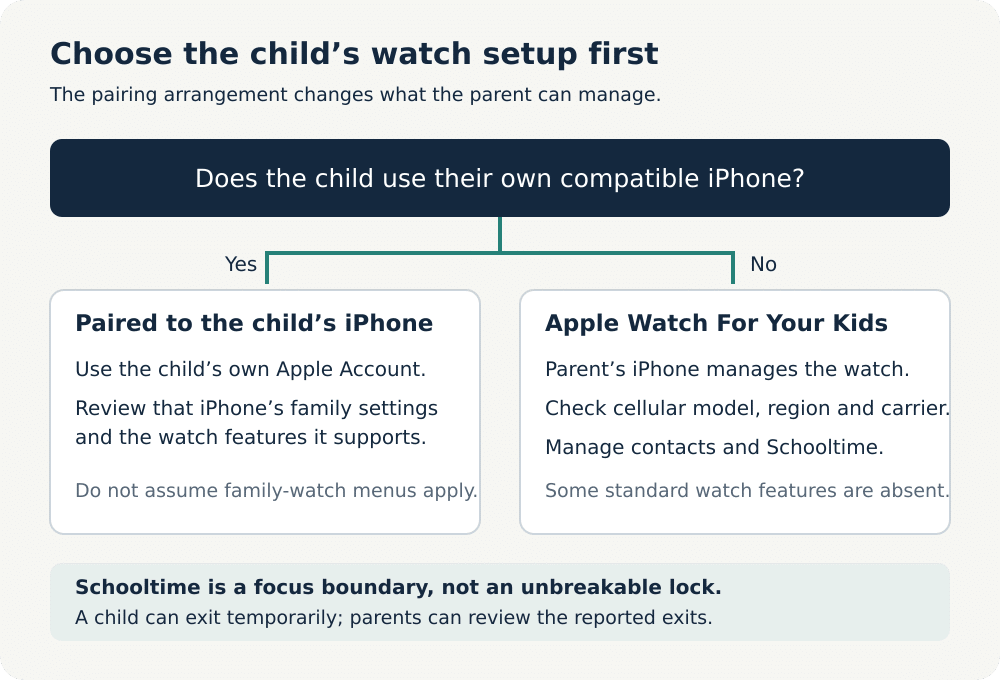
Before choosing a watch, check Apple’s current family-watch requirements and the separate Apple Watch For Your Kids carrier list. You need a supported cellular-capable model, compatible software, an eligible region and the right accounts. Carrier support for an ordinary paired watch does not automatically mean support for a family-managed one.
What you need before setup
- A parent’s compatible iPhone and a watch that meets Apple’s current family-setup requirements. Check the exact model and software rather than relying on a generic minimum-series claim.
- Separate Apple Accounts for you and the child, with two-factor authentication on your account and the child in your Family Sharing group.
- Family organiser or parent/guardian permission in that group. Keep the child’s account details and recovery arrangements accessible to the responsible adult.
- A plan for connectivity away from home. A cellular plan is not required simply to complete setup, but some features require a connection or an appropriate plan. Confirm supported services and charges with the carrier.
Use the child’s real account and age details. Sharing the parent’s identity to get around setup limits can complicate contacts, purchases, privacy and account recovery. Check the school’s watch policy before arranging classroom use or a subscription.
Set up the watch for a family member
- Turn on the watch, bring it near your iPhone and follow the pairing prompt. Alternatively, open the Watch app, select All Watches and Add Watch.
- Choose Set Up for a Family Member rather than pairing it as your personal watch. Select the child in your family group and follow Apple’s account and passcode prompts.
- Review the offered purchase approval, cellular, location and contact settings. Decide deliberately which contacts are shared; do not simply expose the parent’s whole address book.
- Configure Schooltime and Screen Time settings for the child’s actual routine, then check the result together on the watch.
- To manage it later, open Watch on the parent’s iPhone, choose All Watches, select the watch under Family Watches and tap Done. Available settings depend on the setup and software.
This is the workflow in Apple’s current setup documentation, checked on 19 October 2026. If a menu differs, use the current guide for your version instead of looking for an old General → Restrictions switch. A watch already paired to another phone may need its existing pairing and Activation Lock resolved through the legitimate owner before it can be set up again.
Manage contacts, apps and purchases
During setup, you can share selected trusted contacts with the watch. Afterwards, use the available Contacts and Screen Time settings to review communication and content restrictions. Include the adults the child actually needs to reach, and check the behaviour with an ordinary call or message together.
Apple’s family-watch settings guide lists the settings that can be managed, including Schooltime, Screen Time, Contacts and Find My. Treat the options shown for that child’s watch as the relevant controls. A generic iPhone app-limit tutorial is not evidence that every watch app can be locked in the same way.

Family watch settings on iPhone. Image: Apple.
Turn on Ask to Buy for eligible App Store purchases and downloads when appropriate. On current iPhone software, the route is Settings → Family → the child → Apps & Websites → Restrictions → Ask to Buy. Older versions can use a different layout. Purchase approval has exceptions, such as updates and redownloading the child’s own previous purchase; it is not a universal approval prompt for every action.
Keep the parent’s Screen Time passcode separate from the child’s everyday watch-unlock code. Explain which apps and contacts are allowed, and check what happens when a restriction applies. Restrictions work better when the child knows how to ask for an exception.
Use Schooltime with its temporary-exit limit in mind
Schooltime is designed to reduce distractions. During the schedule it limits apps and notifications and shows a distinctive watch face. Set the schedule through the child’s managed watch in the parent’s Watch app; use Edit Schedule to choose days and add periods such as lessons.
A child can exit Schooltime temporarily, for example to check an urgent message. Apple provides parental reporting of exits, and scheduled Schooltime resumes when the display sleeps or the wrist is lowered. Treat temporary exits as part of the feature, rather than expecting an unbreakable lock. Agree what counts as a reasonable exit and review repeated interruptions calmly.
Do Not Disturb or another Focus setting is not equivalent to a parental schedule. It changes interruptions, while Schooltime is a specific family-watch focus feature. Ask the child to demonstrate the difference before relying on it during school.
Understand location and privacy
Find My can help a family locate a shared device or person, but it is not a guarantee of continuous supervision. Check which family member is sharing, whether the watch is connected, and whether the displayed position is current. A flat battery, poor reception, disabled sharing or a watch left at home can make the map misleading.
Discuss who can see the child’s location and why. Restrict sharing to people with a clear need, review it when routines change, and avoid treating every delayed update as evidence that the child has done something wrong. For a broader device choice, see our guide to built-in controls and paid apps.
Check payment, health and emergency limitations
A family-managed watch does not have all the features advertised for a standard Apple Watch. Apple’s current list says credit and debit card Apple Pay is unavailable in this setup. Apple Cash Family is a separate US-only service, not a way to add the parent’s ordinary payment card everywhere. Check any transit or payment arrangement for the actual market.
Health features also differ by age and setup. Fall Detection is available only from age 18, while heart-rate notifications have their own age requirement. Apple lists ECG, irregular-rhythm notifications, sleep and cycle tracking among features unavailable with Apple Watch For Your Kids. Do not buy a child’s managed watch on the assumption that the adult health feature list applies.
For children under 13, the activity Move goal uses minutes rather than active calories. Apple’s existing activity demonstration below explains the standard activity interface; it is not a demonstration that every health feature or calorie display is available on a managed child’s watch.
Review Emergency SOS and emergency contacts with the child, using Apple’s instructions without making a test emergency call. Emergency access depends on the model, available networks and local services. A watch supplements a practical family contact plan; it cannot guarantee help or prevent harm.
If parental controls are missing or not working
- Check the pairing arrangement first. If the watch is paired as the parent’s own watch, the family-management menus will not be the right ones.
- Confirm the child’s separate account, Family Sharing membership and the adult’s organiser or guardian role.
- Check software, region, watch model and the carrier’s family-watch support. Resolve an unsupported combination before assuming a control has failed.
- For Schooltime, inspect the schedule and reported exits. A temporary exit is expected behaviour, not proof that the schedule was never saved.
- For location, inspect connection, battery and sharing status, then compare the displayed update time with the child’s actual situation.
- For purchases, distinguish a new eligible request from an update or a redownload that does not require Ask to Buy approval.
My recommendation for families
I would choose a family-managed watch for a child who needs a focused way to contact trusted people and whose school permits it. Agree contacts, Schooltime and location sharing before handing it over. If the child already needs an iPhone, assess that phone’s controls as part of the decision rather than assuming the watch arrangement is identical.
Start with Apple’s native controls. A phone-monitoring app does not automatically add chat transcripts, web filtering or an unbreakable watch time limit. Check exact watch support before paying for a third-party product. The useful buying decision is whether this setup meets your family’s contact and independence needs, with its current limits understood.
Frequently asked questions
Can a child use Apple Watch without their own iPhone?
Yes, through Apple Watch For Your Kids when the watch, parent’s iPhone, accounts, region and carrier arrangement meet Apple’s requirements. This differs from ordinary pairing to the child’s own iPhone.
Can my child leave Schooltime?
Yes. Apple permits temporary exits and provides parents with exit reporting. Scheduled Schooltime resumes when the watch display sleeps or the wrist is lowered.
Does a family-managed watch need a cellular plan?
A plan is not required simply to complete setup, but some features and use away from available connections depend on cellular service. Check the supported family-watch carrier and the services you need.
Can I add my credit card to my child’s family-managed watch?
Apple says credit and debit card Apple Pay is unavailable with Apple Watch For Your Kids. Apple Cash Family is a separate service limited to the US.
Do all Apple Watch health features work for children?
No. Age requirements and family-setup exclusions apply. Check Apple’s current feature list for the exact setup instead of using the standard adult watch feature list.
Do I need a paid monitoring app?
Not automatically. Apple’s native settings handle the supported watch controls. Buy another tool only if it explicitly supports the particular device and gap you need to address.
Share this article

Stuart Kerr Spindlow is Impulsec’s Publisher, Chief Editor and Lead Reviewer. He writes and maintains coverage of consumer cybersecurity and digital-safety software, with a focus on practical suitability, limitations and the evidence behind product claims. Read Stuart’s full profile.