


Trying to keep kids safe online these days? It’s honestly a lot. Parents are juggling the need to block inappropriate stuff without making the internet a pain for everyone else in the house.
Most parental control software feels overpriced, complicated, and expects you to install clunky apps on every single device. I know plenty of families who’ve just given up, frustrated by constant updates or surprise subscription fees.
OpenDNS Family Shield is a totally free, DNS-based filtering service that blocks adult content, phishing sites, and proxy servers for every device on your home network. No software to install—just a quick tweak to your router or device settings and you’re done.
After messing around with it quite a bit, I have to sayFirst thing I do is visit the OpenDNS test page. I just head over to: it’s basic but does the job. Setup is surprisingly quick, and you can cover your whole network in just a few minutes.
Sure, OpenDNS Family Shield ranks 25th out of 27 parental controls because its features are pretty limited. But if you just want simple web filtering as a first line of defense, it’s hard to beat—especially for the price.
This guide will show you how to get FamilyShield running, what DNS addresses you need, how to troubleshoot, and what you shouldn’t expect compared to pricier parental control solutions.
Key Takeaways
- OpenDNS FamilyShield blocks adult and malicious sites for free, with zero software installs.
- Setup just means changing DNS settings on your router or device to specific OpenDNS servers.
- It’s basic: no time limits, app blocking, or activity monitoring—just web filtering.
What Is OpenDNS FamilyShield?
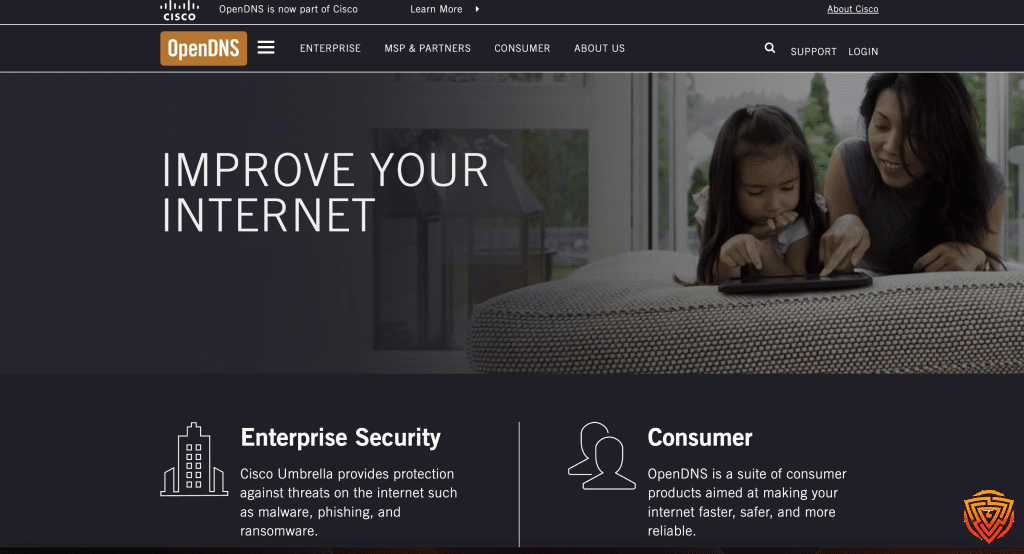
OpenDNS FamilyShield is a free DNS-based web filtering service that blocks adult content and malicious sites on every device connected to your network. You just change your DNS settings to OpenDNS’s preconfigured filtering system and it starts working—no software, no headaches.
Purpose and Benefits
FamilyShield is probably the easiest way to keep kids away from harmful content because it filters at the DNS level. That means it covers everything—laptops, phones, gaming consoles, even smart TVs.
It also blocks phishing and malware sites automatically, which is a nice bonus over those “just for kids” filters.
Once you set it up, there’s nothing else to do. No accounts, passwords, or annoying update reminders. The system just works in the background, routing your traffic through OpenDNS nameservers (208.67.222.222 and 208.67.220.220), and checks every website request against a big list of blocked categories.
Key benefits:
- Full network protection
- No software installs or updates
- Unlimited devices
- Blocks malware and phishing sites
- Free forever
Key Features
FamilyShield blocks four main categories: Pornography, Tasteless, Proxy/Anonymizer, and Sexuality. “Tasteless” covers stuff like suicide promotion, anorexia, or graphic violence.
Blocking Proxy/Anonymizer sites is actually pretty important—it stops people from using VPNs or similar tools to get around the filter.
I tested it and, yeah, it blocked mature sites, phishing attempts, and VPN providers right away. No weird lag or slow browsing either.
FamilyShield works on:
- Windows and Mac computers
- iOS and Android phones/tablets
- Chromebooks, Kindles
- Routers (network-wide)
- Linux too
But there’s no customization. You can’t pick and choose categories or make your own block list. It’s all or nothing.
Comparison With Other OpenDNS Products
OpenDNS has two free options. FamilyShield is the “set it and forget it” version—no account needed, no settings to manage. OpenDNS Home asks you to register, but then you can fine-tune things.
Plan comparison:
| Feature | FamilyShield | OpenDNS Home |
|---|---|---|
| Account required | No | Yes |
| Custom filtering | No | Yes (55+ categories) |
| Usage statistics | No | Yes |
| Whitelist domains | No | Yes |
OpenDNS Home lets you filter by 55+ categories, including stuff like alcohol, dating, games, and weapons. You can also see usage stats and which blocked sites your family tried to visit.
FamilyShield is best if you want something quick and simple, no settings to mess with. OpenDNS Home is better for parents who want detailed control and reports.
Both are free and cover unlimited devices. The real difference is how much control you want.
How OpenDNS FamilyShield Works

FamilyShield uses DNS filtering to block harmful sites. You just change your DNS settings and, boom, it starts blocking adult content, malware, and phishing without a single download.
DNS Filtering Technology
When I set up FamilyShield, I swap my router’s DNS settings to OpenDNS servers instead of my ISP’s. The addresses are:
- 208.67.222.123
- 208.67.220.123
Anytime someone tries to visit a website, their device asks these servers where to find it. If it’s on the block list, the request is denied.
This all happens before the website even loads. FamilyShield DNS filtering works at the network level, so it covers everything connected to your home WiFi.
No need to install anything on each device. Once the router is set up, you’re good.
Default Blocked Content
FamilyShield blocks four main types of content by default, and you can’t change these categories.
The blocked groups are:
- Tasteless content – Disturbing, offensive stuff
- Proxy/Anonymizer sites – VPNs and similar tools
- Sexuality content – Adult topics
- Pornography – Explicit content
OpenDNS sorts sites into these groups and blocks them. It also keeps out phishing and malware.
Try to visit a blocked site and you’ll get a message saying it’s restricted.
Automatic Updates and Protection
OpenDNS servers keep their blocked lists up to date automatically. New bad sites get added as they show up online.
No updates to download, no maintenance. As long as your devices use the FamilyShield DNS, you’re covered.
The protection even catches new phishing and malware domains. OpenDNS is always scanning for new threats and adding them to the block list.
If you switch your DNS settings back to something else, the protection stops. It only works with those exact FamilyShield server addresses.
FamilyShield Nameservers and IP Addresses

FamilyShield uses its own DNS server addresses, different from regular OpenDNS. These special IPs turn on content filtering instantly—no account needed.
Designated FamilyShield IP Addresses
The FamilyShield DNS IPs are 208.67.222.123 and 208.67.220.123. Just plug these into your router or device settings for automatic filtering.
They work on anything that lets you set DNS—routers, computers, phones, tablets, you name it.
No matter what device you’re setting up, use these two addresses:
Primary DNS: 208.67.222.123
Secondary DNS: 208.67.220.123
No registration or account needed. As soon as you change the DNS, filtering kicks in.
Difference From Standard OpenDNS IPs
Regular OpenDNS uses different IPs: 208.67.220.220 and 208.67.222.222.
OpenDNS Standard IPs:
- 208.67.220.220
- 208.67.222.222
FamilyShield IPs:
- 208.67.222.123
- 208.67.220.123
Standard OpenDNS wants you to sign up and pick categories. FamilyShield is pre-set to block adult content and that’s it.
If you want FamilyShield protection, you have to use the .123 addresses. Get the IPs wrong and you won’t get any filtering, so double check for those .123 endings.
Setting Up OpenDNS FamilyShield

There are two main ways to set up FamilyShield: change your home router (which covers everything at once) or set up each device separately. Both use the same OpenDNS servers, but router setup is way more efficient.
Home Router Configuration
Honestly, router setup is the way to go. It protects every device on your network, so you don’t have to repeat the process over and over.
-
Start by logging into your router’s settings. Open a browser and type in your router’s IP (usually 192.168.1.1 or 192.168.0.1).
-
You’ll probably need a password. If you’ve lost it, there’s usually a tiny reset button somewhere on the router.
-
Find the DNS settings—look for “DNS” near some boxes for numbers (they’ll be in groups of four).
-
Before you make changes, jot down your current DNS settings. That way, you can always switch back if something goes wrong.
-
Swap in these FamilyShield servers:
208.67.222.123
208.67.220.123 -
Save your changes. Now, visit welcome.opendns.com and, if you see “Welcome to OpenDNS!” you’re all set.
Computer and Device Setup
If I can’t manage to get my router set up, I’ll just set up individual devices instead. Honestly, this is fine for homes where there aren’t a ton of gadgets to deal with.
I go into the network settings on each device I want to protect. The steps are a little different depending on what I’m using, but I’m always hunting for DNS or network configuration.
On Windows, DNS is tucked away in Network and Internet settings. For Mac, it’s under Network in System Preferences.
I punch in the same FamilyShield server addresses on every device:
- Primary DNS: 208.67.222.123
- Secondary DNS: 208.67.220.123
Phones and tablets? They let me set custom DNS too. I just head to Wi-Fi settings and tweak the DNS for my home network.
After changing DNS, each device needs a quick restart or at least a network refresh. That’s what actually makes the new OpenDNS servers kick in.
Testing and Troubleshooting OpenDNS FamilyShield

Once FamilyShield is set up, I always double-check the DNS to make sure it’s actually working. It’s also good to know how to fix common problems if something’s off.
Testing helps me confirm that OpenDNS is filtering content like it’s supposed to.
Verifying DNS Configuration
First thing I do is visit the OpenDNS test page in my browser.
If everything’s set up right, I’ll see “Welcome to OpenDNS!” on the page. That means my device is using the OpenDNS servers at 208.67.222.123 and 208.67.220.123.
I’ll also try going to a few sites that should be blocked. FamilyShield automatically blocks stuff in these categories:
- Tasteless content
- Proxy/Anonymizer sites
- Sexuality content
- Pornography
If I hit a blocked site, I get an OpenDNS blocking page instead of the real website. That’s how I know the filter’s on.
Common Issues and Solutions
If I don’t see the welcome page, I go straight to my DNS settings. Usually, it’s just a typo or the wrong address in the router or device.
I check to make sure these are the addresses I used:
- Primary DNS: 208.67.222.123
- Secondary DNS: 208.67.220.123
Sometimes, a restart is all it takes—either the router or my computer. I’ll also clear my browser and DNS cache to wipe out old info.
If only some devices are working, it might be because they’re using their own DNS settings instead of the router’s. In that case, I set up those computers individually.
Security Considerations and Limitations

OpenDNS FamilyShield only blocks four types of content and, honestly, it’s not that hard to get around if someone really tries. The protection is pretty narrow compared to other full-blown parental control tools.
Scope of Protection
FamilyShield’s filters are limited. It blocks pornography, tasteless content, proxy/anonymizer sites, and sexuality-related material.
It also blocks some malicious sites like phishing pages, so that’s a plus. This helps protect against fake sites that try to steal your info.
But there are some pretty big gaps. FamilyShield doesn’t touch gambling sites, social media, or gaming sites. Content about violence, drugs, or alcohol? Not filtered.
You can’t tweak the preconfigured filters or add your own blocked sites. No custom categories either.
FamilyShield only works at the DNS level. It doesn’t track apps, messages, or what’s happening on social media. No time limits, no usage stats, nothing like that.
Ways to Circumvent FamilyShield
Honestly, anyone with a bit of tech know-how can get around FamilyShield. Just changing the DNS back to default servers turns off filtering right away.
VPNs? They go right around DNS filtering. Sure, FamilyShield blocks a few VPN sites, but plenty are still easy to find.
If someone switches their phone to mobile data, FamilyShield’s out of the picture. It only covers devices using your home Wi-Fi.
Public Wi-Fi at school, the library, wherever—none of that’s protected. The filter only works where you set up the DNS.
And browser-based proxy websites are another loophole. They let users get to blocked content without much trouble.
Conclusion and Personal Recommendation
OpenDNS Family Shield proves that online safety doesn’t have to be expensive or complicated. With just a quick DNS change, you can block adult content, phishing, and proxy sites across every device on your home network — all for free. For families who just want a simple, network-wide safeguard, it’s one of the easiest solutions around.
But remember: Family Shield is basic by design. You can’t customize categories, set time limits, or view activity reports. It’s great as a first line of defense, but not a full parental control system. If you want more control — like blocking social media, setting daily screen limits, or tracking location — you’ll need to step up to a full parental control app.
🎯 My recommendation:
- Use OpenDNS Family Shield for free, no-hassle protection against adult and malicious content on all devices at home.
- If you need custom filters, reporting, or broader parental features, consider upgrading to OpenDNS Home or pairing Family Shield with a parental control app like Qustodio.
👉 Bottom line: OpenDNS Family Shield is a fantastic free solution for quick web filtering, but for complete peace of mind, combine it with more advanced parental control tools.
Frequently Asked Questions
OpenDNS FamilyShield uses specific DNS server addresses and blocks four main categories automatically. There’s no software to install or account to make, which is kind of refreshing.
How can I configure OpenDNS FamilyShield on my router?
I get into my router by typing something like 192.168.1.1 or 192.168.0.1 into my browser. Usually, there’s a password prompt.
Once I’m in, I look for the DNS server section—there’ll be spots for two or three sets of numbers.
I swap out the old DNS addresses for OpenDNS FamilyShield’s IPs: 208.67.222.123 and 208.67.220.123.
After saving, I check by visiting welcome.opendns.com. If I see the “Welcome to OpenDNS!” message, I’m good to go.
What categories of content does OpenDNS FamilyShield filter out?
OpenDNS FamilyShield blocks four categories: Tasteless, Proxy/Anonymizer, Sexuality, and Pornography.
I can’t change those categories or add more filters. Anything in those buckets gets blocked, period.
Is there a mobile app available for managing OpenDNS FamilyShield settings?
Nope, there’s no app for managing FamilyShield. It’s designed to work without extra software or ongoing tweaks.
I just set it up once in DNS settings and that’s it. There’s nothing to monitor or adjust in an app.
How do I set up OpenDNS FamilyShield on Android devices?
I set up FamilyShield on Android by changing the DNS in Wi-Fi settings. I just edit the network and pop in the custom DNS servers.
Same addresses as before: 208.67.222.123 and 208.67.220.123. That’ll filter stuff on that device.
Configuring individual devices works just like the router setup, but only for that particular Android.
Can OpenDNS FamilyShield be configured with specific IP addresses?
FamilyShield only works with two specific DNS server addresses. They are 208.67.222.123 and 208.67.220.123.
No way to use different numbers or customize them. It’s these addresses or nothing.
And unlike OpenDNS Home, FamilyShield doesn’t make you register your network or set up an account.
What are the performance and reliability reviews for OpenDNS Family Shield?
Is Family Shield a good parental control app? Reviews indicate that OpenDNS FamilyShield works as advertised and is completely free.
Still, you’ll notice it offers far fewer features compared to other parental control options.
The service lacks many standard parental control features like app filtering, time limits, location tracking, scheduling, and activity reports.
I can just set it up once and then forget it’s even there, so one thing to consider as parental control app is OpenDNS FamilyShield.
But honestly, the basic functionality means you’re only getting web filtering—no fancy monitoring or extra control.
Thats All For Now
Was this article helpful? Thanks for sticking around and reading this guide on OpenDNS FamilyShield.
Hopefully, it shed some light on getting started with the service and maybe even made things feel a bit less daunting.
Share this article

Stuart Kerr Spindlow is Impulsec’s Publisher, Chief Editor and Lead Reviewer. He writes and maintains coverage of consumer cybersecurity and digital-safety software, with a focus on practical suitability, limitations and the evidence behind product claims. Read Stuart’s full profile.