


Being a parent in today’s digital world means protecting kids online is just as important as keeping them safe in real life. From endless screen time to harmful websites and risky social apps, the challenges are everywhere. That’s where a free parental control app for iOS and Android can make a real difference.
The best free parental control apps for iPhone and Android let you block harmful content, set screen time limits, track app usage, and monitor location — all without hidden costs. These tools help families set boundaries while still respecting kids’ independence.
Navigating the options doesn’t have to feel overwhelming. By focusing on core features like ease of use, content filtering, and device tracking, you’ll quickly find the best free parental control app for iPhone and Android that fits your family.
📌 The best free parental control app for iPhone and Android in 2026 is Qustodio. It works across both platforms, offers a free tier with screen time and web filtering, and includes a trial so you can explore advanced features risk-free.
- The best free parental control app for iPhone and Android should help with screen time, app management, and safer browsing without making setup complicated.
- Apple Screen Time is the strongest built-in free choice for iPhone, while Google Family Link is usually the best free option for Android.
- Qustodio Free is the best cross-platform option here, but the free plan only protects 1 device.
- OurPact Free is useful, but it is limited to one child device and a small set of blocking features.
- Most free apps are best for basic control. Larger families usually outgrow them and move to a paid tool later.
Ranked List of Best Free Parental Control App for iPhone and Android
- Qustodio (Free Plan) – 🏆 Editor’s Choice – Best cross-platform option for mixed-device families
- Apple Screen Time – Best free parental control app for iPhone
- Google Family Link – Best free parental control app for Android
- Kaspersky Safe Kids (Free Tier) – Best for basic filtering and daily limits
- Microsoft Family Safety – Best for Microsoft households and Windows families
- OurPact (Free Version) – Best for basic app blocking on one child device
- Samsung Kids – Best built-in child mode for Samsung tablets and phones
- KidLogger – Best free option for basic activity logging
If you are comparing the best free parental control app android iOS options, these tools cover the essentials: screen time controls, app management, safer browsing, and basic family oversight. Each one has different strengths, from Apple’s built-in controls to cross-platform options like Qustodio.
Best Free Parental Control Apps for iPhone and Android Compared
This master table compares genuine free parental-control plans and built-in family-safety tools. Individual articles may display only the rows relevant to that platform. Features and child-device compatibility vary by platform and region.
| App | Pricing / Paid Upgrade | Free Access | Key Features | Main Free Limitation | Best For | Child Devices Supported | Review |
|---|---|---|---|---|---|---|---|
| Qustodio Free | Free for 1 child device; paid plans from $59.95/year; 👉 Check Qustodio Pricing | ✔️ Permanent limited free plan | 🌐 Web filtering and Safe Search ⏸️ Restricted times and pause internet 📊 7-day activity reports 📱 Protection for 1 child device | Limited to 1 device; daily time allowances, app blocking, location and advanced monitoring require a paid plan | Best free third-party dashboard with a clear paid upgrade path | Android, iOS, Windows, macOS, Chromebook and Kindle | Read Qustodio Review |
| OurPact Free | Free starter tier; Premium from $6.99/month or $69.99/year; 👉 Check OurPact Pricing | ✔️ 1 child device 5 manual blocks per month 1 automated schedule Web-browser blocking | 🚫 Manual app and device blocking ⏱️ One automated block schedule 🌐 Web-browser blocking 📱 Management of 1 child device | Only 5 manual blocks per month and 1 automated schedule; most controls require Premium | Best simple free screen-time and blocking starter tool for one phone | Android and iOS | Read OurPact Review |
| Kaspersky Safe Kids Free | Free version available; paid plans and prices vary by region; 👉 Check Kaspersky Pricing | ✔️ Permanent free version with basic features | 🌐 Internet monitoring and website blocking 📱 Device-use monitoring 🖥️ App management 🔎 Basic activity visibility | Premium reporting, location and alerts are excluded; availability varies by country | Best free web filtering option where Kaspersky remains available; not recommended for US users | Android, iOS, Windows and macOS; features differ by platform | Read Kaspersky Safe Kids Review |
| Google Family Link | Free; Open Guide | ✔️ Completely free | 📱 App approvals and blocking 🕒 Screen-time limits 📍 Device location 🔎 Google Account supervision | Does not supervise a child’s iPhone or iPad; its main controls are for Google platforms | Best completely free parental control for Android and Chromebook families | Android and Chromebook child devices; parent app available on Android and iOS | Read Google Family Link Review |
| Apple Screen Time | Free and built into Apple devices; Open Guide | ✔️ Completely free | ⏱️ App limits and downtime 🔒 Content and purchase restrictions 📊 App and website activity summaries 👪 Family Sharing controls | Restricted to the Apple ecosystem; less suitable for mixed-device families | Best completely free parental controls for iPhone, iPad and Mac | iPhone, iPad and Mac | Read Apple Screen Time Review |
| Microsoft Family Safety | Free basic family-safety features; some benefits require Microsoft 365 Family; Open Guide | ✔️ Free basic family-safety features | ⏱️ Screen-time and app limits on supported devices 📊 Activity reports 🌐 Microsoft Edge content filtering 🎮 Windows and Xbox integration | Does not provide device-level control over a child’s iPhone; web filtering depends heavily on Microsoft Edge | Best for Windows, Xbox and Microsoft-centred households | Windows and Xbox; Android app and game limits; iOS parent-management app only | Read Microsoft Family Safety Review |
| Samsung Kids | Free and built into supported Samsung Galaxy devices; Open Guide | ✔️ Completely free on supported Samsung devices | 🧒 Child-friendly interface 🔒 Approved apps and content ⏱️ Usage controls 📊 Activity information | A local child environment rather than a full remote parental-control service | Best built-in child mode for younger children using Samsung devices | Supported Samsung Galaxy phones and tablets | Review Coming Soon |
| Amazon Kids | Free parental tools; optional Amazon Kids+ content subscription; Open Amazon Kids | ✔️ Free parental tools; Kids+ is optional | ⏱️ Daily time limits 📚 Educational goals 🔒 Content and age filters 👧 Child profiles | Designed mainly around Amazon devices and services; Kids+ content requires a subscription | Best free parental controls for Amazon Fire tablets and devices | Fire tablets, Kindle e-readers, Echo and supported Amazon devices | Review Coming Soon |
Not every free parental control tool offers the same value. Some are built into the device, like Apple Screen Time and Samsung Kids. Others, like Qustodio Free and OurPact Free, offer limited cross-platform protection but hold back more advanced tools behind a paid upgrade. If you want the best free parental control app for Android and iOS, focus on device compatibility, ease of setup, and how many core features you actually get without paying.
1. 🏆 Qustodio (Free Plan) – Best Free Cross-Platform Option for iPhone and Android
Qustodio is a top choice for families managing both iPhone and Android devices. Its clean dashboard and cross-platform support make it one of the most user-friendly parental control apps available.
The free plan covers 1 device with core features like daily time limits, web filtering, and a 7-day activity timeline. It’s enough to get started, but most families will eventually need the premium version for multi-device coverage, social media monitoring, YouTube oversight, and location tracking.
Key Features (Free Plan)
- Daily screen time limits (1 device)
- Web filtering by category
- 7-day activity reports
Pros
- Cross-platform (iOS, Android, Windows, Mac)
- Simple setup and navigation
- Trusted brand with millions of users
Cons
- Free plan limited to 1 device and 7 days of history
- Advanced features require upgrade
Pricing
Free plan available for 1 device; premium plans available if you need more devices and advanced controls.
2. Apple Screen Time – Best for Seamless Integration with iOS Features

Apple Screen Time is the strongest built-in free parental control option for iPhone and iPad users. Because it is already part of iOS, there is nothing extra to install, and parents can quickly set app limits, downtime, content restrictions, and communication rules from the Apple ecosystem.
Key Features
- Built-in iOS app usage and screen time tracking.
- Set daily time limits and downtime schedules.
- Weekly usage reports and activity insights.
- Content restrictions and privacy controls.
Pros
- No extra installations.
- Deep integration with Apple ecosystem.
- Completely free for iOS users.
Cons
- Only available on Apple devices.
- Lacks cross-platform capabilities.
Pricing
- Free (native iOS feature).
🔗 Learn how to use Screen Time on iPhone (Apple Support)
3. Google Family Link – Best for App Management and Screen Time Tracking on iPhone and Android

Google Family Link is one of the best free parental control tools for Android families, and parents can manage it from either an Android phone or an iPhone. It works especially well for approving app downloads, setting screen time, and managing Google accounts on Android devices. However, Google’s own documentation says that most supervision settings do not work on a child’s iPhone or iPad, so it is not as strong on iOS child devices as it is on Android.
Key Features
- Manage app installations and permissions.
- Monitor screen time on supervised Android devices.
- Set daily limits and bedtimes.
- Track device location and activity on supported Android child devices.
Pros
- Free and straightforward setup.
- Strong app approvals and account controls on Android.
- Parents can manage it from either Android or iPhone.
Cons
- Important child-device supervision features are limited on iPhone and iPad.
- Best experience is on Android child devices.
🔗 Get Google Family Link from the Play Store
4. Kaspersky Safe Kids (Freeware) – Best for Basic Screen Time and Web Filtering

Kaspersky Safe Kids provides essential parental controls for managing screen time and filtering web content on both iPhone and Android. The best free parental control app for iPhone and Android is ideal for parents who need straightforward, reliable tools without additional cost.
Key Features
- Set screen time limits and schedules.
- Basic web filtering and content blocking.
- Monitor device activity and app usage.
- Location tracking and geofencing (with premium upgrade).
Pros
- Trusted cybersecurity brand.
- Easy setup and use.
- Completely free for basic features.
Cons
- Interface may seem outdated.
- Lacks advanced features in free version.
Pricing
- Free freeware version available.
🔗 Download Kaspersky Safe Kids Free for Android
5. Microsoft Family Safety – Best for Windows and Microsoft Households

Microsoft Family Safety is a strong free option for families that already use Windows PCs, Xbox, Edge, and Microsoft accounts. It is especially useful for managing screen time, basic content filters, and activity reporting across a Microsoft-heavy household.
Key Features
- Screen time limits across Microsoft devices
- Website and app blocking on supported platforms
- Activity reporting and family account tools
- Useful fit for Windows-first families
Pros
- Free and easy to use inside the Microsoft ecosystem
- Good for Windows PCs and Xbox households
- Helpful family reporting features
Cons
- Best features are strongest inside Microsoft’s ecosystem
- Not the top choice for Apple-first families
Pricing
- Free with a Microsoft family group.
🔗 Download Microsoft Family Safety
6. OurPact (Free Version) – Best for Basic App Blocking on One Child Device

OurPact Free is a useful choice for parents who want simple app blocking and basic scheduling without paying upfront. The main catch is that the free version is quite limited, so it works better as a starter option than as a full long-term solution for larger families.
Key Features
- Management of one child device
- Five manual blocks per month
- One automated block schedule
- Browser blocking including Safari
Pros
- Clean and simple setup
- Useful basic app blocking tools
- Works on iPhone and Android
Cons
- Only one child device on the free version
- Very limited manual blocking allowance
- Most families will outgrow the free plan quickly
Pricing
- Free version available with strict limits.
7. Samsung Kids – Best Built-In Child Mode for Samsung Devices
Samsung Kids is a built-in child-friendly mode for compatible Samsung Galaxy phones and tablets. It is not a full cross-platform parental control suite, but it is a useful free option for parents who want a safe, simplified environment with playtime controls and app access management on Samsung devices.
Key Features
- Daily playtime limits and bedtime controls
- App, contact, and media allowances
- Usage dashboard for parents
- Safe child mode built into supported Samsung devices
Pros
- Free on supported Samsung Galaxy devices
- No need to install a separate parental control app
- Good for younger children using a shared Samsung device
Cons
- Samsung-only
- Not a full mixed-device family dashboard
Pricing
- Free on compatible Samsung devices.
8. KidLogger – Best for Basic Free Activity Logging
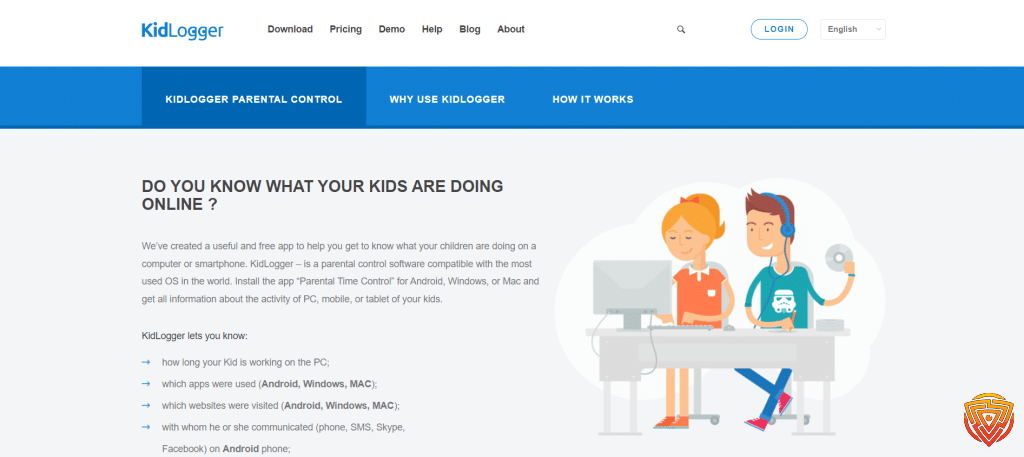
KidLogger is a more stripped-back option for parents who mainly want basic activity logging, screen time visibility, and web activity records. It is not as polished or family-friendly as Qustodio or Apple Screen Time, but it can still be useful for parents who want a free monitoring-focused starting point.
Key Features
- Activity tracking across supported devices
- Screen time and web activity monitoring
- Basic free plan available
- Supports Android, Windows, and other platforms
Pros
- Free basic plan available
- Useful for parents who want activity logs
- Supports more than one platform
Cons
- Less polished than mainstream parental control apps
- Better for basic logging than for family-friendly screen time management
Pricing
- Basic free plan available.
Understanding Parental Control Apps

In today’s digital age, fostering family safety involves understanding how to leverage parental control software effectively.
What Are Parental Control Apps?
Parental control apps are tools designed to help manage and monitor a child’s online activity. These applications can be installed on both iPhones and Android devices, providing a means for parents to set boundaries on the digital landscape. The core functionality of these apps hinges on supervision and protection, which ranges from filtering inappropriate content to tracking a child’s location.
Benefits for Parents
For parents, the advantages of using best free parental control app for iPhone and Android are manifold. I find that these apps enable parents to:
- Maintain insight into their children’s online interactions
- Filter out harmful content
- Limit screen time to help ensure a healthy balance between digital and real-world experiences
- Receive alerts about specific activities that might warrant parental intervention
The utilization of these controls potentiates a proactive approach to guiding a child’s digital journey.
Impact on Children
From the perspective of a child, parental controls can create a structured and safer environment for online exploration. Apps like Qustodio and Google Family Link can help mitigate exposure to risky websites and potential cyberbullying incidents. It’s crucial to consider that while these safeguards are beneficial, they should be balanced with trust-building and open conversations to promote understanding and responsibility in the digital realm.
Key Features to Look for in a Free Parental Control App

In this section, I’ll break down the essentials of parental control apps, focusing on key functions like managing screen time and ensuring children’s online safety.
App Blocking and Web Filtering
I must stress the importance of app blocking and web filtering in parental control apps. These features enable me to restrict access to inappropriate apps and websites, ensuring a safe online environment. Parents can use these tools to prevent children from downloading certain apps or accessing adult content.
Screen Time Management and Downtime
Screen time management is fundamental for balancing digital and non-digital life. I can set daily screen time limits to prevent excessive use of devices. In conjunction with downtime scheduling, this allows me to establish specific hours when the device cannot be used, encouraging healthier habits such as sleep or family time.
Location Tracking and Geofencing
For peace of mind regarding my child’s whereabouts, location tracking and geofencing are essential. Location tracking provides real-time updates of my child’s location, while geofencing alerts me when they enter or leave predefined areas, which is crucial for ensuring their physical safety.
Social Media Monitoring and Content Filtering
Lastly, social media monitoring and content filtering are key in safeguarding children from online risks. By monitoring social network activity, I can stay informed about potential cyberbullying or inappropriate interactions. Content filtering allows me to block harmful content before my child is exposed to it, tailoring their online experience to be age-appropriate.
Comparing Platforms: iOS vs Android

As we look into best free parental control app for iPhone and Android, it’s important to understand that both iOS and Android platforms offer built-in features and free applications designed to help parents manage their children’s device usage. Let’s break down what each platform has to offer.
Parental Control Features in iOS
Apple’s iOS provides a robust set of parental controls through Apple Screen Time. Here’s what I can manage using this feature:
- Content & Privacy Restrictions: Decide which apps children can use and the type of content they can access.
- App Limits: Set daily limits for app categories.
- Downtime: Schedule time away from the screen.
- Always Allowed: Choose apps that are always available, even during downtime.
Parental Control Features in Android
For Android devices, Google Family Link is the go-to free app that offers similar functionalities:
- App Management: Approve or block the apps children want to download from the Google Play Store.
- Screen Time Monitoring: View the amount of time spent in apps, and set daily screen time limits.
- Remote Lock: Lock your child’s device whenever necessary.
Cross-Platform Functionality
Cross-platform capabilities are crucial when families use devices from both ecosystems. With Apple Screen Time and Google Family Link, I noticed:
- Both offer remote management from parent devices which can be either iOS or Android.
- In both platforms, parents can monitor multiple children’s devices, giving families flexibility and control.
In my experience, while both best free parental control app for iPhone and Android aim to provide comprehensive tools for parents, the specifics of managing and monitoring can vary, and the ease of use may differ between iOS and Android. However, the commitment to making digital spaces safer for children is a common goal they share.
How to Choose the Best Free Parental Control App

When it comes to protecting your children online, finding effective and reliable apps is paramount. In this exploration of the best free parental control app for iPhone and Android, I’ll examine critical criteria to consider, and contrast free parental control apps with their paid counterparts.
Criteria for Evaluation
I prioritize ease of use and comprehensiveness when assessing the best free parental control apps for iPhone and Android. A well-rounded app should offer features like content filtering, activity monitoring, and time management without overwhelming complexity. Additionally, privacy policies and data security measures are non-negotiable for maintaining your family’s safety online.
- Content Filtering: Block inappropriate content based on categories or specific URLs.
- Activity Monitoring: Track app usage and web browsing history.
Compatibility with both iOS and Android platforms is also critical since it ensures a seamless experience across different devices in your household.
Free vs Paid Parental Control Apps
The debate between free plans and paid plans often boils down to the specific needs of a family and the features offered. With free plans, you can expect basic functionalities like web filtering and app management. But, for advanced features such as location tracking, detailed activity reports, or multi-user management, paid plans are often necessary. Some apps offer a money-back guarantee, which can provide peace of mind when testing their service. Remember, while going for a free app ensures zero financial commitment, investing in a paid plan might be worthwhile for comprehensive digital safety.
Effective Communication and Rules Setting

In my experience, establishing a healthy digital environment starts with open communication and well-defined boundaries. Through dialogue and clear rules, families can ensure safety and promote responsible device use.
Creating a Dialogue with Children
I’ve found it vital to start with a conversation to explain the importance of digital safety and responsible internet use. My approach includes actively listening to my children’s thoughts and concerns, which helps them feel valued and understood. It’s not just about setting rules; it’s about helping them understand the why behind them. This conversation is a two-way street that lays the groundwork for mutual respect and understanding.
Setting Clear Guidelines and Limits
Next, I create a set of clear, realistic guidelines that balance my children’s freedom with their safety. For example:
- Screen Time: I strictly implement daily screen time limits. My children know they have a certain amount of time for online activities, which we’ve agreed upon together.
- App Usage: We’ve reviewed and approved the apps they can use. With tools like Google Family Link, I can manage which apps are accessible.
- Content Filters: To keep inappropriate content at bay, I use free parental control apps for reliable content filtering suited to their age group.
- Location Sharing: For outdoor safety, apps like Life360 allow us to share our locations with each other, so we always know where we are.
By setting these guidelines and limits, I maintain a safety net that protects my family while allowing my children to explore the digital world within a structured framework.
Challenges and Tips for Parents

Parenting in the digital age brings a unique set of challenges as children are often more tech-savvy than their parents. I’ll provide specific guidance on managing these challenges and share tips to foster trust while maintaining control.
Dealing with Tech-Savvy Kids
Tech-savvy children can find ways around traditional parental controls, often with alarming creativity. My advice is to stay informed about the latest trends in technology that kids are using. For instance, familiarize yourself with the various apps and social platforms they frequent. Implement apps that offer comprehensive coverage and are known for being difficult to bypass, such as the Best Parental Control App For iPhone. Additionally, it’s wise to set up all devices with a central family account that you control, which can provide a layer of oversight for app installations and internet access.
Balancing Control with Trust
The goal of using parental controls should be to protect your children, not to invade their privacy. Communicate with your kids about why you’re using parental controls and involve them in the process. For instance, you might tell them, “I use these tools to keep you safe online, just as I’d hold your hand when crossing the street.” It’s crucial to strike a balance; you want your kids to understand that these measures are for their safety. Utilize features that allow for transparency, such as those found in apps like Google Family Link, and encourage open dialogue about online behavior and responsibilities.
Best Paid Parental Control Apps if Free Tools Are Not Enough
Free parental control apps are great for basic screen time rules, app approvals, and safer browsing. But if you need multi-device coverage, better alerts, stronger filtering, or more detailed activity visibility, a paid parental control app is usually the better long-term fit.
The tools below are the strongest paid upgrades for families who have outgrown free plans and want more control across iPhone, Android, tablets, and computers.
Paid Parental Control Apps Compared
| App | Best For | Free Trial | Stealth Mode | Social Media Tracking | Price From |
|---|---|---|---|---|---|
| 🏆 Qustodio | Families with multiple kids + structured screen time | ✅ | ❌ | Limited | $4.58/mo |
| mSpy | Stealth + social media monitoring | ✅ | ✅ | ✅ | $11.66/mo |
| Bark | Social media + mental health alerts | ✅ | ❌ | ✅ (alerts-based) | $5.00/mo |
🧠 Qustodio – Best for Multi-Device Households

✅ Screen time limits + web filtering
✅ Multi-child dashboard across iOS, Android, Windows, Mac
✅ Easy to set up, hard for kids to bypass
💰 From $4.58/month | Free trial included
🕵️♂️ mSpy – Best for Stealth & Social Media Monitoring

✅ Detailed app, location, and message visibility
✅ Stronger monitoring features than most standard family control apps
✅ Better suited to parents who need deeper oversight in higher-risk situations
💰 Check current pricing and trial terms before subscribing
🛡️ Bark – Best for Social Media Risk Alerts

✅ AI-powered alerts for bullying, predators, and other digital risks
✅ Covers social media, texts, apps, and online activity across multiple devices
✅ Includes screen time tools, content filtering, and location features
💰 From $14/month | 7-day free trial
Conclusion & Personal Recommendation
After comparing the best free parental control app for iPhone and Android, here’s the simplest way to choose:
- Choose Apple Screen Time if your family uses iPhones and iPads and you want the best built-in free controls.
- Choose Google Family Link if your children mainly use Android devices and you want strong free account and screen time management.
- Choose Qustodio Free if your household mixes iPhone and Android and you want the best free cross-platform starting point.
For most mixed-device families, Qustodio is still the smartest overall recommendation because it gives you a cleaner cross-platform setup than most free options, even though the free plan only covers one device.
Free apps are excellent for getting started, but they usually come with trade-offs in device limits, reporting, filtering depth, or advanced alerts. If your family needs more than the basics, that is the point where upgrading starts to make sense.
Frequently Asked Questions
In this section, I tackle some common queries regarding free parental control apps for both iPhone and Android devices. My aim is to provide accurate, succinct answers that can help you make informed decisions about monitoring and managing your child’s device usage.
What is the best free parental control app for iPhone and Android?
For families using both iPhone and Android, Qustodio’s free plan is one of the best starting points because it works across both platforms and includes basic screen time controls and web filtering. For iPhone-only families, Apple Screen Time is the strongest built-in free option. For Android-only families, Google Family Link is usually the best free choice.
Is there a truly free parental control app for both iPhone and Android?
Yes, but most free options come with limits. Apple Screen Time and Google Family Link are free within their own ecosystems, while Qustodio and a few others offer limited free plans. If you need multi-device coverage, advanced alerts, or detailed monitoring, you will usually need a paid upgrade.
Does Google Family Link work on iPhone and Android?
Parents can use Google Family Link on either Android or iPhone, but its supervision tools work best on Android child devices. On a child’s iPhone or iPad, several important controls are limited compared with Android.
What is the best free parental control app for iPhone?
Apple Screen Time is the best free parental control option for most iPhone families because it is built into iOS, costs nothing, and gives you app limits, downtime, content restrictions, and family management without installing another app.
What is the best free parental control app for Android?
Google Family Link is the best free parental control app for Android for most families. It offers app approvals, screen time controls, location tools, and Google account supervision without a subscription.
When should I upgrade from a free parental control app?
Upgrade when you need better web filtering, more than one child device, stronger alerts, location history, social media oversight, or easier management across a mixed-device household. Free apps are great for basics, but larger families often outgrow them quickly.
That’s All for Now
Thanks for reading our guide to the best free parental control apps for iPhone and Android. The tools here — from Apple Screen Time to Google Family Link and Qustodio Free — give parents a reliable starting point without paying a cent.
But free apps can only go so far. If you want deeper activity visibility, stronger alerts, or multi-device coverage, premium solutions step in where free ones stop.
👉 Explore our full roundup of Best Parental Control Apps to see the top-rated paid options with free trials included.
Stay safe, stay informed, and remember — the best protection is always a balance of smart tools and open conversations with your kids.
- Spynger vs mSpy vs EyeZy
- Best parental monitoring app
- Best parental control app for android
- Best parental control app
- Best parental control app for iPhone
Share this article

Stuart Kerr Spindlow is Impulsec’s Publisher, Chief Editor and Lead Reviewer. He writes and maintains coverage of consumer cybersecurity and digital-safety software, with a focus on practical suitability, limitations and the evidence behind product claims. Read Stuart’s full profile.