


Comparison: Quick Verdict
Start with Screen Time for an Apple child device or Family Link for supervised Android. Pay only for a named gap that the exact plan supports on the child’s platform. Compare Qustodio for supported mixed-device rules and reporting, or Bark for supported-content alerts. A parent app on iPhone does not establish equivalent supervision of a child’s iPhone.
Built-in parental controls vs paid apps is a question about the gap you need to fill. Apple Screen Time and Google Family Link already provide useful schedules and app limits; paying does not automatically make those rules stronger or more accurate. A subscription is worthwhile when its verified features solve a problem your current setup does not.
For a child’s iPhone or iPad, start with Screen Time. For a supervised Android child device, start with Family Link. Consider paid software for a specific supported reporting, filtering or mixed-device management requirement. The child’s device matters as much as the phone the parent uses.
My experience testing parental-control software informs these editorial recommendations. Current provider documentation is used to check feature and platform claims. I am not treating a vendor feature list as a new timed test or claiming a measured bypass-resistance winner.
When free controls are enough and when to pay
Stay with the built-in option when it meets the task
A bedtime schedule, daily app allowance, download approval or basic content restriction does not automatically require a subscription. Decide the rule, configure exceptions and check it on the actual child device. A child’s age alone is not a reason to upgrade; a teenager may need less intrusive supervision, not more.
Consider paid software for a specific missing feature
- A single parent dashboard for the child platforms you actually use.
- A particular report or filtering function that your existing setup lacks.
- Alerts about supported communications, after checking installation and account requirements.
- A feature whose free alternative you have tried and found insufficient for a documented reason.
Do not pay solely because a comparison says free tools lack day-specific schedules or location alerts. Family Link supports both scheduling and supported arrival/departure notifications. Screen Time also supports customised schedules; Find My is a separate included Apple location-sharing service.
Use a hybrid setup only with a clear division of work
A built-in control can manage account changes or purchases while another service supplies a particular alert. Avoid running two overlapping filters simply because more controls sound safer. Conflicting restrictions can make it unclear which app caused a block. Assign each tool a task and verify the combination.

What the built-in controls actually do
Apple Screen Time: check the new controls before paying

Apple’s 4 November 2026 setup guidance describes Time Allowances across app categories and Screen Time Schedules for different parts of the day. This is more than a simple renaming of Downtime. The new controls require supported version-27 software and the appropriate family setup; older versions can have different labels and workflows.
The parent setup starts in Settings > Family > the child’s name. Time Allowances set the budget; Screen Time Schedule sets which categories are available in each window. “Match Screen Time Schedule” allows different allowances for schedules. Check the child’s own Apple Account and Family Sharing, rather than sharing a parent’s account to make the controls appear to work.
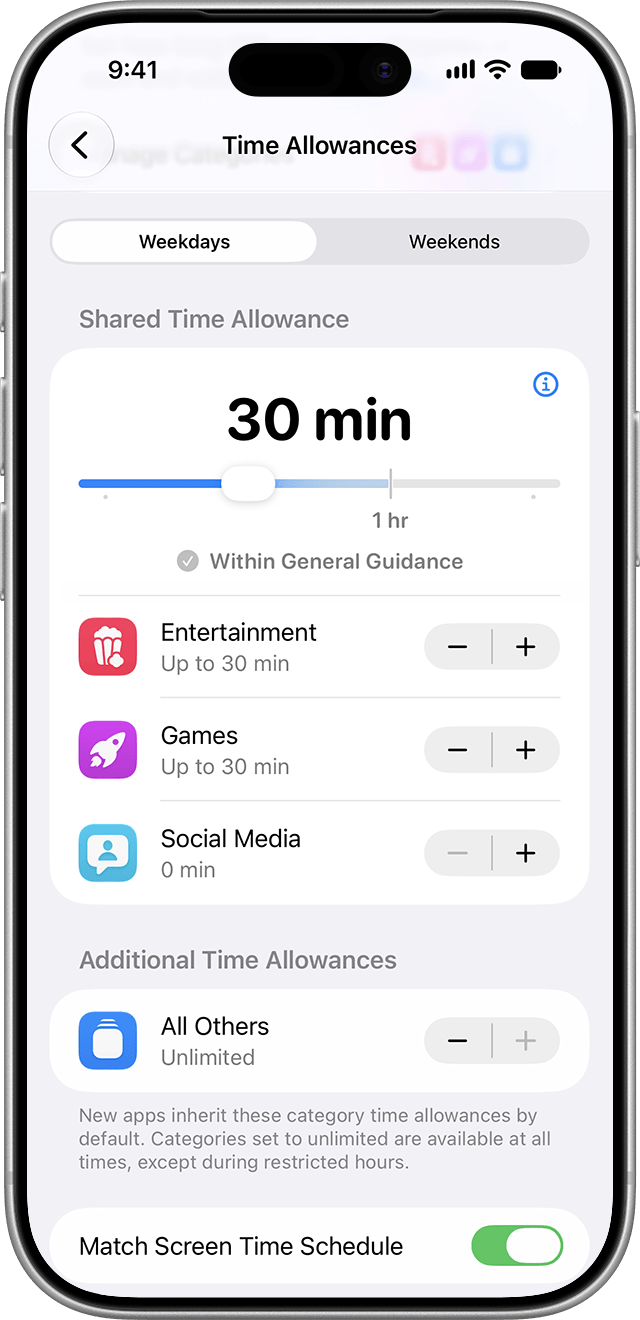
A supported free feature can remove the reason you were considering a subscription. Recheck your actual requirement after a major operating-system change, while keeping an agreed essential-contact route available. Our Screen Time review covers the wider fit. Screen Time is not a feed of every message the child sends.
Google Family Link: check the rule and its exception

Family Link supports supervised Android time limits, schedules and app approvals. Google’s schedule guide distinguishes weekly schedules, one-day changes and bonus time. A temporary exception does not have to become a permanent weekly rule.
Its app-limit guidance says Unlimited time apps do not consume the Daily Limit. Their availability during Downtime, School time or a manual lock is a separate setting. System apps have additional limits, and the Unlimited option has device requirements. A permitted school app is not proof that the whole daily budget failed.
During School time, notifications are silenced but calls and texts remain possible. During Downtime, calls remain available and texting requires the messages app to be an Unlimited app. Supported arrival/departure alerts also exist. Check these free capabilities before buying for basic schedules or location alerts. A parent app on iPhone does not create equivalent supervision of a child’s iPhone.
Microsoft Family Safety: Windows and Xbox with browser conditions

Microsoft’s tools are a relevant free starting point for supported Windows and Xbox time and app/game controls. Its web and search filtering requires the supported signed-in browser setup, currently Edge. Unblocking another browser does not give it the same filtering coverage. Avoid buying or choosing a tool based on legacy location or driving-safety claims.
Is a built-in tool harder to bypass?
Operating-system integration and protected parent credentials can help enforce a rule, but no tool earns an “impossible to bypass” claim. Account permissions, software version, removal protections and exceptions matter. I would compare the documented coverage and a normal household task rather than invent a bypass-resistance ranking.

What paid apps can add
Paid products are not one uniform feature set. Compare the exact plan and child platform, not a generic “paid” column that promises everything. Qustodio’s rules and reports, Bark’s supported-content alerts and Norton’s browser-based supervision solve different problems.
A shared dashboard can reduce separate administration
Managing Apple and Google family settings separately can be inconvenient. A paid dashboard may bring supported devices together, but iOS and Android capabilities can still differ inside that dashboard. Norton Family, for example, is not a child-Mac solution. Check every device you need to cover before treating cross-platform support as a benefit.
Reports and alerts must answer a useful question
A report showing which app was used is different from a transcript or an alert about content inside that app. Bark Premium’s supported-content alerts should not be confused with its lower-tier controls. Likewise, a longer activity history is valuable only if looking back is part of the task. More collected data is not automatically better supervision.
Monitoring adds setup and privacy trade-offs
Check whether a feature needs an extra desktop application, a linked account or a particular Android installation. For example, Bark’s iPhone/iPad content-monitoring workflows use Bark Desktop, Bark Sync or Bark Home, with different requirements. Do not describe every alert as instantaneous or every child platform as equally covered.
Choose proportionate monitoring, explain it to the child and review who can access the records. A subscription does not remove the need to understand retention, deletion and account security.
Feature-by-feature comparison
| Requirement | Free starting point | What could justify paying? |
|---|---|---|
| Daily app allowance | Available in supported built-in controls. | Pay only if the exact app/platform handling is better for your requirement. |
| Day-specific schedules | Screen Time and Family Link support schedules. | Compare exceptions and practical workflow, not a blanket “free cannot schedule” claim. |
| Location alerts | Family Link and Find My offer supported arrival/departure notifications. | Check whether extra history, places or another specific function matters. |
| Mixed-device dashboard | Apple and Google controls are managed separately. | Potentially useful, but feature parity and child-device support still need checking. |
| Message/content supervision | Usage controls do not automatically expose message contents. | Verify supported services, plan, child OS and extra installation. |
| Web filtering | Browser, account and OS conditions apply. | Paid filters also have coverage limits; do not assume all browsers and apps are covered. |
Use the task comparison to identify a missing capability, then compare products for the actual child devices and permissions. A longer feature list is useful only when it solves that requirement.
For example, a rule restricting use from 21:00 to 07:00 spans 10 hours. It does not mean the remaining 14 hours are an allowance. A separate daily budget can be much shorter. That calculation explains the difference between a schedule and a quota; it is not a measured product result.
Also check whether the allowance is shared across devices. Norton’s time-supervision guidance says its daily allowance applies separately to each device. Two hours on each of three devices could therefore permit six hours altogether, rather than a shared two-hour budget. Norton also distinguishes scheduled hours on iOS from the daily time allowance available on Windows and Android. Before subscribing for cross-device management, decide whether you need one combined allowance or separate rules for each device.
Separate a missing feature from an allowed exception
Before paying to replace a control, write down what happened in three parts: the clock time, the remaining allowance and the app involved. If an app opens after the Daily Limit, look at its exception first. If it opens during a restricted period, check that period’s allowed apps. A policy designed to preserve schoolwork or essential communication can look like a failure when those distinctions are overlooked.
Use an ordinary example such as a school app and an agreed leisure app. Compare them on the same child device while the relevant rule is active. Keep the parent credentials private and avoid changing several filters at once. If the supported built-in rule now meets your need, spending more will not necessarily improve the outcome.
Test the missing task before a paid trial becomes a subscription
Write the requirement as something you can check on the child’s actual device: “block this game after bedtime, keep schoolwork available, and let my child contact me.” A dashboard with more buttons is not proof of that result. Establish what the built-in controls already do before introducing a second service, then change one layer at a time so a failure has an identifiable cause.
- Check the normal case. Confirm the intended app, browser or supported communication is covered on the child operating system. A parent dashboard that runs on your phone says nothing by itself about the child’s supported features.
- Check the exception. Make sure an agreed school app or essential contact remains available. Google documents calls as available during Downtime, while texts require the messages app to be an unlimited app. School time silences notifications but still allows calls and texts; it is not a universal communications block.
- Check a second device separately. A rule that works on one phone does not prove that a tablet shares its allowance or permissions. Norton applies the allowance per device; copying the same two-hour rule to three devices can allow six hours in total.
- Check account and billing recovery. Confirm who can manage the rule, where a child requests an exception and which account or store must cancel the subscription. Record the charge date and supported purchase-channel terms before the trial ends.
If an optional monitoring feature fails, separate unavailable coverage from a broken installation. For example, Bark’s current iOS page does not offer content-monitoring coverage for Discord, TikTok, Snapchat or Instagram. Reinstalling a parent app does not create that coverage. Review the provider’s current iPhone feature list for the specific communication service, rather than assuming Android capabilities transfer to iPhone.
Use the outcome to make the buying decision. Keep the free setup when it meets the agreed task. Continue a paid service only when it supplies a useful, supported improvement that justifies its cost and data access. If two filters conflict, keep a record of the settings and remove the overlap through the provider’s documented process rather than weakening account security or disabling every protection at once.
Compare cost, setup and privacy on equal terms
The listed built-in services do not require a separate parental-control subscription. Devices, connectivity, app purchases and other subscriptions still cost money. Compare a paid plan over the same billing period and for the same child devices, including any computer needed for monitoring.
A useful price comparison records the total annual charge, covered devices, introductory versus renewal price, tax treatment and purchase channel. A monthly equivalent advertised beside an annual plan is not necessarily a monthly payment option. The compact table below compares device coverage and important limitations. Follow the provider’s current plan page for the charge and renewal terms that apply to your purchase; do not assume the first-year price will recur.
Trial and refund checks
- Check whether the trial includes the feature you need on the child’s platform.
- Confirm whether payment details are required and when billing starts.
- Read the actual refund conditions for the purchase route. A technical-fault policy is not an unconditional money-back guarantee.
- Cancel through the service or store that bills you; deleting an app does not establish cancellation.
iPhone and Android comparisons need separate checks
Compare the same task on each child operating system. “Supports iOS” does not establish that Android message monitoring, app control or remote features are also available on iPhone. Check supported OS versions and installation requirements before ranking a plan for a mixed-device family.
Choose the least intrusive setup that solves the problem
Built-in controls still involve Apple, Google or Microsoft accounts and data handling. Paid services add their own policies and access requirements. Review the information collected and its practical value. A bedtime rule rarely needs the same data as investigating a specific online-safety concern.
Paid alternatives worth comparing for specific gaps
These four examples match the needs discussed here. They are conditional recommendations, not a universal ranked list. The table and the assessments below use the same order.
The four examples below serve distinct jobs: Qustodio for supported rules and reports, Bark for supported-content alerts, Norton Family for its supported browsing and schedule setup, and FamiSafe for a specified device-control need. Read them in that order alongside the comparison; the order does not claim a universal winner.
Scroll horizontally to see all columns.
| Product | Child devices | Important limitations |
|---|---|---|
 Qustodio Full review | Child devices: Windows 10+; macOS 10.15 through 26; Android 9+; iOS 15+; Google Play-capable Chromebook; Fire OS 6+ (standard profiles). Parent iOS app requires iOS 16+. | iOS calls/messages and supported WhatsApp/LINE alerts require a Windows/Mac computer and the documented sync setup. Panic button is Android-only; social-app coverage varies by platform. |
 Bark Full review | iOS and Android child apps; other device/account workflows differ. | iOS content monitoring uses Bark Desktop, Bark Sync or Bark Home; setup requirements differ and alerts are not instantaneous. Account/app coverage varies; Phone and Watch are separate products. |
 Norton Family Full review | Windows, Android and iOS. No child-Mac support or Windows S mode. | Mobile video/search supervision requires Norton Browser. YouTube app viewing is not covered. |
 FamiSafe Full review | Android, iOS, Kindle, Windows, Mac and Chromebook are listed; capabilities vary. | No detailed WhatsApp/social monitoring on child iOS. One-way audio is advertised for supported Android child devices and can be disabled by the child. Other features vary by platform. |
Qustodio: everyday controls across supported devices
I would compare Qustodio first when separate family dashboards are the problem and its rules/reporting match the child devices. Choose the plan around the required functions and device allowance. Do not buy the higher tier merely because it has more features, and do not assume a child iPhone has every Android monitoring capability.
The trade-off is a subscription plus platform-specific setup. For iOS calls and messages, Qustodio requires its supported computer synchronization workflow; ordinary app rules and communication monitoring are separate decisions. If Screen Time or Family Link already handles the routine, that cost may add little. Read the full Qustodio review before deciding.
Bark: supported-content alerts rather than a universal transcript
Bark Premium is the more relevant comparison when the missing requirement is an alert about supported communications. Its Jr plan is a different proposition. Check account coverage, country eligibility and the iOS monitoring workflow before buying; alerts are not a complete record of every conversation or a guarantee of immediate intervention.
I would choose it over a rules-first product for that alerting task, not simply because the child is a teenager. See our Bark review.
Norton Family: Windows and Android with browser conditions
Norton Family is worth considering for supported Windows and Android supervision, particularly where its device allowance suits the household. Child-Mac support is absent, and mobile search/video supervision relies on Norton Browser. YouTube app viewing should not be described as equivalent coverage.
Those limits make it a conditional choice rather than my default for every mixed-device family. Norton’s Windows and Android School Time usage is counted separately from ordinary usage; its per-device daily allowance is not a shared family budget. Our Norton Family review explains the fit.
FamiSafe: check the precise location and device-control need
FamiSafe is another candidate when its supported location, time or app controls solve the identified gap. Its broader device list should not be read as identical functionality everywhere. In particular, do not assume detailed Android social-message features are available on a child’s iPhone.
FamiSafe’s current FAQ says Calls & Messages is unavailable on iOS 27, with no promised compatibility date. Compare the exact feature and purchase conditions carefully. Its technical-problem refund conditions should not be presented as a risk-free trial. See our FamiSafe review.
My recommendation: start free and upgrade deliberately
Use the built-in control first when it meets the actual requirement. If a supported mixed-device dashboard remains the gap, compare Qustodio. If content alerts are the gap, compare Bark Premium. Keep Norton Family and FamiSafe conditional on their particular platform and feature fit.
Before subscribing, write down one task the paid product must perform, the child device and the plan required. Check that task during any available trial. That produces a more useful decision than counting features or assuming older children always need more monitoring.
Frequently asked questions
Are built-in parental controls enough?
Often, if schedules, app allowances, approvals and the available content rules meet your needs. Start with the child’s platform and pay only for a specific verified gap.
Do I need a paid app for different weekday and weekend schedules?
Not necessarily. Current Apple Screen Time and Google Family Link support custom schedules. Apple’s version-27 controls also separate category Time Allowances from time windows. Check the software and family setup before deciding a subscription is needed.
Are location alerts available without a paid subscription?
Yes, supported Family Link and Find My arrangements include arrival/departure notifications. Account, device and permission conditions apply.
Does Family Link on my iPhone control my child’s iPhone?
The parent app’s availability is different from child-device support. Family Link does not provide equivalent Android-style supervision of a child’s iPhone; assess Screen Time instead.
Are paid parental controls more accurate?
This guide does not establish a measured accuracy winner. Compare the specific report, child platform, permissions and test conditions rather than assuming a paid service is more accurate.
Which paid app should I compare first?
Compare Qustodio for supported mixed-device rules and reporting, or Bark for supported-content alerts. Check the exact child platform, installation and plan first. Norton Family and FamiSafe are conditional alternatives for their particular supported tasks, not universal upgrades.
Can parental controls read every text message?
No. Message access depends on the product, plan, child operating system, permissions and installation. Screen-time controls alone do not provide message transcripts.
Should I combine built-in and paid controls?
Only when each tool has a clear task. First check the schedule, allowance and app exception that caused the result. Overlapping filters can make diagnosis harder; introduce one change at a time and verify allowed schoolwork and essential communication.
Why can an app still work after a Family Link daily limit?
On supported devices, Unlimited time apps do not count toward the Daily Limit. Their availability during Downtime, School time or a manual lock is controlled separately. Check the app exception and relevant schedule before concluding that the daily limit has failed.
Sources and image credits
Primary guidance checked 9 November 2026: Apple’s child Time Allowances and Screen Time Schedules (published 4 November), Family Link schedules, Google app limits and Unlimited apps, Microsoft web filtering, Bark iOS coverage and FamiSafe FAQ. The linked product reviews explain the remaining plan and installation decisions.
Time Allowances example: Apple Support, showing its documented iOS 27 setup. It is a vendor image, not a new test capture. The family and comparison illustrations are conceptual; the rule diagram uses illustrative choices rather than a product interface.
Share this article

Stuart Kerr Spindlow is Impulsec’s Publisher, Chief Editor and Lead Reviewer. He writes and maintains coverage of consumer cybersecurity and digital-safety software, with a focus on practical suitability, limitations and the evidence behind product claims. Read Stuart’s full profile.