


FamiSafe Review: Quick Verdict US$9.99/month

Name: FamiSafe
Description: FamiSafe provides parental controls for supported devices. Web, app, time, location and communication features depend on platform and installation route. iOS communication monitoring can require FamiSafe Connect on a computer.
Offer price: 9.99
Currency: USD
Application Category: SecurityApplication
Our verdict
Best for: families needing supported app, web, time and location rules across mobile and computer devices. Choose the billing term and device allowance for your household.
Main limit: Calls & Messages is currently unavailable on iOS 27. Supported iOS message workflows need FamiSafe Connect and syncing. Check that exact feature before subscribing; a general iOS listing is insufficient.
Overall
-
Family rule controls (4.0/5)
-
Monitoring scope (3.5/5)
-
Child-platform coverage (3.5/5)
-
Setup requirements (3.5/5)
-
Family privacy controls (3.5/5)
-
Family plan value (4.0/5)
Pros
- App, web and time controls for supported child devices.
- Location history and geofencing on supported platforms.
- Configurable rules for the household’s routine.
Cons
- Features differ by platform and installation route.
- Some iOS communication features need a computer.
- Location and alerts depend on permissions and connectivity.
- Activity collection requires proportionate, authorised use.
FamiSafe is worth considering when its supported screen-time, web, app and location controls match the child devices you need to manage. Check the selected plan and installation route before buying: platform support does not mean every feature works identically on every device.
This FamiSafe review explains the buying fit, setup requirements and practical limits. Use parental controls alongside age-appropriate conversations and account security; no monitoring app can guarantee a child’s online safety.
What Is FamiSafe?
FamiSafe provides supported device-use, app, web and location controls. Its reports can assist family supervision, but they do not establish a child’s physical safety or provide an emergency-response service.
Overview of FamiSafe

FamiSafe stands out as a reliable parental control solution that aims to assist parents in managing their children’s digital experience. It’s acknowledged for providing a versatile set of tools to help ensure children’s online safety.
Core Features
At its core, FamiSafe includes several features such as filtering screen time management and location tracking that cater to different aspects of parental control:
- Location Tracking: Parents can monitor their children’s real-time location.
- App Usage and Blocking: It allows tracking how much time children spend on each app and provides options to block inappropriate apps.
- Web Filtering: Parents can filter out harmful online content to protect their kids.
- Screen Time Control: This feature enables setting restrictions on screen time usage.
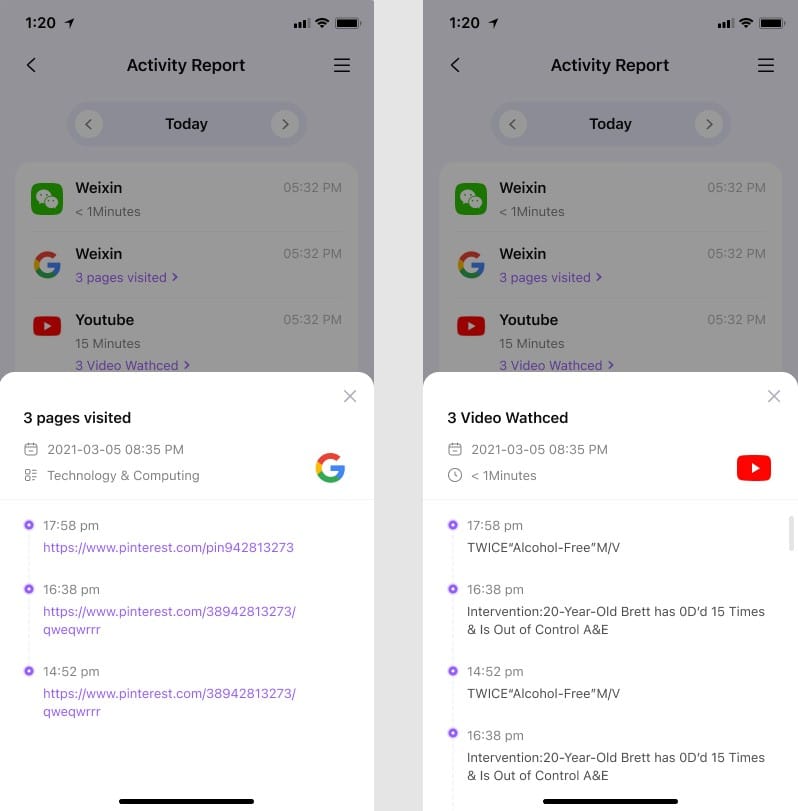
- Activity Reports: FamiSafe offers comprehensive reports on children’s online activities.
Features and Functionality
In my Wondershare FamiSafe review, I’ve focused on assessing its core functionalities. This involves looking into its real-time location tracking, app management, content filtering, and screen time control capabilities. I’ve noted how each feature operates and gauged its effectiveness.
Real-Time Location Tracking
I use the location view as a way to check the supervised device’s reported whereabouts. It should not be treated as proof of a child’s exact position or safety. Permissions, connectivity and positioning conditions can affect updates and location history.
App Blocking and Control
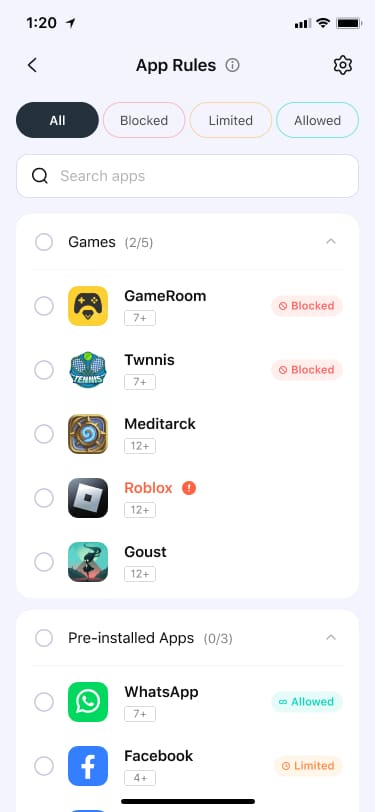
I have the flexibility to manage app usage with FamiSafe’s blocking and control features. Blocking apps is straightforward—I can restrict access to apps that may be distracting or inappropriate. It’s possible to customize these restrictions for different times or days, giving me control over how my child uses their device.
Web Filtering
I value being able to choose website categories and add exceptions to suit the household. Filtering can reduce access to unwanted material, but it cannot guarantee that a child will never encounter harmful content. Check the supported browser and child-device setup.
Screen Time Management
I find schedules useful for turning a family agreement into a repeatable routine. Set a realistic allowance for each child device, with room for schoolwork and necessary communication. A report helps start that conversation; it does not decide what a healthy routine should be.
The current FamiSafe FAQ says it does not pool screen time across devices. For example, a 60-minute phone allowance plus a 60-minute tablet allowance can permit 120 device-minutes. This is an illustrative allowance calculation, not a measured usage result; simultaneous use would change elapsed time.
If your goal is one hour across a phone and tablet, do not assign an hour to both and expect the second device to inherit the first device’s remaining time. Agree how to divide the allowance, review both reports and adjust each rule. FamiSafe is a weaker fit when an automatically shared cross-device budget is the essential requirement.
Ease of Use
When examining FamiSafe for my FamiSafe app review, I find the user experience to be a key differentiator. The app focuses on creating a smooth interaction process, from setup to daily usage, ensuring that managing parental controls doesn’t become an added hassle in a parent’s busy life.
Interface Usability
Navigation Bar: A clear and straightforward navigation bar is present at the bottom of the app interface, which I find intuitive.
Icons and Labels: Each function is represented by a distinct icon accompanied by a brief label, helping me quickly identify the features I need.
The use of familiar icons and interactions within the app aligns well with industry standards, making the learning curve shallow for new users.
Navigational Ease
Use the current parent dashboard to select the child device, review supported controls and check report timestamps. Screens and navigation can change between app releases; follow the instructions for your installed version.
I appreciate the focus on minimizing complexity, which facilitates easier navigation and feature access for users of all proficiency levels.
Setting Up FamiSafe
The basic account and device-pairing steps are approachable in my experience. The important purchase decision is whether you can maintain the extra permissions and, for supported iOS communication monitoring, the computer workflow. Installing the parent app alone does not enable every advertised feature.
Start with the exact child device
Use the official guide for the child platform. Install the appropriate parent and child applications, pair the intended device and check its displayed identity before changing rules. Keep physical access available for installation and permissions. Avoid treating a generic “iOS supported” statement as confirmation that a particular message feature will work.
Enable the smallest useful rule set
Start with the reason you need the product, such as an evening app schedule or a web category restriction. Explain that rule to the child and check one ordinary allowed activity as well as the restricted activity. This gives you a useful baseline for troubleshooting without collecting unrelated location, pictures or conversations.
Treat communication setup as a separate decision
Calls & Messages is unavailable on iOS 27, with no confirmed compatibility date. On a supported iOS version, follow the documented Control Mode, initial backup and FamiSafe Connect synchronization requirements. Decide in advance which trusted computer will support that workflow. Do not pay for a longer term on the assumption that a future update will resolve an essential missing feature.
Keep a useful support record
If a rule fails, record the device model, operating-system and app versions, the specific rule and the last successful report. Check connectivity and permissions before widening monitoring or reinstalling. Share a cropped error message with support rather than an entire private conversation. A successful installation is only the beginning; the intended restriction and normal allowed use should both behave as your family expects.
Software / App Performance
The retained screenshot documents the earlier review interface. FamiSafe’s usefulness depends on the child platform, granted permissions, connectivity and whether the chosen controls are supported. Its activity reports and location features should support a parent’s judgement, not substitute for it.
Historical hands-on use does not establish a current GPS-accuracy figure, detection rate, battery result or guarantee of crash-free operation across devices. I would not treat a displayed location as proof of a child’s exact position or assume a filter catches every harmful page.
During setup, check the particular rule on the child device, confirm that the parent receives the expected report and revisit the settings after major software updates. Discuss monitoring openly and collect only the information needed for the agreed purpose.
Compatibility and the setup your household can maintain
FamiSafe lists mobile and computer platforms, but app installation and advanced monitoring are separate checks. Its current FAQ explicitly says Calls & Messages is temporarily unavailable on iOS 27, with no confirmed compatibility date. Do not buy it for that feature on an iOS 27 child device based on an older screenshot or a general “supports iOS” label.
| Need | Check before subscribing | Buying consequence |
|---|---|---|
| Ordinary device/app rules | Current child app, OS requirements and permissions | Verify the particular rule on each supervised device |
| Messages on a supported iOS version | FamiSafe Connect, Control Mode, initial backup and Wi-Fi sync | Plan for access to a compatible Windows or Mac computer |
| Messages on iOS 27 | The FAQ currently says unavailable | Choose another supported approach if this is essential |
| One shared allowance across several devices | The FAQ describes separate per-device time management | Do not assume two phones share one combined time budget |
The calls-and-messages feature page and Connect download guidance explain the additional iOS route. A parent phone alone is not equivalent to a maintained computer workflow. Start with the exact child operating-system version and the feature you need, then check the current guide rather than following installation steps from an old app release.
For a mixed-device family, configure and verify rules separately. A missing report can reflect permissions, connection or unsupported functionality; it is not proof that a child has been concealing activity. FamiSafe’s separate-device time model also means a two-hour allowance on one device should not be interpreted as a two-hour household total.
My practical preference is to use the least intrusive supported controls first. If schedules and app rules solve the problem, collecting private communications adds a privacy cost without necessarily improving that outcome. If a specific communication feature is essential, an unsupported current OS is a reason to postpone that purchase or choose a verified alternative.
Choose a control before choosing how much to monitor
FamiSafe brings several kinds of supervision into one account, but they should not be treated as one permission. A schedule answers when a child can use a supported device or app. An activity report describes recorded use. Location, screen viewing, messages and audio involve different information and prerequisites. Start with the task your family has agreed and leave unrelated collection off when it does not help.
| Question | Relevant check | Important limit |
|---|---|---|
| Is a game interrupting schoolwork? | App Rules and the child’s supported schedule | A daily allowance and a clock-time window are different rules |
| Why does the dashboard show an old location? | Reported timestamp, connection and location permissions | A missing update does not establish concealment or a child’s exact position |
| Can this iPhone supply message information? | Exact iOS version and the current Connect requirements | The documented iOS 27 exclusion cannot be repaired by buying a longer plan |
| Does the household need one shared time budget? | How limits apply to each supervised device | Separate device allowances can permit a longer combined total |
Check those decisions before comparing monthly and annual prices. A lower annual equivalent has little value if the essential feature is unavailable on the child’s current operating system. Conversely, a family using ordinary supported app rules need not choose a more intrusive communications workflow simply because it is advertised alongside them. A refund headline is not a replacement for checking compatibility.
For a report or rule that appears not to work, first identify whether the problem is supported functionality, the selected rule or the installation. Confirm the child device and app version in the parent account, check its connection and required permissions, and repeat a normal permitted activity together. If the feature is explicitly unavailable on that operating system, repeated reinstalls do not establish support; use the provider’s current guidance or select a different approach.
When a real installation fault remains, record the failed step and contact the provider before the relevant trial or support deadline. Keep billing records and identify the service or store that took payment. Deleting the child app does not establish that automatic renewal has stopped. Avoid sending unrelated private messages or location history to explain a problem that can be described with an operating-system version, setting and timestamp.
FamiSafe Pricing and Value
Scroll horizontally to see all columns.
| Product | Price and devices | Free plan or trial | Renewal and refunds |
|---|---|---|---|
| FamiSafe Full review | US$9.99/month for 5 devices; $19.99/quarter for 8; $59.99/year for 10. Check pricing | Annual offer advertises a 3-day trial. Free entries include limited demonstrations, not unrestricted monitoring. | Renewal amount not confirmed. 7-day refund requests are conditional on technical problems unresolved by support, not change of mind. |
The family-store offer checked on 9 November 2026 lists $9.99 monthly for five devices, $19.99 quarterly for eight, and $59.99 yearly for ten. The annual $4.99 headline is a monthly equivalent of a full annual charge; the quarterly $6.66 is also an equivalent, not a monthly instalment. Other purchase pages can advertise different allowances, so use the offer you will actually buy.
For a household using five or fewer eligible devices, twelve $9.99 monthly payments would total $119.88; four $19.99 quarterly payments would total $79.96. Those calculations assume the same listed rate on every payment. The $59.99 annual offer costs less over that twelve-month comparison, but it also commits you for longer. Six monthly payments total $59.94, so annual prepayment is not automatically the cheaper choice for a short requirement.
Keep three decisions separate: whether the feature works on your devices, how long you need it, and what will renew. The family-store annual trial is advertised as three days; free demo entries are not unrestricted monitoring. Read the refund conditions rather than treating the seven-day headline as an unconditional change-of-mind return. Confirm the renewal amount and cancellation route for the purchase channel before paying.
Customer Support & Resources
For installation and troubleshooting, start with FamiSafe’s official user guide and the support options shown for your account. Use the instructions for the exact child platform and feature.
Support availability and response times can vary. Plan around the support options shown in your account rather than assuming a guaranteed response time.
For a useful support request, specify the child platform, app version, permissions and feature that failed. Avoid sending private message contents unless they are necessary to explain the fault. Check whether the required setup works during the available trial before committing to a longer billing term.
Privacy and Security
FamiSafe processes family information to provide monitoring. Read Wondershare’s FamiSafe privacy policy before enabling sensitive features, including the provisions covering data use, service providers and your available rights.
A privacy policy does not establish that information is never shared, that every vulnerability is fixed immediately or that a breach cannot occur. This review does not certify legal compliance or claim an independently measured security advantage over built-in controls.
My recommendation is to collect only what serves a clear family need, secure the parent account and explain the supervision to the child. Calls, messages and location merit particular care. Use only access you are authorised to manage.
The published policy also describes optional clipboard access for referral attribution, including sharing with a named referral provider. It says users can opt out on the relevant in-app page. Review that choice separately from the permissions needed for a family rule; a referral feature is not a reason to grant unrelated monitoring access.
Before ending supervision, separate subscription cancellation, device removal and account deletion. They answer different questions: will you be billed again, is the child device still managed, and what account data remains? The policy documents an Account > Delete Account route for accounts registered through FamiSafe, with a different process for third-party registration. Its retention provisions include contractual and legal exceptions; do not treat uninstalling as proof that every stored record was erased.
Limitations and Drawbacks
Calls and message monitoring is available only within the documented device and setup scope. The current iOS 27 exclusion matters: a general iOS listing does not make this feature work on that version. Supported older-iOS workflows need the required Connect/Control Mode and sync setup. None of this establishes visibility into every messaging app or a new hands-on result from this update.
Device Compatibility:
Despite wide compatibility, FamiSafe may have limited functionality on some devices, particularly older models. This can be restrictive for those hoping to employ the service across varying devices with different operating systems.
Reliability of Location Tracking:
Location updates can be delayed or unavailable when permissions or connectivity change. Check the reported timestamp and the child-device setup before relying on a location report; this is not a measured location-accuracy result.
Time Management Features:
- General Time Limit: The tool allows setting a daily limit on device usage but doesn’t offer more granular controls for individual days unless utilized through the Smart Schedule feature.
- Smart Schedule: While helpful, it’s not as intuitive as some users might expect. Enhancements in user experience could improve this feature.
From an installation perspective, FamiSafe fares well for how easy it is to setup and use, although some users might find the process less streamlined than anticipated. Moreover, the app’s free trial period is notably short, restricting the ability to fully assess the app before committing financially.
In respect to the pricing, FamiSafe’s cost may also be a limiting factor when compared against the market standard, especially given some of the mentioned shortcomings. Consideration of ongoing costs against features provided is essential for making an informed decision.
User Testimonials and Feedback
The screenshots and illustration above are historical. They do not establish FamiSafe’s current rating or a representative consensus among parents.
Check the review date, child platform and installation route. Older comments about missing call or message monitoring may describe a previous version; compare them with the vendor’s current feature-specific documentation.
Use a detailed complaint to decide what to check during setup, rather than treating an unattributed quote as a benchmark. Individual feedback does not demonstrate location accuracy, support speed or that every advertised feature works on every supported operating system.
FamiSafe alternatives
Qustodio: consider it for a broader mixed-device household and detailed app/time rules. Its iOS communication monitoring still has computer and sync requirements; do not assume phone-platform parity. Read our Qustodio review before choosing Basic or Complete.
Norton Family: consider it for supported Windows and Android browsing/schedule supervision, particularly when it is already included in a Norton subscription. It does not supervise a child’s Mac, and iOS has fewer controls. Our Norton Family review explains those limits and the first-year-versus-renewal distinction.
OurPact: consider it when mobile app blocking and schedules are the main job. Its computer-based iOS setup and plan-specific monitoring matter. See the OurPact review rather than treating screenshots or a headline feature list as unrestricted message access.
How the ratings reflect this review
The six ratings assess practical family safety and the supported child-device setup. Each is an editorial judgment out of five: 3 means mixed, 4 strong with meaningful limitations, and 5 an exceptional fit for that criterion. Half steps sit between those judgments. The overall 3.7/5 is their equal-weight average, rounded to one decimal. The child-platform criterion has moved from 4.0 to 3.5 because the current FAQ excludes Calls & Messages on iOS 27; this is a documented compatibility reassessment, not a new device test. These category-specific criteria replace the earlier general software scorecard.
- Family rule controls — 4.0/5: Supported schedules, app rules and web restrictions form a strong everyday toolkit. Operating-system and permission differences prevent universal control.
- Monitoring scope — 3.5/5: Documented call/message and content tools add useful visibility, but availability and Connect setup vary. Breadth of collected data is not evidence of better detection or a reason to reward intrusive use.
- Child-platform coverage: 3.5/5. Mobile and computer options help mixed-device families, but the current iOS 27 Calls & Messages exclusion is a material limit for an up-to-date iPhone household. Broad availability with that important feature gap falls between mixed and strong coverage.
- Setup requirements — 3.5/5: The parent/child app workflow is manageable, but sensitive communications features may need physical access, permissions and a separate computer connection. Those extra steps keep it between mixed and strong.
- Family privacy controls — 3.5/5: The published account-deletion route and configurable permissions are useful. Sensitive message, location and optional screen/audio access still demand careful minimisation. This intermediate judgment recognises available controls without treating a vendor policy as an independent audit or extensive monitoring as a privacy benefit.
- Family plan value — 4.0/5: The family-store offer checked on 20 October 2026 lists $59.99 billed yearly for up to ten devices, $19.99 quarterly for eight, or $9.99 monthly for five. That is strong value when the supported tools meet the household’s needs. Other store pages and purchase channels advertise different allowances, so confirm the exact checkout rather than assuming thirty devices or a universal refund.
Final verdict
I value FamiSafe’s schedules and app rules when they turn a clear family agreement into controls the household can maintain. Its broader collection options are a separate choice. Start with a specific gap in the controls already on your child’s devices, rather than assuming that collecting more information produces a safer outcome.
Choose FamiSafe when the required feature works on the exact child platform, you can maintain its permissions and setup, and the selected device allowance suits your household. Keep the separate-device time budgets in mind if a child switches between a phone and tablet. For a short need, compare the actual payments rather than the annual monthly-equivalent headline.
Choose another approach if iOS 27 communication monitoring or a pooled cross-device allowance is essential. A promise of future compatibility is not a current feature. Built-in controls may be sufficient for a simpler schedule, while another supported product may fit a different monitoring requirement. My overall assessment remains 3.7/5 on the six family-focused criteria explained above.
Frequently Asked Questions
How can I set up parental controls on an iPhone using FamiSafe?
Use the documented child-device setup for ordinary controls. Calls & Messages is currently unavailable on iOS 27. On supported iOS versions it requires the specified Control Mode, initial backup and FamiSafe Connect syncing workflow. Check your exact feature before buying.
Is it possible to disable FamiSafe on a device without the parent’s knowledge?
Do not assume the app is tamper-proof. Removal behaviour and restrictions depend on platform, permissions and installation route. Review device reporting and check lost permissions rather than treating a dashboard connection as permanent protection.
What features does FamiSafe offer for managing children’s online activities?
Supported features include app and web rules, screen-time allowances, location and selected monitoring functions. Coverage differs by platform and setup. Time allowances operate separately on each device, rather than as one shared cross-device budget.
How does FamiSafe compare to its competitor Bark in terms of functionality?
Choose against the specific child platform and task. FamiSafe offers supported device-use rules and selected monitoring; Bark offers its own monitoring and control products with different coverage and setup. Compare the current plan and supported feature rather than assuming either gives complete message access.
What are the subscription costs for FamiSafe, and is there a free trial available?
The US family-store offer checked 9 November 2026 lists $9.99 monthly for five devices, $19.99 quarterly for eight, or $59.99 annually for ten. Its annual offer advertises a three-day trial. Confirm the selected checkout, renewal, cancellation deadline and purchase-channel refund terms.
Which app is considered a better alternative to FamiSafe for parental controls?
A built-in control may be enough for basic family rules. Compare Qustodio for supported mixed-device rules and reports, or Norton Family for supported Windows and Android browsing and schedules. The best choice depends on the actual devices, essential feature, permissions and budget; there is no universal winner.
Sources and image credits
Checked 9 November 2026: FamiSafe FAQ, user guide, US family-store offer, refund policy and privacy policy. Prices and feature availability can change; use the terms shown for your chosen purchase route.
App Rules and activity-report images: Wondershare FamiSafe, from its official user guide. These are vendor examples. The time-budget illustration uses hypothetical allowances, not a product performance test.
Share this article

Stuart Kerr Spindlow is Impulsec’s Publisher, Chief Editor and Lead Reviewer. He writes and maintains coverage of consumer cybersecurity and digital-safety software, with a focus on practical suitability, limitations and the evidence behind product claims. Read Stuart’s full profile.