


Venturing into the world of travel planning can be overwhelming due to the countless apps available. Life360 stands out as a popular choice, focusing on family safety and organization. An interesting aspect is Life360 Trip vs Drive, offering unique advantages. To make the most out of these tools and guarantee a secure journey, users must grasp their distinctions. Mastering these features is crucial for efficient trip planning and reinforcing safety measures. Unravel the secrets of Life360 to enhance your travel experience and ensure peace of mind on the road. Dive into the world of safety and convenience with Life360 Trip vs Drive.
Life360’s ‘Trip’ feature is designed to help users plan their journeys by sharing their itinerary with family members, whereas ‘Drive’ focuses more on the driving experience itself, including driving behavior analysis and safety alerts. With advanced technology, Life360 provides users with peace of mind through real-time tracking, drive detection, and other useful insights about their family members’ whereabouts and driving patterns. Each function serves a specific purpose and choosing between them depends on individual needs and concerns.
TL;DR 📌Both Life360 Trip and Life360 Drive boost family safety — but in different ways. Trip helps you plan and share your journey in real-time, ideal for coordination and peace of mind. Drive, on the other hand, tracks your driving behavior with speed, braking, and phone-use data — perfect for parents monitoring teen drivers. Use Trip for travel transparency, and Drive for safety accountability.
Key Takeaways
- Life360 provides distinct ‘Trip’ and ‘Drive’ features for journey planning and driving analysis.
- Choosing the right feature depends on the user’s needs for coordination, safety, and real-time information.
- The app offers technology that aids in tracking, analyzing driving behavior and sharing trip itineraries.
🚗 Life360 Trip vs Drive — Quick Comparison Table
Best For: Families who want both travel coordination and safe-driving analytics
| Feature | 🚙 Life360 Trip | 🧠 Life360 Drive |
|---|---|---|
| Purpose | Journey planning & sharing | Driving behavior monitoring |
| Tracks | Distance, route, duration | Speed, braking, acceleration, phone use |
| Real-Time Updates | ✅ Yes | ✅ Yes |
| Historical Logs | ✅ Yes | ✅ Yes |
| Safety Alerts | ⚙️ Basic (arrival notifications) | 🚨 Advanced (crash & unsafe driving alerts) |
| Ideal Users | Families & commuters | Parents of teen drivers |
| Cost | Included with Free & Premium plans | Premium feature (Gold & above) |
Overview of Life360
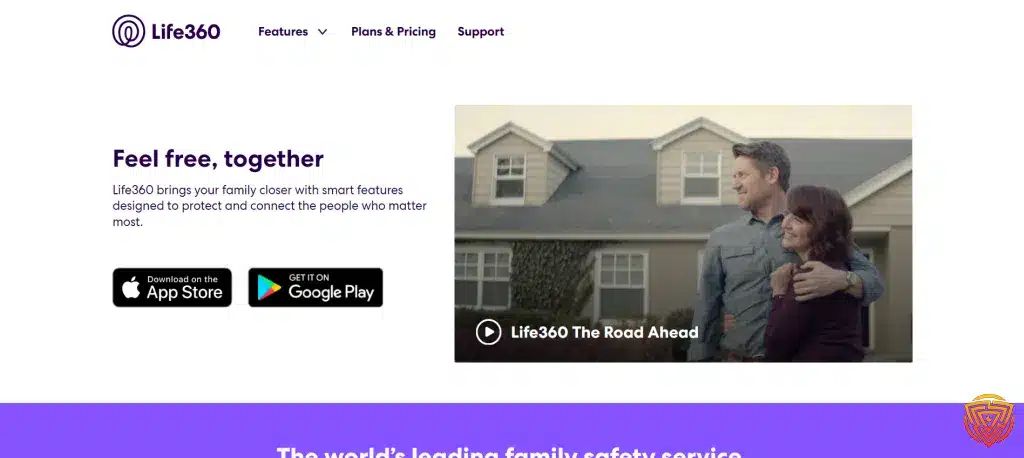
Life360 is a location-based service designed to allow family members and friends to share their location with each other, offering peace of mind about the whereabouts and safety of their loved ones.
Core Features
Location Tracking: I can keep track of my family members in real time using Life360’s location tracking, which utilizes GPS, cellular data, and WiFi to provide precise location information.
Location History: Life360 retains a history of locations visited for each circle member, allowing me to review past movements and patterns.
Primary Use Cases
Family Coordination: I use Life360 to ensure my family members are safe, especially when they are traveling to unfamiliar locations or during their daily commutes.
Driving Analysis: By enabling Drive Detection for my circle, Life360 helps me analyze driving behavior, offering insights on driving top speed, and providing peace of mind about the safety of my family while they’re on the road.
Defining Life360 Trip vs Drive
In the context of Life360, it’s essential to distinguish between ‘Trip’ and ‘Drive’ to leverage the app’s features effectively.

Explanation of Trip
A Trip in Life360 terms represents any journey where the app tracks your route, timing, and distance. Unlike Drive, it focuses on itinerary sharing and travel coordination, making it ideal for keeping family or friends informed during commutes or trips. This could be anything from a quick run to the grocery store or an extended road trip.
Understanding Drive
Drive, on the other hand, refers to the specific driving events that the Life360 app detects and analyzes.
🚗 Note: The Drive feature is included with Life360 Gold and Platinum memberships, which unlock full driving reports, crash detection, and 24/7 dispatch.
When I am moving at a speed indicative of driving a vehicle, Life360 recognizes this as a Drive event and provides insights such as my top speed or instances of sudden braking.
Comparing Life360 Trip vs Drive

In assessing Life360 Trip vs Drive options, I’ll focus on their distinct purposes, the reliability of data each provides, and variations in their user interfaces.
Purpose and Application
Trip in Life360’s context is designed for tracking journeys, potentially offering insights on the environmental impact, and promoting more sustainable transportation habits. In contrast, Drive typically centers on driver behavior analysis, focusing on safety by monitoring phone usage, speed, braking, and acceleration during driving sessions. Reducing carbon footprint is a significant consideration for users opting for the Trip feature over Drive.
Data and Accuracy
Data Quality: Life360’s Drive Detection & Analysis is highly accurate in detecting driving events and behaviors, aiming to encourage safe driving practices. Data such as phone usage, speed, and rapid acceleration during drives, is meticulously captured and analyzed. For Trip features, although not explicitly detailed in the search results, it can be inferred that similar data accuracy standards are applied to ensure that users receive precise information about their trips.
Data Use Cases: The data from Drive is often utilized to inform users about potentially unsafe driving behaviors and provide them with the opportunity to improve. Trip data, meanwhile, may be used to calculate the environmental benefits of choosing different modes of travel.
User Interface Differences
The user interface for Drive includes functionalities specific to driving behavior, such as enabling Safe Drive Reviews for Circle members, as outlined in Life360's guide. It provides detailed feedback on driving patterns. The Trip interface, while not detailed in the search results, would logically offer a different set of features, likely more aligned with planning and documenting trips, their duration, environmental impact, and perhaps offering route optimizations for efficiency.
Technological Underpinnings

In discussing the technological foundation of Life360 trip vs drive detection features, it’s crucial to understand the two main components: GPS technology and the tracking algorithm.
GPS Technology
My focus on GPS technology relates to how Life360 accurately pinpoints the location of each user. Life360 relies on the global positioning system (GPS) to establish a user’s position. The system needs to detect movement over a certain distance as well as a speed threshold, typically about 15 mph and a minimum distance of 1/2 mile from the starting point, for a trip to be registered as a drive.
Algorithm Behind Tracking
Regarding the algorithm behind tracking, my knowledge tells me that Life360 employs complex algorithms to analyze driving behavior. These algorithms assess data from the GPS and other sensors in the phone to identify driving patterns. The algorithm is crafted to pick up on specific events such as phone usage, speed, hard braking, and rapid acceleration. The detailed driving analysis helps in promoting safer driving behavior and provides valuable insights into the user’s trips and drives.
User Experience
In assessing Life360’s Trip versus Drive features, I focus on how they enhance or detract from user experience through aspects such as real-time tracking, historical data, and the communication of alerts.

Real-time Tracking
Real-time tracking is a cornerstone of Life360, allowing users to see the current location of circle members during a trip. I find this feature to be quite reassuring, especially when monitoring the safety of loved ones. The experience is streamlined, presenting the user’s location on a map with high accuracy. For instance, when I’m traveling, my family can see my progress in real-time, offering them peace of mind about my whereabouts.
History and Reporting
Life360’s drive detection and analysis feature keeps a log of all the drives taken by circle members. It records details like top speed and route taken, which are invaluable for reviewing past trips. I appreciate how easy it is to go back and see a comprehensive history of my drives, which helps in various scenarios, including when I need to recall the specifics of a trip for expense reporting or simply to reminisce about a journey.
Notifications and Alerts
The app excels in sending timely notifications and alerts to keep users informed about their circle members’ driving events. This includes alerts for when a family member starts or finishes a drive, if they’re driving faster than a set speed limit, or any instance of hard braking. I receive instant notifications, and the customization options for these alerts are intuitive, allowing me to prioritize which alerts are most important to me.
Privacy Considerations

When using location-based services, I consider privacy to be of paramount importance. Life360 Trip vs Drive features hinge on sharing location data, so understanding how privacy is affected is crucial.
Data Sharing and Permissions
Life360 collects various user data to function effectively. Regarding Data Sharing, the app monitors location data and uses third-party services to enhance its offerings. For instance, I’m aware that Amplitude is utilized for collecting analytics data, which helps in improving the service as well as potentially sharing information with other entities for varied purposes.
Permissions are equally integral to Life360. Users must grant permissions for things like location tracking and allowing the app to run in the background. If I want to use Drive Detection, for example, I need to ensure my phone has a charge over 10% and that I’m willing to accept increased battery consumption due to Life360’s Drive Detection requirements.
🔋 Drive Detection is known to slightly increase battery usage since it continuously collects motion and speed data. Trip tracking, in contrast, uses less power as it doesn’t analyze driving behavior.
User Privacy Settings
Life360 offers several settings which enable me to control who can see my location data. I can tweak these settings to align with my privacy preferences. Here’s an overview in table format for clarity:
| Setting | Function |
|---|---|
| Invisible Mode | Hide my location temporarily |
| Location Sharing | Turn on/off location sharing |
| Place Alerts | Get notified when family members arrive or leave a designated place |
I ensure my privacy by regularly checking these Life360 Trip vs Drive settings and adjusting them according to my current privacy needs and concerns.
Potential Use Cases

In my evaluation of Life360’s features, I’ve identified some specific scenarios where the service might be especially beneficial.
Family Safety
Life360’s location tracking offers me peace of mind by allowing me to monitor the real-time whereabouts of my family members. For instance, I can receive alerts when my kids arrive at or leave school, which confirms their safety without needing to contact them directly. The application’s drive detection capabilities can also notify me if a family member’s driving behavior may be unsafe. This aspect of Life360 provides a level of security, especially in ensuring that young drivers are adhering to safe driving practices.
Fleet Management
For managing a fleet of vehicles, Life360 Trip vs DRive options can be a valuable tool for my business. Ensuring that my drivers follow the most efficient routes and drive responsibly can lead to significant cost savings. The array of features offered by Life360, such as real-time location tracking, allows me to keep tabs on the fleet’s movements and optimize travel schedules in response to traffic and other conditions. This not only improves operational efficiency but could also contribute to lower fuel expenses, which are a critical consideration for any business’s bottom line.
Enhancing Life360 Trip vs Drive Use

In the context of Life360 trip vs drive features, enhancing their utility revolves around two pivotal components: innovative integrations and the assimilation of user feedback. They are critical for improving the functionality and reliability of Life360 trip vs drive options.
Integrations and Partnerships
Life360 extends its effectiveness through strategic integrations and partnerships. By embedding complementary technology, Life360 can enrich experiences while driving or planning a trip. For example, I might use Drive Detection & Analysis to monitor driving patterns and ensure safety for my entire circle.
- GPS accuracy: Incorporating advanced GPS technology helps me in providing real-time location updates, pivotal in coordinating movements during joint trips.
- Third-party services: I consider alliances with travel service providers crucial, as they allow me to offer users seamless access to additional tools directly through Life360.
User Feedback and Updates
User feedback is integral to the evolution of Life360’s functionalities. When I integrate feedback into regular updates, I ensure the service aligns with the user’s actual needs and improves their driving or trip planning experiences.
- Feature refinement: Utilizing suggestions allows me to refine existing features, like the safety-driven aspects found within Life360 Driver Protect.
- New functionalities: By acknowledging users’ demands, I can identify and develop new functionalities that cater to the needs that may have been previously overlooked.
In short, my focus is on harnessing the synergy of integrations and leveraging user-centric enhancements to deliver a robust, user-friendly experience for Life360 trip vs drive management within the Life360 platform.
🧩 Best Alternatives to Life360 (2026)
If you’re exploring beyond Life360 Trip vs Drive, these apps offer similar or enhanced tracking and parental control features. Compare them side by side 👇
This table compares keylogger-style monitoring tools by price, platform, trial availability, and use case. These tools should only be considered for lawful, consent-based, parent-managed or business-managed devices.| Software | Pricing (Devices) | Free Plan / Trial | Key Features | My View | Age Group Focus | Supported Platforms | Review |
|---|---|---|---|---|---|---|---|
| Life360 | Free basic; paid plans from $7.99/month; Gold from $14.99/month; 👉 Check Life360 Pricing | ✔️ Free basic plan; 7-day trial on paid plans | 📍 Real-time location sharing 🏠 Place alerts 🚗 Driving reports on paid plans 💥 Crash detection on higher plans | Best overall for family location sharing and driving safety | All ages | iOS, Android | Life360 Review |
| Qustodio (🏆 Editor’s Choice) | From around $54.95/year for up to 5 devices; 👉 Check Qustodio Pricing | ✔️ Free basic plan for 1 device; Premium trial availability varies | 📍 Family locator ⏰ Time limits 🔒 Content filtering 📊 Activity reports | Best all-in-one tracking plus family safety app | Kids to teens | Windows, Mac, iOS, Android | Qustodio Review |
| FamiSafe | From $4.99/month billed annually for up to 10 devices; monthly plan also available; 👉 Check FamiSafe Pricing | 🧪 3-day free trial | 📍 Real-time GPS 🚸 Geofencing alerts 🕒 Location history ⏰ Screen time and app blocking | Best for GPS tracking plus screen time control | Kids to teens | iOS, Android, Windows, Mac, Chromebook, Kindle Fire | FamiSafe Review |
| Apple Find My | Free; Free | ✔️ Free | 🍏 Device, item, and family location sharing 📡 Offline finding for supported Apple devices 🔐 Activation Lock 🎧 Tracks AirTags, AirPods, and Find My-compatible items | Best built-in iPhone and Apple device tracking | All ages | iPhone, iPad, Mac, Apple Watch, AirPods, AirTag | Find My iPhone Guide |
| Google Find Hub | Free; Free | ✔️ Free | 📍 Locate Android devices 🔔 Play sound 🔒 Remote lock 🧹 Erase lost devices | Best built-in Android device tracking | All ages | Android phones, tablets, Wear OS devices, and supported accessories | Find Hub Guide |
| Bark | From $14/month; 👉 Check Bark Pricing | 🧪 7-day free trial | 📍 Location tracking and alerts 🚨 Online safety alerts 🌐 Website and app blocking ⏰ Screen time schedules | Best for teens where location alerts are part of broader online safety | Teens | iOS, Android, tablets, computers, Amazon Fire | Bark Review |
| OurPact | From $6.99/month; annual plan available; 👉 Check OurPact Pricing | 🧪 14-day free trial for Premium and Premium+ | 📍 Real-time location 🗺️ Location history 🏠 Custom place alerts ⏰ Screen time scheduling | Best for tracking plus screen time schedules | Kids to teens | iOS, Android | OurPact Review |
| Microsoft Family Safety | Free; premium family features may require Microsoft 365; Free | ✔️ Free basic family safety features | 📍 Location sharing where available ⏰ Screen time limits 🔒 Content filters 📊 Activity summaries | Best for Microsoft, Windows, and Xbox households | Kids to teens | Windows, Xbox, Android, iOS | Microsoft Family Safety Guide |
| SmartThings Find | Free; Free | ✔️ Free | 📍 Locate Galaxy devices 🔔 Ring device 🔒 Remote lock 🧹 Remote wipe and backup options | Best for Samsung Galaxy users | All ages | Samsung Galaxy phones, tablets, watches, earbuds, and SmartTags | Samsung SmartThings Find Guide |
Conclusion and Personal Recommendation
Both Life360 Trip and Life360 Drive make the app a powerful all-in-one safety companion — one for travel coordination, the other for driver accountability.
Trip keeps everyone informed during travel, sharing real-time progress and arrival alerts.
Drive digs deeper into safety, analyzing speed, phone use, and braking patterns to encourage better habits and provide emergency support.
🧩 My Recommendation
If your goal is everyday travel visibility, use Trip. If your priority is driver safety and performance tracking, go with Drive — especially with the Gold or Platinum plan.
👉 Start Your Free Life360 Trial to test both features and choose what fits your family’s lifestyle.
Frequently Asked Questions
In addressing your concerns about Life360 trip vs drive key features prices plans, I’ve compiled the most common inquiries and clear explanations to help you navigate these options effortlessly.
How can I disable Drive Detection in Life360?
I can turn off Drive Detection in the Life360 app by going to Settings, tapping on Drive Detection, and then toggling the feature off. Remember, this needs to be done on the individual device where Drive Detection should be disabled.
What are Life360’s Safe Drive notifications and how do they work?
Life360 Safe Drive notifications are alerts that inform me about driving behavior within my Circle, such as phone usage, high speed, and hard braking. These notifications work when Drive Detection is enabled and can help me monitor safe driving habits.
Is it possible to deactivate Life360’s speed monitoring without notifying other members?
Turning off speed monitoring within Life360 may not be straightforward without alerting others, as changes to settings are typically mirrored across the Circle, so I’d be cautious when altering this setting if discretion is desired.
Why is my location on Life360 jumping sporadically?
Jumpy location on Life360 can often be attributed to GPS inconsistencies or weak cell signals. Ensuring the phone has a good signal and Life360 is running in the background can minimize these inconsistencies.
How does Life360 detect car accidents?
Life360 employs advanced sensors and algorithms to detect significant changes in force and speed, which may indicate a car accident. When such an incident is detected, the app can alert Circle members and emergency contacts if I am part of a premium plan that includes this feature.
Can Life360 track the speed of a vehicle, and how can I enable this feature?
Yes, Life360 can track the speed of a vehicle when Drive Detection is enabled. To activate this feature, I go to Settings, select Driving Analysis, and ensure the feature is turned on. This allows me to view detailed information about the driving speeds within my Circle.
That’s All for Now
Both Trip and Drive showcase why Life360 continues to lead family safety apps in 2026.
Whether you’re traveling across town or monitoring driving habits, the app’s real-time tracking and alerts make it indispensable. If you haven’t tried it yet, download Life360 and experience both features in action — safety, coordination, and peace of mind, all in one app.
- importance of online safety
- Spynger vs mSpy vs EyeZy
- qustodio review
- best parental monitoring app
- best parental control app for android
Share this article

Stuart Kerr Spindlow is Impulsec’s Publisher, Chief Editor and Lead Reviewer. He writes and maintains coverage of consumer cybersecurity and digital-safety software, with a focus on practical suitability, limitations and the evidence behind product claims. Read Stuart’s full profile.