


Quick Verdict
AirDroid Parental Control is my first choice here for Android families who need monitoring alongside app, web and time controls. Choose MMGuardian for message-focused supervision or Bark for supported safety alerts in eligible countries. mSpy and uMobix are conditional choices for more detailed reporting, with greater privacy and security-history concerns. None gives identical Android and iPhone coverage; match the exact setup to the child’s device.
This guide compares tools for a minor’s parent-managed device. Decide whether you need everyday controls, alerts about selected concerns, or detailed activity records. More collected data is not automatically better protection; explain the supervision and check applicable consent requirements before installing anything.
The Best Parental Monitoring Apps Ranked
The order below prioritises useful family controls, platform clarity, setup burden, privacy exposure and household cost. The last two are specialist reporting options, not equally suitable defaults for every family.
- AirDroid Parental Control: Best blend of Android monitoring and everyday controls
- MMGuardian: Best for child-focused message supervision
- Bark: Best for alert-led supervision where available
- mSpy: Conditional option for detailed Android reporting
- uMobix: Conditional option for supported Android social-app reports
Parental Monitoring App Comparison
These two tables separate family-control tools from detailed monitoring software. Their rows follow the same order as the shortlist and mini-reviews. Read the platform and billing details below before choosing.
Family controls and safety alerts
Scroll horizontally to see all columns.
| Product | Main features | Important limitations |
|---|---|---|
 AirDroid Parental Control AirDroid Parental ControlFull review Read mini-review | Activity reports, app/time controls, location and geofencing. Android adds remote camera, screen mirroring and supported message monitoring. | Remote camera, mirroring, one-way audio and SMS/social monitoring are Android features, not equivalent child-iPhone features. |
 MMGuardian MMGuardianFull review Read mini-review | Message reports and safety alerts; app/web controls and location. Android supports SMS and selected social apps; iPhone supports SMS/iMessage and documented WhatsApp/Kik reports. | iPhone message reports require a computer Sync App and the same Wi-Fi network; no iPhone call/SMS blocking. Android SMS reporting requires MMGuardian as the default messaging app. Tablet-only licences are separate. |
 Bark BarkFull review Read mini-review | Jr: screen-time, app/web controls and location. Premium adds alerts about supported content and communications. | iOS content monitoring uses Bark Desktop, Bark Sync or Bark Home; setup requirements differ and alerts are not instantaneous. Account/app coverage varies; Phone and Watch are separate products. |
Detailed reporting: conditional choices
Scroll horizontally to see all columns.
| Product | Main features | Important limitations |
|---|---|---|
 mSpy mSpyFull review Read mini-review | Advertised location reporting, call/message records, supported social-app monitoring and screen-activity reporting. | Platform and setup restrictions apply. Free account creation does not unlock paid monitoring. 2024 customer-data breach reporting remains material to the security assessment. |
 uMobix uMobixRead mini-review | Advertised call/message records, supported social-app reports, location and app-activity reporting. | Homepage feature lists do not establish availability on every device. 2026 payment-record exposure reporting remains part of the security assessment. |
Platform support is not feature parity. A tool can support an iPhone without reading every message or providing Android-style live supervision. A demo, free registration and a conditional refund policy are also different from a free trial.
How I Ranked These Apps
I compare each product’s documented capabilities with the practical job a family needs done: controls that change device use, alerts that highlight selected concerns, or detailed records for a defined safeguarding need. I give more weight to proportionate collection, clear setup requirements and useful family allowances than to the longest surveillance feature list.
The assessment uses official product, compatibility, pricing, support and policy pages checked on 20 October 2026, alongside the relevant security reporting linked below. Vendor capability claims are not independent measurements of detection accuracy. These are use-case rankings, not a calculation from unrelated standalone review scores.
Five options cover the distinct buying choices supported here. Eyezy, WebWatcher and Hoverwatch are discussed separately because compatibility clarity, modern-device support or collection scope changes whether I would shortlist them. Built-in controls remain a sensible starting point for basic screen-time and app rules.
1. AirDroid Parental Control: Best Blend of Android Monitoring and Controls
Best for: Android families who want activity visibility plus practical limits on apps, websites and device time. I put AirDroid first because it combines reporting with tools that can change a child’s device use; detailed log-only products do not offer the same balance.
Its current feature matrix separates child Android and iOS capabilities. Android includes screen mirroring, supported notification/content monitoring, location and geofencing. Those features do not establish that all conversations can be read, and live access should be limited to a clear family need.
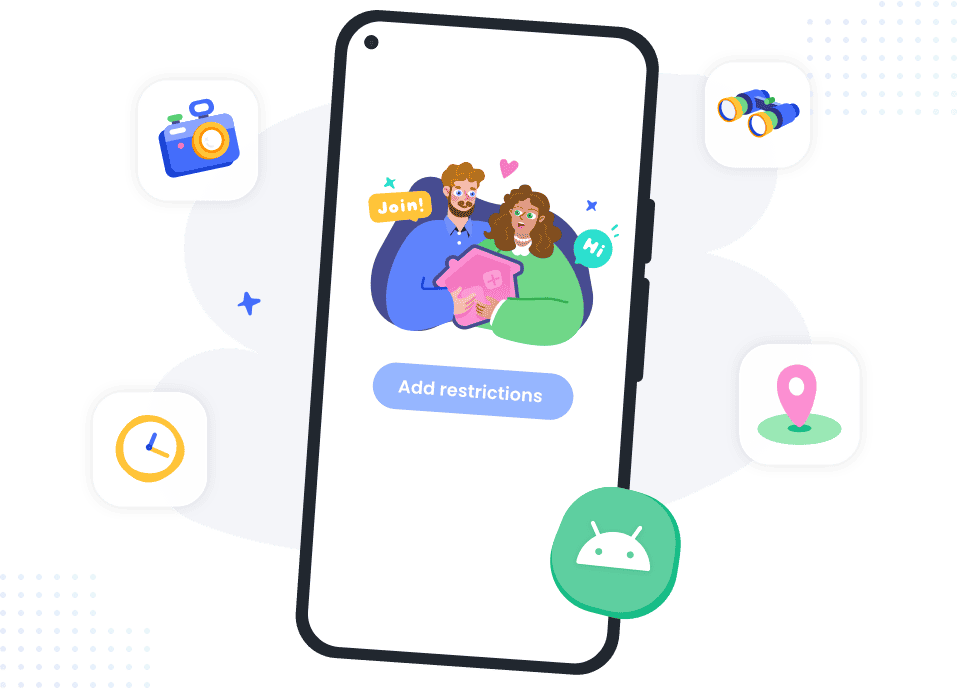
Platform limits: Child Android requires Android 8 or later; the child iPhone/iPad minimum is iOS/iPadOS 15. The parent iPhone/iPad app requires version 16 or later. Child-iPhone tools include selected time, app, web and location controls; Android live-screen, remote-camera, one-way-audio and SMS/social monitoring are not equivalent iPhone features.
Price and billing: The US-dollar price page lists US$9.99 for one month and two devices, US$19.99 for a quarter or US$59.99 for a year with up to ten devices. Longer terms are charged as the full term, not monthly instalments. Plans auto-renew; check the renewal charge and cancellation terms at purchase. Do not treat a money-back badge as an unconditional trial.
Main drawback: The most distinctive supervision tools are Android-only, and broad permissions create a privacy tradeoff. My verdict: The most balanced starting point in this shortlist for an Android family; choose by the child’s platform, not the parent’s phone. Read my full AirDroid Parental Control review.
2. MMGuardian: Best for Child-Focused Message Supervision
Best for: A family with a defined need to supervise supported messages while retaining app, web and time rules. I rank MMGuardian ahead of general activity loggers because communication supervision sits within a child-focused controls product.
Android supports message reporting and selected social-app supervision, with permissions and setup conditions. SMS reporting requires the MMGuardian messaging setup; it is not a claim that every encrypted conversation or deleted message can be recovered. Choose the exact feature you need before granting access.
iPhone setup matters: MMGuardian’s message-reporting guide requires a Sync App on a household computer. The computer must be on and awake, and the iPhone must be available for the supported backup/sync process. Apple’s passcode prompts can interrupt collection. This is not uninterrupted remote access, and iPhone call/SMS blocking is not equivalent to Android.
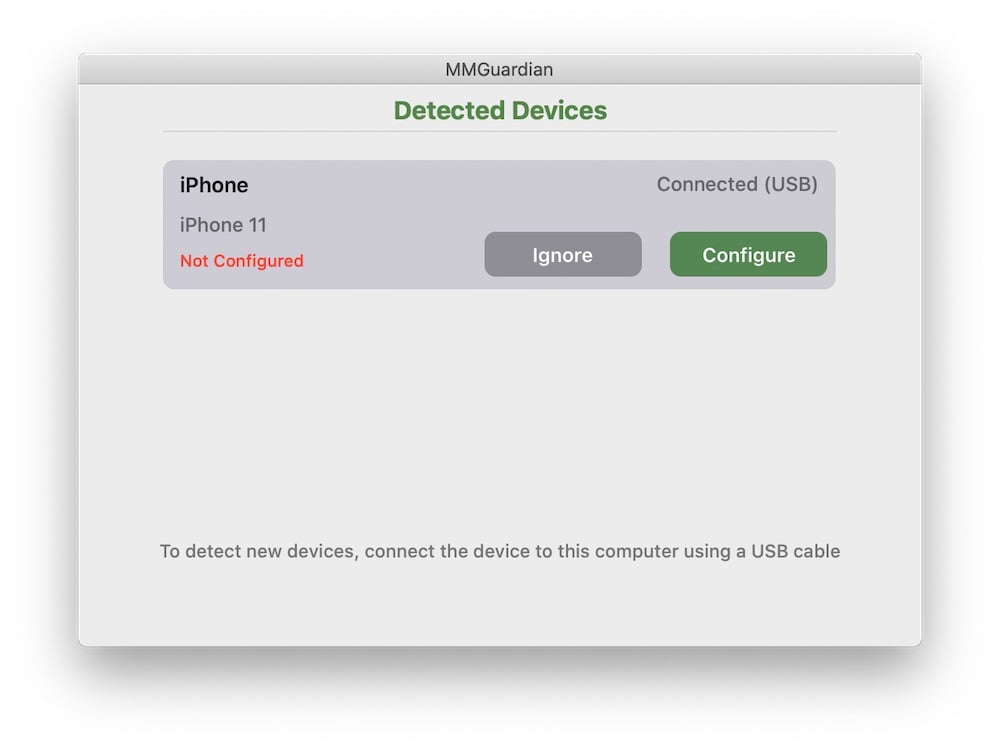
Price and trial: Official app pricing is US$4.99/month or US$49.98/year for one child phone, or US$9.99/month or US$99.98/year for up to five child devices. Parent apps do not need a licence. Subscriptions auto-renew, local tax can apply, and a 14-day trial is offered. Tablet-only licences and the MMGuardian Phone are separate products.
Main drawback: iPhone message reporting adds computer, network and passcode requirements. My verdict: A better fit than a broad activity logger when the specific goal is child-message supervision plus practical rules. Read my full MMGuardian review.
3. Bark: Best for Alert-Led Supervision Where Available
Best for: Parents who want alerts about supported content rather than routinely reading every conversation. Bark’s position here reflects that narrower parental workflow; an alert still needs context and does not prove harm or guarantee every problem will be caught.
The Bark app combines supported content analysis with time, website/app and location tools. Monitoring depends on the device, connected accounts and setup. iPhone families need an additional supported collection workflow for on-device content; simply installing the parent app does not unlock messages.
Country limits: Bark’s availability guidance covers the US, Australia and South Africa, including app access in US territories. It is not a worldwide default. Hardware shipping rules are narrower, so an app subscription is not proof that Bark Sync can be shipped to your home.
Price and trial: The US app plan lists US$14/month or US$99/year for unlimited children/devices. Bark advertises seven trial days; its billing guidance requires a card and explains the temporary authorisation hold. Cancel before paid renewal if you do not want to continue. Optional Bark Sync is separately priced at US$6/month or US$49/year and requires the app subscription; do not combine the add-on price with the base plan by accident.
Main drawback: Country, account and collection-method limits can determine whether it is useful at all. My verdict: The strongest alert-first fit here for an eligible household; MMGuardian may fit better when supported message records are the specific requirement. Read my full Bark review.
4. mSpy: Conditional Option for Detailed Android Reporting
Best for: A parent with a specific, proportionate reason to review detailed activity on a managed Android phone. Its compatibility policy documents location, call/message and supported social-app reports. I rank it below the first three because the extra collection creates responsibilities that ordinary family controls avoid.
Android and iPhone are different products in practice. Android installation requires access to the child’s device. iPhone options use supported iCloud or computer/Wi-Fi workflows with different data coverage. The policy’s iCloud Sync list is not the same as the Android message-monitoring list. Keep account protections enabled and choose an alternative if the desired workflow requires weakening them.
Security caveat: The 2024 mSpy customer-data incident weighs against treating feature breadth as safety.
Price and trial: Compare the complete billed total, subscription term, renewal and device allowance in the linked checkout. Premium and Family Kit are separate offers; an old annual monthly-equivalent figure is not a current quote for either. The official FAQ says there is no free trial. The 14-day refund policy has technical, compatibility and other exclusions; it is not a change-of-mind guarantee.
Main drawback: Extensive personal-data collection and setup-specific coverage. My verdict: A conditional specialist option for detailed reporting, not my safest or best default for every parent. Read my full mSpy review.
5. uMobix: Conditional Option for Android Social-App Reports
Best for: A parent who specifically needs the supported Android communication/activity reports in uMobix’s feature list. Its current product pages focus on Android. I would not buy it for an iPhone on the strength of old comparison copy or an iCloud reference in a legacy policy.
The current product FAQ requires access to the managed Android device for installation and says one subscription covers one active monitored device at a time. A browser dashboard on the parent’s iPhone does not mean the child’s iPhone is supported. Supported reports still depend on permissions, device settings and the particular app.
Security caveat: The 2026 customer-payment exposure is a reason to prefer less intrusive alternatives.
Price and terms: Check the full checkout total and then-current renewal price rather than reusing an old US$12.49 monthly-equivalent quote. The recurring policy describes automatic renewal, and the refund policy sets a conditional 14-day window with substantial exclusions. It also retains advanced-feature prerequisites that need to match the exact feature you plan to use. Do not assume every advertised capability is available without changing the device’s security configuration.
Main drawback: One active device, sensitive collection and narrower family value than controls-first products. My verdict: Consider it only for a clearly defined compatible Android reporting task, with the privacy and security-history tradeoffs accepted. It is not a reason to monitor an adult partner or conceal collection from a child.
Why Eyezy, WebWatcher and Hoverwatch Are Not in the Main Five
Eyezy: The current FAQ and older compatibility policy give conflicting rooting requirements for some social-message functions. A broad “works on Android and iPhone” claim does not resolve that discrepancy. I would not make it a leading purchase recommendation without confirmation of the exact feature and setup. Premium covers one device and Family Kit up to three; its FAQ offers a demo, not a free trial. Read the Eyezy review.
WebWatcher: Its compatibility table still lists iOS 8–15, Android 4–12, Windows 7–10 and macOS 10.8–11, despite broader wording elsewhere on the same page. That is insufficient support for recommending it to a family with newer devices. Some Android social reports are incoming messages or notification details only. Read the WebWatcher buying cautions.
Hoverwatch: The vendor lists Android, Windows and macOS, not iPhone/iPad. Screenshot and keystroke collection is a specialist activity-logging use case with a large privacy cost. It does not add enough everyday family-control value to earn a main-shortlist place here. That is a scope decision, not a claim that it has been discontinued.
For a child who mainly needs daily limits, app approval or visible location sharing, compare ordinary parental controls before paying for deeper reporting.
How to Choose a Parental Monitoring App
Start With the Problem, Not the Feature List
Define the concern before choosing software. A screen-time disagreement calls for different tools than repeated contact from an unknown adult, suspected cyberbullying or a child travelling independently. Buying the app that collects the most data can create more privacy risk without solving the original problem.
Decide Whether You Need Controls, Alerts or Detailed Records
- Controls: screen-time schedules, app limits, content filtering and bedtime rules
- Alerts: notifications about selected risk indicators, locations or keywords
- Detailed records: supported messages, calls, browsing, screenshots or other device activity
Most families should begin with controls and proportionate alerts. Detailed records make sense only when there is a clear reason, the device is parent-managed and the extra privacy cost is justified.
Check Android and iPhone Separately
Android generally allows deeper activity reporting and more device-level controls. iPhone apps are restricted by Apple’s design and may depend on supervision settings, Apple account access, backups, a connected computer or other setup conditions. Read the exact iPhone feature list rather than relying on a general “iOS supported” label.
Compare the Full Cost
Many monitoring products advertise an effective monthly price but bill the full annual amount upfront. Check the billed total, renewal price, number of covered devices, refund conditions and whether switching a child’s phone requires another licence.
Protect the Parent Account
A monitoring dashboard can contain location history, private communications, photos and browsing data. Use a unique password, enable two-factor authentication where available, protect the connected email account and give dashboard access only to responsible adults who genuinely need it.
Set an End Point
Deeper monitoring should not continue indefinitely by default. Agree what would allow supervision to be reduced, review the arrangement regularly and remove access that is no longer proportionate.
Legal and Ethical Considerations
Monitoring law varies by country, state, the age of the child, device ownership, the type of information collected and whether calls or communications are intercepted. A parent’s responsibility for a child does not create unlimited permission to use every monitoring feature.
The clearest family use case is a minor’s device that the parent owns or manages, combined with age-appropriate explanation and a defined safety purpose. Monitoring an adult partner, another person’s account or a device you do not control is a different and potentially unlawful situation.
Particular care is needed with keystroke logging, screenshots, call-related features, microphones, cameras and background collection. These tools can capture passwords, financial information, confidential conversations and data belonging to third parties. Device ownership alone may not make every form of collection lawful.
Practical rule: disclose the supervision, collect only what is necessary, secure the data, review it only for the agreed purpose and reduce monitoring as the child gains maturity and trust.
When a Standard Parental Control App Is Better
A monitoring app is usually unnecessary if your main goal is to establish healthier device habits. Standard parental controls are better suited to:
- Daily screen-time limits and bedtime schedules
- App approval, blocking and age-based restrictions
- Website filtering and safe-search settings
- Visible location sharing and arrival alerts
- Risk alerts that do not routinely expose every conversation
Qustodio is a strong all-round choice for controls and multi-device management, while Bark is better for supported safety alerts where available. Built-in options such as Apple Screen Time, Google Family Link and Microsoft Family Safety may be enough for younger children or families starting with basic rules.
See our main parental control app comparison for current pricing, platform limits and alternatives.
Final Verdict
AirDroid Parental Control is my first choice in this shortlist for Android families needing monitoring and practical device rules. Choose MMGuardian when supported message reporting is central, or Bark when alert-led supervision fits and your household is in an eligible country.
mSpy and uMobix remain conditional options for specific detailed-reporting needs. Their extra collection and security-history caveats matter more than a long feature list. Check the exact child device, collection method, billing total and consent requirements; use the least intrusive setup that solves the actual problem.
Frequently Asked Questions
What is the best parental monitoring app?
AirDroid Parental Control is my first choice here for an Android family needing both monitoring and everyday rules. MMGuardian is the message-focused alternative; Bark suits alert-led supervision in supported countries. mSpy and uMobix are conditional detailed-reporting options, not universal winners. Match the child device and setup before buying.
Can parents monitor a child’s phone?
Use monitoring only with clear parental authority over the minor’s device, an appropriate safety purpose and applicable consent or notification requirements. Device ownership is not blanket permission to collect calls, messages, microphone audio or third-party data. Do not use these tools for covert adult-partner monitoring.
Does an iPhone parent app mean the child’s iPhone can be monitored?
No. The parent app or browser dashboard is where you manage the account; the child device needs its own supported collection method. AirDroid’s parent iOS minimum differs from its child iOS minimum. MMGuardian’s iPhone message reports require a computer Sync App, and uMobix’s current sales pages focus on Android.
What is the difference between monitoring and parental controls?
Monitoring reports supported activity or sends alerts. Parental controls change device use through rules such as time limits, web restrictions or app controls. AirDroid and MMGuardian combine these roles; detailed reporting alone is not a replacement for everyday family rules.
Is there a genuinely free parental monitoring app?
Start with the child device’s built-in family settings when basic limits and app rules are enough. A paid monitoring product’s web demo, free registration or conditional refund does not create a free monitoring subscription. mSpy and Eyezy state that they offer no free trial; check the current terms of any promotional offer.
Why are only five apps shortlisted?
The five cover distinct family-control, message-supervision, alert-led and detailed Android reporting choices. Eyezy has conflicting feature prerequisites across its official documents, WebWatcher’s compatibility table lists older operating systems, and Hoverwatch’s activity-logging focus is narrower than the family-control task. A longer list would not make those tradeoffs disappear.
Share this article

Stuart Kerr Spindlow is Impulsec’s Publisher, Chief Editor and Lead Reviewer. He writes and maintains coverage of consumer cybersecurity and digital-safety software, with a focus on practical suitability, limitations and the evidence behind product claims. Read Stuart’s full profile.
I think for feature-packed performance on a budget, Xnspy really delivers.