


Protecting kids online is a top worry for moms and dads.Got to introduce you to **Safe Kids** – an awesome toolthat helps with this. It lets you limit screen time, filter out inappropriate content, and track where your child is. Parents benefit greatly from this app to keep their children safe online. Don’t miss out on this essential tool to boost your child’s internet safety. Act fast and give it a try today to safeguard your child’s online experience.
The app offers both free and premium versions, with the free version providing basic protection and the premium version unlocking more advanced features. You can download Kaspersky KidSafe app for various devices, including smartphones, tablets, and computers. It’s easy to set up and use, making it a good choice for parents who want to keep their kids safe without spending hours figuring out complex software.
I like that Kaspersky SafeKids gives parents real-time alerts about their child’s online activity. This means you can step in quickly if needed. The app also lets you set up age-appropriate settings, which is great for families with kids of different ages.
Key Takeaways
- Kaspersky Kids Safe is one of the best parental control apps that helps parents manage children’s screen time and online safety
- The app offers both free and paid versions with varying features
- Parents can get real-time alerts and set age-appropriate controls
Getting Started with Kaspersky Kidsafe App
Kaspersky KidSafe ap offers an easy setup process to protect your children online. I’ll cover the key steps to get the app up and running on your devices.
System Requirements
Kaspersky KidSafe works on many devices. For iPhones, you need iOS 12.0 or later. Android phones require version 5.0 and up.
On computers, it runs on Windows 7 and newer versions. Mac users need macOS 10.13 or later.
The app doesn’t take up much space. You’ll need about 150 MB free on your device.
Make sure your device is connected to the internet for installation and updates.
Account Creation
To start using Kaspersky SafeKids, you need a My Kaspersky account. It’s free and easy to set up.
-
Go to the Kaspersky website and click “Sign Up”.
-
Enter your email and create a strong password.
-
Verify your email address.
-
Once your account is ready, you can add your children’s profiles. Include their names and ages to get age-appropriate settings.
Subscription Options
Kaspersky Kids Safe offers a free version with basic features. For full protection, I recommend the premium version.
The premium subscription costs $14.99 per year. It covers unlimited devices for your family.
New users often get an introductory price. Check for current deals when you sign up.
The subscription renews automatically. You can cancel anytime before the renewal date.
Kaspersky sometimes offers discounts for longer terms or multiple products. Look out for these to save money.
Installation and Setup
Kaspersky Kids Safe is easy to set up on your devices. I’ll walk you through downloading, installing, and managing your subscription.
Downloading Kaspersky Kids Safe

To get started, I need to perform Kaspersky Kidsafe download on my devices. The app is available for computers and mobile devices.
For computers, I can download it from the Kaspersky website. On mobile, I’ll find it in my device’s app store.
Non-US customers can access downloads normally. US customers may face restrictions due to sanctions.
Installation Process
Once downloaded, I’ll begin the installation. On computers, I’ll run the installer and follow the prompts.
For mobile devices, I’ll open the app after downloading. The app will guide me through setup.
I’ll need to create a Kaspersky account if I don’t have one. This lets me manage settings across devices.
It’s important to install the app on both my device and my child’s devices. This gives me full control.
Managing Your Subscription
Kaspersky Kids Safe offers free and paid versions. The paid version has more features.
To manage my subscription, I’ll go to my Kaspersky account settings. Here I can view my plan details.
I can turn off auto-renewal if I don’t want it to automatically charge me. This is helpful if I’m trying out the service.
To cancel, I’ll contact Kaspersky support. They can help me end my subscription if needed.
I should keep track of when my subscription ends to avoid unwanted charges.
Core Features

Kaspersky Kids Safe offers powerful tools to keep children safe online and offline. It gives parents control while helping kids build healthy digital habits.
Parental Controls and Monitoring
I can monitor my child’s online activity with Kaspersky Kids Safe. The app provides detailed reports on web browsing, app usage, and YouTube searches.
I can set time limits for device use and specific apps. This helps prevent excessive screen time.
The GPS locator lets me track my child’s location. I get alerts if they leave designated safe areas.
I can also manage which apps my child can access. This prevents use of inappropriate or distracting apps.
Child Protection Tools

Kaspersky Kids Safe includes a smart content filter to block inappropriate websites. I can customize it based on my child’s age.
The safe search feature for YouTube filters out unsuitable videos. This creates a kid-friendly browsing experience.
I receive real-time alerts about suspicious online activity. This allows me to act quickly if needed.
The app works across multiple devices and platforms. This ensures consistent protection at home and on-the-go.
Online Safety and Security

Kaspersky Kidsafe offers strong protection for children online. It uses smart tools to keep kids safe while they browse and search the web.
Safe Search and Browsing
I recommend using Kaspersky Kidsafe safe search feature. It filters out inappropriate content from search results. This helps prevent kids from seeing harmful material by accident.
The app also has web filtering. It blocks access to websites with adult content, violence, or other unsafe topics. Parents can choose which types of sites to block.
Safe browsing is key. The app watches for risky behavior as kids surf the web. It can alert parents if a child tries to access a blocked site.
Protection Against Phishing and Data Leaks
Kaspersky child protection app includes anti-phishing protection. This stops kids from falling for fake websites that try to steal personal info. The app warns about suspicious links and sites.
I like that it checks for data leaks too. It scans for any leaked passwords or personal details linked to your child’s accounts. You’ll get an alert if any info is found online.
The app also teaches kids about online threats. It shows tips on avoiding scams and keeping data private. This helps build good online safety habits.
Customer Support and Resources

Kaspersky offers helpful support options and policies for Safe Kids users. I’ll cover how to get assistance and what guarantees are provided.
Accessing Kaspersky Customer Support

I can contact Kaspersky customer support if I need help with Safe Kids. They offer phone, email, and live chat options. The support team can assist with installation, setup, and troubleshooting.
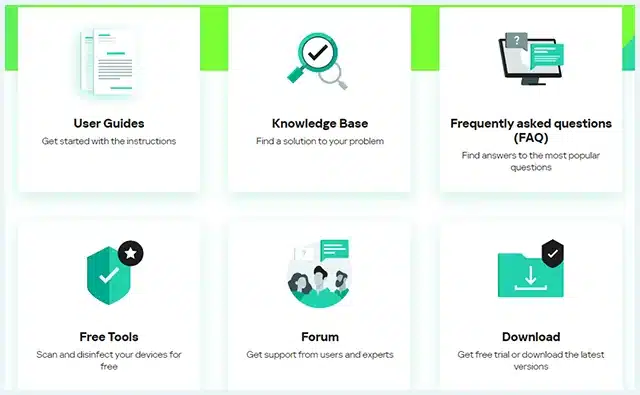
For quick answers, I can check the online help center. It has guides and FAQs about Safe Kids features.
Kaspersky also provides video tutorials on their YouTube channel. These show how to use key Safe Kids functions step-by-step.
Guarantees and Policies
Kaspersky offers a 30-day money-back guarantee on Safe Kids. I can try it risk-free and get a refund if I’m not satisfied.
The company has a clear privacy policy. It explains how they handle data from kids’ devices.
Kaspersky regularly updates Safe Kids. This keeps the app secure and adds new features.
There’s also a license agreement. It covers how I’m allowed to use the software.
Conclusion and Personal Recommendation
Safe Kids is a solid choice for parents looking to protect their children online. I find its wide device compatibility and affordable pricing appealing.
The app’s web filtering and YouTube monitoring features stand out to me as particularly useful. They help keep kids safe from inappropriate content.
I appreciate the GPS tracking and geofencing capabilities. These give parents peace of mind about their child’s physical location.
The flexible screen time limits and scheduling tools are handy for managing device usage. Parents can customize settings based on each child’s age and needs.
One drawback is that some features are only available on certain platforms. It’s important to check compatibility before purchasing.
In my view, Kaspersky Kids Safe offers good value for its price. The free tier supports unlimited child profiles, which is generous.
For families seeking comprehensive protection, I recommend trying Safe Kids. Its 30-day money-back guarantee allows risk-free testing.
Frequently Asked Questions
Safe Kids offers parents tools to protect their children online. I’ll answer common questions about downloading, installing, and using this app.
How can I download and install Safe Kids on my device?
To install Kaspersky SafeKids on macOS, I first create a free My Kaspersky account. Then I download the app on my mobile device and sign in.
Next, I download Kaspersky SafeKids to my child’s Mac from My Kaspersky. The installation package will download, and I follow the setup steps.
What is the difference between the free and paid versions of Kaspersky Kids Safe?
The free version has basic features for online safety. The paid version adds more tools like screen time limits and location tracking.
I get more detailed reports and alerts with the paid version too.
Is Safe Kids available for use in the United States?
Yes, Kaspersky KidSafe is available in the United States. I can download the app from U.S. app stores or the Kaspersky website.
Can children uninstall Safe Kids from their devices without parental consent?
No, children can’t easily uninstall Kaspersky SafeKids without permission. The app has safeguards to prevent removal.
I need to enter my password or PIN to make changes or remove the app.
How do I activate Kaspersky SafeKids using a free activation code?
To activate with a free code, I first download and install the app. During setup, I choose the option to enter an activation code.
I input the code when prompted. This unlocks the features tied to that specific code.
What is the cost of subscribing to the full version of Kaspersky SafeKids?
The cost of the full version varies. Kaspersky often has deals and discounts.
I can check their website for current pricing. They sometimes offer free trials of the paid features too.
That’s All For Now
I hope you found this article on Kaspersky Safe Kids app helpful. Keeping children safe online is crucial in today’s digital world. I encourage you to try out the Safe Kids app for yourself.
This powerful tool offers flexible parental controls and GPS tracking to protect your kids. It allows you to:
• Monitor app and web usage
• Set screen time limits
• Block inappropriate content
I’m confident you’ll find it valuable for your family’s online safety needs. Check back soon for more updates on digital security topics.
Don’t forget to explore the related articles linked below. They provide extra tips on child protection online and using parental control software effectively.
Thanks for reading! Your interest in this important subject is appreciated. Stay safe out there!
Share this article

Stuart Kerr Spindlow is Impulsec’s Publisher, Chief Editor and Lead Reviewer. He writes and maintains coverage of consumer cybersecurity and digital-safety software, with a focus on practical suitability, limitations and the evidence behind product claims. Read Stuart’s full profile.