


Worried about your kid’s safety on the internet when they’re using Chromebooks? Uncover the best free parental control apps that I’ve found to help you choose the right one for your family. These apps allow you to keep an eye on your child’s online activities and set boundaries. Ready to protect your child’s online journey? Discover how now!
The best free parental control apps for Chromebook offer features like content filtering, screen time limits, and activity reports. I’ll compare the top choices to help you pick the right one for your needs. Whether you’re tech-savvy or new to parental controls, I’ve got you covered with easy-to-understand info on the most useful free options available.
⏳ Do you want to skip the read and get right to my top pick? The best free parental control app for Chromebook for most people is Qustodio.
Key Takeaways
- Comprehensive Web Filtering – Ensures children are protected from inappropriate content with strong filtering options.
- Flexible Screen Time Management – Allows parents to set limits on device usage to promote healthy screen habits.
- Basic App and Location Control – Helps monitor app usage and, in some cases, provides location tracking for added safety.
List of the Best Free Parental Control App for Chromebook
Here are the top free parental control app for Chromebook options:
- Qustodio Free – Best for basic web filtering and time limits. (My Top Pick! 🏆🥇)
- Bark Free – Best for smart alerts on online activity.
- Family Link by Google – Best for Android and Chromebook parental controls.
- OpenDNS FamilyShield – Best for network-wide content filtering.
- Kaspersky Safe Kids Free – Best for basic app and screen time control.
- KidLogger – Best for activity monitoring and keylogging.
- OurPact Free – Best for basic app blocking and screen time.
- Screen Time Labs Free – Best for simple tracking and limits.
- Salfeld Child Control Trial – Best for temporary full parental control access.
- Mobicip Free Version – Best for basic filtering and safe browsing.
Quick Comparison Table of Best Free Parental Control App for Chromebook
Here’s a quick comparison table of the best free parental control apps for Chromebooks:
| App | Web Filtering | Screen Time | App Blocking | Location Tracking | Pricing (Yearly) |
|---|---|---|---|---|---|
| Qustodio Free (My Top Pick! 🏆🥇) | Basic Filters | Daily Limits | Limited Apps | No Tracking | Free |
| Bark Free | Alert System | Time Limits | No Blocking | Location Check | Free |
| Family Link by Google | Website Filters | Daily Limits | Play Store Only | Location Sharing | Free |
| OpenDNS FamilyShield | Network Filters | No Limits | No Blocking | No Tracking | Free |
| Kaspersky Safe Kids Free | Basic Filters | Time Scheduling | App Monitoring | GPS Alerts | Free |
| KidLogger | Activity Logs | No Limits | No Blocking | No Tracking | Free |
| OurPact Free | Website Blocking | Screen Timer | Limited Apps | No Tracking | Free |
| Screen Time Labs Free | Limited Filters | Daily Tracking | Basic Blocking | No Tracking | Free |
| Salfeld Child Control Trial | Website Blocking | Time Limits | App Restrictions | Location Alerts | Free Trial |
| Mobicip Free Version | Basic Filters | Daily Limits | No Blocking | No Tracking | Free |
In-Depth Reviews of the Best Free Parental Control App for Chromebook
1. Qustodio Free (My Top Pick! 🏆🥇)

Qustodio is a popular free parental control app for Chromebook choice for parents looking to monitor their kids’ online activities on Chromebooks. I’ve found it offers a solid set of features in its free version.
The free plan from Qustodio provides basic protection for one device. It’s a good starting point for families new to parental controls.
Main features:
- Web filtering
- Time limits
- Activity reports
- Panic button for emergencies
Pros:
- Easy to set up and use
- Supports multiple platforms
- Real-time location tracking
- SOS alert feature for child safety
Cons:
- Limited features compared to paid version
- Only protects one device
- No social media monitoring in free plan

Pricing and free trial:
- Free plan: Always available at no cost
- Paid plans start at $54.95/year
- 3-day free trial of premium features
I think Qustodio Free is a good free parental control app for Chromebook option for parents who want basic protection without spending money. It covers essential features like web filtering and screen time limits.
2. Bark Free Trial

Bark offers a 7-day free trial for parents to test its Chromebook parental control features. I find this trial period helpful for exploring the app’s capabilities before committing to a subscription.
Bark’s main features include:
- Web browsing and search monitoring
- Social media and app scanning
- Photo and video monitoring
- Customizable alerts for parents
Pros of Bark’s free trial:
- No credit card required to start
- Full access to all premium features
- Easy setup on Chromebooks
- Comprehensive monitoring tools
Cons to consider:
- Limited trial duration
- Requires email sign-up
- May take time to learn all features

Pricing and trial details:
- 7-day free trial with full access
- Monthly plan available after trial
- Annual subscription option for cost savings
- Cancel anytime during trial period
I appreciate that Bark free parental control app for Chromebook allows parents to test its Chromebook controls without upfront payment. This gives families a chance to see if the app meets their needs before purchasing.
3. Family Link by Google

Google’s Family Link is an outstanding free parental control app for Chromebook. I find it to be a solid option for parents wanting basic monitoring and management features.
Family Link lets me set screen time limits and manage which apps and websites my child can access on their Chromebook. I can also track my child’s location if they have an Android phone.
Main features:
- Screen time limits and schedules
- App and website restrictions
- Location tracking
- Activity reports
Pros:
- Free to use
- Easy setup process
- Works on Chromebooks and Android devices
- Decent web and app filtering
Cons:
- Limited features compared to paid apps
- No call or text monitoring
- Can’t block explicit sites completely
Pricing:
- Completely free
- No paid tiers or subscriptions
I like that Family Link is easy to set up on Chromebooks. The web filtering isn’t perfect, but it helps block many inappropriate sites. For a free app, it offers good basic protection.
4. OpenDNS FamilyShield
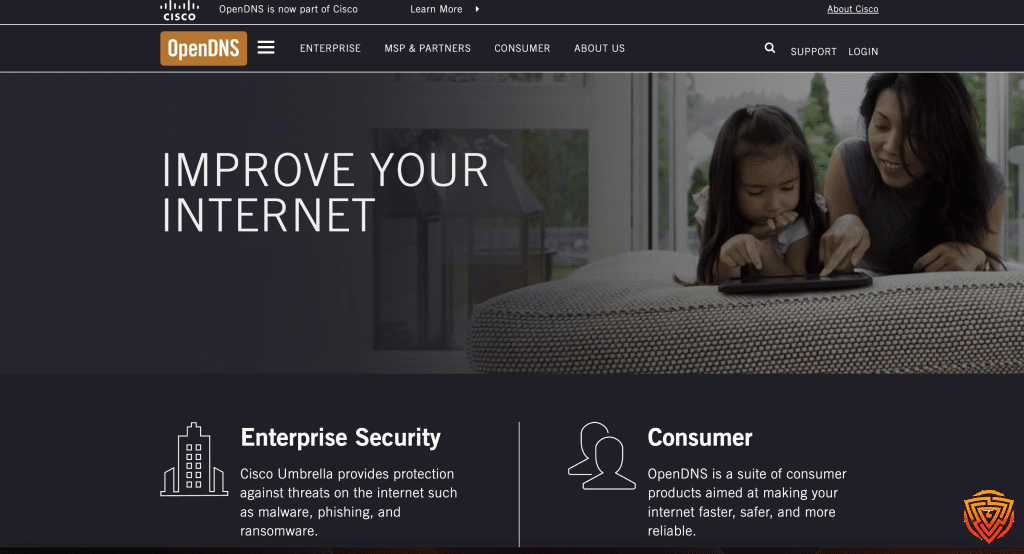
OpenDNS FamilyShield is a free DNS-based service that filters out inappropriate content at the network level. As a free parental control app for Chromebook, it’s designed to protect families from adult websites and online threats.
Main features:
- Blocks adult content automatically
- Protects against phishing and malware
- Works on all devices connected to your network
- No software installation required
Pros:
- Completely free to use
- Easy setup process
- Covers all devices on the network
- No ongoing maintenance needed
Cons:
- Limited customization options
- No time limits or scheduling features
- Lacks app filtering capabilities
- No activity reports or monitoring tools
Pricing and free trial:
- FamilyShield is 100% free
- No paid tiers or subscription plans
- No trial period – it’s always free
I find OpenDNS FamilyShield to be a basic but effective option for Chromebook users. It provides essential content filtering without the need for complex setup or software installation.
5. Kaspersky Safe Kids Free

Kaspersky Safe Kids is a free parental control app for Chromebook. It offers a free version with basic features to help parents monitor and protect their children online.
The free version includes:
- Web filtering to block inappropriate content
- Screen time management
- App usage controls
- Location tracking
Pros of Kaspersky Safe Kids Free:
- Easy to set up and use
- Works across multiple devices
- Offers real-time alerts
Cons of Kaspersky Safe Kids Free:
- Limited features compared to paid version
- No social media monitoring
- Can be bypassed by tech-savvy kids
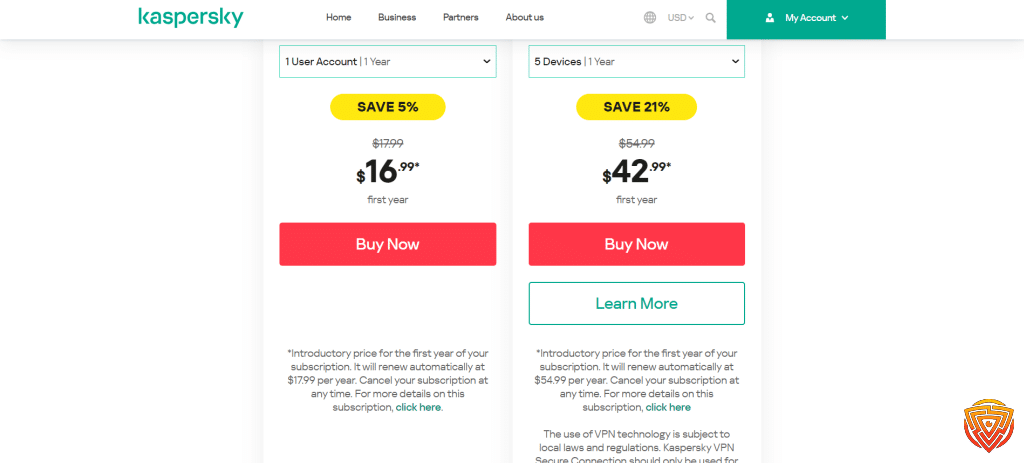
Pricing and trial details:
- Free version available with basic features
- Premium version costs extra
- 7-day free trial of premium features
I find Kaspersky Safe Kids Free to be a solid option for parents looking for basic parental controls on Chromebooks. It provides essential features without cost, making it accessible for many families.
6. KidLogger
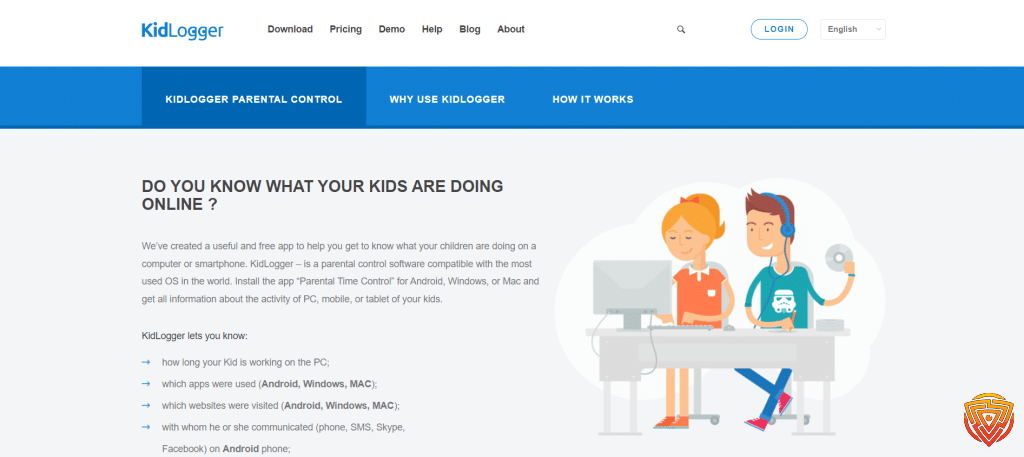
KidLogger is a free parental control app for Chromebook and other devices. It lets parents track what their kids do online and how long they use devices.
The main features of KidLogger include:
- Monitors web browsing and app usage
- Tracks time spent on the device
- Records keystrokes and takes screenshots
- Logs social media activity
Pros of KidLogger:
- Free basic version available
- Works on multiple platforms including Chromebooks
- Detailed activity reports
- Open-source software
Cons of KidLogger:
- Interface can be confusing to use
- Some features only work on Windows/Mac, not Chromebooks
- May be flagged as malware by antivirus programs
- Privacy concerns with keystroke logging
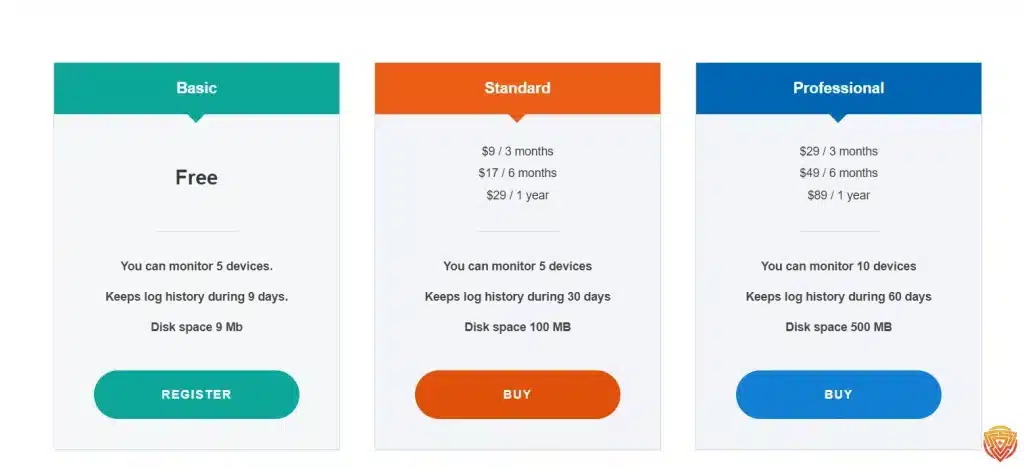
Pricing and free trial:
- Basic version is free to use
- Premium version costs $29 per year
- 30-day free trial of premium features
- Free download available for all supported devices
I found KidLogger free parental control app for Chromebook offers good free monitoring tools for Chromebooks. But parents should weigh the privacy trade-offs and limited Chromebook functionality compared to other platforms.
7. OurPact Free Version

OurPact offers a free version of their best free parental control app for Chromebook. I found that it provides basic features to help parents manage their children’s device usage.
The free version of OurPact includes these main features:
- Block and allow apps
- Set schedules for device use
- Block internet access
- Track device location
Some pros of the OurPact free version are:
- Easy to set up and use
- Works across multiple devices
- Allows blocking of specific apps
A few cons to consider:
- Limited features compared to paid version
- Only supports one child device
- Web filtering not included
OurPact’s pricing and free trial details:

- Free version available with basic features
- Premium version starts at $6.99/month
- 14-day free trial of Premium features
I think OurPact’s free version can be a good starting point for parents wanting to try out parental controls on Chromebooks. It lets you test core features before deciding if you need more advanced options.
8. Screen Time by Screen Time Labs

Screen Time is a free parental control app for Chromebook. It offers both free and paid features to help parents manage their children’s screen time and online activities.
The app was created by parents who use it daily, giving it a practical, user-focused approach. It aims to help families balance screen time with other activities.
Main features:
- App access management
- New app installation approval
- Device locking
- Web filtering
- Activity monitoring
Pros:
- Free version available
- Easy-to-use interface
- Created by parents for parents
- All-in-one dashboard for multiple devices
Cons:
- Limited features in free version
- May not work on all Chromebook models
- Some users report sync issues
Pricing and free trial:

- Free version with basic features
- 7-day trial of Screen Time Premium
- Paid plans for additional features (prices not specified in search results)
I found that Screen Time offers a unique approach to parental controls. Its focus on balancing screen time with real-world activities sets it apart from some other options.
The app’s ability to monitor multiple devices from one dashboard is a handy feature for families with several children. However, its compatibility with Chromebooks isn’t clearly stated in the search results.
9. Salfeld Child Control Free Trial

Salfeld Child Control offers a free trial version for parents who want to test its features on Chromebook. I found that this parental control software works on both Android and Windows devices.
The trial lets you try out the main features of this free parental control app for Chromebook for up to 30 days at no cost. This gives parents time to see if it meets their needs before buying.
Key features include:
- Time limits for apps and internet use
- Website filtering by age or category
- App blocking and restrictions
- Internet content filtering
Pros:
- Generous 30-day free trial
- Works on multiple device types
- Customizable filtering options
Cons:
- Full version requires payment after trial
- May have limited Chromebook functionality
- Learning curve for setup
Pricing and trial details:

- 30-day free trial
- No credit card required for trial
- Full version pricing not listed on site
- Must contact company for license costs
I think the free trial makes it easy for parents to test Salfeld’s parental control features without risk. It’s a good way to see if the software fits your family’s needs on Chromebook.
10. Mobicip Free Version

Mobicip offers a free version of its parental control software for Chromebooks. I find it provides basic protection for families looking to monitor their children’s online activities.
The free version includes these main features:
- Web filtering to block inappropriate content
- Basic screen time limits
- Browsing history monitoring
- Parent dashboard access
Pros:
- Easy setup on Chromebooks
- Filters over 15 website categories
- Child-safe browser included
- Free forever plan available
Cons:
- Limited features compared to paid version
- No app blocking
- No location tracking
- Basic reporting only
Pricing and trial details:

- Free version with core features
- 7-day free trial of premium features
- Paid plans start at $4.99/month for more advanced controls
I think Mobicip’s free version is good for younger kids. It filters internet content accessed through Chrome browsers. Parents can monitor activity through the web portal or mobile app.
Understanding Parental Controls

Parental controls help keep kids safe online and manage their device usage. They offer various features to protect children and give parents peace of mind.
What They Offer
The best parental control app for Chromebook provides several key functions. I’ve found they can block inappropriate websites and filter content. This keeps kids from accessing adult material or other unsafe sites.
Many apps let parents set time limits on device usage. I can restrict when and how long my child uses their Chromebook. Some even allow scheduling different limits for weekdays vs weekends.
Location tracking is another common feature. I can see where my child is when they have their Chromebook with them. This adds an extra layer of safety.
Why They Are Important
Parental controls are crucial for protecting kids online. The internet has many dangers, from cyberbullying to predators. These tools help me shield my child from these threats.
They also promote healthy tech habits. Too much screen time can harm sleep and social skills. By setting limits, I teach my kid to balance online and offline activities.
Parental controls give me peace of mind. I know my child is safer when using their Chromebook. It’s comforting to have oversight of their online activities.
These tools also open up conversations about online safety. I can talk with my kid about why certain limits are in place. This helps them understand digital citizenship.
Features of Free Parental Control Apps for Chromebook

Free parental control apps for Chromebook offer useful tools to keep kids safe online. These apps focus on filtering content and managing screen time.
Content Filtering
Content filtering lets parents block inappropriate websites and content. I’ve found that most free apps can filter out adult content, violence, and gambling sites. Some apps let me create custom block lists for specific sites I don’t want my kids to access.
Many filters work across popular browsers like Chrome and Firefox. This stops kids from getting around blocks by switching browsers. Some apps can even filter search results to hide explicit content.
The best free apps update their filters regularly. This helps block new inappropriate sites as they pop up. I like apps that let me see reports of my child’s browsing history. It helps me spot any concerning patterns.
Screen Time Management
Screen time tools help limit how long kids use their Chromebooks. Most free apps let me set daily time limits for device use. Some offer flexible scheduling to allow more time on weekends, for example.
I can usually set up different limits for different apps or activities. This lets me give more time for educational apps versus games or social media. Many apps show alerts when time is almost up.
The best free options let me pause internet access remotely. It’s helpful when I need my child to take a break right away. Some apps also have reward systems. I can give bonus screen time for good behavior or completed chores.
Conclusion and Personal Recommendation
After reviewing several options for the best parental control app for Chromebook, I believe Qustodio is the best free parental control app for Chromebooks. It’s made specifically for these devices and offers robust features.
For those wanting more advanced features, Qustodio is a solid paid option. It provides detailed activity reports and social media monitoring.
Bark is another good choice, especially for teens. It takes a less invasive approach while still offering protection.
When choosing an app, consider your child’s age and needs. What works for a young child may feel too restrictive for a teenager.
Remember, no app replaces open communication about online safety. Talk with your kids regularly about their internet use and digital habits.
Frequently Asked Questions
Parents have many questions about free parental control apps for Chromebooks. I’ll answer some common ones to help you choose the right option for your family.
What are the top-rated free parental control apps available for Chromebooks?
The top free parental control apps for Chromebooks include Qustodio Free, Bark Free Trial, and Family Link by Google. These apps offer basic monitoring and filtering features at no cost.
Is it possible to find a parental control app for Chromebooks that is entirely free of charge?
Yes, it’s possible to find completely free parental control apps for Chromebooks. Google Family Link is a popular choice that’s free and works well with Chromebooks. OpenDNS FamilyShield is another free option that filters content at the network level.
How does the built-in Google parental control feature compare with other free apps for Chromebooks?
Google Family Link is a best free parental control app for Chromebook option built into Chromebooks and offers solid basic features. It lets parents set screen time limits and approve app downloads. Compared to other free apps, it’s easy to set up but may have fewer advanced features.
Can you recommend effective parental control apps for managing children’s online activities on a Chromebook?
I recommend trying Qustodio Free or Bark’s free trial for managing kids’ online activities on Chromebooks. These apps offer content filtering, time limits, and activity reports to help keep children safe online.
Are there any hidden or less-known free parental control apps suitable for Chromebooks?
Kaspersky Safe Kids Free is a less well-known option that works on Chromebooks. It provides basic monitoring and filtering tools without cost. OpenDNS FamilyShield is another under-the-radar choice that blocks inappropriate content at the network level.
What capabilities should a good parental control app for Chromebooks offer?
A good parental control app for Chromebooks should offer web filtering, screen time limits, and activity monitoring. The ability to block inappropriate apps and games is also important. Look for apps that send alerts about concerning online behavior.
That’s All For Now
I hope you found this article about free parental control app for Chromebooks helpful. Keeping kids safe online is crucial in today’s digital world. I’ve covered some great options to protect your children while using their Chromebooks.
Thanks for taking the time to read through this information. I’m always researching the latest developments in online safety tools for families. I encourage you to check back for updates as new features and apps become available.
If you’re interested in learning more, take a look at the related articles I’ve linked below. They dive deeper into specific parental control features and cover options for other devices too.
I appreciate you stopping by to read my article. Online safety for kids is an important topic that affects many families. I aim to provide useful, up-to-date info to help parents make informed choices. Feel free to explore more of my content on digital parenting and internet safety.
Share this article

Stuart Kerr Spindlow is Impulsec’s Publisher, Chief Editor and Lead Reviewer. He writes and maintains coverage of consumer cybersecurity and digital-safety software, with a focus on practical suitability, limitations and the evidence behind product claims. Read Stuart’s full profile.