


You can control an iPhone from Android using a compatible cross-platform parental control app, although Apple restricts some third-party features. The practical solution is a third-party parental control app with an Android parent app or web dashboard and an iOS app for the child’s iPhone.
For most families, Qustodio is the best overall choice. It combines web filtering, screen-time rules, compatible app controls, location features and activity reports in one account. OurPact is stronger when detailed app schedules are the priority, while Bark is the better fit for alert-based online-safety monitoring.
There is an important limitation: no ordinary parental control app has unrestricted access to everything on an iPhone. Apple limits how third-party apps inspect messages, control other apps and run in the background. Some advanced iPhone features also require a Windows or Mac computer during setup or ongoing monitoring.
This arrangement is also described as parental control from Android to iPhone: the parent uses an Android phone while the child uses an iPhone. The child’s iPhone determines which controls are available, and Apple restricts some third-party features.
Quick verdict: Choose Qustodio for the best balance of everyday controls and cross-platform usability. Choose Bark for concerning-content alerts, provided its iPhone setup requirements and regional availability suit you. Choose OurPact for detailed mobile app rules and schedules.
Can You Control an iPhone From an Android Phone?

Yes. A compatible service can let a parent use an Android phone to manage supported controls on a child’s iPhone. The usual arrangement is:
- A parent app or web dashboard on the Android phone
- A child companion app, configuration profile or supported setup on the iPhone
- One family account linking both devices
- Permissions granted directly on the child’s iPhone during setup
Depending on the provider and plan, you may be able to set schedules, filter websites, manage selected apps, view activity reports and receive location alerts from Android. The exact controls are determined by the child device, so an app can offer deeper supervision on Android than it does on iPhone.
Apple’s built-in Screen Time remains a good free option if you can configure rules directly on the child’s iPhone or manage the family from another Apple device. However, Apple does not provide a full Android app for remotely administering a child’s Screen Time settings. Google also states that iPhones and iPads cannot be supervised as child devices with Family Link.
If your household includes several operating systems, also compare our broader guide to the best parental control apps for mixed-device families. If the child only uses Apple devices, our best parental control apps for iPhone guide gives iOS-specific recommendations. For a wider look at remote phone rules, see our guide to choosing an app to control a child’s phone.
7 Best Parental Control Apps for iPhone From Android
- Qustodio: Best overall for managing an iPhone from Android
- Bark: Best for safety alerts across Android and iPhone
- Mobicip: Best for mixed-device family management
- Norton Family: Best for managing many family devices
- Canopy: Best for filtering explicit content on iPhone
- Wondershare FamiSafe: Best for teenage drivers with iPhones
- OurPact: Best for iPhone app blocking and screen-time schedules
The comparison follows the products discussed in this guide. A supported platform does not mean every feature works on it: use the child-device and limitation columns to check the specific arrangement, then confirm the current plan and setup requirements before paying.
Scroll horizontally to see all columns.
| Product | Price and devices | Child devices | Main features | Important limitations |
|---|---|---|---|---|
 Qustodio QustodioFull review | Basic: US$59.95/year for 5 devices. Complete: $104.95/year for family devices under the unlimited-use terms; accounts reviewed at 25 devices. Check pricing | Child devices: Windows 10+; macOS 10.15 through 26; Android 9+; iOS 15+; Google Play-capable Chromebook; Fire OS 6+ (standard profiles). Parent iOS app requires iOS 16+. | Web/app controls, time limits, reports and location tools. Advanced routines and monitoring depend on plan/platform. | iOS calls/messages and supported WhatsApp/LINE alerts require a Windows/Mac computer and the documented sync setup. Panic button is Android-only; social-app coverage varies by platform. |
 Bark BarkFull review | US$5/month or $49/year for Jr; $14/month or $99/year for Premium. Unlimited children/devices. Tax may apply. Check pricing | iOS and Android child apps; other device/account workflows differ. | Jr: screen-time, app/web controls and location. Premium adds alerts about supported content and communications. | iOS content monitoring uses Bark Desktop, Bark Sync or Bark Home; setup requirements differ and alerts are not instantaneous. Account/app coverage varies; Phone and Watch are separate products. |
 Mobicip MobicipFull review | Annual-billed monthly equivalents: Lite US$2.99 for 5 devices; Standard $4.99 for 10; Premium $7.99 for 20. Confirm actual annual totals. Check pricing | iOS, Android, Windows, Mac, Chromebook and Kindle. | Schedules, app/time limits, web controls and guardian collaboration; check plan and platform coverage. | Supported platforms do not have identical features. Detailed Basic-plan capabilities need checking against your requirements. |
 Norton Family Norton FamilyFull review | US$49.99 first year; listed annual renewal US$49.99, subject to change. Unlimited devices. Check pricing | Windows, Android and iOS. No child-Mac support or Windows S mode. | Web, time and supported search/video supervision. App supervision is limited to Windows/Android. | Mobile video/search supervision requires Norton Browser. YouTube app viewing is not covered. |
 Canopy CanopyFull review | Annual-billed monthly equivalents: Essential US$8.33 for 1 device; Plus $9.99 for 3; Premium $12.50 for up to 10. Confirm the actual annual charge. Check pricing | Android, iOS 12+, macOS 10.13+, Windows 10+ excluding ARM, and Chromebook. Android minimum conflicts: pricing says 9+, FAQ says 12+; confirm the child device before purchase. | Explicit-content filtering; mobile app blocking, downtime and location tools. Features vary by platform. | Android photo prevention differs from iOS camera-roll alerts. No SMS/email/call scanning or filtering inside nonbrowser apps and streaming services. |
 FamiSafe FamiSafeFull review | US$9.99/month for 5 devices; $19.99/quarter for 8; $59.99/year for 10. Check pricing | Android, iOS, Kindle, Windows, Mac and Chromebook are listed; capabilities vary. | App/time controls and location tools; geofencing and journey-related features on supported devices. | No detailed WhatsApp/social monitoring on child iOS. One-way audio is advertised for supported Android child devices and can be disabled by the child. Other features vary by platform. |
 OurPact OurPactFull review | Premium: US$6.99/month or $69.99/year. Premium+: $9.99/month or $99.99/year. Both cover up to 20 child devices. Check pricing | iOS and Android child devices; laptops need separate controls. | App blocking and schedules. Premium+ adds View screenshots/content monitoring. Location history: 14 days Premium, 30 days Premium+. | View snapshots are not continuous live video. iOS 27 Full Pair requires a computer and backup/erase/restore; Quick Pair is limited. |
Important iPhone qualification: The core table summarises each app across all supported platforms. For this Android-parent and iPhone-child setup, Bark’s iOS plan currently starts at $20 per month and includes Bark Sync. Qustodio can provide supported iPhone call and message monitoring, but its current setup requires a Windows or Mac computer. If you want a broader phone-first comparison before choosing, see our guide to the best phone parental control apps.
1. Qustodio: Best Overall for Managing iPhone From Android

Best for: Families wanting the strongest overall balance of cross-platform controls, reporting and usability.
Overview: Qustodio is our first choice when a parent needs to control an iPhone from Android. The parent app provides one dashboard for managing supported rules across iPhone, Android, Windows, macOS, Chromebook and Kindle devices.
Its main advantage is balance. Qustodio combines screen-time management, website filtering, compatible app controls, activity reports and location features instead of concentrating on only one area. This makes it suitable for everyday family supervision, particularly when several types of devices need to be managed through one account.
Key Features
- Daily screen-time limits and repeatable routines
- Website filtering and Safe Search enforcement
- Supported app blocking and app time limits
- Location monitoring and saved-place alerts
- Activity reports and selected safety alerts
Pros
- Strong combination of control, visibility and location tools
- Android parent app can manage a supported child iPhone
- Basic plan covers five devices; Complete covers unlimited family devices
Cons
- Some features available on Android are unavailable or more restricted on iPhone
- Calls and messages monitoring on iPhone requires a Windows or Mac computer
- The Complete plan is relatively expensive if you only need basic screen-time rules
Pricing: Qustodio Basic costs $59.95 per year for five devices. Complete costs $104.95 per year and covers unlimited family devices. A limited free plan is also available. Prices and included features can vary by region.
Choose it if: you want one well-rounded service for time rules, filtering, reports and location across Android and iPhone.
Avoid it if: your main requirement is detailed iPhone conversation monitoring without using a computer.
2. Bark: Best for Concerning-Content Alerts

Best for: Parents who prefer alerts about potentially concerning activity over routinely reviewing every available conversation.
Overview: Bark approaches parental control differently from Qustodio and OurPact. Its main purpose is to analyse supported messages, accounts and online activity for possible safety concerns, then alert the parent when something may require attention.
This can be a better fit for older children who need some independence but still benefit from age-appropriate supervision. The Android parent app can receive alerts and manage supported screen-time, website-blocking and location features. However, deeper iPhone monitoring requires Bark’s iOS-specific setup rather than only installing two mobile apps.
Key Features
- Alerts for potentially concerning supported content
- Monitoring across selected texts, email and connected accounts
- Screen-time routines and internet access rules
- Website and app-category blocking
- Location sharing, check-ins and location alerts
Pros
- Alert-based approach can be less intrusive than routinely reading activity
- One subscription covers unlimited children and devices
- Combines content alerts with routine parental controls
Cons
- Deeper iPhone monitoring requires Bark Sync or another supported setup
- iPhone pricing is higher than Bark’s Android-child pricing
- Availability and supported monitoring differ by country, device and connected account
Pricing: For a child using an iPhone or iPad, Bark currently lists $20 per month or $148 per year, including Bark Sync. Its lower $14-per-month or $99-per-year price applies to Android child devices. Confirm availability and current terms for your country before subscribing.
Choose it if: online-safety alerts matter more than highly detailed app schedules and Bark supports your country.
Avoid it if: you want a straightforward mobile-only iPhone setup or primarily need granular app and screen-time controls.
3. Mobicip: Best for Mixed-Device Family Management

Best for: Families managing a mixture of iPhones, Android devices, computers and Chromebooks.
Overview: Mobicip is designed for households that need consistent parental control across several operating systems. Its Android parent app provides a central place to manage linked children, schedules, filtering rules, supported app restrictions and location features.
The three paid plans cover five, ten or twenty devices, making Mobicip easier to match to the size of the household than services with only one fixed allowance. It is a particularly practical alternative to Qustodio when flexible device coverage and routine control features matter more than advanced reporting.
Key Features
- Website filtering and website blocking
- Daily screen-time limits and managed schedules
- Supported app blocking and app limits
- Family location and geofencing
- Activity reports and selected social-media monitoring
Pros
- Broad support for mobile devices, computers and Chromebooks
- Three device allowances for different household sizes
- Useful combination of filtering, scheduling and location features
Cons
- Social-media coverage is narrower than Bark’s alert-based monitoring
- Some tools require Standard or Premium
- iPhone setup can require Apple Family Sharing and careful permission configuration
Pricing: Mobicip Lite costs $2.99 per month billed annually for five devices. Standard costs $4.99 per month for ten devices, while Premium costs $7.99 per month for twenty devices. The paid plans are billed annually and include a seven-day trial.
Choose it if: you want scalable device allowances and one dashboard for a mixed-device household.
Avoid it if: the main reason you are subscribing is deeper content-alert monitoring on the child’s iPhone.
4. Norton Family: Best for Large Families Using Norton

Best for: Larger households and families already paying for a Norton plan that includes parental controls.
Overview: Norton Family stands out because it does not impose a small device allowance. Its standalone subscription covers unlimited devices and the service is also included with selected Norton 360 plans. This can provide good value when several children have supported phones, tablets or Windows computers.
An Android parent can manage supported supervision for a child’s iPhone through the Norton Family app or online account. Its strongest iPhone functions concern web activity, time rules, search supervision, location information and reports rather than detailed control over every installed app.
Key Features
- Time limits and scheduled supervision periods
- Web and search supervision
- Supported video activity supervision
- Location history and location alerts
- Parent activity reports and email summaries
Pros
- Unlimited-device coverage suits larger families
- Included with selected Norton 360 subscriptions
- Useful web, time, search and location supervision
Cons
- iPhone supervision is less extensive than Android supervision
- Web supervision on iPhone may require Norton’s browser and additional configuration
- A Mac cannot be monitored as a child device
Pricing: Norton currently states that its standalone Norton Family subscription renews at $49.99 per year. Introductory pricing can differ, and parental controls are included with selected Norton 360 plans.
Choose it if: you need to cover many devices or already have an eligible Norton subscription.
Avoid it if: detailed iPhone app management is more important than web, time and location supervision.
5. Canopy: Best for Explicit-Content Filtering
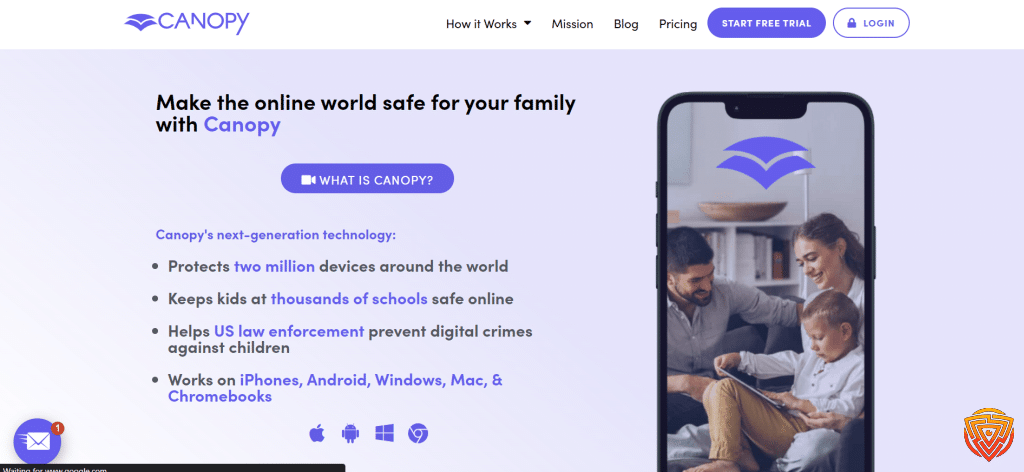
Best for: Families whose main priority is filtering explicit images and web content on a child’s iPhone.
Overview: Canopy is more specialised than Qustodio, Bark or Mobicip. Its central feature is real-time content filtering designed to identify and block supported explicit visual content while allowing the rest of a webpage to remain accessible.
The Android parent app or web dashboard can manage linked devices and supported settings. Canopy also includes app and website controls, downtime scheduling, location awareness and removal protection. However, it is primarily a filtering service rather than a complete activity-monitoring platform.
Key Features
- Real-time filtering of supported explicit web content
- App and website blocking
- Downtime and screen-time scheduling
- Location-awareness tools
- Removal prevention and device safeguards
Pros
- More specialised visual-content filtering than most general parental controls
- Works across iPhone, Android, computers and Chromebooks
- All family plans include the principal filtering features
Cons
- Does not provide Bark-style analysis across numerous conversations and connected accounts
- Activity reporting is not as broad as some general parental control suites
- Can be expensive if filtering is not the household’s main priority
Pricing: Canopy’s Individual plan costs $8.33 per month billed annually for up to three devices. Its Family plan costs $9.99 per month billed annually for up to ten devices. Both currently include a seven-day trial and a 30-day money-back guarantee.
Choose it if: content filtering is more important than detailed social-media or conversation monitoring.
Avoid it if: you primarily need detailed activity reports, connected-account alerts or advanced app schedules.
6. Wondershare FamiSafe: Best for Teen Location and Driving Features

Best for: Families with older children who prioritise location, geofencing and driving reports.
Overview: Wondershare FamiSafe combines standard parental controls with location and driving-safety functions. The Android parent app can manage a linked child iPhone, making it relevant when the parent and child use different mobile operating systems.
Its location history, geofencing and driving reports give FamiSafe a clearer use case for teenagers than products focused mainly on younger children’s screen time. It also offers screen-time schedules, website filtering and supported app restrictions, but feature availability varies substantially between Android and iPhone.
Key Features
- Real-time location, location history and geofencing
- Driving reports for supported child devices
- Screen-time limits and schedules
- Website filtering and Safe Search tools
- Supported app blocking and activity information
Pros
- Strong combination of location, geofencing and driving features
- Supports a broad range of mobile and computer platforms
- Annual plan covers up to ten devices
Cons
- Many advanced monitoring features are unavailable or restricted on iPhone
- Cannot inspect WhatsApp content on a child’s iPhone
- System apps such as Phone, Camera and Maps cannot be blocked on iOS
Pricing: FamiSafe costs $59.99 per year for up to ten devices. The monthly plan costs $9.99 for up to five devices. A free version and a three-day trial of the annual plan are currently available, followed by a seven-day money-back guarantee.
Choose it if: location, geofencing and driving reports are important for supervising an older child.
Avoid it if: you expect FamiSafe’s Android monitoring features to work identically on an iPhone.
7. OurPact: Best for iPhone App Blocking and Schedules

Best for: Parents who want detailed app rules, recurring schedules and instant device pauses on an iPhone.
Overview: OurPact specialises in controlling when mobile apps and device functions are available. Parents can build schedules for school, homework, family time and bedtime, create screen-time allowances, pause access and receive supported location alerts.
The Android parent app can manage linked iPhone and Android child devices. This makes OurPact one of the strongest options when the aim is to control an iPhone from Android through app rules and repeatable schedules rather than broad social-media analysis.
Key Features
- Recurring app-blocking and device schedules
- Daily screen-time allowances and instant lock
- New-app alerts and device safeguards
- Live location, location history and place alerts
- Screen snapshots and content alerts with Premium+
Pros
- Strong app-blocking and scheduling tools for iPhone
- Paid plans cover up to twenty child devices
- Good fit for structured school, homework and bedtime routines
Cons
- Limited to mobile child devices
- Premium+ is required for screenshots and content monitoring
- Full iPhone pairing requires OurPact Connect on a Windows or Mac computer
Pricing: OurPact Premium costs $6.99 per month or $69.99 per year for up to twenty child devices. Premium+ costs $9.99 per month or $99.99 per year. A limited free tier covers one child device, while new accounts receive trial access to paid features.
Choose it if: detailed iPhone app rules and schedules are more important than analysing conversations or connected social accounts.
Avoid it if: you need to manage child computers or do not want to use a computer for full iPhone pairing.
A Message-Supervision Alternative
MMGuardian is another option when a defined need for child-message supervision matters more than a broad general-purpose shortlist. Its Android and iPhone workflows differ substantially. Check the requirements below before considering it; detailed message access may be unnecessary for ordinary screen-time rules.
Scroll horizontally to see all columns.
| Product | Price and devices | Child devices | Main features | Important limitations |
|---|---|---|---|---|
 MMGuardian MMGuardianFull review | Single child: US$4.99/month or $49.98/year. Family: $9.99/month or $99.98/year for up to 5 child devices. Parent apps do not count. Check pricing | Android and iPhone app workflows; platform-specific setup and capabilities differ. | Message reports and safety alerts; app/web controls and location. Android supports SMS and selected social apps; iPhone supports SMS/iMessage and documented WhatsApp/Kik reports. | iPhone message reports require a computer Sync App and the same Wi-Fi network; no iPhone call/SMS blocking. Android SMS reporting requires MMGuardian as the default messaging app. Tablet-only licences are separate. |
How to Control an iPhone From Android With Parental Controls

The exact process varies by provider, but a normal setup follows these steps:
1. Check the iPhone Feature List Before Paying
Read the provider’s iOS compatibility page, not only its general feature list. Confirm the features you need, the required iOS version, the number of covered devices and whether a computer or Apple Family Sharing is part of setup. For example, Qustodio documents the differences between its Android and iPhone features, while Bark explains its separate iPhone monitoring setup options.
2. Create the Parent Account on Android
Install the provider’s parent app from Google Play or use its secure web dashboard. Create the family account, add a profile for the child and protect the parent login with a unique password and multi-factor authentication where offered.
3. Install and Link the Child App on the iPhone
Have the child’s iPhone available. Install the official child or companion app from the App Store, sign in or enter the pairing code, and link it to the correct child profile. Avoid unofficial downloads or services that ask you to weaken iPhone security.
4. Grant the Required iOS Permissions
Follow the provider’s instructions for location, notifications, background activity, web filtering and any device-management profile. Only grant permissions needed for the features you intend to use. Bark, OurPact and some optional Qustodio features have additional computer-based steps.
5. Start With a Small Set of Clear Rules
Set the essentials first: a bedtime schedule, an age-appropriate web filter, rules for distracting apps and the location alerts your family actually needs. Use our age-based parental control guidance to keep the rules proportionate. Too many restrictions at once can make faults harder to diagnose and may create unnecessary conflict.
6. Test Every Important Control
Use the child’s iPhone to confirm that blocked websites, schedules, app rules and location updates behave as expected. Check again after major iOS updates because permissions or background behaviour can change.
7. Explain the Setup to Your Child
Tell the child what is being filtered or reported, why each rule exists and when the controls will be reviewed. Transparent, age-appropriate supervision protects trust and makes it easier to relax restrictions as the child develops better judgement.
What Android-to-iPhone Parental Controls Can and Cannot Do
| Feature | What to Expect on iPhone |
|---|---|
| Screen-time schedules | Widely available, but the way apps are paused or restricted differs by provider and iOS version. |
| Website filtering | Commonly supported through a local filter, VPN-style configuration, browser extension or management profile. |
| App blocking | Available from several providers, but it is not always as granular as Android app control. |
| Location and geofencing | Usually available when location permissions and background access remain enabled. |
| Activity reports | Useful for supported web, app and device activity, but no service can see everything across every iPhone app. |
| Messages and social content | Restricted by Apple. Coverage depends heavily on the provider, connected account and additional setup. |
| Unrestricted remote control | Not available through ordinary parental control apps. iOS does not allow an Android phone to take full remote control of an iPhone. |
Do not use TeamViewer, AnyDesk or screen-sharing software as a substitute for parental controls. On iPhone these tools do not provide unrestricted remote control, and live screen viewing is a poor fit for proportionate, routine family supervision. A dedicated parental control service provides clearer rules, child-device protections and family account management.
Why Apple Screen Time and Google Family Link Are Not Enough Here
Apple Screen Time: Screen Time is built into the child’s iPhone and supports Downtime, App Limits, content restrictions and purchase controls. You can configure it directly on the child’s iPhone with a separate passcode. Apple’s remote family-management instructions, however, are designed around Apple Family Sharing on Apple devices rather than an Android parent app. See our guide to setting parental controls on an iPhone.
Google Family Link: An Android parent can use Family Link to supervise a child’s Android phone or Chromebook. The child’s iPhone itself cannot be supervised in the same way. Google says a child signed into Google services on iOS can receive only partial account-level supervision for supported Google products. Family Link therefore cannot replace an iPhone parental control app.
A second Apple device: If you want Apple’s native controls and do not need a third-party dashboard, an existing iPad, iPhone or Mac signed into the parent’s Apple account may be the cleanest solution. There is no need to buy another device solely for parental control until you have compared the cost and limitations of the third-party options.
For a wider comparison of when native tools are sufficient, read built-in parental controls vs paid apps. Parents who only want no-cost iPhone options should use our separate guide to the best free parental control apps for iPhone.
How to Choose the Right Cross-Platform App

- Choose by the child device: confirm iPhone support for every essential feature rather than relying on the general marketing page.
- Decide between control and alerts: Qustodio and OurPact are stronger for rules and schedules; Bark is designed around safety alerts.
- Check setup requirements: Bark and full OurPact iPhone setups may require additional hardware or a computer.
- Match the device allowance: compare the number of child devices, not just the headline monthly equivalent.
- Consider age and trust: younger children may need firmer app and time rules; older children may benefit from lighter, alert-based supervision. Our teenager parental control guide explains the trade-off in more detail.
- Use a trial carefully: test the exact iPhone features you need before the trial or refund window ends.
Responsible Use and Privacy
Use parental control software only on a child’s device that you own or are legally authorised to manage. Laws and expectations differ by country, the child’s age and the family arrangement. Separated or co-parenting households should agree who can access location and activity information.
Parental controls work best as one part of a family safety plan. Use the least intrusive settings that meet the need, protect the parent account, review access regularly and explain the rules in age-appropriate language. No app guarantees that every unsuitable site, message or behaviour will be detected.
Final Verdict
Qustodio is the best parental control app for managing a child’s iPhone from an Android phone for most families. It offers the most useful balance of cross-platform management, web filtering, time rules, reports and location tools without relying on unrestricted remote access.
Bark is the better choice when alert-based online-safety monitoring is the priority, but its iPhone scanning setup and regional availability must fit your household. Mobicip is a strong mixed-device alternative, while OurPact is the specialist choice for detailed mobile app schedules.
Whichever service you choose, verify its current iOS feature list and test the controls on the child’s iPhone before committing to a long subscription.
Frequently Asked Questions
How can I manage my child’s iPhone from my Android?
Install a compatible parental control parent app on Android and the provider’s child app or supported profile on the iPhone. Link both devices to one family account, grant the required iPhone permissions, set a small number of rules, and test each important control. Available features depend on the provider and iOS setup.
What parental control app works between iPhone and Android?
Qustodio, Bark, Mobicip, Norton Family, Canopy, FamiSafe and OurPact support both Android and iPhone in some form. Their iPhone features differ considerably. Qustodio offers the strongest overall balance for most families; Bark focuses on safety alerts; and OurPact specialises in app rules and schedules.
Can I monitor my child’s iPhone from my Android?
Yes, within Apple’s restrictions. A compatible service may provide activity reports, location features, website filtering, screen-time rules and selected alerts in its Android parent app. It cannot provide unrestricted access to everything on the iPhone, and some message-related features require a computer or additional hardware.
What is the best parental control app for iPhone from Android?
Qustodio is the best overall choice for most families because it combines cross-platform screen-time management, web filtering, compatible app controls, reports and location features. Bark is better for alert-based online safety, while OurPact is stronger for detailed app schedules.
Can Google Family Link control a child’s iPhone?
No. Google states that iPhones and iPads cannot be supervised as child devices with Family Link. Parents can manage some Google Account settings that apply when a child uses supported Google services on iOS, but Family Link cannot provide full iPhone screen-time, app-blocking or device-supervision controls.
Can I manage Apple Screen Time from Android?
Apple does not provide a full Android app for remotely managing a child’s Screen Time settings. You can configure Screen Time directly on the child’s iPhone with a separate passcode, or manage supported family settings remotely from another Apple device through Family Sharing.
Can I block iPhone apps from an Android phone?
Several cross-platform parental control services can block supported iPhone apps or apply schedules from an Android parent app. The available app list and blocking method vary by provider and iOS version, so verify the exact iPhone app-control list before paying.
Do I need access to my child’s iPhone during setup?
Usually, yes. You normally need the unlocked iPhone to install the official child app, link the family account and approve permissions or a management profile. Some advanced monitoring setups also require a Windows or Mac computer, Bark Sync or other supported hardware.
Can a parental control app read all iPhone text messages?
No ordinary App Store parental control app can automatically read everything across every iPhone messaging app. Apple restricts access to other apps’ data. Some services offer limited message or content monitoring through connected accounts, computer-based scans or other supported setup, so check the provider’s current iOS documentation carefully.
Is there a free parental control app for an iPhone managed from Android?
Free cross-platform options are limited. Some services offer restricted free tiers or trials, but paid plans generally unlock more devices or controls. Apple Screen Time is included with the iPhone, although remote family management is designed for Apple devices rather than Android. Google Family Link cannot supervise the child’s iPhone itself.
Related Posts


Share this article

Stuart Kerr Spindlow is Impulsec’s Publisher, Chief Editor and Lead Reviewer. He writes and maintains coverage of consumer cybersecurity and digital-safety software, with a focus on practical suitability, limitations and the evidence behind product claims. Read Stuart’s full profile.