


FamilyTime Review: Quick Verdict

Name: FamilyTime Parental Control
Description: Parental controls for supported Android and iOS child devices, including screen-time rules, app restrictions and location tools. Reporting and setup differ by platform; annual subscriptions have defined child-device allowances.
Operating System: Android and iOS child devices; platform-specific features and setup requirements
Application Category: ParentalControlApplication
Our verdict
FamilyTime is a conditional option for parents who need mobile screen-time rules, app restrictions and location tools, especially on Android. Our 3.3/5 assessment balances broad rule controls against uneven reporting, privileged setup permissions and unclear privacy disclosures. Plans cover one, three or five child devices, not unlimited devices. Confirm the exact platform features, annual charge and conflicting trial/refund conditions before subscribing.
Overall
-
Family rule controls
-
Monitoring scope
-
Child-platform coverage
-
Setup requirements
-
Family privacy controls
-
Family plan value
Pros
- Broad documented schedules, app restrictions and pause controls
- Android activity reports, call logs and SMS features
- Mobile location, geofencing and SOS options
- Defined annual plans for one, three or five child devices
Cons
- Mobile child controls; Windows/Mac access is the parent dashboard
- Android permissions and iOS MDM enrollment require careful setup
- Broad child-data collection and conflicting sharing disclosures
- Trial, refund and cancellation wording needs confirmation
FamilyTime offers screen-time rules, app restrictions and location tools for supported Android and iOS child devices. It is most relevant to families willing to configure device permissions and discuss monitoring openly. The choice depends on the exact child platform and required control, rather than a promise to block every risk or monitor every conversation.
Schedules, app rules and location alerts can support family routines. Android and iOS have different reporting and setup requirements, and the annual subscription covers a fixed number of child devices. Check those limits before choosing a plan.
Overview of FamilyTime Parental Control App


With the increase in technology and the usage of online activities by children in recent times, parental control software has become essential for parents in order to monitor their children. This app was initially founded on the 15th of December 2014, with its headquarters being located in Tokyo, Japan. The app is funded by YummyApps.
The developers emphasized the need for constant security of the children and their online presence and internet usage and allowed parents access to such comprehensive tools so that the children are under supervision and healthy routines of internet usage are enabled.
Features and Functionality
Family Time app offers and provides a number of useful features that can help parents monitor what their children are doing on their devices.

Screen Time Schedules
In my Family Time App review, I found that one of the most significant features is the authority to control the screen time which is allowed to children. They can then easily balance between online and offline time if the parents are accordingly managing the daily or weekly screen time. They can set limitations on their children’s devices as they see fit to do so.
Parents can create a focused and safe online environment for their children by blocking some apps or websites that they think their children should not be using.
Places (GeoFence)
For parents, the safety of their children is the number one concern. The app also allows the parents to draw virtual boundaries on the given map in the app. This helps them to track and alert them if their child has either left their boundaries or is within them.
Location Tracking GeoFencing
Location and geofencing tools can help with an agreed family check-in, but they do not guarantee a child’s safety or continuous precision. Background permissions, connectivity and update timing matter. Treat SOS and PickMeUp as communication aids, not a substitute for emergency services or direct contact.
Track Text Messages
FamilyTime documents SMS reports for Android child devices. Its pricing page marks calls and SMS as Android-only, so an iPhone parent should not expect equivalent message access. Agree an appropriate scope with the child and collect only what the family needs.
App Blocker (games and apps)
Android documentation describes website blocking, SafeSearch and app rules. The iOS guides describe supported app and content restrictions, including age ratings and explicit-content settings. These are useful controls with platform limits, not a guarantee that every harmful page or app will be detected.
Screen Time Control
Parents also have the ability to establish limits for device usage, which can be helpful at times such as during homework or during bedtime. This can help their children go towards better and healthier habits and cut down on increased screen time.
Tracks Call Feature
Android call reports show call logs, such as contact, date, time and duration. They are not recorded call audio. The pricing page limits calls and SMS to Android; a log alone does not explain the context of a conversation.
Multi-Device Support Feature
FamilyTime supports Android and iOS child devices. Windows and Mac access is for the parent dashboard, rather than child-device monitoring. Choose a product with desktop controls if your child also needs protection on a computer.
Ease of Use
The interface’s organized controls and clear visuals appealed to me, but setup is more involved than a simple download. The child device needs the correct application, permissions and profile, and those prerequisites differ between Android and iOS. Follow the current official guide for the chosen version.
However, it is to be kept in mind that it is a full parental control tool that includes a variety of features and options to aid you. The app can be used to its maximum benefit by the app’s functionality and can also be adapted according to the needs of your family.
This can be done by making yourself become familiar with the features that have been provided by the app and by taking some time to explore them. There is a guide for first-time users too and customer support is also available if the users are to face any sort of difficulties while processing the app.
Setup Process
Standard Android setup requires physical access and permissions including Accessibility, usage access, VPN, device administration, background operation and location for the selected features. The iOS guide enrolls a Mobile Device Management profile. Do not remove school or employer management without its administrator’s approval.
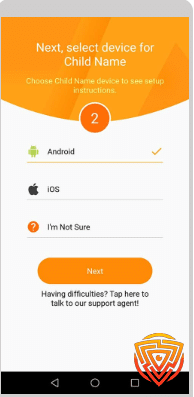
Here is the Step-by-step process to install the Family Time App
-
Navigate to Google Play and enter “FamilyTime” in the search bar. Locate “Family Time Parental Control” and proceed to tap on the “INSTALL” option.
-
Once the app is installed, open it. You have the option to sign up for FamilyTime using either your Facebook, Google account, or email. Select your preferred method and continue.
-
In case you are signing up through email, you will get a verification email on your registered email. Verify your email to proceed further.
-
Select “ADD DEVICE” to include your child’s device.
-
The process of adding a device is straightforward. Simply input your child’s name and choose their gender.
-
Choose the type of your child’s device here and then click on “Next.”
-
Now Go to your Child’s phone, open Google Play, and search FamilyTime Jr.
-
Opt for FamilyTime Jr. (the one with the orange icon) and proceed by tapping “INSTALL.”
-
Click “Open” once the installation is complete.
-
Agree to the Terms of Service and move to the next screen.
-
The app tour will begin. You will be prompted to grant access to specific data; tap “Next” and continue.
-
Allow permission to access phone location, call logs, contacts and text messages. Tap “Next”.
-
Allow permission to access device usage stats, device information and app overlays. Tap “Next”.
-
You will now receive requests to allow the app to start at boot, run in the background, and access USB storage. Select “I Agree” and move forward.
-
Continue tapping on “Allow” to grant permission for the app to access and view your child’s SMS, phone calls, contacts, and location.
-
Type the Child’s name, gender, and age and continue.
-
Establish a “PassCode” for your child’s device to prevent them from uninstalling the app.
-
Install the profile on your Child’s phone are you are good to go.
Materials: To set up an account, the user must go to the respective app store of their device and, from there, download the app on their own mobile as well as on the device of their child where it is referred to as FamilyTime jr.
How to Use Family Time App?
Prepare the supported child device, a parent account and physical setup access. Follow the current standard installation guide; the separate Android Jr. Elite route has additional developer-mode and wireless-debugging steps and should not be confused with every ordinary installation.
- Install and Open: After downloading, open the app and sign up. You’ll have to provide some basic info. 📝
- Set Up Devices: You’ll get a prompt to set up devices for parental monitoring. Select ‘Child’ for the device you want to monitor and ‘Parent’ for your own. 👨👩👧👦
- Configure Settings: Dive into the settings. Here, you can set daily app limits, bedtime schedules, and even geo-fencing alerts. 🎛️
- Choose reports deliberately: Android supports documented SMS and call-log reports; iOS scope differs. Check required permissions and account entitlements rather than assuming complete message coverage.
- Take Action: You can remotely lock your child’s phone, pause the internet, or block apps with just a tap. 🚫🌐
- Check Reports: Detailed activity reports are available for you to check how your child interacts with their digital world. 📊
After setup, check that the intended rule works on the actual device and that essential communication remains available. Review permissions and reports with the child as needs change. A completed installation is not proof that every advertised feature is working.
Software Performance
FamilyTime earns 3.3/5 for its broad mobile rule controls, balanced against uneven reporting, demanding setup permissions, privacy concerns and unclear purchase terms. It suits families who need Android or iOS controls and are comfortable managing those trade-offs.
FamilyTime documents app usage, browsing and location reports, with important limits. Its browser-history guidance covers the native/preinstalled browser rather than every downloaded browser. Advertised social-app lists also vary across pages; confirm the required service and child-platform support before relying on chat reports.
The app also has alerts that are necessary for the full parental control user experience.
Content Filtering
Use the relevant Android web rules or iOS app/content restrictions for the child’s needs. Age ratings, app blocks and website filters address different risks. They should support conversations and household routines rather than imply complete prevention of explicit or harmful content.
App Monitoring and Management
Usage reports can help identify which apps take time, but accuracy and freshness depend on the installed version, permissions and connectivity. Official pages give differing refresh descriptions, so do not assume every report updates continuously or at one universal interval.
Monitoring Capabilities
Noticing how much time is being spent on each app and how frequently they are being used can be easily noticed through the Family Time app. It has screen time monitoring which provides a detailed report with statistics so that it is easier for parents to identify how much time is being spent on each app.

Compatibility
The Family Time app is successfully compatible with various devices as well as operating systems. Take a brief look at the devices on which the Family Time App is compatible:
Android
The current standard Android installation guide specifies Android 8 or later; the separate Jr. Elite guide specifies Android 11 or later. Confirm the current store/build requirements and needed permissions for the actual child device.
iOS
The official iOS installation guide lists iOS 11 or later and requires physical setup access, notifications/location permissions and an MDM profile. Check the current App Store and device requirements before purchase; the guide’s minimum is not a guarantee for every present build.
Windows
Windows access is for the parent dashboard. FamilyTime documents child controls for Android and iOS; choose a product with Windows child-device support if supervising a child’s computer is essential.
macOS
Mac access to the parent dashboard is different from monitoring a child’s Mac. Current child installation is documented for iOS and Android, not a macOS child agent.
Family Time App Pricing

Plans Overview:
The website offers annual plans for one, three or five child devices. The displayed monthly amounts are equivalents of annual charges, not month-to-month billing. Check the selected currency, taxes, renewal and purchase channel.
MyFamily: the website lists $29 annually for one child device, displayed as $2.41 per month. Check the currency, taxes and final annual charge at checkout.
MyFamily3: the website lists $49 annually for three child devices, displayed as $4.08 per month. Feature availability still depends on the child platform and installed version.
MyFamily5: the website lists $69 annually for five child devices, equivalent to $5.75 per month. Free parent apps or additional parent devices do not mean unlimited monitored child devices.
Initial Vs. Renewal Rates:
Website plans describe annual renewal after 365 days. Do not assume an introductory discount remains the renewal price: read and retain the actual order’s recurring amount and cancellation instructions.
Comparison to Industry Standard:
The one-, three- and five-device tiers can offer useful value for mobile families. That value is weaker if the needed report is unavailable on the child’s platform, or if a desktop device also needs coverage.
Additional Costs:
Confirm the final currency, taxes and any optional charge on the order screen. The Android application itself uses VPN permissions for its controls; do not assume a second VPN will coexist or add an unrequested subscription.
Payment Options:
Available payment methods depend on the actual checkout and region. Use the merchant’s displayed methods and keep the receipt; the website price alone does not establish every supported wallet or card.
Contract Terms:
This is an automatically renewing annual subscription under the applicable purchase terms. Cancellation, deleting the app and requesting a refund are separate actions; retain the confirmation for whichever action you take.
Free Trial: Is Family Time App Free?
The pricing page advertises a three-day trial and annual charging afterward, while older help describes a downgrade to Free. Promotional purchases can exclude trials under the terms. Check the exact offer’s charge date and cancellation method before starting.
Refund Policy and Money-Back Guarantee:
The pricing FAQ advertises a refund within 15 days, but the terms say subscription fees and unused time are nonrefundable. They also allow up to 30 days for termination processing. Obtain the seller’s clarification for the actual purchase before relying on a refund or a last-minute cancellation.
Promotional Deals or Discounts:
Discount banners can differ from the final order. Compare the billed annual total and renewal conditions rather than relying on a percentage saving or an older promotion.
Customer Support and Resources
How Responsive and Helpful Are They?
FamilyTime provides support contact routes and a knowledge base for installation, permissions and feature setup. Check the current contact channel for the purchased product; availability does not guarantee an immediate response.
Response and resolution times depend on the problem and support channel. Keep the child platform, app version, plan and relevant permission details ready, but do not send unnecessary private messages or location history.
What Resources Are Available?
The app has also featured a comprehensive knowledge base or FAQ section on the website, which thoroughly includes all the answers to the commonly asked issues, and for further convenience, they have put up tutorials on the features and settings of the app. Users can utilize these resources for self-help and troubleshooting before calling customer service.
Family Time has also provided instructions and manuals through the use of videos, blog posts, or written materials so the users can use these resources to gain more knowledge and information about the installation of the program and how to set up parental controls along with the utilization of all of its capabilities.
Privacy and Security
FamilyTime processes sensitive child information, potentially including location, contacts, SMS, browsing, app activity and images. Its general and app privacy policies are dated 1 May 2018. They describe account-data deletion, but their retention and sharing wording needs careful reading rather than a blanket security endorsement.
The website makes broad no-sharing claims, while its developer-supplied Google Play disclosure says location, contacts and app activity may be shared. Policies also allow service-provider, legal and corporate-transfer disclosures. These statements are not an independent security audit or proof of end-to-end encryption.
Limitations and Drawbacks with Family Time io
In my Family Time App review, I found, that being computer-generated software, it is bound to have its share of drawbacks and limitations. According to reviews, it runs differently on both Apple and Android devices. Apps features cannot be fully utilized due to the privacy restrictions on Apple.
The app policy says deleting SMS or contacts on the child device does not remove server copies. Help documentation also says collection can continue after some trials downgrade to Free, even when reports are unavailable. A 30-day report window is not a promise of automatic backend deletion. Request account-data deletion separately and retain confirmation.
User Family Time App Reviews and Testimonials
Testimonials on Trustpilot

When reading customer reviews, compare the date, child platform, app version and purchase channel. Individual praise or complaints do not establish typical filtering accuracy, support quality or location reliability.
Testimonials on Reddit
A report that one family found setup easy may not apply to a device with different permissions or management restrictions. Check the actual official installation path and the feature required by your household.
Location-review anecdotes are not a precision test. Connectivity, background settings and reporting intervals affect a particular device, so keep direct family communication available alongside alerts.
Conclusion and Personal Recommendation
FamilyTime is a conditional choice for mobile family routines, rather than an all-device safety guarantee. Its rule controls are useful on paper, while report coverage, setup permissions and data practices need attention. The six-criterion assessment is 3.3/5.
I appreciated the clear, minimal interface in my experience with the app. That preference does not establish privacy protection or identical operation on every device. The current buying decision should also account for the documented permissions, platform limits and subscription conditions.
Personal Experience
Choose a subscription for one, three or five child devices, and check the annual charge and renewal terms for the plan that fits your household.
Website rules and study-time schedules are useful ways to establish family boundaries. Android SMS and call-log features have a different scope from those rules; they should not be described as access to every conversation on every platform.
Whom is the App FamilyTime best for?
The best fit is a family seeking mobile schedules, app restrictions and agreed location check-ins, with an adult willing to maintain the setup. No filtering or remote dashboard can ensure a child’s safety by itself.
Whom is this not best for?
Choose another approach if Windows/Mac child monitoring is essential, the required iOS report is unclear, or the family needs stronger privacy transparency. FamilyTime advertises social reporting, particularly on Android, but exact apps and captured content need confirmation.
Family Time App Alternatives
You can find a number of parental control apps on the app store, which have been briefly mentioned as follows:
Scroll horizontally to see all columns.
| Product | Child devices | Important limitations |
|---|---|---|
 Qustodio Full review | Child devices: Windows 10+; macOS 10.15 through 26; Android 9+; iOS 15+; Google Play-capable Chromebook; Fire OS 6+ (standard profiles). Parent iOS app requires iOS 16+. | iOS calls/messages and supported WhatsApp/LINE alerts require a Windows/Mac computer and the documented sync setup. Panic button is Android-only; social-app coverage varies by platform. |
 Bark Full review | iOS and Android child apps; other device/account workflows differ. | iOS content monitoring uses Bark Desktop, Bark Sync or Bark Home; setup requirements differ and alerts are not instantaneous. Account/app coverage varies; Phone and Watch are separate products. |
 Mobicip Full review | iOS, Android, Windows, Mac, Chromebook and Kindle. | Supported platforms do not have identical features. Detailed Basic-plan capabilities need checking against your requirements. |
 Norton Family Full review | Windows, Android and iOS. No child-Mac support or Windows S mode. | Mobile video/search supervision requires Norton Browser. YouTube app viewing is not covered. |
 Canopy Full review | Android, iOS 12+, macOS 10.13+, Windows 10+ excluding ARM, and Chromebook. Android minimum conflicts: pricing says 9+, FAQ says 12+; confirm the child device before purchase. | Android photo prevention differs from iOS camera-roll alerts. No SMS/email/call scanning or filtering inside nonbrowser apps and streaming services. |
 FamiSafe Full review | Android, iOS, Kindle, Windows, Mac and Chromebook are listed; capabilities vary. | No detailed WhatsApp/social monitoring on child iOS. One-way audio is advertised for supported Android child devices and can be disabled by the child. Other features vary by platform. |
 OurPact Full review | iOS and Android child devices; laptops need separate controls. | View snapshots are not continuous live video. iOS 27 Full Pair requires a computer and backup/erase/restore; Quick Pair is limited. |
FamilyTime Reviews Final Words
Before choosing FamilyTime, confirm the child-platform feature, permission requirements, annual charge and cancellation/refund terms. Its broad mobile rules may fit the household, but the trial and data-policy inconsistencies are reasons to check carefully before paying.
Sources: annual plans and device allowances; subscription terms; general privacy policy; app privacy policy; Android installation; iOS installation; reporting and retention limits; developer data-safety disclosure.
FAQs
Does Family Time run on all mobile phones?
FamilyTime supports documented Android and iOS child-device setups, with different features and permissions. Check the current installation and store requirements for the exact device; desktop parent-dashboard access is not Windows or Mac child monitoring.
Will Family Time show up on my child’s phone?
Family Time is not a hidden app or some spyware. Therefore, Family Time will show up on your phone and that of anyone who’s been added to your Family Time Dashboard.
What does Family Time enable me to monitor?
Reports depend on the child platform, version and permissions. Android documentation includes call logs and SMS; iOS coverage differs. Browser-history guidance is limited to the native browser, and advertised social-app coverage needs confirmation. Agree a proportionate family monitoring scope.
Do Android devices need to be rooted to use Family Time?
No, Family Time does not require Android devices to be rooted.
Using Family Time, is my data and my family’s location and phone data safe and protected?
No service can guarantee complete security. Review FamilyTime’s privacy policy and parent-account protections, limit collection to an agreed family need, and keep devices and software updated.
Share this article

Stuart Kerr Spindlow is Impulsec’s Publisher, Chief Editor and Lead Reviewer. He writes and maintains coverage of consumer cybersecurity and digital-safety software, with a focus on practical suitability, limitations and the evidence behind product claims. Read Stuart’s full profile.
Hi Mindi, thanks for sharing your experience. If the app did not work properly on iPhone and you cancelled the same day but were still charged, I can understand why you are frustrated. Trial terms, compatibility limits, and refund handling are a big part of whether a service feels trustworthy, so feedback like this is helpful for other readers. I would keep copies of your cancellation emails and billing records in case you need to escalate the dispute through your payment provider.