


Android tablet parental controls can manage apps, purchases, websites, YouTube access and screen time without turning every family rule into a technical project. For most households, the right starting point is Google Family Link. It is free, works with a supervised Google Account and lets a parent manage a compatible Android tablet remotely.
A paid parental-control app becomes useful when you need stronger web filtering, clearer activity reports, more flexible cross-platform management or safety alerts that Family Link does not provide. This guide explains both routes, including the settings that matter on Samsung tablets and the limits parents should understand before installing more software.
Quick Recommendation
- Best free starting point: Use Google Family Link for app approvals, Google Play restrictions, daily limits, School Time, Downtime and remote locking.
- Best paid parental control app for an Android tablet: Qustodio adds broader web filtering, more detailed reports and one dashboard for Android tablets, phones and computers.
- Best for a younger child using a Samsung tablet: Combine Family Link with Samsung Kids. Family Link manages the Google Account and device rules; Samsung Kids provides a simpler child-facing space.
- Best for online-safety alerts: Bark is more suitable when supported messages, saved media and connected accounts matter more than detailed time reports.
Do not install several parental-control apps at once. Overlapping VPN, accessibility, device-administrator and filtering permissions can cause broken internet access, unreliable reports or conflicting rules. Start with Family Link or one paid service, then add Samsung Kids only when its contained interface is useful.

How to Set Up Google Family Link on an Android Tablet
Family Link is Google’s principal system for supervising a child’s Android device. According to Google’s current requirements, the parent needs a Google Account and must meet the applicable adult-age requirement. The parent and child must normally live in the same country. The child needs a Google Account and an Android device running Android 6.0 or later. Some features, including app limits, require Android 7.0 or later.

Before You Begin
- Update the tablet and every Google app available through Google Play.
- Create or identify the Google Account the child will use on the tablet.
- Install Family Link on the parent’s Android or iPhone. The parent app can run on Android or iOS even though an iPhone or iPad cannot be supervised as the child’s device through Family Link.
- Remove old guest profiles or unused accounts that could create a route around the supervised profile. Back up any data first.
- Decide which apps must remain available during school, travel or emergencies before setting strict schedules.
Set Up Supervision on the Child’s Tablet
- Open Settings on the child’s tablet.
- On Android 8.1 or later, open Digital Wellbeing & parental controls. On other supported versions, open Google, then find Parental controls under the family settings.
- Choose to set up the tablet for a child or teenager and follow the account-linking prompts.
- Sign in with the child’s Google Account and verify the setup with the parent’s Google Account.
- Review every requested permission. Location, app activity and remote controls only work when the required settings remain enabled.
- Open Family Link on the parent’s device, select the child and confirm that the tablet appears under signed-in devices.
Google’s official Family Link setup guide is the best reference if menu wording differs on your tablet. Manufacturers sometimes move the same Android setting to a different menu.
Configure the Four Essential Controls
- Screen time: Select the child, open Screen time, then configure daily limits and a weekly schedule.
- Schedules: Use Downtime for sleep or family time and School Time for study periods. Allow only the apps that genuinely need to remain available.
- Apps: Open app limits to allow, block or time-limit supported apps. System apps cannot always be limited.
- Location: Enable location sharing if the tablet leaves home. A powered-off or disconnected tablet cannot provide reliable live location.
Remember that Family Link’s daily limit applies to each supervised Android device separately. If a child has both a phone and a tablet with a two-hour limit, Google may allow two hours on each device rather than two hours across the account.
Google Play Content and Purchase Controls
Family Link supervision and Google Play restrictions solve different parts of the problem. Family Link manages the child’s account and device rules. Google Play settings control which store content can be downloaded or purchased and when a parent must approve a request.

Set Content Restrictions
- Open Family Link on the parent’s device and select the child.
- Tap Controls, then Google Play.
- Open each available content type, such as apps and games, films, television or books.
- Choose the highest maturity level the child may download or purchase.
- Review apps already installed. A new rating limit does not automatically remove every app that was previously approved or installed.
Google notes that a child may still see a higher-rated app through search or a direct listing even when installation is restricted. Treat ratings as an approval aid, not a guarantee that unsuitable listings will never appear.
Require Approval for Downloads and Purchases
- In Family Link, select the child and open Controls, then Google Play.
- Under purchases and download approvals, tap Require approval for.
- Choose All content for the strongest control, or select a narrower paid-content or in-app-purchase option.
- Review requests through Family Link notifications or the Google Play family settings.
Purchase approval settings apply to transactions using Google Play’s billing system. They do not control every external checkout, browser purchase or payment method. Google’s current content-restriction instructions and purchase-approval guide explain the distinction.
Review App Permissions Separately
An age rating does not tell you whether an app needs the camera, microphone, contacts, files or precise location. In Family Link, select the child, open Controls, choose Signed-in devices, select the tablet and review App permissions. Remove access that is unnecessary for the app’s purpose.
Samsung Tablet Child Settings
Samsung tablets can use Family Link like other compatible Android tablets. Many Galaxy devices also include Samsung Kids, which creates a simpler, PIN-protected environment for a younger child. These tools are complementary: Family Link applies account and device controls, while Samsung Kids controls what appears inside its child-facing space.

Set Up Samsung Kids
- Swipe down to open the Galaxy tablet’s Quick panel.
- Find and tap Samsung Kids. If the button is hidden, edit the Quick panel and add it from the available buttons.
- Follow the setup prompts and choose a PIN or the tablet’s existing screen lock.
- Open Samsung Kids, tap the three-dot menu and select Parental controls.
- Create the child’s profile, set screen-time goals and bedtime, then add only approved apps, contacts, media and music.
- Review the child’s app history and usage within Samsung Kids periodically.
Samsung currently supports up to six profiles in Samsung Kids and lets parents manage allowed content, daily playtime and bedtime. Follow Samsung’s current Samsung Kids instructions because menus and availability vary by Galaxy model, region and One UI version.
Know What Samsung Kids Does Not Do
Samsung Kids is a contained child environment, not a full remote parental-control service. It is strongest for younger children sharing a family tablet. It does not replace Family Link’s remote Google Account controls or a third-party app’s broader filtering and reporting. A child also leaves its protected space when an adult exits with the PIN or device lock.
YouTube and YouTube Kids Restrictions

YouTube needs its own configuration. Blocking mature apps in Google Play does not automatically create the right viewing experience inside YouTube. Choose among YouTube Kids, a supervised YouTube account and ordinary YouTube with Restricted Mode according to the child’s age and readiness.
For Younger Children: Use YouTube Kids
- Create a separate profile for each child.
- Choose the content level that best matches the child.
- Turn off Search to limit discovery to a smaller set of channels and content selected by YouTube Kids.
- Use Approved content only when you want the child to watch only videos, channels and collections a parent selects.
- Disable autoplay and clear or pause history when recommendations become unsuitable.
No YouTube filter is perfect. Google explicitly notes that a child may still encounter content a parent does not want, even with Search turned off. Review the profile and blocked content rather than treating the initial setup as permanent.
For Older Children: Use a Supervised YouTube Account
- Open Family Link and select the child.
- Tap Controls, then YouTube or YouTube Family Center.
- Select the permitted content setting.
- Configure autoplay, watch history and search-history settings.
- Review watch history directly on the child’s device when needed. Family Link does not provide a complete remote view of everything watched.
Restricted Mode is the lightest filter and should not be described as a complete parental-control system. Google’s YouTube family settings guide explains the available supervised experiences and their limits.
Screen-Time Schedules for School and Entertainment
A good tablet schedule separates access by purpose. One daily total can be too blunt because a child may need a reading, classroom or communication app after the entertainment allowance has finished.

A Practical Family Link Schedule
| Period | Recommended Rule | Apps to Consider Allowing |
|---|---|---|
| Before school | Keep entertainment blocked until the morning routine is complete | Calendar, school messaging and transport apps |
| School or homework | Use School Time and allow only necessary learning tools | Classroom, reading, calculator, notes and approved browser access |
| Entertainment | Apply app-specific limits to games and video apps | Approved games, YouTube Kids and streaming apps |
| Family time | Use Downtime or lock the device | Only genuinely essential apps |
| Bedtime | Schedule Downtime before sleep and keep the tablet outside the bedroom where practical | None, or a pre-agreed audio or reading app |
Family Link also supports unlimited-time apps that do not count towards a daily limit and can remain available during Downtime or School Time, depending on the lock settings. Use this sparingly. Marking every educational or communication app as unlimited can create a route back into entertainment through browsers, links or built-in media.
Review the Schedule With the Child
Explain which limits apply, what remains visible to the parent and how a child can ask for more time. Family Link supports bonus time without forcing a parent to rewrite the weekly schedule. A predictable route for exceptions is usually more workable than a rigid rule that encourages repeated arguments or workarounds.
Best Parental Control Apps for Android Tablets
These choices prioritise Android tablet compatibility, screen-time and app controls, web filtering, useful parent reporting and proportionate supervision. A phone-monitoring product does not rank simply because it can be installed on some Android tablets.

Ranked List: Quick View
- Qustodio: Best paid parental control for Android tablets
- Google Family Link: Best completely free Android tablet controls
- Norton Family: Best for school-focused web supervision
- Bark: Best for supported safety alerts and connected accounts
- Mobicip: Best for custom schedules across mixed devices
- Samsung Kids: Best child-friendly space on Galaxy tablets
Quick Comparison Table
This table compares the core parental control apps by pricing, free trial availability, key features, age suitability, supported platforms, and full review links.| Software | Pricing (Devices) | Free Plan / Trial | Key Features | Best For | Key Limitation | Supported Platforms | Review |
|---|---|---|---|---|---|---|---|
| 🏆 Qustodio (Editor’s Choice) | Basic: US$59.95/year, 5 devices; Complete: US$104.95/year, family devices subject to terms. Check Qustodio Pricing | Check current free/trial eligibility during signup. | 🕒 Screen-time limits and schedules 🌐 Web and app filtering 📍 Location monitoring 📊 Activity reports | Editorial all-round pick for everyday controls and reporting; not a measured test winner. | Calls and messages on iOS require a Windows or Mac computer; other features vary by platform. | 🪟 Windows, 🍎 macOS, 📱 iOS, 🤖 Android, Chromebook, Kindle Fire | Read Qustodio Review |
| Bark | Bark App: from US$14/month; unlimited devices and accounts. Phone and Watch are separate products. Check Bark Pricing | 7-day app trial; check signup terms. | 🚨 Concerning-content alerts 💬 Text, email and social-app monitoring 🕒 Screen-time schedules 🌐 Website and app blocking | Best for behaviour-based safety alerts without routinely exposing every conversation | Check country availability and exact account/device coverage; Bark App, Phone and Watch have different capabilities. | iOS and Android app; other devices and connected services depend on the monitoring feature. | Read Bark Review |
| Mobicip | Lite: US$2.99/month for 5 devices; Standard: US$4.99 for 10; Premium: US$7.99 for 20. All billed annually. Check Mobicip Pricing | 7-day Premium trial; check cancellation/refund terms. | 🌐 Website and app blocking 🕒 Screen-time schedules 📍 Family location 📊 Activity and social-media reports | Best for mixed-device families wanting flexible device allowances | Check plan and platform support for each required feature; a supported device does not have every control. | 🪟 Windows, 🍎 macOS, 📱 iOS, 🤖 Android, Chromebook, Kindle Fire | Read Mobicip Review |
| Norton Family | US$49.99 for the first year; check renewal price. Included with selected Norton 360 subscriptions. Check Norton Family Pricing | Check current trial availability in your country. | 🌐 Web, search and video supervision 🕒 Time limits and schedules 📍 Location history and alerts 📊 Email activity reports | Best for large families and households already using Norton | A Mac can manage Norton Family but cannot be monitored as a child device; features differ across platforms | 🪟 Windows, 📱 iOS, 🤖 Android | Read Norton Family Review |
| Canopy | Essential: US$8.33/month for 1 device; Plus: US$9.99 for 3; Premium: US$12.50 for up to 10. All billed annually. Check Canopy Pricing | 7-day trial; 30-day guarantee subject to terms. | 🌐 Real-time content filtering 🖼️ Sensitive-image detection 🚫 App and website blocking 🕒 Screen-time management | Best for filtering explicit images and web content | Check coverage for the particular app/browser and device; filtering is not a guarantee that every risk is detected. | 🪟 Windows, 🍎 macOS, 📱 iOS, 🤖 Android, Chromebook | Read Canopy Review |
| Wondershare FamiSafe | US$59.99/year for up to 10 devices, or US$9.99/month for up to 5 devices. Check FamiSafe Pricing | 3-day annual-plan trial; 7-day money-back guarantee subject to terms. Free tier has restricted/demo features. | 📍 Location and geofencing 🚗 Driving reports 🚫 App and website controls 🕒 Screen-time schedules | Best for families with teenagers and driving-safety needs | Advanced visibility features are platform-specific and should be used transparently with older children | 🪟 Windows, 🍎 macOS, 📱 iOS, 🤖 Android, Chromebook, Kindle Fire | Read FamiSafe Review |
| OurPact | Premium: US$69.99/year; Premium+: US$99.99/year. Both cover up to 20 child devices. Check OurPact Pricing | Trial offered; confirm duration and cancellation terms during signup. | 📱 Detailed app rules 🕒 Screen-time schedules and allowances 📍 Live location and location alerts 📸 Screen snapshots with Premium+ | Best for app blocking and detailed schedules across iPhone and Android | Limited to mobile devices; Premium+ is required for screenshots and content monitoring, and initial pairing may require a computer | 📱 iOS, 🤖 Android | Read OurPact Review |
How We Selected These Apps
Impulsec compared current official compatibility and feature documentation, with particular weight given to tablet support rather than phone-only capabilities. We considered app and website controls, scheduling, school use, YouTube handling, parent reporting, cross-platform management, setup burden and the proportionality of the monitoring approach.
These are editorial assessments, not claims that every product was independently hands-on tested for this refresh. Features can change with Android, manufacturer battery rules, app-store policies, plan level and region. Confirm compatibility with the exact tablet before subscribing.
In-Depth Mini Reviews
1. Qustodio: Best Paid Parental Control for Android Tablets

Overview
Best for: Families that want stronger controls and reports than Family Link provides, particularly when children also use phones or computers.
Verdict: Qustodio is the strongest paid choice for this page because it combines Android tablet app controls, schedules, web filtering, YouTube monitoring and parent reports in one established cross-platform service. It is a broader parental-control product than a phone-monitoring tool, so its core features remain useful when a tablet stays mainly at home.
Its Android filtering supports Chrome and Firefox, while unsupported browsers can be blocked. Parents can allow or block app categories, create exceptions and assign limits to supported apps. YouTube monitoring can report activity and let a parent allow or block access. Qustodio also supports daily time limits, routines and family pause features.
The main setup caveat is overlap with Google Family Link. Qustodio’s own Android installation guidance says to remove or turn off Family Link before installing its child app. Samsung and other manufacturers may also stop background activity through battery optimisation, so installation is not finished until every required permission and power setting has been checked.
Key Features
- Daily limits, routines and temporary internet pause controls
- Website filtering on supported Android browsers
- App and category blocking with app-specific time limits
- YouTube activity monitoring and blocking
- Parent reports across supported family devices
Pros
- Stronger overall filtering and reporting than Family Link
- Good fit for mixed-device families
- Detailed Android app and schedule controls
- Limited free plan can show whether the dashboard suits the family
Cons
- Paid plans are required for the most useful controls
- Cannot sensibly run alongside Family Link as a second control layer
- Android browser and battery settings need attention
- Feature coverage differs on non-Android devices
Who Should Choose It?
Choose Qustodio if a child uses an Android tablet alongside other devices and you want one dashboard with stronger filtering, schedules and reports than Google’s free controls.
Who Should Avoid It?
Avoid it if Family Link already provides everything you need, if you want to keep the Google supervision setup in place, or if the tablet is a shared Samsung device used only by a younger child inside Samsung Kids.
2. Google Family Link: Best Completely Free Android Tablet Controls

Overview
Best for: Android and Chromebook families that need app approvals, schedules and basic activity information without a subscription.
Verdict: Family Link is the right first choice for most Android tablets. It manages the child’s Google Account, app access, Play content, daily limits, School Time, Downtime and location from the parent’s device. It is free and integrated with Google’s current Android supervision system.
Family Link is particularly effective for controlling when a child may use a tablet and which apps may be installed. Current controls include weekly device limits, app-specific limits, unlimited-time apps, bonus time and remote lock or unlock. Parents can also change selected app permissions and manage Chrome filters and Google Play restrictions.
It is not a full monitoring product. It does not give parents a universal record of private messages, every website visited or complete activity inside third-party apps. It also cannot supervise an iPhone or iPad as the child’s device, although the parent can manage Family Link from an iPhone.
Key Features
- Daily limits, app limits, Downtime and School Time
- Google Play content and purchase approvals
- App blocking, approvals and selected permission controls
- Basic Chrome and Google Search filtering
- Android device location when the required settings are available
Pros
- No subscription fee
- Strong fit for standard Android tablet supervision
- Current school, downtime and bonus-time controls
- Direct integration with Google Play and supervised accounts
Cons
- Filtering is strongest inside supported Google services
- No full message or social-content monitoring
- Daily limits apply separately to each supervised device
- Features and age transitions vary by country and account setup
Who Should Choose It?
Choose Family Link if the child’s principal devices are Android tablets or Chromebooks and your priorities are app access, schedules, purchases and basic activity visibility.
Who Should Avoid It?
Avoid relying on it alone if you need broader multi-browser filtering, one policy across Android and Apple child devices, detailed reports or supported safety alerts from connected accounts.
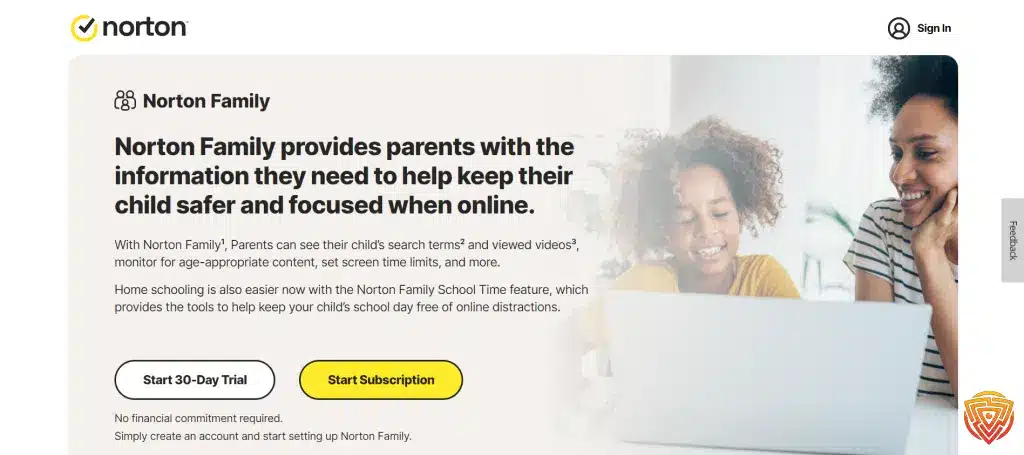
3. Norton Family: Best for School-Focused Web Supervision
Overview
Best for: Families that want school schedules and web, search and video supervision, particularly when Norton Family is included with an existing Norton subscription.
Verdict: Norton Family earns its place for School Time and its focus on web use rather than invasive communication monitoring. Parents can create scheduled study periods, permit selected educational categories and sites, and review supported web, search and video activity.
Norton’s current browser guidance says web, search, video and School Time web supervision no longer require a browser extension when the latest Norton Family version is used. That corrects the live article’s outdated claim that filtering works only through the Norton Family browser.
The principal compatibility caveat is that Norton Family currently requires Android 10 or later, Android Go is not supported, and multi-user mode is not supported. Norton also states that its former Android text-message monitoring and call-blocking features are disabled, so it should not be promoted for communications monitoring.
Key Features
- Scheduled and instant School Time
- Web, search and video supervision
- Time supervision and house rules
- Location features where supported
- Parent management through app and web account
Pros
- School Time is well aligned with tablet study use
- Useful choice for households already paying for an eligible Norton plan
- Web and search reporting is more substantial than Family Link’s basic controls
- Does not position detailed message reading as routine supervision
Cons
- Android 10 or later is required
- Android Go and multi-user mode are not supported
- No current call or text-message monitoring
- Feature coverage still varies across operating systems
Who Should Choose It?
Choose Norton Family if homework and browsing are the main tablet concerns, the device runs a supported modern Android version and the service is already included in your Norton package.
Who Should Avoid It?
Avoid it for older Android tablets, Android Go devices, tablets that depend on multiple user profiles, or families seeking supported social-account safety alerts.
4. Bark: Best for Supported Safety Alerts and Connected Accounts

Overview
Best for: Families that prefer selective alerts about potentially concerning activity instead of routinely reviewing every conversation.
Verdict: Bark is relevant when the Android tablet is used for messaging, saved media, email, YouTube or supported social accounts. It can monitor compatible Android phones and tablets running Android 8 or later and allows parents to connect supported accounts separately.
Bark’s approach differs from Family Link and Qustodio. Its principal value is analysing supported content and sending an alert when the system detects a possible safety concern. It also provides routines and selected website or app controls, but parents looking mainly for detailed daily time analytics may find a conventional control app more direct.
Coverage varies significantly by device, Android version, app, linked account, country and permissions. Setup on Android 13 or later can require enabling restricted settings before accessibility access is available. Parents should verify support for the exact services the child uses rather than relying on a headline count.
Key Features
- Safety alerts from supported Android activity and connected accounts
- Monitoring support for Android tablets running Android 8 or later
- Daily and weekly routines
- Selected web and app blocking
- Family coverage under supported subscription terms
Pros
- More proportionate than routinely exposing every conversation
- Useful for supported social and communication risks
- Works across many family device types
- Android tablets receive direct device-monitoring support
Cons
- Availability and coverage vary by country and connected service
- Not a complete record of every activity
- Android permission setup can be involved
- Less suitable when screen-time reporting is the only priority
Who Should Choose It?
Choose Bark if an older child uses supported messaging or social services on the tablet and you want alert-led supervision with age-appropriate transparency.
Who Should Avoid It?
Avoid it if the tablet is used mainly for schoolwork, games or YouTube Kids, or if Bark does not provide the necessary coverage in your country or for the specific accounts involved.
5. Mobicip: Best for Custom Schedules Across Mixed Devices

Overview
Best for: Families that need detailed work, sleep and entertainment schedules across Android tablets and other operating systems.
Verdict: Mobicip is a practical alternative to Qustodio when the priority is creating several routines with different app and website access. Its current feature set includes daily screen time, app limits, schedules, website blocking, activity summaries, family location and remote pause controls, with device allowances depending on the plan.
That scheduling flexibility suits a tablet that moves between homework and entertainment. A parent can create a school routine that permits learning tools, a leisure routine with time-limited games and a sleep routine that blocks most access.
Mobicip also supports iPhone, iPad, Android, Windows, Mac, Chromebook and Kindle Fire, making it useful when Family Link cannot cover every child device. Some more advanced functions and larger device allowances require higher plans, so compare the current plan table rather than assuming every advertised feature is included at the entry level.
Key Features
- Custom schedules for school, sleep and entertainment
- Daily and app-specific time limits
- Website and app blocking
- Activity summaries and remote pause
- Broad cross-platform support
Pros
- Schedules match the way children use tablets during the day
- Supports mixed-device households
- Combines screen time, filtering and reports
- Several device allowances are available
Cons
- More advanced features require higher plans
- Platform differences still affect coverage
- More setup than a Family Link-only household needs
- Vendor feature pages should not be treated as independent testing evidence
Who Should Choose It?
Choose Mobicip if a child uses an Android tablet for both school and entertainment and you need different schedules across several family platforms.
Who Should Avoid It?
Avoid it if the household uses only Android and Family Link already provides enough control, or if you need the deeper Android reporting offered by Qustodio.
6. Samsung Kids: Best Child-Friendly Space on Galaxy Tablets

Overview
Best for: Younger children who share a supported Galaxy tablet with adults or siblings.
Verdict: Samsung Kids is not a replacement for a full remote parental-control app, but it is one of the most useful tablet-specific features in this comparison. It creates a simpler home screen protected by a PIN or device lock and lets a parent choose allowed apps and content.
Parents can create up to six child profiles, set daily playtime and bedtime, view app usage and history, permit selected contacts, and manage approved apps, music and media. The child cannot simply exit to the ordinary Galaxy interface without the chosen lock method.
Its limitation is scope. Samsung Kids mainly controls the experience inside Samsung Kids on that device. It does not deliver the broad remote Google Account management of Family Link or the cross-device reports of a paid service. For many younger children, however, that narrower purpose is a strength rather than a weakness.
Key Features
- PIN-protected child-facing environment
- Up to six child profiles on supported devices
- Approved apps, contacts, media and music
- Daily playtime, goals and bedtime
- App usage and history within Samsung Kids
Pros
- Free on supported Samsung Galaxy devices
- Simple enough for younger children
- Useful for shared tablets
- Works alongside Family Link for a layered but non-conflicting setup
Cons
- Limited to supported Galaxy devices
- Not a full cross-device parent dashboard
- Older children may find the interface too restrictive or young
- Controls activity mainly within its own environment
Who Should Choose It?
Choose Samsung Kids for a younger child using a compatible Galaxy tablet, particularly when the device is shared and the child needs a clearly separated space.
Who Should Avoid It?
Avoid relying on it alone when the child uses several devices, needs remote supervision away from home or is ready for an ordinary Android interface with proportionate Family Link rules.
What Parents Can and Cannot Monitor

The word monitoring is often used too broadly. A parent may be able to see that a child used an app for 45 minutes without seeing what happened inside it. Likewise, a YouTube setting may filter available content without providing a complete remote watch history.
| Information or Control | Usually Available With Family Link | When a Paid App May Add Value |
|---|---|---|
| Daily tablet use | Yes, including daily and weekly limits | More detailed reports or combined cross-platform totals |
| Time in supported apps | Yes | Longer history, categories or more flexible reports |
| App installation | Approval and blocking through Google Play | Additional blocking rules or uninstall protection |
| Websites | Chrome and selected Google-related filters; not a universal history dashboard | Broader supported-browser filtering and reporting |
| YouTube | Supervised settings, history controls and limited parent options | Additional reporting or blocking on supported services |
| Messages and social content | No full content monitoring | Selected apps may provide supported alerts or reports |
| Location | Current Android device location when sharing and connectivity are available | History, zones or alerts on supported tablets and plans |
| Live screen, camera or microphone | No | Usually unnecessary and disproportionate for routine tablet supervision |
Parents who specifically need child-first social or communication alerts should use the separate social-media monitoring guide. Do not choose an intrusive product merely because it advertises the largest number of data points.
Tablet-Specific Setup Problems
The Tablet Uses More Than One Profile
A supervised account does not automatically control every guest or secondary profile. Remove unused profiles, protect the adult profile and test the tablet after setup. Norton Family does not support Android multi-user mode, while Qustodio recommends disabling multiple user accounts for stronger protection.
The Child Uses a School Account
A Google Workspace for Education account cannot be managed in the same way as an ordinary Family Link child account. School device-management rules may also override family settings. Keep the supervised personal account as the tablet’s main family account unless the school gives different instructions, and add the school account only through Google’s supported process.
Controls Stop After a Tablet Update
Check accessibility, notification, usage-access, VPN and device-administrator permissions after major Android updates. Also inspect battery settings. Samsung, Huawei and other manufacturers may pause a parental-control app in the background to save power.
A Wi-Fi-Only Tablet Shows Weak Location
Location accuracy depends on the tablet’s hardware, location settings and internet connection. A Wi-Fi-only model that remains indoors may produce a delayed or approximate position. Do not promise phone-like tracking from every Android tablet.
App Limits Do Not Affect a Browser Shortcut
Blocking an app does not always block the same service’s website. Add the related domain to the web filter or restrict unsupported browsers. Test both the installed app and browser route using the child’s profile.
The Tablet Is an Amazon Fire Device
Fire OS is based on Android but uses Amazon’s own app store and family system. Follow the separate Amazon Kids setup rather than assuming ordinary Google Play and Family Link instructions will apply. Our free Android parental-control guide also explains how built-in and freemium options differ by platform.
Privacy and Age-Appropriate Supervision

Parental-control apps can receive sensitive family information, including location, app activity, browsing data and selected communications. Choose the narrowest level of supervision that addresses the real concern. A younger child may need an approved app space and firm schedules. An older child may need more say over privacy boundaries and a clear explanation of which alerts the parent receives.
- Explain the setup: Tell the child which controls are active and why.
- Limit permissions: Do not grant camera, microphone, contacts or precise location access unless the selected feature genuinely needs it.
- Review the provider: Read its privacy policy, deletion process, account-security options and breach history before uploading sensitive family data.
- Revisit the rules: Reduce supervision as the child demonstrates sound judgement and gains independence.
- Secure the parent account: Use a unique password and multi-factor authentication where available.
Do not use a parental-control product for partner surveillance, employee monitoring or tracking another adult without permission. This guide is limited to lawful, proportionate supervision of a child’s device by a parent or guardian with authority to manage it.
Conclusion: The Best Android Tablet Setup
For most families, the best Android tablet parental-control setup is Family Link plus careful Google Play and YouTube configuration. Add Samsung Kids when a younger child needs a simpler Galaxy interface. This free combination covers the main tablet needs: app approval, purchases, screen-time schedules, content settings and remote device rules.
Choose Qustodio when you need stronger web filtering, more detailed reporting or one parent dashboard across tablets, phones and computers. Norton Family is better aligned with school-focused web supervision, Bark with supported safety alerts, and Mobicip with several custom schedules across mixed devices.
The right choice is the least intrusive tool that reliably solves the actual problem. No app replaces regular conversations, occasional settings reviews and rules that change as the child gets older.
Frequently Asked Questions
Do Android tablets have good parental controls?
Yes. Compatible Android tablets can use Google Family Link for app approvals, Google Play restrictions, daily limits, School Time, Downtime and remote management. Samsung tablets can also use Samsung Kids as a simpler child-facing environment. Paid apps add broader filtering, reports or safety alerts.
How do I childproof an Android tablet?
Create a supervised child account, configure Family Link, require Google Play approval, set content ratings, review app permissions, choose the correct YouTube experience, remove unused guest profiles and schedule screen time. On a supported Galaxy tablet, Samsung Kids can provide an additional child-friendly space.
Can I control my child’s Android tablet remotely?
Yes. Family Link lets a parent manage supported Android app access, daily limits, schedules, Google Play controls and device locking from the parent’s phone. The child tablet must remain signed in, correctly configured and connected for settings and location to update reliably.
How do I turn off parental controls on an Android tablet?
A parent or guardian should remove or change supervision through the parent account, Family Link or the Samsung Kids parental-controls menu using the authorised password, PIN or device lock. Do not use bypass methods. Removing supervision can affect the child’s account, data and device rules, so review Google’s current instructions first.
Can Family Link monitor messages or social media on an Android tablet?
No. Family Link can show supported app usage and manage access, but it is not a complete message or social-content monitoring system. Parents who need selected safety alerts should compare child-first services such as Bark and confirm coverage for the exact app, account, country and device.
What is the best free parental control app for an Android tablet?
Google Family Link is the strongest free starting point for most compatible Android tablets. It provides app approvals, screen-time controls, schedules, Google Play restrictions, basic activity information and device location without a subscription. Samsung Kids is also useful on supported Galaxy tablets for younger children.
Can I use Family Link and Qustodio together?
Do not run them as overlapping control systems on the same child tablet. Qustodio’s Android installation guidance says to remove or turn off Google Family Link first. Two parental-control apps can conflict over accessibility, filtering, device-administrator, VPN and battery permissions.
Why are parental controls not working on my Android tablet?
Check the Android version, internet connection, supervised account, guest profiles, app permissions, accessibility access, VPN or device-administrator settings and battery optimisation. Update the tablet and parental-control app, then test both installed apps and browser versions of restricted services.
Related Posts


Share this article

Stuart Kerr Spindlow is Impulsec’s Publisher, Chief Editor and Lead Reviewer. He writes and maintains coverage of consumer cybersecurity and digital-safety software, with a focus on practical suitability, limitations and the evidence behind product claims. Read Stuart’s full profile.