


Qustodio is the best parental control software for most laptops because it combines screen-time rules, web filtering, supported app controls and activity reports across Windows, Mac and Chromebook. Mobicip is the strongest alternative when broad computer support is the main priority.
The right choice depends on the laptop’s operating system. Norton Family is a strong Windows-only option, Canopy specialises in filtering explicit visual content, and Microsoft Family Safety provides useful free controls for a Windows laptop. Bark can add supported content alerts, but its Windows and Mac coverage is not equivalent to a full device-wide laptop control suite.
Quick verdict: Choose Qustodio for the best overall balance. Choose Mobicip for broad Windows, Mac and Chromebook support, Canopy for specialised content filtering, Norton Family for a Windows-focused household, FamiSafe for a family combining laptops and phones, Bark for supported safety alerts, or Microsoft Family Safety for free Windows controls.
Best Parental Controls for Laptops at a Glance
- Qustodio: Best overall parental control for laptops
- Mobicip: Best for Windows, Mac and Chromebook coverage
- Canopy: Best for specialised visual-content filtering
- Norton Family: Best for Windows-focused families
- Wondershare FamiSafe: Best for families managing laptops and phones
- Bark: Best for supported safety alerts
- Microsoft Family Safety: Best free option for Windows laptops
A provider’s platform list does not prove that every feature works on every laptop. Confirm the child device, operating-system version, supported browser, selected plan and installation requirements before paying. School-managed laptops and Chromebooks may prevent parents from installing third-party software.
Best Laptop Parental Control Software Compared
Impulsec uses one shared Core 7 table across its main parental-control comparisons. This keeps pricing, supported platforms, trials and review links consistent throughout the site.
For laptop buyers, focus on Qustodio, Mobicip, Canopy, Norton Family, FamiSafe and Bark, subject to the platform limitations explained below. OurPact remains in the overall Core 7 because it is a strong mobile parental-control app, but it is not recommended for protecting a Windows, Mac or Chromebook laptop. Microsoft Family Safety is covered separately as a free Windows option and does not replace OurPact in the Core 7.
This table compares the core parental control apps by pricing, free trial availability, key features, age suitability, supported platforms, and full review links.| Software | Pricing (Devices) | Free Plan / Trial | Key Features | Best For | Key Limitation | Supported Platforms | Review |
|---|---|---|---|---|---|---|---|
| 🏆 Qustodio (Editor’s Choice) | Basic: US$59.95/year, 5 devices; Complete: US$104.95/year, family devices subject to terms. Check Qustodio Pricing | Check current free/trial eligibility during signup. | 🕒 Screen-time limits and schedules 🌐 Web and app filtering 📍 Location monitoring 📊 Activity reports | Editorial all-round pick for everyday controls and reporting; not a measured test winner. | Calls and messages on iOS require a Windows or Mac computer; other features vary by platform. | 🪟 Windows, 🍎 macOS, 📱 iOS, 🤖 Android, Chromebook, Kindle Fire | Read Qustodio Review |
| Bark | Bark App: from US$14/month; unlimited devices and accounts. Phone and Watch are separate products. Check Bark Pricing | 7-day app trial; check signup terms. | 🚨 Concerning-content alerts 💬 Text, email and social-app monitoring 🕒 Screen-time schedules 🌐 Website and app blocking | Best for behaviour-based safety alerts without routinely exposing every conversation | Check country availability and exact account/device coverage; Bark App, Phone and Watch have different capabilities. | iOS and Android app; other devices and connected services depend on the monitoring feature. | Read Bark Review |
| Mobicip | Lite: US$2.99/month for 5 devices; Standard: US$4.99 for 10; Premium: US$7.99 for 20. All billed annually. Check Mobicip Pricing | 7-day Premium trial; check cancellation/refund terms. | 🌐 Website and app blocking 🕒 Screen-time schedules 📍 Family location 📊 Activity and social-media reports | Best for mixed-device families wanting flexible device allowances | Check plan and platform support for each required feature; a supported device does not have every control. | 🪟 Windows, 🍎 macOS, 📱 iOS, 🤖 Android, Chromebook, Kindle Fire | Read Mobicip Review |
| Norton Family | US$49.99 for the first year; check renewal price. Included with selected Norton 360 subscriptions. Check Norton Family Pricing | Check current trial availability in your country. | 🌐 Web, search and video supervision 🕒 Time limits and schedules 📍 Location history and alerts 📊 Email activity reports | Best for large families and households already using Norton | A Mac can manage Norton Family but cannot be monitored as a child device; features differ across platforms | 🪟 Windows, 📱 iOS, 🤖 Android | Read Norton Family Review |
| Canopy | Essential: US$8.33/month for 1 device; Plus: US$9.99 for 3; Premium: US$12.50 for up to 10. All billed annually. Check Canopy Pricing | 7-day trial; 30-day guarantee subject to terms. | 🌐 Real-time content filtering 🖼️ Sensitive-image detection 🚫 App and website blocking 🕒 Screen-time management | Best for filtering explicit images and web content | Check coverage for the particular app/browser and device; filtering is not a guarantee that every risk is detected. | 🪟 Windows, 🍎 macOS, 📱 iOS, 🤖 Android, Chromebook | Read Canopy Review |
| Wondershare FamiSafe | US$59.99/year for up to 10 devices, or US$9.99/month for up to 5 devices. Check FamiSafe Pricing | 3-day annual-plan trial; 7-day money-back guarantee subject to terms. Free tier has restricted/demo features. | 📍 Location and geofencing 🚗 Driving reports 🚫 App and website controls 🕒 Screen-time schedules | Best for families with teenagers and driving-safety needs | Advanced visibility features are platform-specific and should be used transparently with older children | 🪟 Windows, 🍎 macOS, 📱 iOS, 🤖 Android, Chromebook, Kindle Fire | Read FamiSafe Review |
| OurPact | Premium: US$69.99/year; Premium+: US$99.99/year. Both cover up to 20 child devices. Check OurPact Pricing | Trial offered; confirm duration and cancellation terms during signup. | 📱 Detailed app rules 🕒 Screen-time schedules and allowances 📍 Live location and location alerts 📸 Screen snapshots with Premium+ | Best for app blocking and detailed schedules across iPhone and Android | Limited to mobile devices; Premium+ is required for screenshots and content monitoring, and initial pairing may require a computer | 📱 iOS, 🤖 Android | Read OurPact Review |
Fastest way to choose: identify whether the child uses Windows, macOS or ChromeOS, then eliminate any service that cannot provide the required feature on that exact system. If the family also needs to manage phones and tablets, compare our best cross-platform parental control apps before subscribing.
Top 7 Parental Controls for Laptops
The reviews below use a laptop-specific order based on Windows, Mac and Chromebook suitability. This article-level order does not change the shared Impulsec Core 7 table. Pricing remains in the table rather than being repeated in every review.
1. Qustodio: Best Overall Parental Control for Laptops

Best for: Families wanting one balanced service for Windows, Mac or Chromebook laptops, with the option to manage other family devices from the same account.
Why it ranks first: Qustodio provides the strongest overall laptop fit in this comparison. Its documented computer support covers Windows 10 or later, supported versions of macOS and Chromebook. Parents can apply screen-time limits, web filtering, supported app or game controls and activity reporting without choosing a separate service for each laptop system.
What Qustodio Does Well on Laptops
- Supports Windows, Mac and Chromebook child devices
- Lets families protect separate child user accounts on shared Windows and Mac computers
- Combines schedules, daily limits, web filtering and supported application controls
- Provides a central parent dashboard and activity reports
Important limitation: Laptop features depend on the operating system and supported browser. Qustodio does not support Linux, and Chromebook setup uses both the child app and Chrome extension for broader coverage. Do not assume a mobile-only feature will also work on a laptop.
Choose Qustodio if you want the most complete all-round option in this laptop shortlist. Avoid it if the child uses Linux or you need a specialist alert product rather than routine limits and filtering.
2. Mobicip: Best for Windows, Mac and Chromebook Coverage

Best for: Families prioritising direct computer support and flexible device allowances across Windows, Mac and Chromebook.
Why it ranks second: Mobicip is one of the clearest laptop-focused alternatives to Qustodio. Its official platform list and setup documentation cover Windows computers, Macs and Chromebooks. Parents can use child profiles, filtering, schedules, browsing activity and device-pause functions across supported setups.
What Mobicip Does Well on Laptops
- Provides dedicated setup routes for Windows, macOS and Chromebook
- Supports separate child user accounts on shared Windows and Mac laptops
- Combines web filtering with screen-time schedules and activity information
- Offers plans covering different numbers of family devices
Important limitation: Desktop installation requires administrator access. Mobicip advises disabling built-in parental controls during setup, and selected antivirus or filtering products can conflict with it. This makes setup more involved than a built-in Windows or Chromebook option.
Choose Mobicip if Chromebook support or a mixture of laptop systems is central to the decision. Avoid it if the laptop is managed by a school or employer, or if required security software conflicts with the installation.
3. Canopy: Best for Specialised Visual-Content Filtering

Best for: Families whose main requirement is filtering explicit images and web content on a Windows, Mac or Chromebook laptop.
Why it ranks third: Canopy has a clear specialist role. It supports Windows 10 or later, supported Mac computers and ChromeOS devices, while focusing on real-time content filtering, website and app rules, downtime schedules and removal prevention.
What Canopy Does Well on Laptops
- Supports all three principal laptop systems in this guide
- Analyses supported web content instead of relying only on static site lists
- Includes removal-prevention options on Windows and Mac
- Lets parents apply different rules to protected devices
Important limitation: Canopy is primarily a content-filtering product, not the broadest activity-reporting or safety-alert service. Some enhanced filtering controls are unavailable on Windows or Mac, and Canopy advises against running multiple filtering products together because they may interfere with one another.
Choose Canopy if explicit visual-content filtering is more important than having the longest general feature list. Avoid it if you mainly need detailed laptop app schedules, broad communication alerts or compatibility with a Windows ARM device.
4. Norton Family: Best for Windows-Focused Families
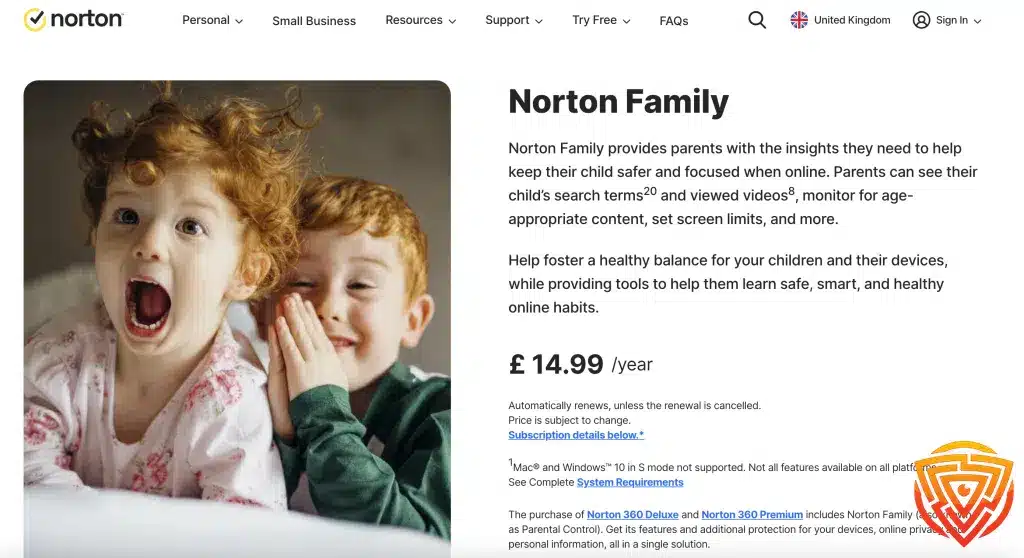
Best for: Households with several supported Windows laptops, especially families already paying for a Norton plan that includes Norton Family.
Why it ranks fourth: Norton Family remains relevant for Windows because it combines web, search and supported video supervision with time limits, schedules and activity reports. Its device allowance can make it attractive for a large Windows household.
What Norton Family Does Well on Laptops
- Provides a dedicated Windows child-device product
- Offers web, search and supported video supervision
- Supports time limits and usage schedules
- Can cover unlimited supported devices under the standalone plan
Important limitation: Norton Family should not be presented as a Mac or Chromebook child-laptop solution. A Mac can access the parent management website, but Norton states that Family parental controls are not supported on a protected Mac. Chromebooks and Windows S mode are also unsupported.
Choose Norton Family if the children use standard Windows laptops and the household values broad device coverage. Avoid it if any important child laptop is a Mac, Chromebook, Windows S mode device or unsupported ARM system.
Compare the wider best Windows parental control software.
5. Wondershare FamiSafe: Best for Families Managing Laptops and Phones

Best for: Families wanting conventional laptop controls alongside FamiSafe’s stronger phone-based location and driving features.
Why it ranks fifth: FamiSafe documents support for Windows, Mac and Chromebook computers. Its relevant laptop functions include screen-time schedules, browsing information, web filtering and supported application controls, while the same family account can also manage compatible phones and tablets.
What FamiSafe Does Well on Laptops
- Supports Windows, Mac and Chromebook laptops
- Combines laptop rules with a wider family-device dashboard
- Includes screen-time, browsing and filtering functions on supported computers
- Offers plan options for five or ten devices
Important limitation: FamiSafe’s most distinctive location, geofencing and driving tools relate mainly to mobile devices, not laptops. Families choosing it only for a computer should compare its laptop controls directly with Qustodio and Mobicip instead of paying for phone features they will not use.
Choose FamiSafe if the same subscription must manage a teenager’s laptop and phone. Avoid it if the decision concerns only one laptop and you want the strongest computer-first option.
6. Bark: Best for Supported Safety Alerts

Best for: Families in supported countries wanting alert-based monitoring of supported online activity, particularly when a child uses a Chromebook or connected online accounts.
Why it ranks sixth: Bark has a different job from the computer-control products above it. Its main value is analysing supported content and accounts for signs that may require a parent’s attention. Chromebook has a documented child-device setup route, and supported Chrome or connected-account monitoring can add useful visibility.
What Bark Does Well for Laptop Families
- Provides alerts about supported concerning online activity
- Supports relevant Chromebook monitoring and controls
- Can monitor supported email, browser and connected-account activity
- Shows alerts rather than requiring parents to review every routine interaction
Important limitation: Bark should not be described as a complete device-wide Windows or Mac parental-control suite. Broader filtering and scheduling for devices such as MacBooks may require Bark Home or a compatible router. Bark’s availability is also limited by country, and feature coverage varies by device and account.
Choose Bark if supported safety alerts matter more than granular laptop app schedules. Avoid it if you need one locally installed product to control all Windows and Mac laptop activity.
7. Microsoft Family Safety: Best Free Option for Windows Laptops

Best for: Families using a child Microsoft account on Windows 10 or Windows 11 who want useful controls without another subscription.
Why it ranks seventh: Microsoft Family Safety is the most relevant built-in-style option for a Windows laptop. Family organisers can set Windows device schedules, apply app and game limits, review supported activity and filter websites and searches in Microsoft Edge.
What Microsoft Family Safety Does Well
- Provides free Windows screen-time and app limits
- Uses Microsoft family accounts rather than a separate child-control subscription
- Offers Edge web and search filtering
- Lets organisers manage settings through the Family Safety app or web dashboard
Important limitation: Web filtering depends on Microsoft Edge and the child being signed into the managed Microsoft account. It is not a Mac or Chromebook child-device solution, and it offers less cross-platform consistency than the paid products near the top of this list.
Choose Microsoft Family Safety if the child uses a Windows laptop and the family wants a free starting point. Avoid it if the child can switch to unmanaged accounts or browsers, or if important child devices use macOS or ChromeOS.
Which Laptop Operating System Do You Need to Protect?
Windows Laptops
Windows offers the widest choice in this guide. Qustodio and Mobicip are the strongest all-round options, Canopy suits families prioritising content filtering, Norton Family is relevant for households with several standard Windows laptops, and Microsoft Family Safety is the best free starting point.
Create a separate standard Windows account for each child and keep the parent account as the administrator. This helps parental-control software apply the correct rules and reduces the chance of a child uninstalling or changing the software. Check whether the laptop uses Windows S mode or an ARM processor because some products exclude those configurations.
MacBooks and Other Mac Laptops
Qustodio, Mobicip, Canopy and FamiSafe provide relevant Mac child-device support. Apple Screen Time is also a useful free starting point for app limits, downtime and content restrictions within an Apple family setup.
Do not choose Norton Family for a child’s Mac merely because a parent can open Norton’s management website on macOS. Parent-dashboard access and child-device protection are different. Also confirm the minimum macOS version and allow the permissions requested by the selected product during installation.
Chromebooks
Google Family Link is the natural free starting point for a personally owned Chromebook used with a supervised child Google account. Qustodio, Mobicip, Canopy and FamiSafe provide relevant third-party alternatives, while Bark is useful when supported content alerts are the priority.
Chromebook coverage may depend on a Chrome extension, Android child app, supervised Google account or a combination of these. Disable guest browsing where appropriate and confirm how the product handles additional browser profiles. A school-managed Chromebook is controlled by the school administrator and may block parent-installed apps or extensions.
Built-In Laptop Controls vs Paid Parental-Control Software
Built-in controls can be enough when a family uses one laptop ecosystem and mainly needs schedules, application limits and basic web restrictions.
- Windows: Microsoft Family Safety provides free screen-time limits, supported app controls and Microsoft Edge filtering.
- Mac: Apple Screen Time provides downtime, app limits and content restrictions within an Apple family setup.
- Chromebook: Google Family Link provides supervision for personally owned Chromebooks using supported child Google accounts.
A paid parental-control service becomes more useful when the household has different laptop systems, wants one management dashboard, needs more detailed reports or requires specialist filtering or safety alerts.
The dedicated free parental-control table is reserved for free-focused comparisons. Adding the whole table here would distract from the article’s main laptop-software comparison.
Avoid running two complete filtering products on the same laptop unless both providers explicitly support that configuration. Competing filters, security certificates or network components can interfere with browsing and reporting.
How to Choose Parental Controls for a Laptop
Start With the Child Laptop, Not the Parent Phone
The child laptop determines which controls are possible. A parent may be able to open a dashboard from almost any modern phone or browser, but this does not mean the service can protect the child’s Windows, Mac or Chromebook in the same way.
Check Browser and User-Account Coverage
Ask which browsers the child uses and whether the product blocks unsupported alternatives. On a shared computer, check whether the service can map different Windows or Mac user accounts to separate child profiles. A laptop used through an administrator account is harder to manage safely than one using a standard child account.
Choose the Function You Actually Need
- Screen-time routines: Qustodio, Mobicip, Norton Family or Microsoft Family Safety
- Broad Windows, Mac and Chromebook support: Qustodio or Mobicip
- Specialised visual-content filtering: Canopy
- Supported content alerts: Bark
- Laptop plus teen phone management: FamiSafe
- Free Windows controls: Microsoft Family Safety
Confirm Ownership and Administrator Permission
Install parental-control software only on a laptop you own or are clearly authorised to manage. Do not try to override a school, employer or other organisation’s administrator controls. For a family-owned laptop, explain the rules in age-appropriate language and review them as the child becomes more independent.
How to Set Up Laptop Parental Controls Properly
- Create separate accounts: keep the parent as administrator and give each child a standard or supervised account.
- Update the laptop: install current operating-system and browser updates before adding the parental-control product.
- Install from the official source: use the provider’s official installer, app store listing or documented browser extension.
- Assign the correct profile: link each child account and laptop to the matching child profile in the parent dashboard.
- Set a small number of clear rules: start with bedtime, schoolwork periods, age-appropriate web filtering and app permissions.
- Test with the child account: check one allowed site, one blocked site, a schedule boundary and any important app rule.
- Review after updates: operating-system, browser and security-software changes can alter permissions or filtering.
Remote changes and reports may be delayed while a laptop is offline. No parental-control app replaces conversations, household rules or periodic checks that the software still matches the child’s age and actual device use.
Can Children Bypass Laptop Parental Controls?
No parental-control product is impossible to remove or bypass on every laptop. Common weak points include administrator access, unmanaged browser profiles, guest accounts, unsupported browsers, operating-system changes and competing security software.
Use a separate parent password, keep the child on a standard or supervised account, disable unnecessary guest access, follow the provider’s supported-browser guidance and review activity when a report unexpectedly stops. Do not respond by increasing monitoring without explanation; a technical failure and a deliberate rule breach are not the same thing.
How We Chose the Best Laptop Parental Controls
This ranking is an editorial assessment based on documented laptop support, relevant computer controls, family-management design, important restrictions and suitability for the search intent. It does not claim that Impulsec personally tested every product on every supported laptop. Read how Impulsec evaluates parental control apps for the wider methodology.
- Laptop compatibility: defensible child-device support for Windows, Mac or Chromebook
- Relevant controls: web filtering, time rules, supported app controls and useful reports
- Platform accuracy: clear distinction between parent-dashboard access and child-laptop protection
- Account management: child profiles, shared-computer accounts and device allowances
- Limitations: unsupported systems, browser dependence, administrator requirements and managed-device restrictions
- Responsible use: transparent, age-appropriate family supervision rather than covert monitoring
OurPact remains part of Impulsec’s Core 7 because the shared table represents the strongest overall parental-control apps, not a separate laptop ranking. It is not included in the laptop mini reviews because its child-device product focuses on iPhone and Android. Microsoft Family Safety is included as a separate free Windows alternative, not as a replacement Core 7 product.
Final Verdict
Qustodio is the best parental control software for most laptops because it offers the strongest overall balance across Windows, Mac and Chromebook. Mobicip is the closest alternative when broad computer support is the deciding factor.
Choose by operating system and required function. Canopy is better for specialist filtering, Norton Family for standard Windows laptops, FamiSafe for families combining laptops and phones, Bark for supported alerts, and Microsoft Family Safety for free Windows controls.
Frequently Asked Questions
What is the best parental control software for a laptop?
Qustodio is the best overall option for most families because it supports Windows, Mac and Chromebook. Mobicip is the strongest alternative when broad laptop compatibility is the main priority.
What parental controls can you put on a laptop?
Laptop parental controls can provide screen-time schedules, website filtering, application limits, activity reports and supervised user accounts. Available controls depend on whether the laptop uses Windows, macOS or ChromeOS.
Can you put parental controls on a PC?
Yes. Windows PCs support Microsoft Family Safety, while services such as Qustodio, Mobicip, Canopy, Norton Family and FamiSafe provide additional controls. Compatibility depends on the Windows version, processor and selected browser.
How do I childproof my laptop?
Create a separate standard account for the child, keep the parent account as administrator, enable appropriate filtering and screen-time rules, restrict guest access and test the controls while signed into the child’s account.
Which parental control apps work on Windows, Mac and Chromebook?
Qustodio, Mobicip, Canopy and FamiSafe provide relevant support across Windows, Mac and Chromebook. Features and installation requirements differ between operating systems, so confirm support for the exact laptop before subscribing.
Can I install parental controls on a school laptop or Chromebook?
Usually not without the organisation’s permission. School-managed laptops commonly restrict software, browser extensions and account changes. Follow the school’s policy and install family controls only on a device you own or are authorised to manage.
Can a child bypass parental controls on a laptop?
No parental-control product is impossible to bypass on every laptop. Separate administrator and child accounts, a unique parent password, supported browsers, disabled guest access and regular checks can reduce common weaknesses.
Related Posts



Share this article

Stuart Kerr Spindlow is Impulsec’s Publisher, Chief Editor and Lead Reviewer. He writes and maintains coverage of consumer cybersecurity and digital-safety software, with a focus on practical suitability, limitations and the evidence behind product claims. Read Stuart’s full profile.