


Guardians often worry about how long their young ones are on the internet and how safe they are while using it. **A handy tool I’ve found is FamilyTime.** This program is designed to help parents keep an eye on their child’s online behavior and protect them from any dangers lurking on the web. With features like **screen time limits, app blocks, and GPS tracking,** FamilyTime gives parents peace of mind. **Those looking to ensure their child’s safety online can benefit greatly from this powerful tool.**
Is it easy to get FamilyTime IO? I’ve tried FamilyTime and found it easy to set up. You install the main app on your phone and FamilyTime Jr. on your kid’s device. Then you can control settings from your phone. The app works on both Android and iOS, so it covers most devices families use.
FamilyTime stands out because it has so many helpful features. You can set daily screen time limits, block specific apps or websites, and get alerts about your child’s location. It even lets you schedule device-free times for meals or homework. I think it’s a great tool for parents who want to guide their kids’ tech use.
Key Takeaways
- FamilyTime helps parents manage screen time and online safety for kids
- The app is easy to set up on both parent and child devices
- FamilyTime offers many useful features like time limits and app blocking
Understanding FamilyTime
FamilyTime is a parental control app that helps parents monitor and manage their children’s device usage. It offers features like screen time limits, location tracking, and SOS alerts to keep kids safe online and offline.
Defining FamilyTime and Its Core Features
FamilyTime is a comprehensive parental control app for Android and iOS devices. I find its core features quite helpful for parents. The app lets me set screen time limits for my kids’ devices, which is great for managing their digital habits.
I can also track my children’s locations in real-time, giving me peace of mind about their whereabouts. The SOS alert feature is a standout – kids can send emergency alerts to parents with just one tap.
The FamilyTime dashboard is easy to use. I can view all the monitored activities and set rules from one central place. It’s simple to block apps, filter internet content, and set schedules for device usage.
How FamilyTime Stands Out From Other Parental Control Apps
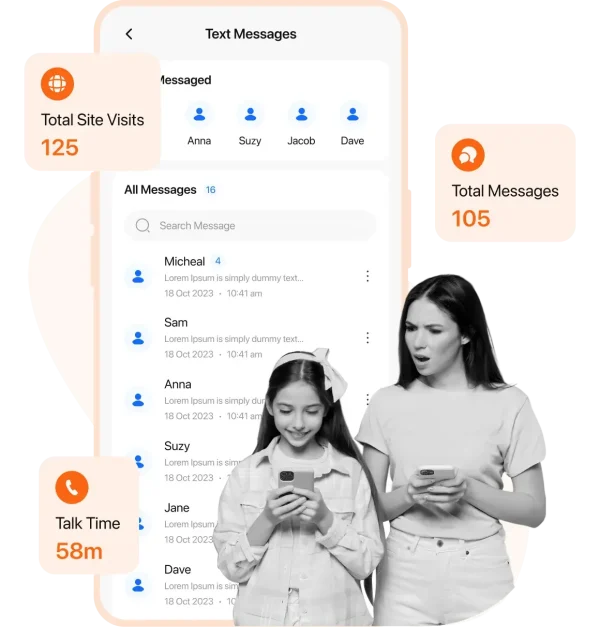
FamilyTime sets itself apart in several ways. Its user-friendly interface makes it easy for even tech-novice parents like me to navigate and use effectively. The app’s features are comprehensive yet not overwhelming.
I appreciate FamilyTime’s commitment to privacy. They’re GDPR compliant, which means my family’s data is protected. The app also promotes ethical parental controls, focusing on safety rather than intrusive monitoring.
FamilyTime offers real-time support, which I found helpful when setting up the app. They quickly resolved an issue I had pairing my child’s iPhone. This level of customer service is rare among parental control apps.
Setting Up FamilyTime
Setting up FamilyTime is quick and easy. I’ll walk you through creating an account and installing the app on different devices.
Creating a FamilyTime Account
To start using FamilyTime, here are the steps:
-
To get started with FamilyTime, I need to create an account. I can do this by visiting the FamilyTime website and clicking the “Sign Up” button.
-
I’ll enter my email address and create a strong password.
-
Next, I’ll verify my email address by clicking the link sent to my inbox.
-
Once verified, I can log in to my new FamilyTime account.
-
In the dashboard, I’ll add my children’s names and ages. This helps FamilyTime provide age-appropriate settings and recommendations.
Installing FamilyTime on Multiple Devices
Now that I have an account, I need to get FamilyTime app on my devices and my children’s devices.
On my phone, I’ll download the FamilyTime parental control app from the App Store or Google Play Store. I’ll log in with my account credentials.
For my kids’ devices, I’ll download the FamilyTime Jr app instead. During setup, I’ll link each device to the correct child in my account.
I can repeat this process for tablets, laptops, and other devices we use. FamilyTime works across multiple platforms, giving me a complete view of my family’s digital activity.
Key Functionalities of FamilyTime

FamilyTime offers powerful tools for parents to manage their children’s digital activities and ensure their safety. I’ll cover the main features that help parents set healthy limits and keep track of their kids.
Managing Screen Time and App Usage
Family Time IO lets me set daily usage limits for my child’s device. I can create an internet schedule to control when they can go online. The app blocker is handy – I pick which apps are off-limits or set time restrictions on them.
I get detailed activity reports showing which apps my kid uses and for how long. This helps me spot any concerning patterns. If I need to adjust limits, I can easily update the screen time schedule right from my phone.
Ensuring Child Safety with Real-Time Location Features

The family locator shows me where my child is at any time. I set up geofences around places like school or home. FamilyTime alerts me when my kid enters or leaves those areas.
Location tracking gives me peace of mind. I can see my child’s location history too. The PickMeUp alerts are great – my kid can request a ride with one tap, and I get a notification with their exact location.
These safety features help me keep tabs on my child without being overbearing. I know where they are and can quickly help if needed.
Parental Control and Monitoring

FamilyTime offers powerful tools to keep kids safe online and monitor their digital activities. I’ll cover the key features parents can use to protect their children.
Setting Content Filters and Blocking Inappropriate Content
Content filters are a crucial part of online safety for kids. I can set up web filters to block inappropriate websites and enable safe search on popular search engines. This helps prevent accidental exposure to adult content, violence, or other unsuitable material.
The web blocker lets me restrict access to specific sites I deem unsafe or distracting. I can also review my child’s web history to see what they’ve been browsing.
For added protection, I can use app blocking to limit access to certain apps or games that may contain inappropriate content. This gives me peace of mind that my kids are only accessing age-appropriate digital content.
Monitoring Calls, Texts, and Social Media
The FamilyTime parental control app provides detailed monitoring of my child’s phone activities. I can view logs of their calls and text messages to stay informed about who they’re communicating with.
For social media monitoring, I can monitor chats on popular platforms like WhatsApp, Instagram, and TikTok. This helps me spot any concerning interactions or potential cyberbullying.
The app FamilyTime also lets me set time limits on social media usage to encourage a healthy balance. I can block specific contacts if needed for my child’s safety.
Utilizing SOS and Speed Alerts for Emergencies

FamilyTime’s SOS alerts provide an extra layer of safety. My child can quickly send an emergency alert with their location if they feel unsafe. I’ll get an instant notification on my phone.
The app also has speed limit alerts. I can set a maximum speed, and I’ll be notified if my teen driver exceeds it. This encourages safer driving habits.
There’s even a low battery alert feature. I’ll know when my child’s phone battery is running low, so I can remind them to charge it and stay connected.
Enhancing Digital Parenting

Digital parenting can be tricky, but there are ways to make it easier. I’ll share some tips to help families find balance and set healthy tech habits.
Managing Digital Well-Being for the Whole Family
I’ve found that setting screen time limits is key for digital well-being. With FamilyTime, I can easily schedule when devices can be used. This helps create tech-free times for family bonding.
I like to set up “FamilyPause” during meals and before bed. This blocks all apps so we can focus on each other or wind down for sleep.
For homework time, I use custom schedules to only allow educational apps. This keeps kids on task without distractions.
Promoting Healthy Habits with Custom Schedules
Custom schedules are great for building good habits. I set daily limits for social media and games to encourage balance.
For teens, I use TeenSafe Drive to disable phones while driving. Safety first!
I also set up “Bedtime” mode to shut off devices at night. This promotes better sleep habits.
Individual app limits let me fine-tune access. Maybe 30 minutes of TikTok, but unlimited time for reading apps.
Implementing Co-Parenting Strategies
Co-parenting features help divorced families stay on the same page. We can sync schedules and rules across households.
I can approve or block new app installs remotely. This keeps me in the loop even when kids are with their other parent.
Shared location tracking gives us peace of mind about kids’ whereabouts. We can also set up geo-fences for automatic alerts.
Regular check-ins through the app help us communicate about digital habits and adjust as needed.
Technical Support and Compliance

FamilyTime offers robust technical support and ensures compliance with data protection regulations. I’ll explain how to get priority assistance and how the app meets privacy standards.
Accessing Priority Live Support
When I need help with FamilyTime, I can get 24/7 support through multiple channels. The app has in-app support for quick troubleshooting on the go.
I can use live chat to connect with an expert support agent in real-time. They listen to my issues and provide solutions to improve my experience.
For more complex problems, I can contact the support team directly. They guide me through technical issues step-by-step.
FamilyTime also offers a quick guide with tips and tricks for digital parenting. This helps me use all the features effectively.
Meeting GDPR Compliance
FamilyTime takes data protection seriously. The app complies with GDPR to safeguard user privacy.
I can review the terms of use to understand how my data is handled. FamilyTime only collects necessary information to provide parental control services.
The app gives me control over my child’s data. I can request to view, change, or delete information at any time.
FamilyTime uses encryption to protect sensitive data. This keeps my family’s information safe from unauthorized access.
Regular updates ensure the app stays compliant with evolving privacy laws. I can trust that FamilyTime respects my right to data privacy.
Optimizing the FamilyTime Experience

I’ve found some key ways to get the most out of FamilyTime. The app offers powerful tools to manage screen time, set rules, and keep kids safe online.
Navigating the FamilyTime Dashboard and Interface
The FamilyTime dashboard is easy to use. I can quickly see my kids’ activity and set controls. The main screen shows device usage, location, and alerts. I tap on a child’s profile to dive deeper.
The interface is simple. Colorful icons help me find features fast. I can swipe between screens to check different controls. The app groups similar functions together logically.
I appreciate how the dashboard highlights important info. It uses bold text for alerts and color-coding for time limits. This helps me spot issues at a glance.
Setting Pre-Defined Rules and Alerts
FamilyTime lets me create rules to manage screen time. I can set daily limits or schedules for device use. The app also has pre-made rules I can turn on quickly.
I set up alerts for specific apps or actions. FamilyTime notifies me if my child tries to access a blocked app or website. I can also get alerts for new contacts or location changes.
The mobile geofencing feature is handy. I create safe zones and get notified when my kids enter or leave. This gives me peace of mind without constant check-ins.
Managing Remote Controls and Time Bank Features
I love being able to control devices remotely. If homework time arrives, I can lock my child’s phone from my own device. I can also extend time limits or grant app access as needed.
The Time Bank is a cool FamilyTime feature. My kids can save up screen time to use later. This teaches them to budget their device use. I set how much time they can bank and when they can spend it.
FamilyTime Jr gives my kids some control too. They can see their own limits and request more time. This app helps them understand and follow our family’s digital rules.
Conclusion and Personal Recommendation
After testing FamilyTime for several weeks, I’m impressed by its comprehensive features. The app offers powerful tools for monitoring and managing screen time for kids.
I find the GPS tracking and customizable safe zones particularly useful for keeping tabs on my children’s whereabouts. The app blocking and web filtering features give me peace of mind about their online activities.
The “time bank” concept is innovative, allowing kids to save up screen time for later use. This teaches them valuable time management skills.
FamilyTime’s SOS button is a standout safety feature. It provides quick access to help in emergencies, which I consider essential.
While no app is perfect, FamilyTime strikes a good balance between protection and flexibility. It’s user-friendly for both parents and kids.
I recommend FamilyTime to parents looking for a robust parental control solution. It’s especially suited for families with children of various ages, as its features can be tailored to different needs.
Remember, open communication with your kids about digital safety is key. Use FamilyTime as a tool to support, not replace, these important conversations.
Frequently Asked Questions
Parents often have questions about setting up and using FamilyTime. I’ll address common concerns about device setup, app features, monitoring capabilities, location tracking, and subscription costs.
How do I set up FamilyTime on my child’s device?
Setting up FamilyTime is easy. I first download the FamilyTime app on my phone and create an account. Then I install FamilyTime Jr. on my child’s device. I follow the on-screen instructions to link the devices and set up parental controls.
What features does the FamilyTime parental control app offer?
FamilyTime offers many helpful features. I can use web and app filtering to control what content my child accesses. The app also lets me set screen time limits and create schedules for device usage.
Can I monitor text messages and social media activity with FamilyTime?
FamilyTime doesn’t allow direct monitoring of text messages or social media. I can see which apps my child uses and for how long. The app focuses more on limiting screen time and filtering content than reading messages.
Does FamilyTime allow for location tracking and geofencing?
Yes, FamilyTime includes location tracking. I can see my child’s current location and view their location history. The app also supports geofencing, letting me set up safe zones and get alerts when my child enters or leaves those areas.
How does FamilyTime Jr. enhance the safety features for children’s devices?
FamilyTime Jr. is the app I install on my child’s device. It works with the main FamilyTime app on my phone. FamilyTime Jr. enforces the rules and restrictions I set, like content filters and time limits. It helps keep my child’s device safe and usage in check.
What are the subscription costs for FamilyTime premium services?
FamilyTime offers different subscription plans. The exact costs can change, so I recommend checking their website for current pricing. They usually have monthly and yearly options. Some features are free, while others require a paid subscription.
That’s All For Now
I hope you found this article on FamilyTime parental control apps helpful. The digital safety of kids is so important in today’s connected world.
Thank you for taking the time to read through this information. I’m glad I could share details about the FamilyTime parental control app and its features.
I encourage you to explore more about online safety for children. There’s always new developments in this area.
Please check out the related articles linked below for more on screen time limits, location tracking, and other parental controls. These topics are crucial for any parent navigating the digital landscape with their kids.
I’ll be posting more updates on FamilyTime and similar apps soon. I invite you to come back and learn about the latest tools to keep kids safe online.
Your interest in this subject shows you care deeply about your family’s wellbeing. I appreciate you reading, and I look forward to sharing more useful content with you in the future.
Share this article

Stuart Kerr Spindlow is Impulsec’s Publisher, Chief Editor and Lead Reviewer. He writes and maintains coverage of consumer cybersecurity and digital-safety software, with a focus on practical suitability, limitations and the evidence behind product claims. Read Stuart’s full profile.