


The rise of technology has increased the demand for strong parental control apps to regulate family devices. Although Apple’s Screen Time feature offers some monitoring tools, it may not meet everyone’s needs. For those seeking comprehensive solutions, there are many third-party apps to choose from. These alternatives provide features like detailed usage reports, setting time limits for specific apps, and tracking locations for online safety and a healthy screen time balance. If you’re a parent wanting to effectively oversee your child’s device usage, exploring these options can be beneficial. Uncover the mysteries of the best parental control apps available and take charge of your family’s screen time management. Parents looking to enhance their children’s screen time and online safety are the main targets. Delve into the realm of parental control apps and ensure your family’s tech usage is well-balanced and safe! Dive in and take control!
Each third-party parental control app comes with its unique set of features that cater to the varying requirements of families. Some offer real-time monitoring and instant lock capabilities, while others focus on filtering content and managing educational time. For those using devices outside the Apple ecosystem, finding Apple Screen Time alternatives that work seamlessly across various operating systems, including Android, becomes particularly important. It’s crucial to evaluate these apps on parameters such as user interface, ease of setup, compatibility, and customer support to make an informed decision that aligns with your family’s digital habits and concerns.
⏳ Do you want to skip the read and get right to my top pick? The best Apple Screen Time alternatives for most people is Qustodio.
Key Takeaways
- A range of third-party parental control apps serve as Apple Screen Time alternatives.
- These apps often include advanced features like real-time monitoring and cross-platform compatibility.
- Evaluating usability, compatibility, and support is key to choosing the right control app for your family.
Ranked Apple Screen Time Alternatives
I’ve compiled a quick comparison of the top Apple Screen Time alternatives.
- Qustodio stands out with a full suite of parental controls and extended reporting in its premium features.
- Norton Family offers a unique ‘School Time’ feature for educational focus, but lacks in text and call monitoring.
- OurPact is ideal for managing the screen time of multiple children
- Net Nanny is noted for its robust content filtering capabilities, though it doesn’t track location.
- Canopy does not provide location tracking either but offers excellent web filtering and scheduling.
- MMGuardian is particularly strong if you’re concerned about text monitoring and preventing texting while driving.
- Meanwhile, Bark shines with its analysis of over 30 apps and platforms, which is part of its premium offering, though it doesn’t manage screen time directly.
For those looking for a cost-effective solution, various apps offer free parental control app tiers with limited functionality. Free options may include basic features like content filtering and app management but typically do not include the more advanced premium features.
Quick Comparison Table
This table compares the core parental control apps by pricing, free trial availability, key features, age suitability, supported platforms, and full review links.| Software | Pricing (Devices) | Free Plan / Trial | Key Features | Best For | Key Limitation | Supported Platforms | Review |
|---|---|---|---|---|---|---|---|
| 🏆 Qustodio (Editor’s Choice) | Basic: US$59.95/year, 5 devices; Complete: US$104.95/year, family devices subject to terms. Check Qustodio Pricing | Check current free/trial eligibility during signup. | 🕒 Screen-time limits and schedules 🌐 Web and app filtering 📍 Location monitoring 📊 Activity reports | Editorial all-round pick for everyday controls and reporting; not a measured test winner. | Calls and messages on iOS require a Windows or Mac computer; other features vary by platform. | 🪟 Windows, 🍎 macOS, 📱 iOS, 🤖 Android, Chromebook, Kindle Fire | Read Qustodio Review |
| Bark | Bark App: from US$14/month; unlimited devices and accounts. Phone and Watch are separate products. Check Bark Pricing | 7-day app trial; check signup terms. | 🚨 Concerning-content alerts 💬 Text, email and social-app monitoring 🕒 Screen-time schedules 🌐 Website and app blocking | Best for behaviour-based safety alerts without routinely exposing every conversation | Check country availability and exact account/device coverage; Bark App, Phone and Watch have different capabilities. | iOS and Android app; other devices and connected services depend on the monitoring feature. | Read Bark Review |
| Mobicip | Lite: US$2.99/month for 5 devices; Standard: US$4.99 for 10; Premium: US$7.99 for 20. All billed annually. Check Mobicip Pricing | 7-day Premium trial; check cancellation/refund terms. | 🌐 Website and app blocking 🕒 Screen-time schedules 📍 Family location 📊 Activity and social-media reports | Best for mixed-device families wanting flexible device allowances | Check plan and platform support for each required feature; a supported device does not have every control. | 🪟 Windows, 🍎 macOS, 📱 iOS, 🤖 Android, Chromebook, Kindle Fire | Read Mobicip Review |
| Norton Family | US$49.99 for the first year; check renewal price. Included with selected Norton 360 subscriptions. Check Norton Family Pricing | Check current trial availability in your country. | 🌐 Web, search and video supervision 🕒 Time limits and schedules 📍 Location history and alerts 📊 Email activity reports | Best for large families and households already using Norton | A Mac can manage Norton Family but cannot be monitored as a child device; features differ across platforms | 🪟 Windows, 📱 iOS, 🤖 Android | Read Norton Family Review |
| Canopy | Essential: US$8.33/month for 1 device; Plus: US$9.99 for 3; Premium: US$12.50 for up to 10. All billed annually. Check Canopy Pricing | 7-day trial; 30-day guarantee subject to terms. | 🌐 Real-time content filtering 🖼️ Sensitive-image detection 🚫 App and website blocking 🕒 Screen-time management | Best for filtering explicit images and web content | Check coverage for the particular app/browser and device; filtering is not a guarantee that every risk is detected. | 🪟 Windows, 🍎 macOS, 📱 iOS, 🤖 Android, Chromebook | Read Canopy Review |
| Wondershare FamiSafe | US$59.99/year for up to 10 devices, or US$9.99/month for up to 5 devices. Check FamiSafe Pricing | 3-day annual-plan trial; 7-day money-back guarantee subject to terms. Free tier has restricted/demo features. | 📍 Location and geofencing 🚗 Driving reports 🚫 App and website controls 🕒 Screen-time schedules | Best for families with teenagers and driving-safety needs | Advanced visibility features are platform-specific and should be used transparently with older children | 🪟 Windows, 🍎 macOS, 📱 iOS, 🤖 Android, Chromebook, Kindle Fire | Read FamiSafe Review |
| OurPact | Premium: US$69.99/year; Premium+: US$99.99/year. Both cover up to 20 child devices. Check OurPact Pricing | Trial offered; confirm duration and cancellation terms during signup. | 📱 Detailed app rules 🕒 Screen-time schedules and allowances 📍 Live location and location alerts 📸 Screen snapshots with Premium+ | Best for app blocking and detailed schedules across iPhone and Android | Limited to mobile devices; Premium+ is required for screenshots and content monitoring, and initial pairing may require a computer | 📱 iOS, 🤖 Android | Read OurPact Review |
Understanding Screen Time
When discussing digital wellbeing, Screen Time is a term that frequently surfaces. It involves monitoring and managing the time spent on electronic devices. Now, let’s break down the concept and the specific features provided by Apple.
The Concept of Screen Time
Screen Time quantifies how much time I spend on my devices. It’s a tool for awareness and control, allowing me to track the time spent on apps, websites, and more. This concept is crucial in the digital age, where screen involvement can impact everything from sleep patterns to productivity.
Apple Screen Time Overview
Apple’s Screen Time is a suite of parental controls and self-monitoring tools integrated into iOS and iPadOS. It gives me an overview of my device usage, including detailed reports of daily and weekly activity. With Apple Screen Time, I can set App Limits, schedule Downtime, and manage the content accessible on my or my children’s devices. It serves as a valuable resource to foster healthy device habits.
Screen Time on iOS Devices
In managing our family’s digital habits, I’ve found that Apple’s Screen Time offers a comprehensive tool for monitoring and limiting device usage on iPhones and iPads.
iOS Parental Controls
Apple’s Screen Time feature allows me to set up parental controls on my child’s devices seamlessly. I appreciate how it grants the ability to not only track usage but also set specific screen time limits. It’s tailored to support a child’s device or used in conjunction with Family Sharing for easier management.
iOS 12 and Beyond
With the introduction of iOS 12, Screen Time capabilities significantly expanded. I monitor the time I spent on apps and websites, and I can equally apply these insights to help manage my family’s screen usage. The well-implemented update has made it more intuitive for me to stay on top of how we all engage with our iOS devices.
Setting Up Screen Time on iPhone and iPad
Here’s the basic setup process I follow:
- Go to Settings on the iPhone or iPad.
- Tap Screen Time.
- Choose to set up Screen Time for myself or a child.
- Follow the prompts to customize settings for app limits, downtime, and content & privacy restrictions.
I find the setup to be a straightforward way to help ensure healthy device usage patterns in my household.
Screen Time on Android Devices

When managing screen time on Android devices, Android users have dedicated tools like the device’s built-in parental controls and the Google Family Link app. These resources provide comprehensive settings to supervise and restrict device usage.
Android Parental Controls
Android devices offer built-in parental controls that I find extremely useful for monitoring and managing how a smartphone or tablet is used. They enable me to set restrictions for content and approve or block apps my children might download from the Google Play Store. Adjusting settings like screen time limits for different days of the week is straightforward, giving me the flexibility to tailor controls as needed.
Google Family Link App
For more thorough supervision, I utilize the Google Family Link app on my Android phone. This app allows me to create a Google Account for my child that’s like my own, with access to most Google services. I can use Family Link to track my child’s location, manage app usage, set bedtime schedules on their devices, and even lock their device if necessary. It’s a comprehensive solution for managing screen time and ensuring my child’s digital wellbeing on their Android devices.
Comparing Screen Time Solutions

In evaluating parental control options and Apple Screen Time alternatives, it’s crucial to consider how Apple and Android devices offer different features and the importance of cross-platform capabilities for consistent monitoring.
Apple vs. Android Parental Controls
While I recognize that Apple’s Screen Time tool provides a detailed suite of parental controls directly within iOS devices, it is not without its limitations. Users have reported that it can be somewhat easy for savvy kids to circumvent Screen Time’s restrictions. On the other hand, Android devices come equipped with Google‘s Family Link, which offers similar monitoring features and control over app usage, but operates a bit differently in terms of setup and daily use.
Comparing these solutions, Apple’s approach integrates seamlessly with iOS, offering a more unified user experience. In contrast, Android’s Family Link is more of a standalone service that demands separate app installation.
| Feature | Apple Screen Time | Google Family Link |
|---|---|---|
| App Management | Direct within iOS | Requires app |
| Web Filtering | Yes | Yes |
| Location Tracking | With Family Sharing | Yes |
| Screen Time Reports | Comprehensive overview | Basic usage stats |
Cross-Platform Availability
When it comes to cross-platform availability, the reality is that neither Apple’s native tools nor Google’s are particularly well-suited for environments where both iOS and Android devices are in use. However, third-party applications often fill this gap. Some can provide a single solution that works across both platforms. This is crucial for my peace of mind when managing parental controls in a diverse device ecosystem.
My assessment emphasizes that while built-in tools from Apple and Google provide a strong starting point, families using a mix of devices might benefit more from exploring third-party solutions that can offer uniform experiences across different operating systems.
Third-Party Parental Control Apps
When exploring Apple Screen Time alternatives for managing digital family safety, Apple’s built-in Screen Time feature is a commonly used tool. However, I recognize that some may find it lacks certain functionalities they need. Fortunately, a variety of third-party best parental control apps offer comprehensive features that appeal to different needs and preferences.

Qustodio: Qustodio stands out as a top Apple Screen Time alternatives for its robust set of features and user-friendly interface. This app delivers detailed reports and a comprehensive dashboard that allows me to monitor my child’s activity across devices.
- Features include time limits, web filtering, and social media monitoring.

Norton Family: A veteran in cybersecurity, Norton Family, extends its protection to parental control software. It focuses on helping parents create healthier habits for their children in the digital world.
- It emphasizes the importance of teaching kids safe online habits and provides valuable insights into a child’s online behavior.

OurPact: OurPact is a mix of simplicity and functionality, enabling me to manage screen time with a keen focus on family schedules.
- The app provides a feature for managing family time effectively by assigning schedules for device use.

Net Nanny: Known for its content filtering technology, Net Nanny offers dynamic web filtering that adjusts to real time browsing.
- The tool includes content screening that can block inappropriate content before it’s seen.
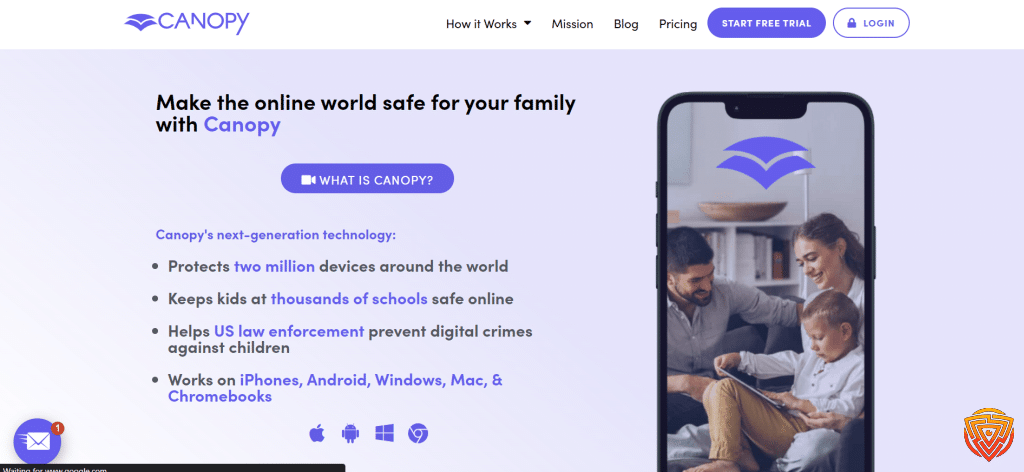
Canopy: Canopy offers a different approach with its sex-specific content detection feature, aiming to prevent exposure to sexually explicit content.
- Its unique artificial intelligence works to detect and block sexting or pornographic images.

MMGuardian: Specifically designed for phones and tablets, MMGuardian has tools to combat cyberbullying and unwanted content.
- The app lets parents monitor texts and calls, and includes comprehensive time controls.

Bark: Bark focuses mainly on monitoring social media platforms and emails for signs of unsafe activity, and is known for its alert system.
- Alerts inform parents of potential issues, allowing them to act quickly.
Free vs. Premium Services
Free parental control apps, such as certain features of Google Family Link or the basic functionalities of Qustodio, offer fundamental tools for monitoring and limiting screen time. They are a good initial step for parents who are starting to explore digital safety, but they often lack the depth of monitoring and customization found in paid versions.
- Free services typically restrict the amount of data I can access and limit the number of devices I can manage.
Premium features in apps like Norton Family, MMGuardian, and OurPact include the ability to track location, in-depth monitoring of text messages, and even the ability to see the photos on a child’s device.
- Despite the costs, these premium services provide a more extensive understanding of my child’s digital footprint and offer peace of mind with advanced protection tools.
Strategies for Online Safety

Online safety is paramount, particularly when it comes to the digital terrain navigated by our children. I will discuss both creating a secure digital space and educating kids about safe Internet use.
Creating a Safe Digital Environment
My first move is to utilize parental controls. These are integral tools allowing me to restrict access to inappropriate content and manage how much time my child spends online. Software options such as the best iOS parental control app offer granular control over the content and services accessible on their devices. Privacy settings also play a critical role; I ensure they are set to the strictest level to protect my child’s personal information from strangers.
To further secure my child’s online experience, I rely on web filtering capabilities that parental control software provides. These filters automatically block websites with potentially harmful content, significantly reducing the risk of exposure. Additionally, enabling Google’s SafeSearch helps me filter out explicit content from search results, contributing to a safer browsing environment.
Educating Kids About Internet Use
Moreover, teaching kids about the importance of online privacy and security is crucial. I explain why it’s important to keep personal information private and the consequences of sharing too much information online. We review the settings together on platforms they use to ensure they understand the function and importance of each privacy control.
Regular discussions about the potential risks and establishing clear online behavior expectations are vital. It is critical for kids to understand why downloading from unknown sources is dangerous and why they should avoid clicking on dubious links. Showing them examples of content filters and explaining their purpose helps them recognize the role these tools play in their online safety.
Understanding these strategies ensures a robust approach to maintaining a safe online environment for children. Through the combination of the right tools and proper education, I can foster a safe and positive digital experience for my child.
Utilizing Monitoring and Tracking Features

When looking at Apple Screen Time alternatives, I focus on two core functionalities—how well they monitor and manage app usage, and whether they offer comprehensive location services.
App and Content Filtering
I’ve examined several tools that stand out for their app and content filtering capabilities. For instance, Qustodio allows me to not only block apps that I deem inappropriate but also to monitor social media activity. This can be crucial for ensuring children are not exposed to harmful content. Additionally, it offers web filters that help keep browsing safe by blocking adult content across multiple browsers.
Location Tracking and History
Regarding location tracking, I find that certain apps have a significant edge. Unlike Apple Screen Time which lacks this feature, Qustodio includes built-in location tracking and location history. This means I can track a device’s location in real time as well as view a history of where the device has been. This adds an extra layer of reassurance, knowing I can always verify the whereabouts of my loved ones.
Managing Device Usage

When it comes to device management for Apple Screen Time alternatives, I focus on two key aspects: setting daily time limits to moderate usage and scheduling downtime to ensure periods of non-screen activity.
Setting Daily Time Limits
I find that setting daily time limits on devices can be highly effective in managing screen time. For example, with parental control apps such as Apple’s Screen Time, I can allocate a certain amount of time for my kids to use their devices each day. Here’s how I approach it:
- For each app category (games, social media, education), I set specific time limits.
- I monitor the usage to ensure the set limits are adhered to.
If children reach their daily limit, they can request additional time, giving me the opportunity to reward good behavior or encourage off-screen activities.
Scheduling Downtime
Downtime is the period when I restrict device usage to essential apps and contacts. I schedule it to coincide with family time, homework, or bedtime to help my family maintain a healthy digital balance. Here’s my method:
- Downtime Schedules: I arrange downtime to start at bedtime and end the following morning.
- Essential Apps: Only phone calls and apps that are tagged “Always Allowed” can be accessed during downtime.
By aligning the downtime feature with bedtime, I ensure that devices are used responsibly and that my family gets adequate rest without distractions.
Addressing Challenges With Parental Controls
In my experience looking for Apple Screen Time alternatives, the key to effective parental controls lies in ensuring these systems are robust against bypass methods while maintaining a respectful balance between security and privacy.
Bypassing Restrictions
It’s no secret that children often find ingenious ways to circumvent screen time limitations. A notable challenge I’ve encountered is preventing the misuse of ‘One More Minute’ requests, which are meant to offer temporary access but can be exploited to extend usage time significantly.
Balancing Security and Privacy
In my work, I’ve observed that maintaining a balance between security measures and a child’s privacy can be delicate. Too stringent controls can infringe on privacy and trust—a consideration highlighted by privacy advocates. On the flip side, parental controls can offer age-appropriate settings that help strike a more appropriate balance, providing both oversight for me and privacy for my child.
Evaluating the Effectiveness of Control Apps

When assessing Apple Screen Time alternatives for managing screen time and parental oversight, I focus on robust feature sets and their influence on family interactions. The effectiveness of these apps plays a pivotal role in ensuring a balanced digital environment at home.
Analyzing Parental Control App Features
Feature Comparison:
- Screen Time Management: I evaluate how apps like Apple’s Screen Time and alternatives allow scheduling, time allowances, and real-time modifications.
- Content Filtering: It’s important to analyze the app’s proficiency in filtering inappropriate content and its adaptability to different age groups.
Apps to Consider:
- Apple’s Screen Time feature provides basic controls, but certain third-party apps offer expanded functionality.
- Solutions like Qustodio can extend these capabilities, providing more granular control.
Reviewing the Impact on Family Dynamics
Communication Parameters:
- I consider how apps with communication limits facilitate discussions about digital habits between parents and children, allowing bespoke boundaries to be set.
- The implementation of parental-control apps should foster understanding rather than mere restriction.
Effect on Relationships:
The adoption of apps like Family Link must be balanced with trust-building; the goal is to guide, not to control excessively. Open dialogue is crucial to ensure these tools are viewed as collaborative, not punitive.
Maintaining a confident yet neutral stance in this Apple Screen Time alternatives review, I explore the specifics of control apps, emphasizing their features and family dynamics without bias or generalizations. My examination adheres to a confident, knowledgeable, and clear approach, helping readers make informed decisions about digital parenting tools.
Engaging With the Industry and the Community

When seeking Apple Screen Time alternatives, it’s crucial for me to consider both pediatric health guidelines and the industry’s response to parental control applications. By staying informed and aligned with expert recommendations and industry developments, I can make well-rounded decisions about digital tool choices for managing screen time.
Involving Pediatric Guidelines
The American Academy of Pediatrics (AAP) provides extensive guidance on children’s media use which I closely follow. Their recommendations are grounded in research on child development, emphasizing the importance of quality screen time over quantity. Finding apps that align with these guidelines ensures that screen time alternatives are not only effective but also support the healthy development of children.
- Pediatric views on screen time:
- Under 18 months: Avoid use of screen media other than video chatting.
- 18 months to 5 years: Limit screen use to one hour per day of high-quality programs.
Understanding Industry Responses
After The New York Times reported that Apple had restricted third-party parental control apps, I took note of the industry’s response. This move raised concerns about fair competition and the variety of options available to consumers. I monitor industry reactions to ensure that the parental control applications I consider are on par with, if not superior to, Apple’s native Screen Time feature, offering a diverse and competitive market for consumers to choose from.
Technical Setup and Troubleshooting
In setting up Apple Screen Time alternatives for various devices, I’ve found that a systematic approach to installation and troubleshooting is essential. Whether it’s for phones, tablets, or computers, each step in the setup process is crucial to ensure effective parental control and usage management.
Installing Parental Control Software
When I install parental control software on a device, I start by checking the compatibility with the operating system. For iOS devices, for example, you need to verify that the software can integrate seamlessly. Here’s a quick rundown of my installation steps:
- Purchase/Download the Application: I select a trusted and reputable software vendor to ensure security and reliability.
- Follow Installation Prompts: I closely follow the step-by-step installation guide provided by the software.
- Set Up Permissions: I adjust the settings to grant the necessary permissions, which may include accessibility, device administrator, and other security permissions.
- Configure Settings: I personalize the restrictions and controls based on the specific needs, like setting time limits or blocking certain apps.
For effective supervision, it’s also possible to use Apple’s option to enable a supervised/managed mode on iOS devices, which provides more granular control.
Resolving Common Issues
Throughout my experience, I’ve tackled numerous common issues post-installation, and here’s how I usually resolve them:
- App Not Blocking Content as Expected: I ensure that the update levels for both the device’s operating system and the parental control software are current.
- Overridden Restrictions: To prevent children from overriding set restrictions, I make sure that passwords and passcodes are kept confidential and complex.
If I encounter an issue that I cannot resolve on my own, I consult the software’s official support resources or user communities.
Examining the Future of Parental Controls
With rapid technological advancements, parental control solutions are evolving beyond basic content filters. Today, I’m focusing on how innovations shape the tools parents use and what we can expect as technology becomes even more entrenched in family life.
Innovations and Trends in Parental Monitoring
My research in Apple Screen Time alternatives shows an uptick in AI integration within parental control apps, leading to more personalized monitoring experiences. Real-time content analysis, for instance, is becoming increasingly sophisticated, with AI able to understand the context of texts or social media interactions. This empowers parents to address potentially harmful communications proactively.
In the realm of social media monitoring, there are tools emerging that can provide insights into a child’s online presence without violating their privacy. These applications can alert parents about risky behavior or concerning patterns in their child’s online interactions.
Moving to monitoring apps, the industry is shifting from blatant screen-time limitations to teaching better digital habits. Apps that foster agreement and collaboration between parents and children are emerging as top picks. This is anticipated to have a more positive impact on the child’s digital education and well-being.
Expectations for Family-Oriented Technologies
I foresee the industry continuing to prioritize balance, aiming to equip parents with tools that encourage open dialogue about internet use. The expectation is that future family-oriented technologies will blend monitoring with mentorship capabilities. This approach could help bridge the digital understanding gap between parents and children.
Emphasizing top picks in the industry, developers will likely focus on customizability, allowing for tailored controls that adapt to each family’s unique needs. Integrations with home IoT devices and cross-platform support are also expected to dominate future offerings, providing seamless management of a child’s digital footprint across various devices.
Conclusion and Personal Recommendation
Now to wrap this guide on the top Apple Screen Time alternatives;
After evaluating the various options for managing and limiting screen time on Apple devices, I’ve come to a decision that caters to my needs for flexibility, control, and ease of use. While Apple’s Screen Time offers a built-in solution with no additional cost, it may not meet everyone’s specific requirements, especially when cross-platform compatibility is necessary.
For a more robust solution, Qustodio stands out as excellent Apple Screen Time alternatives. It works across different operating systems, making it a versatile choice for families with a mix of Apple and non-Apple devices. My personal preference leans towards Qustodio for its comprehensive features and user-friendly interface.
However, for those solely in the Apple ecosystem, enabling a supervised/managed mode on iOS devices unlocks powerful capabilities for managing screen time, surpassing the default features offered by Screen Time.
Advantages of Apple’s Supervised Mode:
- Enhanced control over restrictions
- Bypass prevention capabilities
Advantages of Qustodio:
- Cross-platform support
- Detailed activity reports
In conclusion, my recommendation is to assess both your family’s and your own specific needs before deciding on a screen time management solution. If you are seeking simplicity and are using Apple devices exclusively, supervised mode might be sufficient. Alternatively, if your environment is more diverse or demands additional features, Qustodio could be the ideal choice for Apple Screen Time alternatives.
Frequently Asked Questions
In navigating the digital landscape, I understand that screen time management is crucial for both children and adults. Whether you’re looking for Apple Screen Time alternatives or robust parental controls, I’ve compiled the most pertinent questions to assist in making informed decisions.
What are some effective free alternatives to Apple’s Screen Time feature?
I’ve discovered that is a noteworthy free Apple Screen Time alternatives. It offers comprehensive parental control features such as setting schedules, blocking sites, and managing app usage.
Which apps offer the best screen time control for adults using iOS devices?
From my research, one of the best apps for adults seeking to manage their screen time on iOS devices is the Tech Lockdown app, which provides a more granular control than Apple’s own feature, catering to those who require advanced restrictions and monitoring.
Are there any Screen Time equivalent apps available for Android users?
Although Android users do not have Apple’s Screen Time, alternatives are in development.
How can I set up parental controls on an iPhone that are more robust than Screen Time?
For parents seeking more robust controls, there is a set of which allow for highly customizable restrictions on an iPhone, providing a higher level of management than Apple’s standard Screen Time.
What is the most recommended app for limiting screen time among adults?
Based on my research, the most recommended application for adults to limit their screen time. It is designed specifically for personal use, offering features that facilitate self-regulation of device usage.
How can I bypass or ignore restrictions set by Apple Screen Time?
While I neither endorse nor recommend bypassing restrictions intended for wellbeing, it’s noted that users sometimes require more flexibility. Instructions provided on various forums, however, I would advise against this as it defeats the purpose of screen time management and can compromise device security.
That’s All For Now;
We appreciate you taking the time to read our in-depth guide on the best Apple Screen Time alternatives. We appreciate your interest in maintaining the security of your digital life and hope this information has been helpful. To stay on top of the digital curve, we invite you to return for more news and reviews on cybersecurity software. Please feel free to read the articles linked below for further information and insight. Observe internet safety!
- importance of online safety
- Spynger vs mSpy vs EyeZy
- qustodio review
- best parental monitoring app
- best parental control app for android
Share this article

Stuart Kerr Spindlow is Impulsec’s Publisher, Chief Editor and Lead Reviewer. He writes and maintains coverage of consumer cybersecurity and digital-safety software, with a focus on practical suitability, limitations and the evidence behind product claims. Read Stuart’s full profile.