


Many parents are concerned about safeguarding their kids on the internet. PC parental controls provide a way to monitor and regulate children’s computer use. These functions can restrict screen time, filter out unsuitable content, and monitor online behaviors. Discover how to ensure your child’s safety online.
Windows 10 has built-in parental controls that let you create child accounts and set up family groups. With these features, I can restrict apps, set time limits, and filter web content. For more options, third-party parental control apps for PC provide advanced monitoring and protection.
Parental control software helps me keep an eye on my kids’ digital lives. It gives me peace of mind knowing I can guide their online experiences and protect them from potential dangers. Whether using Windows tools or dedicated apps, these controls are key for online safety.
Key Takeaways
- PC parental controls help manage kids’ computer use and online safety
- Windows 10 offers built-in tools to set up child accounts and content restrictions
- Third-party apps provide more advanced monitoring and protection options
Understanding Parental Controls

Parental controls are tools that help keep kids safe online and manage their digital habits. They let parents set limits on device use and block harmful content.
What Is Parental Control Software
Parental control software is a program that helps me watch over my child’s online activities. It gives me tools to set rules for internet use and block certain websites or apps.
Windows 10 has built-in parental controls that let me create a child account. With this account, I can set screen time limits and content filters. I can also block specific apps or websites my child shouldn’t access.
These programs often let me:
- Set time limits for device use
- Block adult content
- See what websites my child visits
- Control app installations
Importance of Parental Controls in a Digital Environment
In today’s digital world, parental controls are key for keeping kids safe online. They help me protect my child from inappropriate content and cyber dangers.
With parental controls, I can teach my child good digital habits. I can set reasonable limits on screen time to prevent overuse. This helps my child balance online and offline activities.
Parental controls also let me monitor my child’s online activity. I can see what websites they visit and who they talk to online. This helps me spot any risky behavior early.
By using these tools, I take an active role in my child’s online safety. I can guide them as they learn to use the internet responsibly.
Setting Up Parental Controls on Windows
Windows offers built-in tools to create a safer digital environment for kids. I’ll explain how to set up and manage parental controls across Windows 10 and 11.
PC Parental Controls Windows 10
Windows 10 has strong parental control features. I can set them up by creating a child account linked to my Microsoft account. This lets me manage screen time, content filters, and app restrictions.
To start, I go to Settings > Accounts > Family & other users. I click “Add a family member” and choose “Add a child.” I enter the child’s email or create a new one.
Once set up, I can:
- Limit screen time
- Block inappropriate websites
- Set age ratings for games and apps
- View activity reports
I manage these settings in the Microsoft Family Safety website or app. It’s user-friendly and gives me good control over my child’s PC use.

Advancements in Windows 11 Parental Controls
Windows 11 builds on Windows 10’s parental controls. It adds new features and improves existing ones. The Family app is now built into Windows 11, making it easier to access.
Key improvements include:
- Simplified setup process
- Enhanced content filtering
- More detailed activity reports
- Better integration with Microsoft 365 Family
I can now set up app-specific time limits. This lets me allow more time for educational apps while limiting games or social media.
The new interface is cleaner and more intuitive. I find it easier to navigate and adjust settings as needed.
Creating a Child Account on Microsoft
Creating a child account is the first step in setting up parental controls. I start by going to account.microsoft.com and signing in with my own Microsoft account.
Next, I click “Family” and then “Add a family member.” I choose “Add a child” and enter their email or create a new one. If they’re under 13, I need to verify I’m an adult.
After creating the account, I can:
- Set it as a child account
- Link it to Windows devices
- Start managing settings
It’s important to use a strong, unique password for the child account. I make sure my child knows not to share this password with others.
Managing Family Settings Online for Windows
Microsoft Family Safety lets me manage settings from any device. I log in at account.microsoft.com/family and see all linked accounts and devices.
Here, I can:
- Set screen time limits for each device
- Filter web content
- Manage app and game permissions
- View activity reports
I can also set up spending limits for Microsoft Store purchases. This prevents unexpected charges on my credit card.
The online dashboard updates in real-time. I can make changes that take effect immediately on my child’s devices. It’s a powerful tool for keeping my kids safe online.
Monitoring and Managing Online Activities

Parental control software gives me powerful tools to oversee and guide my child’s digital activities. I can set limits, track usage, filter content, and control downloads to create a safer online environment.
Setting Screen Time Limits and Scheduling
I can easily set screen time limits for my child’s device use. This helps me ensure a healthy balance between online and offline activities.
Windows 10 has built-in features that let me schedule specific times when my child can use their device. I can set different limits for weekdays and weekends.
For example, I might allow 2 hours on school nights and 3 hours on weekends. When the time is up, the device automatically locks.
I can also set a bedtime when all device access is blocked. This helps my child maintain a good sleep schedule.
Using Activity Reports to Monitor Online Activity
Activity reports give me insight into how my child spends time online. I can see which websites they visit and how long they spend on different apps.
These reports help me spot potential issues or concerning trends in my child’s online behavior. I can view daily, weekly, or monthly summaries.
Windows parental controls show me which apps my child uses most. This helps me understand their interests and ensure they’re using age-appropriate content.
I can also see search history and blocked site attempts. This information helps me have productive conversations about online safety with my child.
Implementing Web Filtering and Blocking Inappropriate Content
Web filtering is a key feature of parental control software. It lets me block access to websites with inappropriate or dangerous content.
I can choose from pre-set content categories to block, such as violence, gambling, or adult content. Some software lets me add custom sites to block as well.
Safe search can be enforced on popular search engines. This filters out explicit results from web searches.
If my child tries to access a blocked site, they’ll see a message explaining why it’s not allowed. I can review these attempts and adjust settings if needed.
Controlling Access to Microsoft Store and Game Downloads
Parental controls let me manage what my child can download from the Microsoft Store. I can set age restrictions for apps and games.
I can require my approval for all downloads or set a spending limit for my child’s account. This prevents unexpected charges on my credit card.
For games, I can control which titles my child can access based on age ratings. I can also set time limits specifically for gaming.
Some parental control software even lets me block or limit access to specific games. This is helpful if I’m concerned about a particular title.
Comprehensive Parental Control Applications
Parental control apps offer a range of features to help keep kids safe online. I’ll cover some top options for Windows PCs, including both paid and free software.
Quick Comparison Table
This table compares the core parental control apps by pricing, free trial availability, key features, age suitability, supported platforms, and full review links.| Software | Pricing (Devices) | Free Plan / Trial | Key Features | Best For | Key Limitation | Supported Platforms | Review |
|---|---|---|---|---|---|---|---|
| 🏆 Qustodio (Editor’s Choice) | Basic: US$59.95/year, 5 devices; Complete: US$104.95/year, family devices subject to terms. Check Qustodio Pricing | Check current free/trial eligibility during signup. | 🕒 Screen-time limits and schedules 🌐 Web and app filtering 📍 Location monitoring 📊 Activity reports | Editorial all-round pick for everyday controls and reporting; not a measured test winner. | Calls and messages on iOS require a Windows or Mac computer; other features vary by platform. | 🪟 Windows, 🍎 macOS, 📱 iOS, 🤖 Android, Chromebook, Kindle Fire | Read Qustodio Review |
| Bark | Bark App: from US$14/month; unlimited devices and accounts. Phone and Watch are separate products. Check Bark Pricing | 7-day app trial; check signup terms. | 🚨 Concerning-content alerts 💬 Text, email and social-app monitoring 🕒 Screen-time schedules 🌐 Website and app blocking | Best for behaviour-based safety alerts without routinely exposing every conversation | Check country availability and exact account/device coverage; Bark App, Phone and Watch have different capabilities. | iOS and Android app; other devices and connected services depend on the monitoring feature. | Read Bark Review |
| Mobicip | Lite: US$2.99/month for 5 devices; Standard: US$4.99 for 10; Premium: US$7.99 for 20. All billed annually. Check Mobicip Pricing | 7-day Premium trial; check cancellation/refund terms. | 🌐 Website and app blocking 🕒 Screen-time schedules 📍 Family location 📊 Activity and social-media reports | Best for mixed-device families wanting flexible device allowances | Check plan and platform support for each required feature; a supported device does not have every control. | 🪟 Windows, 🍎 macOS, 📱 iOS, 🤖 Android, Chromebook, Kindle Fire | Read Mobicip Review |
| Norton Family | US$49.99 for the first year; check renewal price. Included with selected Norton 360 subscriptions. Check Norton Family Pricing | Check current trial availability in your country. | 🌐 Web, search and video supervision 🕒 Time limits and schedules 📍 Location history and alerts 📊 Email activity reports | Best for large families and households already using Norton | A Mac can manage Norton Family but cannot be monitored as a child device; features differ across platforms | 🪟 Windows, 📱 iOS, 🤖 Android | Read Norton Family Review |
| Canopy | Essential: US$8.33/month for 1 device; Plus: US$9.99 for 3; Premium: US$12.50 for up to 10. All billed annually. Check Canopy Pricing | 7-day trial; 30-day guarantee subject to terms. | 🌐 Real-time content filtering 🖼️ Sensitive-image detection 🚫 App and website blocking 🕒 Screen-time management | Best for filtering explicit images and web content | Check coverage for the particular app/browser and device; filtering is not a guarantee that every risk is detected. | 🪟 Windows, 🍎 macOS, 📱 iOS, 🤖 Android, Chromebook | Read Canopy Review |
| Wondershare FamiSafe | US$59.99/year for up to 10 devices, or US$9.99/month for up to 5 devices. Check FamiSafe Pricing | 3-day annual-plan trial; 7-day money-back guarantee subject to terms. Free tier has restricted/demo features. | 📍 Location and geofencing 🚗 Driving reports 🚫 App and website controls 🕒 Screen-time schedules | Best for families with teenagers and driving-safety needs | Advanced visibility features are platform-specific and should be used transparently with older children | 🪟 Windows, 🍎 macOS, 📱 iOS, 🤖 Android, Chromebook, Kindle Fire | Read FamiSafe Review |
| OurPact | Premium: US$69.99/year; Premium+: US$99.99/year. Both cover up to 20 child devices. Check OurPact Pricing | Trial offered; confirm duration and cancellation terms during signup. | 📱 Detailed app rules 🕒 Screen-time schedules and allowances 📍 Live location and location alerts 📸 Screen snapshots with Premium+ | Best for app blocking and detailed schedules across iPhone and Android | Limited to mobile devices; Premium+ is required for screenshots and content monitoring, and initial pairing may require a computer | 📱 iOS, 🤖 Android | Read OurPact Review |
Qustodio:

- Qustodio is a powerful parental control app and one of the best monitoring software for PC. It lets me set time limits, block inappropriate content, and monitor social media use.
- I can set up different profiles for each child. This allows customized rules based on age.
- Qustodio gives me detailed activity reports. I can see which apps and websites my kids use most.
- One standout feature is the panic button. Kids can use it to quickly alert parents if they’re in trouble.
Bark

- Bark specializes in monitoring social media and searches on Windows devices. It alerts me to potential issues like cyberbullying or self-harm.
- I can customize alerts based on my child’s age and maturity level. Bark covers over 30 social media platforms and messaging apps.
Net Nanny

- Net Nanny uses AI to filter content in real-time. This helps block inappropriate websites even if they’re not on a predefined list.
- I can set different filtering levels for each family member. Net Nanny also offers screen time management and app blocking.
Norton Family
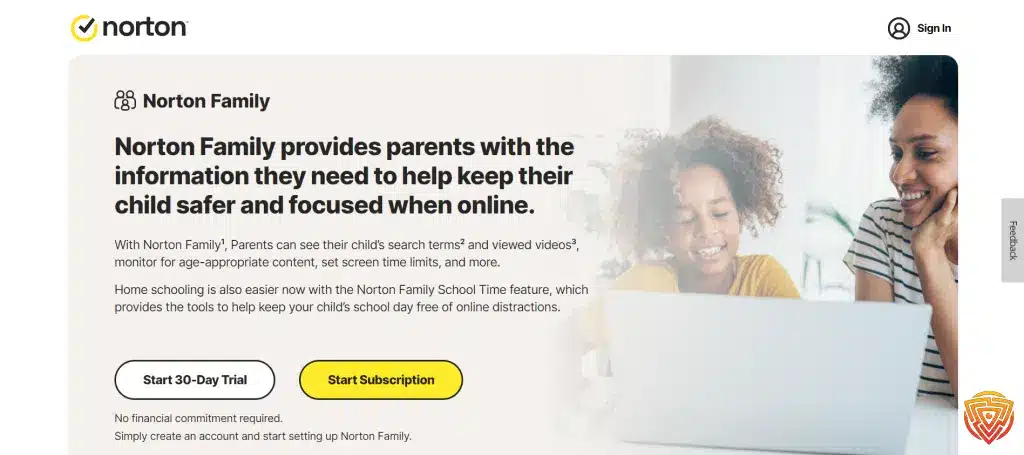
- Norton Family focuses on video monitoring. It tracks YouTube and Hulu usage on Windows PCs.
- I can set time limits for specific apps and websites. Norton Family also lets me schedule when devices can be used.
Kaspersky Safe Kids

- Kaspersky Safe Kids offers real-time alerts. I get notified if my child tries to access blocked content.
- It also includes GPS tracking and geofencing. I can set “safe areas” and get alerts if my child leaves these zones.
Free PC Parental Control Software Options
- Microsoft Family Safety is a free option built into Windows 10 and 11. It offers basic content filtering and screen time limits. I can set up activity reports to see how my kids use their devices. Microsoft Family Safety also includes location sharing.
- Some antivirus software, like Avast, includes free PC parental controls. These often offer basic web filtering and time limits.
While free options have fewer features, they can be a good starting point for basic protection.
Additional Parental Control Settings and Features

Windows 10 offers several powerful tools to keep kids safe online. I’ll cover key settings like SafeSearch, content restrictions, and access management that give parents more control.
SafeSearch: Protecting from Inappropriate Web Activity
I recommend enabling SafeSearch to filter out explicit content from search results. This feature works across major search engines like Google, Bing, and Yahoo. To turn it on, I go to the Microsoft family safety website and select the child’s account. Under “Web browsing”, I toggle on “Filter inappropriate websites and searches”.
SafeSearch isn’t perfect, but it catches a lot of adult content. For added protection, I can block specific websites or only allow certain sites. This gives me more granular control over what my kids can access online.
Content Restrictions and Family Groups
Windows 10 PC parental controls let me set up family groups to manage multiple child accounts. In the family group settings, I can restrict apps, games, and media based on age ratings.
For apps and games, I choose an age limit like “Teen” or “Everyone”. Windows then blocks anything above that rating. For movies and TV, I pick a maturity level to filter out inappropriate shows.
I can also set spending limits for the Microsoft Store. This prevents unexpected charges from in-app purchases or game downloads.
Regulating Educational Websites and Content
While blocking harmful content is important, I also want to encourage learning. Windows 10 lets me whitelist educational websites even if other restrictions are in place.
I add sites like Khan Academy, National Geographic Kids, and PBS Kids to an approved list. This ensures my children always have access to quality educational content.
For younger kids, I can install educational apps and games from the Microsoft Store. I look for options that teach math, reading, science, and other subjects in a fun way.
Password Protection and User Access Management
Strong passwords are crucial for parental controls. I create a separate admin account with a complex password that my kids don’t know. This prevents them from changing settings or bypassing restrictions.
For each child account, I set up a simple PIN or picture password. This makes it easy for them to log in while keeping their account separate from others.
I also use the “Ask a parent” feature. When my kids try to access blocked content, they can send me a request. I then decide whether to allow it or not. This gives me flexibility while maintaining control.
Conclusion and Personal Recommendation
After looking at many PC parental controls options, I think Qustodio is the best choice. It works well on Windows 10 and other versions.
Qustodio lets parents set different rules for each child on the same computer. This is great for families with kids of different ages.
I like that it has strong features to:
- Monitor screen time
- Filter content
- Block specific apps and websites
- Set time limits
Qustodio also works across different devices, not just Windows PCs. This makes it easier to keep track of all your child’s online activities.
While Windows 10 has some built-in parental controls, I find Qustodio offers more robust protection.
For parents looking for a free option, Qustodio does have a free version. But the paid version gives you more features and control.
I believe Qustodio strikes a good balance between being powerful and easy to use. That’s why it’s my top pick for Windows parental control software in 2026.
Frequently Asked Questions
Parents often have questions about setting up and using PC parental controls. I’ll address some common concerns about software options, monitoring capabilities, and implementation strategies.
How can I set up parental controls on Windows 10?
To set up PC parental controls Windows 10, I recommend creating a child account. This allows you to manage screen time, restrict apps and games, and monitor online activity.
You can also enable web filtering to block inappropriate content. It’s important to review these settings regularly as your child grows.
Which parental control software is recommended for monitoring a PC?
I suggest Microsoft Family Safety for basic PC monitoring. It’s built into Windows 10 and offers screen time limits, content filters, and app restrictions.
For more advanced features, third-party options like Qustodio or Kaspersky Safe Kids provide detailed activity reports and location tracking.
Are there any effective free parental control apps available for PC?
Yes, there are free options for PC parental controls Windows 10. Windows 10’s built-in Family Safety features are free and quite robust.
OpenDNS Family Shield is another free tool that blocks inappropriate websites at the network level. It’s not as comprehensive as paid options but can be effective for basic content filtering.
How does one choose the best parental control app for their needs?
I recommend considering your specific concerns and your child’s age when choosing a parental control app. Look for features like time limits, content filtering, and activity reports.
Try free trials of different apps to see which interface you find most user-friendly. Make sure the app works on all devices your family uses, not just PCs.
What are the capabilities of Microsoft Family Safety in terms of PC parental controls?
Microsoft Family Safety offers several key features for PC parental controls. These include screen time limits, app and game restrictions, and web filtering.
It can also provide activity reports and allow you to manage purchases in the Microsoft Store. The app works across Windows, Xbox, and Android devices.
How can a parent monitor their child’s computer activities discretely?
I advise being open with your child about monitoring. If you choose to monitor discretely, use software that runs in the background like Kidlogger or WebWatcher.
These tools can record keystrokes, capture screenshots, and track web history without being visible on the desktop. Remember to check local laws regarding computer monitoring.
That’s All For Now
I hope you found this guide on PC parental controls helpful. Keeping kids safe online is so important in today’s digital world. I’ve covered the key options for Windows 10 and shared some top parental control apps to consider.
Remember, no software is perfect. Open communication with your children is vital too. Talk to them about online safety regularly.
I’ll keep this article updated as new tools and features emerge. Check back for the latest info on protecting your family online.
Thanks for reading! I encourage you to explore the related articles below for more tips on digital parenting. Stay informed and empowered when it comes to your kids’ online activities.
Your feedback helps me improve. Feel free to share your thoughts or experiences with PC parental controls in the comments.
Stay safe online!
Share this article

Stuart Kerr Spindlow is Impulsec’s Publisher, Chief Editor and Lead Reviewer. He writes and maintains coverage of consumer cybersecurity and digital-safety software, with a focus on practical suitability, limitations and the evidence behind product claims. Read Stuart’s full profile.