


Are you looking for the top parental control apps for iPad? As a parent in today’s digital world, I know how crucial it is to find the right balance between technology advantages and safety. iPads are a popular choice for kids for learning and fun, making it important for parents to keep track of their activities. Setting up parental controls on an iPad is key to protecting kids from unsuitable content and managing their screen time. Luckily, there are many parental control apps tailored for iPads that tackle these issues, providing features such as content filtering and online activity monitoring. Parents benefit the most from these apps by ensuring their children’s online safety and well-being. Start using these apps now to take control of your child’s iPad usage and keep them safe online.
Not all parental control solutions are created equal, and finding the right one can be a daunting task. I took a look at the best parental control apps that seamlessly integrate with the iPad’s ecosystem to ensure a child-friendly online experience. Setting up these controls is a straightforward process, and many apps offer guidance through the setup to help us get started quickly. Moreover, advanced features like location tracking and activity monitoring lay at our fingertips, ready to create a secure digital environment tailored to our family’s needs.
⏳ Do you want to skip the read and get right to my top pick? The Best Free Parental Control App for iPad is Qustodio.
Key Takeaways
- Parental control apps for iPad offer a blend of content filtering, screen time management, and monitoring features.
- The setup process for these apps is typically user-friendly and offers step-by-step assistance.
- Advanced options such as activity reports and location tracking provide comprehensive oversight of children’s iPad use.
Ranked List of Best Parental Control Apps for iPad
- Qustodio – Best Overall for Comprehensive Protection and Easy Setup
- Net Nanny – Best for Advanced Content Filtering and Real-Time Alerts
- FamiSafe – Best for Multi-Device Families with Easy Location Tracking
- Bark – Best for Social Media Monitoring and Detecting Potential Risks
- Google Family Link – Best Free Solution for Basic Monitoring and Younger Kids
- Mobicip – Best for Simple Internet Safety with Content Filtering
- OurPact – Best for Simple App Blocking and Flexible Scheduling
- Norton Family – Best for Educational Content Filtering and Screen Time Limits
- Kaspersky Safe Kids – Best for Real-Time Alerts and Comprehensive Monitoring
- MMGuardian – Best for Older Kids and Growing iPad Support
These parental control apps for iPad offer a range of features, from simple web filtering to advanced social media monitoring. Each option is suited to specific family needs, allowing parents to choose the one that best aligns with their requirements for iPad-based safety and oversight.
Quick Comparison Table
This table compares the core parental control apps by pricing, free trial availability, key features, age suitability, supported platforms, and full review links.| Software | Pricing (Devices) | Free Plan / Trial | Key Features | Best For | Key Limitation | Supported Platforms | Review |
|---|---|---|---|---|---|---|---|
| 🏆 Qustodio (Editor’s Choice) | Basic: US$59.95/year, 5 devices; Complete: US$104.95/year, family devices subject to terms. Check Qustodio Pricing | Check current free/trial eligibility during signup. | 🕒 Screen-time limits and schedules 🌐 Web and app filtering 📍 Location monitoring 📊 Activity reports | Editorial all-round pick for everyday controls and reporting; not a measured test winner. | Calls and messages on iOS require a Windows or Mac computer; other features vary by platform. | 🪟 Windows, 🍎 macOS, 📱 iOS, 🤖 Android, Chromebook, Kindle Fire | Read Qustodio Review |
| Bark | Bark App: from US$14/month; unlimited devices and accounts. Phone and Watch are separate products. Check Bark Pricing | 7-day app trial; check signup terms. | 🚨 Concerning-content alerts 💬 Text, email and social-app monitoring 🕒 Screen-time schedules 🌐 Website and app blocking | Best for behaviour-based safety alerts without routinely exposing every conversation | Check country availability and exact account/device coverage; Bark App, Phone and Watch have different capabilities. | iOS and Android app; other devices and connected services depend on the monitoring feature. | Read Bark Review |
| Mobicip | Lite: US$2.99/month for 5 devices; Standard: US$4.99 for 10; Premium: US$7.99 for 20. All billed annually. Check Mobicip Pricing | 7-day Premium trial; check cancellation/refund terms. | 🌐 Website and app blocking 🕒 Screen-time schedules 📍 Family location 📊 Activity and social-media reports | Best for mixed-device families wanting flexible device allowances | Check plan and platform support for each required feature; a supported device does not have every control. | 🪟 Windows, 🍎 macOS, 📱 iOS, 🤖 Android, Chromebook, Kindle Fire | Read Mobicip Review |
| Norton Family | US$49.99 for the first year; check renewal price. Included with selected Norton 360 subscriptions. Check Norton Family Pricing | Check current trial availability in your country. | 🌐 Web, search and video supervision 🕒 Time limits and schedules 📍 Location history and alerts 📊 Email activity reports | Best for large families and households already using Norton | A Mac can manage Norton Family but cannot be monitored as a child device; features differ across platforms | 🪟 Windows, 📱 iOS, 🤖 Android | Read Norton Family Review |
| Canopy | Essential: US$8.33/month for 1 device; Plus: US$9.99 for 3; Premium: US$12.50 for up to 10. All billed annually. Check Canopy Pricing | 7-day trial; 30-day guarantee subject to terms. | 🌐 Real-time content filtering 🖼️ Sensitive-image detection 🚫 App and website blocking 🕒 Screen-time management | Best for filtering explicit images and web content | Check coverage for the particular app/browser and device; filtering is not a guarantee that every risk is detected. | 🪟 Windows, 🍎 macOS, 📱 iOS, 🤖 Android, Chromebook | Read Canopy Review |
| Wondershare FamiSafe | US$59.99/year for up to 10 devices, or US$9.99/month for up to 5 devices. Check FamiSafe Pricing | 3-day annual-plan trial; 7-day money-back guarantee subject to terms. Free tier has restricted/demo features. | 📍 Location and geofencing 🚗 Driving reports 🚫 App and website controls 🕒 Screen-time schedules | Best for families with teenagers and driving-safety needs | Advanced visibility features are platform-specific and should be used transparently with older children | 🪟 Windows, 🍎 macOS, 📱 iOS, 🤖 Android, Chromebook, Kindle Fire | Read FamiSafe Review |
| OurPact | Premium: US$69.99/year; Premium+: US$99.99/year. Both cover up to 20 child devices. Check OurPact Pricing | Trial offered; confirm duration and cancellation terms during signup. | 📱 Detailed app rules 🕒 Screen-time schedules and allowances 📍 Live location and location alerts 📸 Screen snapshots with Premium+ | Best for app blocking and detailed schedules across iPhone and Android | Limited to mobile devices; Premium+ is required for screenshots and content monitoring, and initial pairing may require a computer | 📱 iOS, 🤖 Android | Read OurPact Review |
In my analysis, I find each of these parental control iPad apps offers robust features for iPad management. I ascertain that Qustodio stands out for its comprehensive features including advanced web filtering and compatibility with multiple devices.
If you’re particularly interested in real-time alerts and social media monitoring, Bark presents itself as an excellent option. For parents on a budget seeking basic controls, Google Family Link provides a free solution.
FamiSafe takes the lead in monitoring multiple devices. Net Nanny’s key strength lies in its content filtering capabilities. To enhance your child’s digital safety and manage their online activities effectively, consider these options carefully. Each parental control iPad app offers particular strengths that cater to varied parental needs and concerns.
Reviewed Best Parental Control Apps for iPad
Here’s a ranked list of the best parental control apps for iPad, each tailored for specific use cases and family needs. Below are detailed reviews, including overviews, key features, pros, cons, and pricing.
1. Qustodio – Best Overall for Comprehensive Protection and Easy Setup

Overview:
Qustodio is a top choice for iPad parental controls due to its comprehensive protection features and simple setup. It combines web filtering, screen time management, app blocking, and location tracking to provide extensive monitoring and control over your child’s activities.
Key Features:
- Advanced web filtering and safe browsing
- Screen time scheduling and app blocking
- Real-time location tracking with geofencing
- Detailed activity reports and usage insights
- Cross-platform compatibility
Pros:
- Easy to set up and manage
- Robust features for comprehensive monitoring
- User-friendly interface with cross-device functionality
Cons:
- Free version is limited in features
- Premium subscription may be expensive for some users
Pricing:
- Free basic version available
- Premium plans start at approximately $54.95/year
2. Net Nanny – Best for Advanced Content Filtering and Real-Time Alerts

Overview:
Net Nanny provides advanced content filtering and real-time alerts, making it a great option for iPad users who want dynamic protection. It enables parents to block harmful content, manage screen time, and monitor app usage effectively.
Key Features:
- Dynamic content filtering and safe browsing
- Real-time alerts for inappropriate content
- Screen time scheduling and device management
- App usage tracking and blocking
- Multi-device support
Pros:
- Highly effective and customizable filtering
- Real-time alerts for prompt action
- Simple setup through the app
Cons:
- Some advanced features require a premium subscription
- Can be pricey compared to basic solutions
Pricing:
- Free trial available
- Premium plans start at approximately $39.99/year
3. FamiSafe – Best for Multi-Device Families with Easy Location Tracking

Overview:
FamiSafe is ideal for families managing multiple devices, offering seamless parental controls and location tracking for iPads. It features real-time GPS tracking, screen time limits, and customizable content filtering.
Key Features:
- Real-time location tracking and geofencing
- Screen time scheduling and activity monitoring
- Customizable web and app content filtering
- Alerts for suspicious or inappropriate activities
- Cross-platform compatibility
Pros:
- Excellent for managing multiple devices
- Flexible and user-friendly parental controls
- Effective location tracking and geofencing
Cons:
- Some features may be limited in the free version
- Subscription costs may add up for multi-device plans
Pricing:
- Free trial available
- Subscription plans start at approximately $9.99/month
4. Bark – Best for Social Media Monitoring and Detecting Potential Risks

Overview:
Bark excels in social media monitoring, offering parents the ability to detect risks such as cyberbullying and inappropriate content. It analyzes texts, emails, and social media platforms for concerning behavior and provides real-time alerts.
Key Features:
- Monitors social media, emails, and texts
- AI-driven alerts for cyberbullying and risky behavior
- Screen time and app usage tracking
- Activity summaries and detailed reports
- Wide coverage of platforms, including WhatsApp and Instagram
Pros:
- Superior social media monitoring and alerts
- Covers a wide range of messaging and social apps
- Real-time notifications for immediate intervention
Cons:
- Free version limited to a trial period
- Subscription required for full functionality
Pricing:
- Free trial available
- Subscription plans start at around $99/year
5. Google Family Link – Best Free Solution for Basic Monitoring and Younger Kids

Overview:
Google Family Link is a free parental control app that provides essential features for monitoring younger children on iPads. It offers app blocking, screen time limits, and basic activity reports, making it an excellent budget-friendly option.
Key Features:
- App management and permissions control
- Daily screen time limits and usage schedules
- Basic activity monitoring and usage insights
- Real-time location tracking
- Easy setup and management
Pros:
- Completely free with essential features
- Simple and intuitive interface
- Ideal for younger kids needing basic controls
Cons:
- Limited to basic monitoring without advanced features
- Minimal support for social media platforms
Pricing:
- Free
6. Mobicip – Best for Simple Internet Safety with Content Filtering

Overview:
Mobicip focuses on providing simple internet safety with effective content filtering and screen time controls for iPads. It ensures children access only age-appropriate content and maintains a distraction-free environment during study times.
Key Features:
- Web content filtering and safe browsing
- Screen time scheduling and usage limits
- App blocking and usage monitoring
- Activity reporting and summaries
- Cross-platform compatibility
Pros:
- Easy-to-use parental controls for internet safety
- Affordable subscription plans
- Effective filtering for online content
Cons:
- Free version is limited in features
- Advanced features require a paid plan
Pricing:
- Free basic tier available
- Premium plans start at approximately $39.99/year
7. OurPact – Best for Simple App Blocking and Flexible Scheduling

Overview:
OurPact offers simple app blocking and flexible scheduling, making it a practical choice for parents managing younger children’s iPad usage. It features remote app blocking, screen time management, and detailed usage tracking.
Key Features:
- App blocking and usage permissions
- Screen time scheduling and daily limits
- Internet pause feature
- Usage reports and activity monitoring
- Simple and intuitive controls
Pros:
- Easy to set up and manage
- Flexible scheduling options for apps
- Ideal for managing younger children
Cons:
- Free tier has limited features
- Premium features require a subscription
Pricing:
- Free tier available
- Premium plans start at approximately $6.99/month
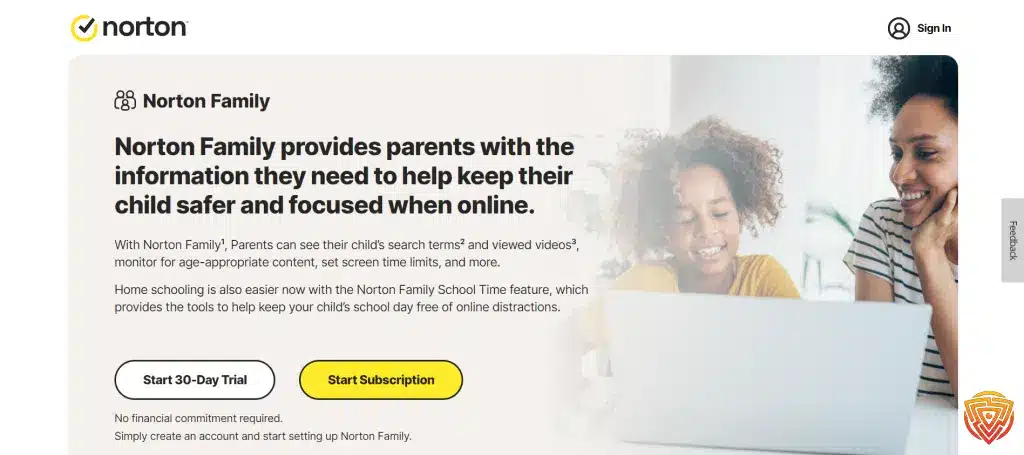
8. Norton Family – Best for Educational Content Filtering and Screen Time Limits
Overview:
Norton Family is designed for parents seeking advanced educational content filtering and screen time controls. It provides tools to ensure a safe and productive online environment for children using iPads.
Key Features:
- Web and educational content filtering
- Screen time management and limits
- Real-time activity reports and usage insights
- Location tracking and geofencing
- Multi-device management
Pros:
- Comprehensive filtering for safe browsing
- Excellent for families with multiple devices
- Trusted security brand
Cons:
- Premium subscription required for full features
- Free version limited to a trial period
Pricing:
- Free trial available
- Premium plans start at approximately $49.99/year
9. Kaspersky Safe Kids – Best for Real-Time Alerts and Comprehensive Monitoring

Overview:
Kaspersky Safe Kids provides robust real-time alerts and monitoring features, ensuring parents can respond quickly to potential risks. It’s budget-friendly and offers essential tools like app blocking, web filtering, and location tracking.
Key Features:
- Web and app filtering with time controls
- Real-time alerts for suspicious activities
- Location tracking and geofencing
- Screen time management
- Basic social media monitoring
Pros:
- Affordable with a strong free tier
- Effective real-time alerts
- Easy to set up and manage
Cons:
- Interface may feel outdated compared to competitors
- Advanced features require a paid subscription
Pricing:
- Free basic version available
- Premium plans start at approximately $15/year
10. MMGuardian – Best for Older Kids and Growing iPad Support

Overview:
MMGuardian is designed for parents of older children, offering features like detailed message monitoring, app blocking, and location tracking. Its growing iPad support ensures comprehensive control for families using Apple devices.
Key Features:
- Detailed message and app monitoring
- App usage control and restrictions
- Real-time location tracking
- Screen time management and scheduling
- Privacy-conscious operation
Pros:
- Excellent for monitoring older kids
- Detailed control over app usage
- Advanced tracking features
Cons:
- Limited free version
- Premium subscription required for most features
Pricing:
- Free trial available
- Subscription plans start at approximately $5.99/month
Understanding Parental Controls on iPad

How to put parental control on iPad and why? Before diving into the specifics, it’s important for me to clarify that parental controls are a set of software tools that allow guardians to manage and monitor their children’s device usage.
What Are Parental Controls?
Parental monitoring app for iPad are software options that enable me, as a guardian, to set boundaries on my child’s device usage. On Apple devices like iPads, these controls can limit screen time, restrict access to inappropriate content, and oversee communications. Parental controls serve as a digital guideline within the technological world, encompassing various devices such as iOS and Android smartphones, tablets, laptops, Macs, Windows PCs, Chromebooks, and even smartwatches.
Benefits of Using Parental Controls on iPads
Using parental controls on iPads offers several benefits: It ensures that my children can explore technology safely, and it provides me with peace of mind. These controls help prevent exposure to adult content, limit screen time to promote healthier habits, and block in-app purchases. This way, my child’s iPad becomes a tool for learning and appropriate entertainment, rather than a source of concern.
Parental Control Features Across Devices
While each device may have its unique settings, common features across iOS, Android, Windows, and other platforms often include content filtering, time management, and location tracking. Content filtering helps me regulate what my child can see and do on their device, be it an iPad or a Chromebook. Time management features let me set time limits on my child’s gadget usage, and location tracking is particularly useful on smartphones and smartwatches, giving me the ability to know where my child is when they’re on the move.
Choosing the Best Parental Control Apps for iPad

When it comes to ensuring your children’s digital safety on their iPads, selecting the right parental control for iPad app can make all the difference. My focus here is to guide you through the evaluation criteria, introduce you to top-rated apps for iPad, and discuss the differences between free and premium options.
Evaluation Criteria for Parental Control Apps
The effectiveness of parental control iPad apps hinges on several key features. I look for apps that offer comprehensive monitoring capabilities, like Qustodio, which excels in detailed activity reports. The ability to filter content, limit screen time, and track location is essential. An intuitive interface that allows for easy navigation and adjustments is also critical. Compatibility with the iPad’s iOS is a given, but I also value apps that support unlimited devices, especially for families with multiple gadgets.
Top-Rated Parental Control Apps for iPad
Given the variety of apps available, a few stand out for their robust functionality on iPads. Net Nanny is noteworthy for its precise content filtering and real-time alerts, while Bark is exceptional for monitoring social media and detecting potential dangers. OurPact is a top pick for those favoring a user-friendly interface, and MMGuardian shines for Android, but its iPad offerings are growing in competence. Additionally, Norton Family and Kaspersky Safe Kids are reliable choices with strong reputations in internet security.
Free vs. Premium Parental Control for iPad apps
The decision between free and premium parental control apps depends on your expected level of monitoring and control. Free options like the Google Family Link can be quite competent for basic monitoring, but are often limited in features and scope. On the other hand, premium plans from services like Qustodio or Mobicip provide a wider range of parental control features, including advanced monitoring and comprehensive activity reports. Although these come at a cost, for those requiring an all-encompassing solution, investing in a premium plan can be worthwhile.
Setting Up Parental Controls on iPad

How to set up parental controls on iPad? Implementing parental controls on an iPad is essential to manage what content and apps children can access. This ensures their digital experience is safe and age-appropriate. Let me guide you through the process.
Step-by-Step Guide for Setup
- Update the Device: First, make sure the iPad is running the latest version of iOS to ensure compatibility and security.
- Access Screen Time: I then go to Settings and tap on Screen Time.
- Enable Screen Time: After tapping on Turn on Screen Time, I tap it once more to begin the setup.
- Create a Passcode: I’m prompted to create a passcode specifically for Screen Time, which allows me to secure these settings.
- Link Family Devices: If I wish to manage my child’s iPad from my device, I can link it to my iPad using Family Sharing. This gives me the ability to monitor and adjust the controls remotely.
Customizing Parental Controls for Your Family
- Content Restrictions: Within the Screen Time settings, I explore the Content & Privacy Restrictions where I can set restrictions based on the content ratings and block explicit content.
- App Limits: I set limits on how much time can be spent on specific apps or categories of apps each day.
- Privacy Settings: I navigate through the privacy settings to customize which apps have permission to access certain information on the iPad.
- Web Content: To filter web content, I use the Web Content settings to limit adult websites or allow only approved sites.
- Purchases and Downloads: I prevent unauthorized purchases and downloads by requiring my approval for any downloads or purchases from iTunes and the App Store.
- Real-Time Alerts: In some parental control apps found in reviews, I can get real-time alerts for various activities, which help me stay informed of my child’s iPad usage.
Remember, these Apple iPad parental controls settings can be adjusted as needed to suit the changing needs of my family, providing a flexible approach to online safety.
Managing Screen Time and App Usage

I understand the importance of finding a balance between technology use and other activities in a child’s life. Proper screen time management can help parents achieve this balance while monitoring how devices are used.
Benefits of Screen Time Management
Effective screen time management ensures children are exposed to age-appropriate content and spend their time online productively. By setting screen time limits, parents can encourage a healthy lifestyle that includes physical activity and good sleeping habits. It’s crucial to be aware of the apps and content children interact with and limit exposure to inappropriate materials.
Implementing Screen Time Limits
To set up time limits on an iPad, I can go to the device’s settings and navigate to ‘Screen Time’. Here, I find options to define downtime and set limits for app categories or specific apps. App blocking during homework or bedtime creates a routine, preventing overuse and ensuring the device isn’t a distraction during important activities.
Monitoring Social Media and App Activities
It’s of equal importance to supervise a child’s social media use. I prefer apps that provide a detailed report on the device’s usage, including social media monitoring. Knowing which platforms are used and how often prepares me to have open discussions regarding online safety. For YouTube monitoring, some apps even allow me to see search history and set restricted modes.
By integrating these strategies, I help children develop digital literacy, which is crucial in our increasingly connected world.
Ensuring Online Safety and Content Filtering

In my experience, keeping children safe on their iPads involves a robust system of web and content filters. The correct tools and settings for parental restrictions on iPad can effectively screen out harmful or inappropriate material while allowing educational and suitable content to be accessible.
Effective Web Filtering Tools
From my perspective, web filtering is a cornerstone of digital safety for kids. It’s vital to utilize advanced filtering tools that dynamically analyze web content, aiming to prevent exposure to adult content and violence. Qustodio is among the top choices for an iOS-compatible web filter, offering real-time internet filtering and time controls. Filters should be easily adjustable according to the child’s age and the family’s values.
Blocking Inappropriate Content
A robust content filtering strategy must also include blocking specific inappropriate content. Net Nanny functions well in this regard, as it’s excellent at blocking specific apps and providing alerts to potentially harmful content. Using a content blocker with a database of flagged websites is essential to shield youths from exposure to adult themes and graphic violence on their iPads.
Managing Access to Online Content
For managing my child’s online content access, I have found that setting up the best parental controls for iPad provides a fundamental layer of protection. To set up these controls, go to the iPad’s settings and enable restrictions to limit access to certain apps, features, and content. Scheduling device usage and monitoring downloads go a long way to ensure online safety. Moreover, Apple’s iPad parental controls are quite comprehensive, but sometimes using a third-party parental monitoring app, such as Kidslox, may offer additional features like rewards for compliance, which can further incentivize children to follow the rules you’ve set.
Location and Activity Monitoring Features

When setting up the best parental control apps on iPad, it’s crucial to utilize features that allow for precise location tracking and a comprehensive overview of online activity. The capabilities provided by various apps include geofencing, detailed activity logging, and emergency communication tools, all designed to support the balance between children’s independence and their online safety.
Geofencing and Location Tracking
I find that geofencing is one of the most powerful tools for parents. This feature enables me to create virtual boundaries in the real world and receive real-time alerts if my child enters or leaves these defined areas. It’s helpful for ensuring my child’s physical safety and peace of mind. Additionally, location tracking allows me to keep a close watch on the whereabouts of my child’s iPad in real time, ensuring they are where they’re supposed to be.
Activity Reports and Monitoring
The apps I’ve used generate detailed activity reports which provide insights into my child’s online behavior. This includes a breakdown of their browsing history, social media activity, and access to specific apps. By monitoring these activities, I can better understand their online habits and take steps to manage screen time effectively. Real-time monitoring also enables me to know instantly when potential issues arise.
Using Panic Buttons and Emergency Features
In case of an emergency, some iPad parental control apps are equipped with a panic button. I teach my child to use this feature to alert me instantly when they need help. These apps often include additional emergency features that can send notifications to family members through a family feed, contributing to online safety and real-life protection.
Addressing Concerns: Cyberbullying and Online Predators

As a concerned individual, I understand the imperative need to protect children from the threats of cyberbullying and online predators. With increasing incidents on social media apps, and through channels like email and sexting, it is crucial to equip ourselves with the right tools and knowledge to ensure children’s online safety.
Tools for Detecting Cyberbullying
Social Media Monitoring: Implementing parental control apps on an iPad can actively monitor children’s activities on social media. These apps often provide features to flag inappropriate language or potential bullying behavior in children’s social interactions.
Alerts and Reports: Parental control apps like Kaspersky Safe Kids send instant alerts when offensive content is detected, alongside detailed reports, enabling me to quickly intervene and address any issues related to cyberbullying.
Protecting Children from Online Predators
Screening Chat Rooms and Conversations: Many parental control apps for iPad have the capability to scan chat strings for the presence of online predators. The technology is there to recognize predatory patterns, such as an adult posing as a child or attempts at grooming.
Web Filtering and Blocking: To keep scams and inappropriate content at bay, setting up web filters on an iPad ensures children can only access safe, age-appropriate websites. With tools like Apple iPad parental controls, I can customize the level of web access, preventing exposure to harmful individuals or content.
Through vigilant use of these tools and strategies, I can help safeguard the well-being of children and create a safer online environment.
Additional Parental Control Considerations

In the landscape of digital parenting, I find that it’s crucial to address specific needs such as homework time, bedtime, and appropriate device scheduling to support both education and rest.
Setting Limits for Homework and Bedtime
When it comes to homework and bedtime, I recommend establishing clear limits to ensure devices don’t interfere with education or sleep. The American Academy of Pediatrics suggests setting consistent limits as part of a child’s daily routine. For homework, parental control apps can restrict access to entertainment or social media apps, allowing access only to educational resources. As for bedtime, setting a hard cutoff time on an iPad can prevent late-night browsing, supporting your child’s natural sleep cycle.
Creating a Device Schedule for School and Free Time
For crafting a device schedule, I believe in having distinct profiles for school hours and free time. During school hours, the iPad can be tailored to only allow educational apps and tools, maintaining focus on learning. Conversely, free time profiles may offer more lenient access but still keep certain boundaries to foster balance and prevent excessive screen time. Implementing these settings on an iPad parental control app can aid in managing your child’s digital life in harmony with their physical activities and rest.
Advanced Parental Control Solutions
When enhancing the safety and management of children’s online activities on iPads, I look towards sophisticated tools that go beyond basic filters. These tools include VPNs, antivirus programs, and artificial intelligence-driven systems, ensuring a robust protective environment.

Using VPNs and Antivirus Programs for Safety
For my family’s iPads, I always ensure that VPN (Virtual Private Network) services and reliable antivirus software are active. A VPN secures an iPad’s internet connection, shielding it from unsolicited tracking and harmful content. I’m mindful that the VPN I choose does not compromise speed for security. As for antivirus programs, it’s crucial they are user-friendly and provide real-time malware protection without disrupting my child’s educational apps or games.
Leveraging Artificial Intelligence for Enhanced Control
Integrating artificial intelligence (AI) with parental control gives me a more dynamic approach. AI can adapt to online patterns and prevent unforeseen threats. It automatically updates filters based on new data, detecting potential risks before they become an issue. Meanwhile, a password manager reinforces security by creating strong, unique passwords for each account, which I manage centrally to prevent unauthorized access. These AI-powered features and real-time monitoring capabilities not only safeguard but also educate my kids about online safety protocols.
Integrating Parental Controls with Apple Ecosystem

When it comes to safeguarding our children on the myriad of devices they use, it is paramount to integrate effective parental controls within the Apple ecosystem. With these measures, I can ensure kids are only exposed to age-appropriate content and can foster healthy digital habits.
Apple iPad Parental Controls
Apple’s iPad offers extensive parental controls natively known as Screen Time. I can conveniently manage and monitor my child’s device usage through various features like setting time limits on certain apps, blocking inappropriate content, and creating educational time allowances. It’s reassuring to know that to set up these controls on an iPad, I simply visit Settings, tap on Screen Time, and enable the desired restrictions.
Google Family Link and Other Cross-Platform Tools
For those requiring broader control across different operating systems, Google Family Link provides a comprehensive solution, especially useful if my child uses both iPad and devices with Google Play. As an app, it allows me to oversee app activity, manage apps, and view device location. Google Family Link works cohesively within the iOS ecosystem, bridging the gap between Apple and non-Apple devices, thus making it an essential tool for unified digital supervision.
Conclusion and Personal Recommendation
In my experience, the ideal parental control app for an iPad is one that balances comprehensive features with user-friendliness. I’ve researched and tested various apps and believe that Qustodio stands out. It offers a robust set of controls and monitoring tools that cater to different age groups, making it versatile for families with multiple children.
The ease of setting up parental controls on an iPad using this app is notable. You can manage screen time, filter inappropriate content, and monitor social media with minimal effort. The interface is intuitive, meaning you won’t waste time trying to figure out how to use different features.
For those who are looking for a budget-friendly option without compromising quality, Aura’s parental controls are also worth mentioning.
Ultimately, my personal recommendation for an iPad parental control app is to opt for one that provides comprehensive features like Qustodio does, while also considering special deals from other reputable providers like Aura to ensure you get the best value for your investment. Remember, the aim is to keep your children safe in the digital world while fostering responsible digital habits.
Frequently Asked Questions
In my experience, managing your child’s iPad usage and content is straightforward with the right tools. Here, I’ll explain how to leverage parental controls effectively.
How can I limit my child’s screen time on their iPad using parental controls?
I can use the Screen Time feature built into the iPad to set daily limits for app usage. This allows me to manage how long my child can spend on their device each day.
What steps are involved in setting up parental controls on an iPad Air?
To set up parental controls on an iPad Air, I go to Settings, tap Screen Time, and proceed to set up Downtime, App Limits, and Content; Privacy Restrictions according to my preferences.
Can you set up multiple users on an iPad Pro with specific restrictions for each?
Unfortunately, iPads do not support multiple user profiles. However, I can adjust the parental controls to match the requirements for my child whenever they use the iPad Pro.
How do I restrict access to certain apps on my child’s iPad?
I restrict access by going to the Screen Time section in Settings, tapping on Content; Privacy Restrictions, and then selecting Allowed Apps. From there, I can toggle off the apps I don’t want my child to access.
What is the process to link an iPad to Google’s Family Link for supervision?
To link an iPad to Google’s Family Link, I download the app from the App Store and follow the setup instructions to create a supervised account for my child.
How can I remotely lock or restrict my child’s iPad access?
For remote management, I can use various parental control apps that allow me to lock the device or set time restrictions from my own device.
That’s All For Now;
We appreciate you taking the time to read our in-depth guide on the best parental control apps for iPad. We appreciate your interest in maintaining the security of your digital life and hope this information has been helpful. To stay on top of the digital curve, we invite you to return for more news and reviews on cybersecurity software. Please feel free to read the articles linked below for further information and insight. Observe internet safety!
- importance of online safety
- Spynger vs mSpy vs EyeZy
- qustodio review
- best parental monitoring app
- best parental control app for android
Share this article

Stuart Kerr Spindlow is Impulsec’s Publisher, Chief Editor and Lead Reviewer. He writes and maintains coverage of consumer cybersecurity and digital-safety software, with a focus on practical suitability, limitations and the evidence behind product claims. Read Stuart’s full profile.