


The best app to control a child’s phone for most families is Qustodio. It provides a strong overall balance of screen-time schedules, web filtering, supported app controls, activity reports and location features through a parent app or web dashboard.
Qustodio is not the best fit for every household. Bark is more suitable for behaviour-based safety alerts, Mobicip works well across mixed-device families, and OurPact is particularly strong for mobile app blocking and repeatable schedules. The right choice depends on what you mean by “control”, the child’s device and how much supervision is appropriate.
Quick verdict: Choose Qustodio for the best all-round child phone controls. Choose Bark for targeted safety alerts, Mobicip for mixed devices, Norton Family for a large household, Canopy for specialised content filtering, FamiSafe for teen location and driving features, or OurPact for detailed app rules and schedules.
Best Apps to Control a Child’s Phone at a Glance
- Qustodio: Best overall app to control a child’s phone
- Bark: Best for behaviour-based safety alerts
- Mobicip: Best for controlling phones in a mixed-device family
- Norton Family: Best for many child devices and existing Norton users
- Canopy: Best for specialised explicit-content filtering
- Wondershare FamiSafe: Best for teen location and driving features
- OurPact: Best for mobile app blocking and schedules
No parental-control app provides identical remote control on every phone. Apple restricts some third-party app, message and activity functions on iPhone. Android usually permits broader controls, but availability can still depend on permissions, the phone manufacturer, the child’s age and the installation method.
Child Phone Control App Comparison

The Core 7 table compares pricing structure, device allowances, free plans or trials, principal features, suitable use cases, important limitations and supported platforms. Use it to create a shortlist, then confirm that the control you need works on the child’s operating system and chosen plan.
This table compares the core parental control apps by pricing, free trial availability, key features, age suitability, supported platforms, and full review links.| Software | Pricing (Devices) | Free Plan / Trial | Key Features | Best For | Key Limitation | Supported Platforms | Review |
|---|---|---|---|---|---|---|---|
| 🏆 Qustodio (Editor’s Choice) | Basic: US$59.95/year, 5 devices; Complete: US$104.95/year, family devices subject to terms. Check Qustodio Pricing | Check current free/trial eligibility during signup. | 🕒 Screen-time limits and schedules 🌐 Web and app filtering 📍 Location monitoring 📊 Activity reports | Editorial all-round pick for everyday controls and reporting; not a measured test winner. | Calls and messages on iOS require a Windows or Mac computer; other features vary by platform. | 🪟 Windows, 🍎 macOS, 📱 iOS, 🤖 Android, Chromebook, Kindle Fire | Read Qustodio Review |
| Bark | Bark App: from US$14/month; unlimited devices and accounts. Phone and Watch are separate products. Check Bark Pricing | 7-day app trial; check signup terms. | 🚨 Concerning-content alerts 💬 Text, email and social-app monitoring 🕒 Screen-time schedules 🌐 Website and app blocking | Best for behaviour-based safety alerts without routinely exposing every conversation | Check country availability and exact account/device coverage; Bark App, Phone and Watch have different capabilities. | iOS and Android app; other devices and connected services depend on the monitoring feature. | Read Bark Review |
| Mobicip | Lite: US$2.99/month for 5 devices; Standard: US$4.99 for 10; Premium: US$7.99 for 20. All billed annually. Check Mobicip Pricing | 7-day Premium trial; check cancellation/refund terms. | 🌐 Website and app blocking 🕒 Screen-time schedules 📍 Family location 📊 Activity and social-media reports | Best for mixed-device families wanting flexible device allowances | Check plan and platform support for each required feature; a supported device does not have every control. | 🪟 Windows, 🍎 macOS, 📱 iOS, 🤖 Android, Chromebook, Kindle Fire | Read Mobicip Review |
| Norton Family | US$49.99 for the first year; check renewal price. Included with selected Norton 360 subscriptions. Check Norton Family Pricing | Check current trial availability in your country. | 🌐 Web, search and video supervision 🕒 Time limits and schedules 📍 Location history and alerts 📊 Email activity reports | Best for large families and households already using Norton | A Mac can manage Norton Family but cannot be monitored as a child device; features differ across platforms | 🪟 Windows, 📱 iOS, 🤖 Android | Read Norton Family Review |
| Canopy | Essential: US$8.33/month for 1 device; Plus: US$9.99 for 3; Premium: US$12.50 for up to 10. All billed annually. Check Canopy Pricing | 7-day trial; 30-day guarantee subject to terms. | 🌐 Real-time content filtering 🖼️ Sensitive-image detection 🚫 App and website blocking 🕒 Screen-time management | Best for filtering explicit images and web content | Check coverage for the particular app/browser and device; filtering is not a guarantee that every risk is detected. | 🪟 Windows, 🍎 macOS, 📱 iOS, 🤖 Android, Chromebook | Read Canopy Review |
| Wondershare FamiSafe | US$59.99/year for up to 10 devices, or US$9.99/month for up to 5 devices. Check FamiSafe Pricing | 3-day annual-plan trial; 7-day money-back guarantee subject to terms. Free tier has restricted/demo features. | 📍 Location and geofencing 🚗 Driving reports 🚫 App and website controls 🕒 Screen-time schedules | Best for families with teenagers and driving-safety needs | Advanced visibility features are platform-specific and should be used transparently with older children | 🪟 Windows, 🍎 macOS, 📱 iOS, 🤖 Android, Chromebook, Kindle Fire | Read FamiSafe Review |
| OurPact | Premium: US$69.99/year; Premium+: US$99.99/year. Both cover up to 20 child devices. Check OurPact Pricing | Trial offered; confirm duration and cancellation terms during signup. | 📱 Detailed app rules 🕒 Screen-time schedules and allowances 📍 Live location and location alerts 📸 Screen snapshots with Premium+ | Best for app blocking and detailed schedules across iPhone and Android | Limited to mobile devices; Premium+ is required for screenshots and content monitoring, and initial pairing may require a computer | 📱 iOS, 🤖 Android | Read OurPact Review |
Fastest way to choose: Decide whether your priority is pausing access, blocking particular apps, creating school and bedtime schedules, filtering websites, receiving safety alerts or checking location. Remove any service whose main strength does not match that task.
Top 7 Apps to Control Your Child’s Phone
These mini reviews follow the same order as the Core 7 table. Each one focuses on the remote phone controls it handles best and the limitation most likely to rule it out. Pricing and review links remain in the comparison table rather than being repeated in every review.
1. Qustodio: Best Overall Child Phone Control App

Best for: Families wanting one well-rounded service for screen time, filtering, supported app rules, reports and location across several device types.
Why it ranks first: Qustodio provides the strongest overall combination of everyday control and useful family visibility in this comparison. Parents can set daily limits and routines, filter web content, manage supported apps, review activity information and use location tools from the parent dashboard.
Its broad platform support is helpful when a child’s phone is only one part of their digital routine. A parent can apply related rules to supported tablets and computers rather than managing the phone through a completely separate system.
What Qustodio Does Well
- Sets daily screen-time limits and repeatable schedules
- Filters websites and manages supported apps
- Provides activity reports and family location features
- Supports phones, tablets, computers and Chromebooks
Important limitation: Calls and message monitoring is Android-only, and other functions also vary by platform. Do not assume that every Android control is available on an iPhone.
Choose Qustodio if: you want one app for the broadest balance of routine phone controls rather than a single specialist feature.
Consider another app if: alert-based analysis of supported conversations is the main reason you are subscribing; Bark is designed more directly for that purpose.
2. Bark: Best for Behaviour-Based Safety Alerts

Best for: Parents of older children who want targeted alerts about potentially concerning supported activity instead of routinely checking all available data.
Why it ranks second: Bark approaches child phone supervision differently from a conventional control app. It analyses supported texts, email, social accounts and online activity for possible safety concerns, then alerts the parent when something may require attention.
Bark also includes screen-time schedules, website and app blocking, and location functions. Its main advantage remains its behaviour-based alert system, which can support a more proportionate approach for an older child than constant manual review.
What Bark Does Well
- Provides alerts for potentially concerning supported content
- Covers selected texts, email and connected social accounts
- Includes website blocking, screen-time routines and location tools
- Reduces the need to inspect every available interaction manually
Important limitation: Bark is available only in supported countries. Coverage differs substantially by the child’s device and connected account, and Bark prices its app differently for Android and iPhone child devices.
Choose Bark if: you want risk-focused alerts for an older child and do not need the most granular app schedules.
Consider another app if: you need broad international availability, detailed app-by-app routines or closely matched functionality across iPhone and Android.
3. Mobicip: Best for Mixed-Device Families

Best for: Families controlling a child’s phone alongside iPads, computers or Chromebooks through one parent dashboard.
Why it ranks third: Mobicip is designed for households that want consistent family rules across several operating systems. It combines website filtering, screen-time limits, managed schedules, supported app restrictions, remote locking, location features and activity information.
The choice of plan sizes helps both smaller and larger households. Mobicip is a practical alternative to Qustodio when mixed-device management and flexible device allowances matter more than deeper reports.
What Mobicip Does Well
- Supports mobile devices, computers and Chromebooks
- Provides screen-time limits, schedules and remote device locking
- Includes web filtering, supported app controls and location
- Offers different device allowances for different household sizes
Important limitation: Social-media coverage is narrower than Bark’s alert-based monitoring, and some functions require a higher plan. iPhone controls also differ from Android controls.
Choose Mobicip if: the child’s phone is part of a mixed-device household and you want to manage those devices from one place.
Consider another app if: detailed safety alerts or the deepest available activity reporting matter more than broad platform coverage.
4. Norton Family: Best for Many Child Devices

Best for: Larger households that need to supervise many supported child devices or already receive parental controls through an eligible Norton plan.
Why it ranks fourth: Norton Family combines web, search, time, video and location supervision with remote settings and an Instant Lock function. Its device allowance is a significant advantage for families that would exceed the limits of lower-priced plans elsewhere.
Parents can manage settings from the Norton Family mobile app or a browser. It is a particularly logical option for an existing Norton household, but its phone controls are not equally extensive across Android and iPhone.
What Norton Family Does Well
- Provides web, search, video and time supervision
- Offers Instant Lock on supported child devices
- Includes location supervision for supported phones
- Suits families already using an eligible Norton 360 plan
Important limitation: App supervision is primarily an Android and Windows feature. iPhone web supervision can require additional configuration, and a Mac cannot be monitored as a child device.
Choose Norton Family if: generous device coverage, web supervision and time controls matter more than detailed iPhone app management.
Consider another app if: the child uses a Mac or your main requirement is detailed app-level control on an iPhone.
5. Canopy: Best for Specialised Content Filtering
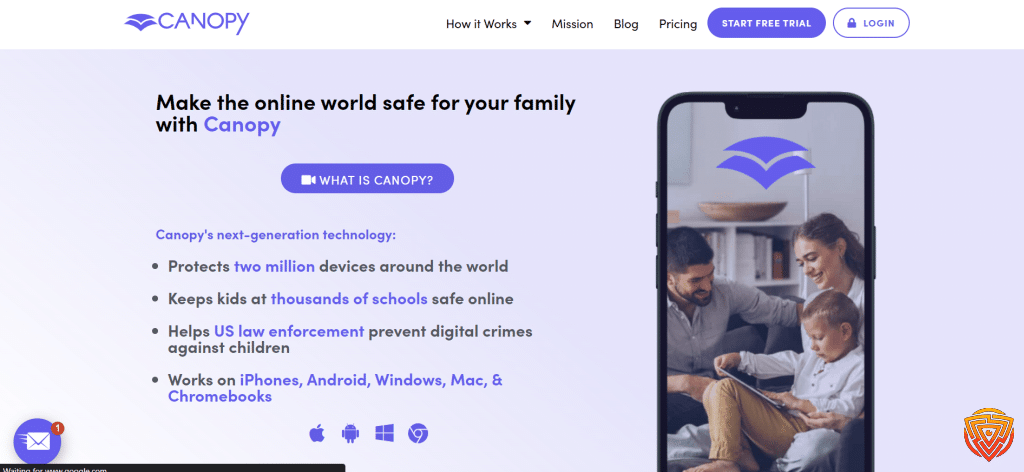
Best for: Families whose first priority is filtering supported explicit images and web content rather than collecting broad activity reports.
Why it ranks fifth: Canopy is more specialised than the all-round products above it. Its central feature is real-time filtering designed to identify and block supported explicit visual content while allowing the rest of a webpage to remain available.
It also includes app and website controls, downtime, location awareness and removal safeguards. Those functions make it more than a simple browser filter, but content filtering remains the main reason to choose it.
What Canopy Does Well
- Filters supported explicit visual content in real time
- Includes website and app blocking
- Provides downtime and location-awareness tools
- Supports phones, computers and Chromebooks
Important limitation: Canopy does not provide Bark-style analysis across numerous conversations and connected accounts. Its general activity reporting is also narrower than some full parental-control suites.
Choose Canopy if: explicit-content filtering is the household’s most important phone-control requirement.
Consider another app if: detailed reports, connected-account alerts or advanced app schedules are more important than specialised filtering.
6. Wondershare FamiSafe: Best for Teen Location and Driving

Best for: Families with older children who prioritise location history, geofencing and supported driving reports alongside routine phone controls.
Why it ranks sixth: FamiSafe combines screen-time schedules, website filtering and supported app restrictions with a clearer location and driving-safety use case than many general parental-control apps.
Its range of supported device types is broad, and plan allowances cover different family sizes. However, some of the service’s deeper monitoring features are platform-specific, so its long feature list should not be treated as one identical package on every phone.
What FamiSafe Does Well
- Provides location history and geofencing
- Includes supported driving reports for older children
- Offers screen-time schedules and website filtering
- Supports phones, computers, Chromebooks and Kindle Fire devices
Important limitation: Feature depth varies substantially between Android and iPhone. Communication-related monitoring and some advanced functions are not available in the same way on every platform.
Choose FamiSafe if: location, geofencing and driving information are important when supervising an older child’s phone.
Consider another app if: you expect every advertised Android monitoring function to work identically on iPhone.
7. OurPact: Best for App Blocking and Schedules

Best for: Parents who want detailed mobile app rules, recurring school and bedtime schedules, screen-time allowances and instant pauses.
Why it ranks seventh: OurPact is focused closely on controlling when mobile apps and device functions are available. Parents can build schedules, set screen-time allowances, block supported apps, pause access and use family location features.
This narrower mobile focus makes OurPact particularly useful when the main problem is repeated access during homework, meals or bedtime. It is less suitable when the child also needs computer supervision or the parent wants broader connected-account analysis.
What OurPact Does Well
- Creates recurring app and device schedules
- Provides screen-time allowances and on-demand blocking
- Includes supported location history and place alerts
- Supports both iPhone and Android child devices
Important limitation: OurPact is limited to mobile child devices. Some advanced functions require a higher plan, and full pairing uses OurPact Connect on a Windows or Mac computer.
Choose OurPact if: app rules, recurring routines and instant pauses are more important than managing child computers or analysing many conversations.
Consider another app if: the child also uses Windows, Mac or Chromebook devices that need supervision.
Other Apps We Considered
The seven apps above are our main recommendations for controlling a child’s phone. The alternatives below may still suit a narrower requirement, but they missed the Core 7 because of more limited platform support, regional restrictions, a specialist purpose or weaker all-round suitability.
This table compares genuinely free password managers, focusing on core limits, platform support, upgrade paths, and the type of user each free plan suits best.| Software | Pricing (Devices) | Free Plan / Trial | Key Features | Best For | Key Limitation | Supported Platforms | Review |
|---|---|---|---|---|---|---|---|
| Kidslox | Pricing varies by plan, region and app store; paid accounts support up to 10 devices; Check Kidslox Pricing | Free plan plus 3-day Premium trial | 🕒 Screen-time limits and schedules 🚫 Individual app blocking 🌐 Web filtering 📍 Location tracking | Best mobile-focused alternative for screen-time and app controls | No Windows, Mac or Chromebook child-device support; monitoring depth and app controls vary between iOS and Android | 📱 iOS, 🤖 Android | Read Kidslox Review |
| Boomerang Parental Control | $19.99/year for 1 Android child device or $39.99/year for up to 10 Android devices; Check Boomerang Pricing | 14-day free trial on Android and iOS child devices | 🕒 Flexible screen-time controls 📱 App approval and blocking 🌐 SPIN Safe Browser 📍 Location tracking | Best budget alternative for Android families | Most paid features and licences are Android-focused; iOS functionality is considerably more limited | 🤖 Android; limited 📱 iOS support | Read Boomerang Review |
| FamilyTime | $29/year for 1 child device; $49/year for 3 devices; $69/year for 5 devices; Check FamilyTime Pricing | 3-day trial; billing terms vary by purchase route | 📍 Location monitoring and geofencing 🕒 Screen-time schedules 🚫 App and website controls 🆘 SOS and family alerts | Best for mobile location features combined with screen-time rules | Feature depth varies substantially between Android and iPhone; communication-monitoring tools require transparent, lawful use | 📱 iOS, 🤖 Android | Read FamilyTime Review |
| Ohana | Currently $49.99/year; regional and app-store pricing may vary; Check Ohana Pricing | Free version plus 7-day trial of Ohana Plus | 🕒 Screen-time schedules 🚫 App blocking 🌐 Web filtering 📊 Family routines and usage insights | Promising alternative for families prioritising healthier screen-time routines | A newer product with less independent comparative evidence and no completed Impulsec review | 📱 iOS, 🤖 Android | Review Coming Soon |
| Aura Parental Controls | Kids plan $10/month billed annually or $13/month billed monthly for unlimited children and devices; Family plan from $32/month billed annually; Check Aura Pricing | 14-day free trial; 60-day money-back guarantee on annual plans | 🌐 Content filtering and site blocking 🕒 Screen-time limits 🎮 Gaming-safety alerts 🔐 Identity and cybersecurity features on the Family plan | Best for US families wanting parental controls combined with identity and cybersecurity protection | Available only to US customers; considerably more expensive than a standalone parental-control app | 📱 iOS, 🤖 Android; Windows gaming protection on supported plans | Read Aura Parental Controls Review |
| Life360 | Free plan; Silver $7.99/month; Gold $14.99/month; Platinum $24.99/month in the US; Check Life360 Pricing | Free plan plus 7-day trial on paid plans | 📍 Live family location sharing 🗺️ Place and arrival alerts 🚗 Driving reports 🆘 Crash detection and emergency features on supported plans | Best specialist alternative for family location and teen-driving safety | Not a complete parental-control suite; it does not replace web filtering, app blocking or screen-time controls | 📱 iOS, 🤖 Android | Read Life360 Review |
| Net Nanny | $39.99/year for 1 computer; $54.99/year for 5 devices; $89.99/year for 20 devices; Check Net Nanny Pricing | No free trial currently stated | 🌐 Dynamic web filtering 🚫 Website and app blocking 🕒 Screen-time management 📊 Activity reports | Legacy alternative for compatible Windows and iOS households | No Android or Chromebook support; official Mac compatibility stops at macOS 11, making it unsuitable for current Macs | 🪟 Windows 10/11, 📱 iOS 11+, older 🍎 macOS 10.13–11 | Read Net Nanny Review |
Important distinction: Life360 is primarily a family location and driving-safety service rather than a complete phone-control suite. Net Nanny is now a legacy option with substantial current platform limitations. Their presence in this table does not mean they provide the same breadth of control as the Core 7.
What Can a Parental Control App Actually Control?

A parental-control app does not provide unrestricted remote access to a child’s phone. It connects a parent dashboard to a supervised child app, account or device profile. The app can then apply the functions supported by that operating system, plan and setup.
Screen Time and Instant Pauses
Most leading services let parents set a daily time allowance, schedule periods such as school or bedtime, and pause supported access remotely. “Instant lock” rarely means that every emergency or essential phone function becomes unavailable; the exact behaviour depends on the device.
App Blocking and App Rules
App controls may include blocking a supported app, limiting its daily use, permitting it only during certain schedules or approving new downloads. Android generally provides third-party parental-control apps with broader app visibility. iPhone controls are more restricted and can require a device profile or computer-assisted pairing.
Website and Content Filtering
Web filtering can block categories or named sites and may enforce supported Safe Search settings. Coverage depends on the browser, encrypted traffic, app and operating system. No filter should be described as perfect, so younger children still need age-appropriate guidance and review.
Location and Geofencing
Location features can show a supported phone’s approximate current or recent position. Geofencing can alert the parent when the device enters or leaves a saved place. Accuracy depends on location permissions, connectivity, battery settings and whether the child has the phone with them.
Reports and Safety Alerts
Reports help parents understand app use, browsing or device time. Safety-alert services take a different approach by analysing supported activity for possible concerns and notifying the parent. Neither gives guaranteed visibility into everything that happens on a phone.
How to Choose the Right App for Your Child’s Phone

1. Start With the Child’s Phone
Check whether the child uses Android or iPhone, then confirm the operating-system version. If the child also uses a tablet, computer or Chromebook, decide whether those devices need to appear in the same dashboard. Our Android guide, iPhone guide and mixed-device guide provide more platform-specific comparisons.
2. Identify the Main Control
- Everyday limits and filtering: Start with Qustodio.
- Safety alerts for an older child: Compare Bark.
- Several operating systems: Compare Mobicip and Qustodio.
- Many supported devices: Consider Norton Family.
- Specialised explicit-content filtering: Consider Canopy.
- Teen location and driving: Consider FamiSafe.
- Mobile app schedules: Consider OurPact.
3. Match Supervision to Age and Need
A younger child may need firm app approvals, web filtering and bedtime rules. An older child may benefit from negotiated limits, location sharing or targeted alerts rather than continuous review. Our parental controls by age guide explains how the balance can change as children mature.
4. Check the Plan, Not Just the Product
A product may advertise a feature that is limited to a higher plan, supported country, particular child device or additional setup component. Confirm the number of child devices, billing period, renewal terms and exact platform coverage before subscribing. Use a free plan or trial to check installation and compatibility where one is available.
5. Review Privacy and Account Security
Use a unique parent password and multi-factor authentication where supported. Review who can access the family dashboard, what data is collected, how long it is retained and how to delete the account. Use only the minimum level of visibility needed for the child’s age and the family’s legitimate safety purpose.
How to Control a Child’s Phone From Your Phone

- Choose a compatible service: Confirm support for both the parent’s device and the child’s phone.
- Create the parent account: Use a strong password and secure recovery details.
- Add the child profile: Enter the correct age because some default rules and account options depend on it.
- Install or pair the child component: Follow the vendor’s instructions and grant only the permissions required for the selected features.
- Apply a simple first set of rules: Begin with bedtime, school hours, age-appropriate web settings and a small number of app restrictions.
- Test each important control: Check the child device directly to confirm that blocking, schedules and alerts behave as expected.
- Review the rules together: Explain what the app can see, why each rule exists and when the settings will be reconsidered.
Do not install a consumer parental-control app covertly on a device you do not own or have clear authority to manage. These services should be used for transparent, age-appropriate family supervision, not partner surveillance or unauthorised tracking.
Controlling Android vs iPhone
| Control Area | Android Child Phone | iPhone Child Phone |
|---|---|---|
| App visibility and blocking | Usually broader, but permissions and manufacturer settings can affect coverage | More restricted; may rely on Apple frameworks, profiles or computer-assisted pairing |
| Screen-time schedules | Widely supported | Widely supported, but the exact lock behaviour varies |
| Web filtering | Can vary by browser, VPN profile and permissions | Can require a managed browser, profile or filtering configuration |
| Messages and calls | Available only with selected services and setups | Third-party access is generally much narrower |
| Location | Requires location permission, connectivity and suitable battery settings | Requires location permission, connectivity and suitable background access |
| Removal protection | Depends on device-admin or accessibility permissions and setup | Depends on the service, profile and Apple’s supported safeguards |
Built-in controls can be the simplest starting point. Google Family Link manages supported Android and Chromebook settings, while Apple Screen Time works closely with iPhone, iPad and Family Sharing. A paid app becomes more useful when a family needs one cross-platform dashboard, more flexible schedules, richer reports, specialist alerts or additional filtering.
Best Free Apps to Control a Child’s Phone

Google Family Link is the strongest free starting point for many Android and Chromebook households. Apple Screen Time is the natural free choice for families using iPhone and iPad. Microsoft Family Safety can help within a Microsoft account and Windows environment, but its mobile-device controls are not a full substitute for Android or iPhone system-level tools.
This master table compares genuine free parental-control plans and built-in family-safety tools. Individual articles may display only the rows relevant to that platform. Features and child-device compatibility vary by platform and region.
| App | Pricing / Paid Upgrade | Free Access | Key Features | Main Free Limitation | Best For | Child Devices Supported | Review |
|---|---|---|---|---|---|---|---|
| Qustodio Free | Free for 1 child device; paid plans from $59.95/year; 👉 Check Qustodio Pricing | ✔️ Permanent limited free plan | 🌐 Web filtering and Safe Search ⏸️ Restricted times and pause internet 📊 7-day activity reports 📱 Protection for 1 child device | Limited to 1 device; daily time allowances, app blocking, location and advanced monitoring require a paid plan | Best free third-party dashboard with a clear paid upgrade path | Android, iOS, Windows, macOS, Chromebook and Kindle | Read Qustodio Review |
| OurPact Free | Free starter tier; Premium from $6.99/month or $69.99/year; 👉 Check OurPact Pricing | ✔️ 1 child device 5 manual blocks per month 1 automated schedule Web-browser blocking | 🚫 Manual app and device blocking ⏱️ One automated block schedule 🌐 Web-browser blocking 📱 Management of 1 child device | Only 5 manual blocks per month and 1 automated schedule; most controls require Premium | Best simple free screen-time and blocking starter tool for one phone | Android and iOS | Read OurPact Review |
| Kaspersky Safe Kids Free | Free version available; paid plans and prices vary by region; 👉 Check Kaspersky Pricing | ✔️ Permanent free version with basic features | 🌐 Internet monitoring and website blocking 📱 Device-use monitoring 🖥️ App management 🔎 Basic activity visibility | Premium reporting, location and alerts are excluded; availability varies by country | Best free web filtering option where Kaspersky remains available; not recommended for US users | Android, iOS, Windows and macOS; features differ by platform | Read Kaspersky Safe Kids Review |
| Google Family Link | Free; Open Guide | ✔️ Completely free | 📱 App approvals and blocking 🕒 Screen-time limits 📍 Device location 🔎 Google Account supervision | Does not supervise a child’s iPhone or iPad; its main controls are for Google platforms | Best completely free parental control for Android and Chromebook families | Android and Chromebook child devices; parent app available on Android and iOS | Read Google Family Link Review |
| Apple Screen Time | Free and built into Apple devices; Open Guide | ✔️ Completely free | ⏱️ App limits and downtime 🔒 Content and purchase restrictions 📊 App and website activity summaries 👪 Family Sharing controls | Restricted to the Apple ecosystem; less suitable for mixed-device families | Best completely free parental controls for iPhone, iPad and Mac | iPhone, iPad and Mac | Read Apple Screen Time Review |
| Microsoft Family Safety | Free basic family-safety features; some benefits require Microsoft 365 Family; Open Guide | ✔️ Free basic family-safety features | ⏱️ Screen-time and app limits on supported devices 📊 Activity reports 🌐 Microsoft Edge content filtering 🎮 Windows and Xbox integration | Does not provide device-level control over a child’s iPhone; web filtering depends heavily on Microsoft Edge | Best for Windows, Xbox and Microsoft-centred households | Windows and Xbox; Android app and game limits; iOS parent-management app only | Read Microsoft Family Safety Review |
| Samsung Kids | Free and built into supported Samsung Galaxy devices; Open Guide | ✔️ Completely free on supported Samsung devices | 🧒 Child-friendly interface 🔒 Approved apps and content ⏱️ Usage controls 📊 Activity information | A local child environment rather than a full remote parental-control service | Best built-in child mode for younger children using Samsung devices | Supported Samsung Galaxy phones and tablets | Review Coming Soon |
| Amazon Kids | Free parental tools; optional Amazon Kids+ content subscription; Open Amazon Kids | ✔️ Free parental tools; Kids+ is optional | ⏱️ Daily time limits 📚 Educational goals 🔒 Content and age filters 👧 Child profiles | Designed mainly around Amazon devices and services; Kids+ content requires a subscription | Best free parental controls for Amazon Fire tablets and devices | Fire tablets, Kindle e-readers, Echo and supported Amazon devices | Review Coming Soon |
Use a free option if you need basic app approvals, daily limits, downtime and purchase controls within one ecosystem. Consider a paid service if the household mixes device types or needs features such as detailed schedules, specialised filtering, geofencing, richer activity reports or supported safety alerts. See our free parental control app guide for a fuller comparison.
Privacy, Transparency and Responsible Phone Control
Phone controls work best when they are part of a clear family agreement rather than a hidden technical system. Tell the child which controls are active, what information a parent can view and what would prompt a closer review. Rules should become less intrusive as the child demonstrates responsibility and matures.
- Use the minimum monitoring required for the specific safety concern.
- Avoid collecting messages, screenshots or location history without a clear need.
- Explain the difference between routine boundaries and emergency supervision.
- Review settings at agreed intervals rather than leaving strict controls unchanged indefinitely.
- Protect the parent account so the child’s information is not exposed to another person.
Can a Child Bypass Phone Controls?
No parental-control app is impossible to bypass on every phone. A child may attempt to remove permissions, use another browser or account, reset the device, change battery settings, use a second device or exploit gaps between app and operating-system controls.
Parents can reduce accidental or casual bypassing by following the official setup instructions, using a separate parent password, enabling supported removal safeguards, keeping the operating system and app current, and periodically testing important rules. Technical restrictions are most effective when supported by consistent expectations and conversation.
How We Chose the Best App to Control a Child’s Phone
This ranking assesses the documented capabilities and limitations of each service. It does not claim that Impulsec completed a laboratory test of every product. We prioritised the following factors for the specific intent of controlling a child’s phone:
- Remote control value: Screen-time rules, schedules, app controls, filtering and useful parent actions
- Platform coverage: Support for Android, iPhone and related family devices
- Transparency: Clear documentation of plan, device and operating-system limits
- Age suitability: Whether the approach supports proportionate supervision for younger children or teenagers
- Family value: Device allowance, free plan or trial, and whether the paid features address a real need
- Privacy and safety: Account security, data sensitivity and the risk of unnecessarily intrusive use
Product features, prices and compatibility can change. Recheck the official product pages and current TablePress rows before a major annual update.
Final Verdict
Qustodio is the best app to control a child’s phone for most families. It offers the strongest overall balance of screen-time schedules, web filtering, supported app management, reports and location across a broad selection of family devices.
Choose according to the control you genuinely need. Bark is better for targeted safety alerts, Mobicip for mixed-device households, Norton Family for many supported devices, Canopy for specialised content filtering, FamiSafe for teen location and driving features, and OurPact for detailed mobile routines. Start with the least intrusive setup that solves the problem, test it on the child’s actual phone and review the rules as the child matures.
Frequently Asked Questions
What is the best app to control a child’s phone?
Qustodio is the best all-round option for most families because it combines screen-time schedules, web filtering, supported app controls, reports and location tools with broad device support. Bark, Mobicip, Canopy, FamiSafe and OurPact may be better for more specialised needs.
Can I control my child’s phone from my phone?
Yes. A compatible parental-control app normally provides a parent app or web dashboard for changing supported time limits, schedules, app rules, filtering and location settings remotely. The exact controls depend on the parent device, child device, operating system, plan and permissions.
How can I control my child’s phone remotely?
Install or configure the approved parent and child components, pair the child’s supervised profile, grant the required permissions and set the rules in the parent dashboard. Test each important rule on the child device because remote functions differ between Android and iPhone.
Can I lock my child’s phone from my phone?
Many parental-control apps provide an instant pause, block or lock function for supported child devices. The action may leave essential or approved functions available, and its behaviour varies by operating system. Confirm the vendor’s device-specific instructions before relying on it.
Can I block apps on my child’s phone?
Yes. Leading parental-control services can block or restrict supported apps, apply time allowances and create schedules. Android usually offers broader third-party app control, while iPhone management can require Apple-supported profiles or computer-assisted pairing.
What is the best free app to control a child’s phone?
Google Family Link is the strongest free starting point for many Android and Chromebook families. Apple Screen Time is the natural built-in option for iPhone and iPad. Both work best inside their own ecosystems.
Do parental-control apps work on both iPhone and Android?
Many do, but they rarely provide identical features. Apple limits some third-party app, message and activity access on iPhone. Android functions can still depend on permissions, installation method and manufacturer settings. Check the exact child-device feature before subscribing.
How can I see everything on my child’s phone?
No legitimate parental-control app can guarantee complete visibility into everything on every phone. Access varies by operating system, permissions, app, plan and setup, with iPhone generally allowing less third-party visibility than Android. Use only the minimum authorised supervision needed.
Can a child delete or bypass a parental-control app?
No service is impossible to remove or bypass on every device. Correct permissions, a separate parent password, non-administrator child accounts and supported tamper alerts can make casual bypassing harder, but families should also use clear rules and review the setup regularly.
Is Life360 or Bark better?
Bark is better when the priority is alerts about potentially concerning supported messages, email and online activity. Life360 is better for family location sharing, place alerts and supported driving-safety features. Life360 is not a complete replacement for Bark or a full phone-control suite.
Related Posts


Share this article

Stuart Kerr Spindlow is Impulsec’s Publisher, Chief Editor and Lead Reviewer. He writes and maintains coverage of consumer cybersecurity and digital-safety software, with a focus on practical suitability, limitations and the evidence behind product claims. Read Stuart’s full profile.
What I liked here was that the article did not pretend every family needs the same kind of control. It made a useful distinction between apps that are better for full monitoring, ones that focus more on content filtering, and others that are mainly useful for location tracking or simple screen time limits.