


In today’s digital world, it’s essential to protect kids when they are online. Luckily, there are free parental control tools specifically made for Windows 10 computers. These tools give parents the power to monitor and manage their children’s online activities, keeping them safe from harmful content and potential dangers. There are plenty of fantastic options available for parents looking to safeguard their kids’ online experiences at no additional cost. Find out the top free parental control apps for Windows 10 and have peace of mind knowing your child’s safety is a top priority. Take the plunge and ensure your child surfs the web securely while you relax worry-free.
Setting up free parental control software for Windows 10 free can be a straightforward process. The best free parental control software for Windows not only filters out inappropriate content but also enables parents to manage screen time and track their children’s online behavior. Despite being free, many of these programs offer a comprehensive set of features that once were only available in paid versions. This provides a robust level of protection and peace of mind for parents who are navigating the complexities of their children’s online interaction across various devices and platforms.
⏳ Do you want to skip the read and get right to my top pick? The best free Parental Control for Windows PC is Qustodio.
Key Takeaways
- Free parental control software empowers parents to protect their children online without added expense.
- Features for monitoring and controlling online activities are abundant even in free parental control app for Windows 10.
- The ease of setting up such controls ensures that even non-tech-savvy parents can create a safe online environment for their kids.
Ranked List: Best Free Parental Control Software for PC
- Qustodio – Best for overall parental control with comprehensive features, including web filtering, time management, and a user-friendly interface. 🥇
- KidLogger – Best for activity monitoring with detailed reports on usage, making it ideal for parents wanting insight into children’s online habits.
- Kaspersky Safe Kids – Best for web filtering and screen time management with a solid free version that includes real-time alerts.
- Bark – Best for social media monitoring, with a 7-day free trial that covers over 30 platforms, ideal for cyberbullying prevention.
- Mobicip – Best for multi-device compatibility, including internet filtering and screen time controls across different platforms.
- Norton Family – Best for in-depth web history tracking and time management, ideal for families with multiple devices.
- Microsoft Family Safety – Best for built-in Windows support, offering easy screen time limits and activity monitoring without extra downloads.
- Google Family Link – Best for Android-focused parental control, with app management and screen time limits but limited social media oversight.
- OurPact – Best for simple app scheduling and blocking, offering ease of use for screen time management on PC and mobile devices.
- Canopy – Best for content filtering with unique AI features, making it great for proactive online safety.
This ranking prioritizes each app’s strengths to help parents select the best free parental control software for their PC, balancing features and usability.
Quick Comparison Table
This table compares the core parental control apps by pricing, free trial availability, key features, age suitability, supported platforms, and full review links.| Software | Pricing (Devices) | Free Plan / Trial | Key Features | Best For | Key Limitation | Supported Platforms | Review |
|---|---|---|---|---|---|---|---|
| 🏆 Qustodio (Editor’s Choice) | Basic: US$59.95/year, 5 devices; Complete: US$104.95/year, family devices subject to terms. Check Qustodio Pricing | Check current free/trial eligibility during signup. | 🕒 Screen-time limits and schedules 🌐 Web and app filtering 📍 Location monitoring 📊 Activity reports | Editorial all-round pick for everyday controls and reporting; not a measured test winner. | Calls and messages on iOS require a Windows or Mac computer; other features vary by platform. | 🪟 Windows, 🍎 macOS, 📱 iOS, 🤖 Android, Chromebook, Kindle Fire | Read Qustodio Review |
| Bark | Bark App: from US$14/month; unlimited devices and accounts. Phone and Watch are separate products. Check Bark Pricing | 7-day app trial; check signup terms. | 🚨 Concerning-content alerts 💬 Text, email and social-app monitoring 🕒 Screen-time schedules 🌐 Website and app blocking | Best for behaviour-based safety alerts without routinely exposing every conversation | Check country availability and exact account/device coverage; Bark App, Phone and Watch have different capabilities. | iOS and Android app; other devices and connected services depend on the monitoring feature. | Read Bark Review |
| Mobicip | Lite: US$2.99/month for 5 devices; Standard: US$4.99 for 10; Premium: US$7.99 for 20. All billed annually. Check Mobicip Pricing | 7-day Premium trial; check cancellation/refund terms. | 🌐 Website and app blocking 🕒 Screen-time schedules 📍 Family location 📊 Activity and social-media reports | Best for mixed-device families wanting flexible device allowances | Check plan and platform support for each required feature; a supported device does not have every control. | 🪟 Windows, 🍎 macOS, 📱 iOS, 🤖 Android, Chromebook, Kindle Fire | Read Mobicip Review |
| Norton Family | US$49.99 for the first year; check renewal price. Included with selected Norton 360 subscriptions. Check Norton Family Pricing | Check current trial availability in your country. | 🌐 Web, search and video supervision 🕒 Time limits and schedules 📍 Location history and alerts 📊 Email activity reports | Best for large families and households already using Norton | A Mac can manage Norton Family but cannot be monitored as a child device; features differ across platforms | 🪟 Windows, 📱 iOS, 🤖 Android | Read Norton Family Review |
| Canopy | Essential: US$8.33/month for 1 device; Plus: US$9.99 for 3; Premium: US$12.50 for up to 10. All billed annually. Check Canopy Pricing | 7-day trial; 30-day guarantee subject to terms. | 🌐 Real-time content filtering 🖼️ Sensitive-image detection 🚫 App and website blocking 🕒 Screen-time management | Best for filtering explicit images and web content | Check coverage for the particular app/browser and device; filtering is not a guarantee that every risk is detected. | 🪟 Windows, 🍎 macOS, 📱 iOS, 🤖 Android, Chromebook | Read Canopy Review |
| Wondershare FamiSafe | US$59.99/year for up to 10 devices, or US$9.99/month for up to 5 devices. Check FamiSafe Pricing | 3-day annual-plan trial; 7-day money-back guarantee subject to terms. Free tier has restricted/demo features. | 📍 Location and geofencing 🚗 Driving reports 🚫 App and website controls 🕒 Screen-time schedules | Best for families with teenagers and driving-safety needs | Advanced visibility features are platform-specific and should be used transparently with older children | 🪟 Windows, 🍎 macOS, 📱 iOS, 🤖 Android, Chromebook, Kindle Fire | Read FamiSafe Review |
| OurPact | Premium: US$69.99/year; Premium+: US$99.99/year. Both cover up to 20 child devices. Check OurPact Pricing | Trial offered; confirm duration and cancellation terms during signup. | 📱 Detailed app rules 🕒 Screen-time schedules and allowances 📍 Live location and location alerts 📸 Screen snapshots with Premium+ | Best for app blocking and detailed schedules across iPhone and Android | Limited to mobile devices; Premium+ is required for screenshots and content monitoring, and initial pairing may require a computer | 📱 iOS, 🤖 Android | Read OurPact Review |
I have sifted through the top contenders for free parental controls for Windows 10. Qustodio Free stands out with a robust suite of features, though it restricts location tracking in its free version. KidLogger presents an excellent option for activity monitoring, offering unrestricted device usage but lacks comprehensive web filtering. Kaspersky Safe Kids excels in a well-rounded feature set, and unlike many free alternates, it offers location tracking.
For parents focused on social media vigilance, Bark could be a crucial tool. It offers 7-day access to full features with its trial. Mobicip, albeit limited to one device in the parental control software free download for Windows 10 version, still provides a strong array of control features, though it omits social media monitoring.
I have crafted this table to quickly show the strengths and limitations of each application. It is essential to understand that no free software will cover all bases completely, and the best option would largely depend on what specific parental control features you prioritize for safeguarding your children’s digital experience on their Windows 10 PC.
Reviewed Best Free Parental Control Software for PC
In my research, I’ve found that the best parental control Windows free can be both powerful and cost-effective. Whether you’re trying to manage screen time or filter content, options abound. Here are the top free solutions that stand out for their features and ease of use on Windows PCs.
Below is an extended review for each of the top free parental control software options for PC. Each entry includes an overview, key features, pros, cons, and pricing details, helping you select the best solution for protecting and managing your child’s online activities on a PC.
1. Qustodio – Best for Overall Parental Control with Comprehensive Features

Overview:
Qustodio stands out as the best overall free parental control software for PC, offering a comprehensive suite of features including web filtering, time management, and a user-friendly interface. Its robust capabilities provide effective oversight of your child’s online activities, making it a top choice for families.
Key Features:
- Web filtering and content blocking
- Screen time scheduling and monitoring
- Detailed activity reports and insights
- App usage tracking and control
- Cross-platform support (includes PC, Android, iOS)
Pros:
- Comprehensive feature set even in the free version
- Intuitive and easy-to-navigate interface
- Effective content filtering and time management tools
Cons:
- Free version limited to basic features and a single device
- Advanced features require premium subscription
Pricing:
- Free basic version available for single device use
- Premium plans start at approximately $54.95/year for multi-device support and advanced features
2. KidLogger – Best for Activity Monitoring with Detailed Reports
Overview:
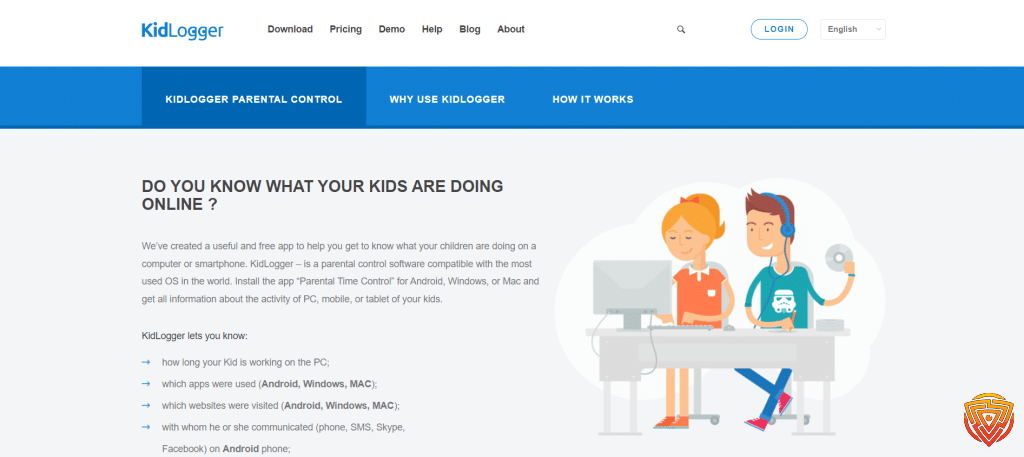
KidLogger is ideal for parents seeking detailed activity monitoring on a PC. It logs various aspects of device usage, providing comprehensive reports on web browsing, app usage, keystrokes, and more, making it perfect for gaining insight into children’s online habits.
Key Features:
- Keylogging and application usage tracking
- Website visit logs and browsing history
- Screenshot capture and periodic snapshots
- Time tracking for computer usage
- Multi-platform support for Windows, Mac, Android, and iOS
Pros:
- Detailed logs and activity reports
- Lightweight and unobtrusive monitoring
- Free version offers extensive logging capabilities
Cons:
- Lacks content filtering and screen time management
- Interface can be outdated and technical for some users
Pricing:
- Free basic version available
- Premium features may require subscription for enhanced reporting and alerts
3. Kaspersky Safe Kids – Best for Web Filtering and Screen Time Management

Overview:
Kaspersky Safe Kids provides strong web filtering and screen time management tools on PC, making it a reliable choice for parents on a budget. The free version includes real-time alerts, content blocking, and basic monitoring features.
Key Features:
- Web filtering and safe browsing controls
- Screen time scheduling and limits
- Real-time GPS tracking (for mobile devices)
- Social media and app monitoring (basic)
- Activity alerts and reports
Pros:
- Affordable with a robust free tier
- Effective content filtering and time management
- User-friendly with straightforward setup
Cons:
- Limited advanced features in the free version
- Less comprehensive reporting than some competitors
Pricing:
- Free basic version available
- Premium subscription available starting at about $15/year for additional features
4. Bark – Best for Social Media Monitoring with a Free Trial

Overview:
Bark is renowned for its social media monitoring capabilities, particularly in detecting cyberbullying and risky behavior. While not fully free, Bark offers a 7-day free trial that covers over 30 platforms, making it excellent for testing its advanced social media monitoring features on a PC.
Key Features:
- Monitors social media platforms, texts, and emails
- AI-driven detection for cyberbullying, self-harm, and threats
- Real-time alerts for concerning activity
- Basic screen time insights during trial period
- Web content filtering
Pros:
- Advanced social media monitoring and risk detection
- Real-time alerts enhance parental intervention
- Wide platform coverage during trial
Cons:
- Free trial limited to 7 days
- Subscription required for continued use
- Focus on social media rather than comprehensive PC controls
Pricing:
- Free trial available for 7 days
- Subscription plans start at around $99/year
5. Mobicip – Best for Multi-Device Compatibility and Flexible Controls
Overview:
Mobicip stands out for its multi-device compatibility, offering flexible internet filtering, screen time controls, and content blocking across various platforms, including PC. Its adaptability makes it suitable for families with diverse device ecosystems.
Key Features:
- Web filtering and safe browsing
- Screen time scheduling and usage limits
- App blocking and application management
- Detailed usage reports
- Cross-platform support for Windows, Mac, Android, and iOS
Pros:
- Flexible scheduling and content filtering
- Supports multiple devices under one account
- User-friendly setup and dashboard
Cons:
- Free version has limited features
- Advanced options require premium subscription
Pricing:
- Free basic tier available
- Premium plans start at approximately $39.99/year
6. Norton Family – Best for In-Depth Web History Tracking and Time Management
Overview:
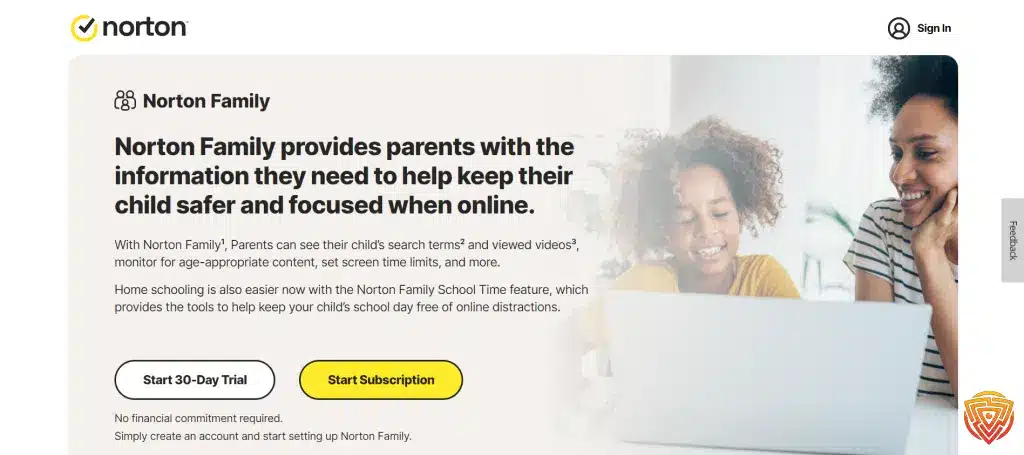
Norton Family provides detailed web history tracking and time management features, making it ideal for families with multiple devices. It offers robust tools for monitoring online behavior and setting screen time limits on a PC.
Key Features:
- Web filtering and safe search enforcement
- Comprehensive screen time scheduling
- Detailed activity and web history reports
- Multi-device support
- Location tracking and geofencing
Pros:
- In-depth tracking and reporting features
- Trusted brand with robust security measures
- Supports multiple devices for family use
Cons:
- Free version limited in scope
- Full functionality requires a premium subscription
Pricing:
- Free basic plan available
- Premium subscriptions start around $49.99/year
7. Microsoft Family Safety – Best for Built-In Windows Support

Overview:
Microsoft Family Safety offers built-in parental controls within the Windows ecosystem. It provides easy screen time limits, activity monitoring, and content filtering without the need for additional downloads, making it convenient for families using Windows PCs.
Key Features:
- Integrated with Windows 10/11 OS
- Screen time scheduling and limits
- Web and search filtering via Microsoft Edge
- Activity reporting and insights
- Location tracking for Windows devices
Pros:
- Seamless integration with Windows
- Free and easy to use
- No additional installations required
Cons:
- Limited features compared to third-party solutions
- Best for users heavily invested in Microsoft’s ecosystem
Pricing:
- Free (built into Windows OS)
8. Google Family Link – Best for Android-Focused Parental Control on PC Environments

Overview:
Google Family Link is a strong free option for managing Android devices, and while it’s not a native PC application, it can be used alongside a PC to manage a child’s Android device. It offers essential app management, screen time controls, and location tracking.
Key Features:
- Manage app installations and permissions
- Set screen time limits and daily schedules
- Monitor app usage and device activity
- Real-time location tracking
- Safe search and content filters
Pros:
- Completely free
- Seamless for Android device management
- Simple and straightforward
Cons:
- Not designed specifically for PC monitoring
- Limited features compared to full parental control software
Pricing:
- Free
9. OurPact – Best for Simple App Scheduling and Blocking

Overview:
OurPact offers simple yet effective app blocking and screen time scheduling, making it suitable for parents looking for straightforward controls without extra complexity. It can be used on PCs through companion apps or by managing devices linked to a family account.
Key Features:
- Remote app blocking and approvals
- Screen time scheduling and daily limits
- Internet pause feature
- Basic activity reporting
- User-friendly interface
Pros:
- Easy setup and use
- Flexible scheduling options
- Effective for basic control needs
Cons:
- Limited advanced features in the free tier
- Not a comprehensive PC monitoring solution on its own
Pricing:
- Free basic tier available
- Premium plans start at about $6.99/month
10. Canopy – Best for Content Filtering with Unique AI Features
Overview:
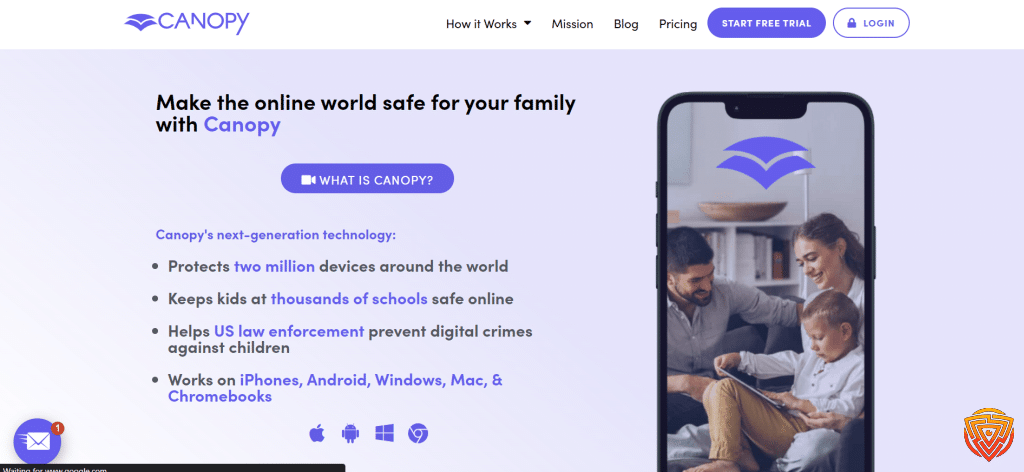
Canopy stands out for its proactive content filtering using AI technology, offering an extra layer of online safety by blocking inappropriate content. While not as feature-rich in terms of activity monitoring, it provides a strong safety net for browsing, making it a valuable free tool for parental control on PC.
Key Features:
- AI-driven content filtering
- Safe browsing enforced via DNS
- Easy DNS setup for content blocking
- Customizable filtering levels
- Non-intrusive operation
Pros:
- Highly effective at blocking explicit content
- Simple setup and minimal configuration
- Free basic version available
Cons:
- Limited monitoring and reporting features
- Focuses primarily on content filtering, not comprehensive control
Pricing:
- Free basic version available
- Premium options for enhanced filtering at additional cost
Understanding Parental Control Software
When exploring the realm of digital safety for children in this best free parental control for Windows 10 review, I understand parental control software plays a pivotal role. It’s essential to discuss how such software can help, the range of features it may offer, and the variation between free and comprehensive paid versions.
Importance of Parental Control
Parental control software is essential for families looking to safeguard their children’s online experiences. The internet is sprawling with content that may not be suitable for all ages, and as a protective measure, I find that parental control provides a necessary filter. It allows for monitoring and managing internet usage, ensuring kids can explore, learn, and play within a safe digital boundary.
Overview of Parental Control Features
Filters & Blocks: The cornerstone of most parental control apps lies in their ability to filter and block inappropriate content.
Screen Time Management: Tools typically include features that let me set screen time limits, ensuring children balance their digital interactions with other activities.
Monitoring & Reporting: Many services report on a child’s internet usage, offering insights into the websites they visit and the apps they use.
Privacy Protection: As protecting children’s privacy online is crucial, parental control software often includes features to shield their identity and personal information from potential online threats.
Differences Between Free and Paid Solutions
Free parental control software often provides basic protection features such as web filtering and time management. These solutions are a starting point for families that need fundamental safeguards without additional cost.
Paid versions, on the other hand, offer a more comprehensive suite of tools, such as location tracking, advanced monitoring, and often have AI capabilities that help in detecting hazardous patterns of behavior.
In my experience, as I keep my family’s digital habits in check, both free and paid parental control solutions play their part. The choice between them hinges on the specific needs and concerns of each family.
Setting Up Parental Controls on Windows

When looking to protect your family online, setting up parental controls on your Windows 10 PC can be both straightforward and customizable. I’ll show you how to utilize the tools provided by Microsoft and the operating system itself to ensure a safer computing environment for children.
Using Microsoft Family Safety
I leverage Microsoft Family Safety to create a safe space for my family’s online activities. First, I create a family group by visiting the Microsoft Family Safety website and then I add my children’s accounts. It’s important to note that each child’s account must be a Microsoft Account. If they don’t have one, I can easily create it for them during the setup process. Once the accounts are added, I can manage screen time, filter content, and even track my children’s location when they carry a Windows device. The flexibility it provides is extensive, and since it is a service designed specifically for Windows, integration is seamless.
Integrated Windows Parental Control Options
In addition to Microsoft Family Safety, I explore built-in Windows parental control options for further customization. By navigating to ‘Settings’ > ‘Accounts’ > ‘Family & other users’ on my Windows 10 PC, I can access and adjust various control parameters such as web browsing limits, app and game restrictions based on age ratings, and more. I can even check activity reports to understand how my children spend their time on the device. Since this is a feature built directly into the operating system, it’s a sturdy and reliable solution that I can count on.
Using these integrated tools, I can maintain a safe and healthy digital environment for my family without the need for additional downloads or purchases.
Critical Features of Parental Control Systems

Parental control systems are an essential tool for managing and safeguarding children’s online activities. Understanding the core functionalities can significantly help in choosing the right software for family needs.
Web and Content Filtering
Web and content filtering is fundamental in protecting children from inappropriate content. Content filters work by blocking access to specific websites and material that may not be suitable for a child. I look for parental control software that offers a comprehensive database of flagged sites and allows me to add custom sites to the block list. Such features safeguard against exposure to harmful content while browsing.
Time Management and Scheduling
Effective time management and scheduling tools are vital. I ensure that the software includes screen time limits and scheduling options to restrict the hours during which a device can be used. Setting time limits for internet access and app usage encourages healthy tech habits and can prevent round-the-clock screen activity.
App and Device Usage Monitoring
App and device usage monitoring lets me keep tabs on the applications and programs my kids use. The best free parental control software for Windows 10 should offer detailed activity reports so that I can review what apps are being accessed and for how long. This oversight helps me understand my child’s digital preferences and intervene if necessary.
Location Tracking and Geofencing
Although not always necessary for PC, location tracking and geofencing are crucial for mobile devices. I look at whether the software provides GPS tracking capabilities, which can be reassuring if a child’s whereabouts are ever in doubt. Geofencing allows me to set boundaries and receive alerts when those zones are entered or exited.
Securing Children’s Online Activities

To move forward with this review on parental controls for Windows 10 apps, when it comes to securing my children’s online activities, I ensure a balance between their freedom and safety. Here’s how I maintain a safe digital environment for them to explore, learn, and play.
Blocking Inappropriate Websites
To block inappropriate websites, I set up filters that screen out content based on age-appropriateness and categories like adult material, gambling, or violence. Products like Qustodio offer platform-agnostic solutions, making it easy to cover all devices at home. On Windows 10, I also utilize the built-in Microsoft Family Safety settings to further tailor the browsing controls.
Managing Social Media Use
For managing social media, I use both in-built tools provided by the platforms themselves and third-party monitoring software. I make sure to activate privacy settings and approve friend lists. Monitoring tools, such as part of Norton Family’s services, help me keep an eye on the time spent and the content shared across these networks.
Monitoring Online Activities and Networks
Monitoring online activities goes beyond a list of visited websites. I use parental control software that provides comprehensive reports on search queries, video viewing habits, and overall time spent online. I particularly look for services that offer YouTube monitoring to ensure that video content is suitable for my child’s age. I make sure our home network is secure and the parental controls extend to all connected devices.
Ensuring Safe Online Gaming
For online gaming, I focus on setting up secure accounts with strong privacy settings, especially on gaming consoles. It’s crucial to approve friend requests and to monitor in-game communication channels. I also use parental control apps that are compatible with gaming platforms to enforce playtime limits and ensure the games they access are age-appropriate.
Parental Controls Across Devices and Platforms

Navigating parental controls for Windows 10 can be challenging, as they vary across different devices and platforms. My objective is to demystify these differences and present clear options for maintaining digital safety regardless of the device your family uses.
Parental Controls for Mobile: iOS and Android
iOS devices cater to family safety with Screen Time, a built-in feature that allows me to set content & privacy restrictions, schedule downtime, and manage app usage. For families using Android, Google’s Family Link app offers similar functionalities, such as managing app activities and setting screen time limits. These built-in tools on mobile platforms enable me to create a safe digital environment on both iOS and Android devices without additional cost.
Managing Controls on MacOS and Chromebook
On MacOS, the Screen Time feature extends to MacOS, ensuring I can monitor and control activities across all Apple devices. It’s a seamless experience for households invested in the Apple ecosystem. For Chromebook users, Google’s Family Link is not just for Android. I can employ it to supervise accounts and control website access on Chromebooks as well, providing a consistent and integrated cross-platform experience.
Solutions for Kindle and Other E-Readers
Kindle devices come with Amazon Parental Controls, allowing me to restrict purchases, disable web browsing, and set device usage limits. It’s especially valuable for encouraging reading without the worry of potential distractions. Likewise, other e-readers usually have some form of parental controls to prevent unintended purchases and regulate content, ensuring focused usage of devices primarily designed for reading.
Advanced Tools and Considerations

In keeping your children’s online experiences safe and productive, it’s essential to have a grasp on advanced parental controls for Windows 10 that offer more than basic restrictions. These include network management, leveraging your antivirus, and implementing precise content controls.
Using VPNs and Network Tools
I understand the importance of VPNs and network tools as they are critical in masking Internet activity and bypassing regional content restrictions. By configuring a VPN on your router, you can control the traffic at a network level. This ensures that your children’s online activities remain private, and potentially harmful content is inaccessible, even on devices that may not have individual parental controls installed.
Leveraging Antivirus and Security Software
I rely on antivirus software not only to keep my devices safe from malware and threats but also to manage parental controls for Windows 10. Quality antivirus programs come with built-in features that block malicious websites, filter content, and prevent phishing. These tools often include robust reporting functions, which allow me to review my children’s browsing history and intervene if necessary.
Implementing Whitelists and Content Controls
I find that implementing whitelists is an effective way to ensure that my children only access sites that I have pre-approved. By employing content controls such as Net Nanny or FoxFilter, I can create lists of sites and keywords that I deem appropriate. This proactive approach to content filtering means that inappropriate material is blocked before it even has a chance to appear on-screen.
Understanding Spyrix and Keylogging Software
I recognize the role of monitoring software like Spyrix in the palette of parental control tools. While Spyrix Free Keylogger enables me to keep tabs on keystrokes, which can be insightful, I also consider the privacy implications. It’s crucial to balance the need for oversight with respect for my children’s autonomy. Should I choose to use such software, constant vigilance is needed to ensure it’s used responsibly and ethically, complete with clear reporting and logs.
Support and Resources for Parents
Finding the latest parental control software for Windows 10 free can be challenging, but with the right resources, I can help make informed decisions. Reviews and community advice become invaluable when navigating the sea of options, and staying abreast of technological shifts is crucial for effective parental controls.
Parental Control App Reviews and Recommendations
In my research, I’ve found that Qustodio offers comprehensive features for various platforms including Windows, which can be very useful. For those who prefer an option with a strong support system, FamiSafe may be a viable choice. I’ve evaluated apps based on their ease of use, feature set, and the effectiveness of their web filtering and time management capabilities.
Community Forums and Expert Advice
Engagement with other parents and experts on forums has offered me deep insights into the practicality of these apps. Community forums are hidden gems where one can find real-world experiences and practical troubleshooting advice.
Dealing With Technological Advancement and Changes
Parental control apps for Windows must evolve constantly, keeping up with technological changes. For instance, new geofencing tools are becoming more sophisticated. A service I’ve noted, Aura, provides not only the standard parental control features but also security measures like breach alerts, a reflection of the ever-changing digital landscape. It is essential to stay informed and adapt to these advancements to ensure the safety and appropriate online behavior of children.
Conclusion and Personal Recommendation
In my extensive experience reviewing parental control software for Windows 10 free, I find that free options can significantly contribute to a safe computing environment for children. Windows 10, with its built-in security features, provides a good starting point. However, dedicated third-party apps often offer enhanced functionality.
Qustodio, for example, offers a robust free version that includes web protections and time limits, which I’ve found to be highly effective in managing children’s online activities. While it lacks in location tracking in the free tier, it still stands out for its comprehensive monitoring tools.
For a short-term comprehensive solution, Norton Family provides a 30-day free trial, which includes full feature access, and in my opinion, is a strong contender for those who are considering investing in a long-term paid service after trying it out.
When choosing the best free parental control software for Windows 10, I recommend focusing on ease of use, the breadth of features, and the reliability of the service. My personal recommendation goes to Qustodio for its well-rounded free offering, balanced by an intuitive interface that doesn’t overwhelm users.
Remember, no software can replace active parental involvement and open communication about internet safety. I encourage you to combine the use of these tools with regular discussions about online risks to foster a safer digital environment for your children.
Frequently Asked Questions
Navigating the options for parental control can be challenging. That’s why I’ve gathered the essential information to help you find the best free solutions designed for Windows environments to keep your children safe online.
What are the top free parental control software options for Windows PCs?
I’ve found that Qustodio offers a robust free version and is available across various platforms, making it a top choice for many parents. Additionally, programs like Kurupira Web Filter provide comprehensive control features without any cost.
How can I effectively use Windows 10 built-in parental controls?
Windows 10 comes with integrated parental controls that you can access through your Microsoft account. I suggest setting up individual accounts for each child and customizing the restrictions for content, screen time, and purchases as per your family’s needs.
Are there any fully free parental control apps for monitoring children’s online activity?
Indeed, there are several free parental control apps like Kaspersky Safe Kids that enable you to monitor your child’s online activities. These apps often include web filters and activity reports at no additional cost.
Which free parental control software for Windows is most user-friendly for non-tech-savvy parents?
For parents who prefer simplicity, Norton Family provides a user-friendly interface that is easy to set up and manage, even if you’re not particularly tech-savvy.
Can free parental control software limit screen time and manage apps on a child’s computer?
Yes, many free software options like KidLogger and Kurupira Web Filter allow you to limit screen time and manage which apps your children can use on their Windows PC.
What are the best free alternatives to Qustodio and Google Family Link for Windows?
While Qustodio has a solid free offer, alternatives like Bark provide monitoring for social media and location tracking, and Windows Family Safety is an integrated tool specifically designed for Windows systems that rivals Google Family Link‘s features.
That’s All For Now;
We appreciate you taking the time to read our in-depth guide on the best free parental control software for PCs. We appreciate your interest in maintaining the security of your digital life and hope this information has been helpful. To stay on top of the digital curve, we invite you to return for more news and reviews on cybersecurity software. Please feel free to read the articles linked below for further information and insight. Observe internet safety!
Share this article

Stuart Kerr Spindlow is Impulsec’s Publisher, Chief Editor and Lead Reviewer. He writes and maintains coverage of consumer cybersecurity and digital-safety software, with a focus on practical suitability, limitations and the evidence behind product claims. Read Stuart’s full profile.