


Parental control apps for tablets help parents manage screen time, block inappropriate content, control app access, and monitor device use across iPads, Android tablets, Fire tablets, and Chromebooks. If your child uses a tablet for games, schoolwork, YouTube, or messaging, the right app makes it much easier to set safer boundaries.
In this guide, I compare the best parental control apps for tablets in 2026, including premium tools for stronger filtering and monitoring, plus a few built-in and free options worth considering. I focus on what matters most on tablets: web filtering, app blocking, screen-time schedules, ease of use, and cross-device compatibility.
If you are trying to find the best tablet parental control app, the best parental control apps for Android tablets, or the most practical parental controls for iPad, this list will help you choose the right fit for your family without overcomplicating setup.
📌 TL;DR: For most families, Qustodio is still the best all-round parental control app for tablets. If you mainly want social-risk alerts, look at Bark. If you want a free starting point, begin with Google Family Link on Android tablets or Apple Screen Time on iPads.
Key Takeaways
- The best parental control apps for tablets combine web filtering, app blocking, screen-time schedules, and simple remote management.
- Qustodio is the strongest all-round choice for mixed-device families, while Bark is better for online-risk alerts and Google Family Link or Apple Screen Time are better free starting points.
- Built-in tools like Google Family Link and Apple Screen Time are useful free starting points, but they are more limited than full parental control apps.
Ranked List of Parental Control Apps for Tablets (2026)
The best parental control apps for tablets in 2026 should work well on the devices families actually use, not just look strong on a generic features list. For this ranking, I prioritised tablet compatibility, web filtering, app blocking, screen-time tools, ease of use, and overall value for families using iPads, Android tablets, Fire tablets, and Chromebooks.
- Qustodio – 🏆 Best overall parental control app for tablets
- Bark – Best for online risk alerts and older kids
- Norton Family – Best for browser-based monitoring and Android app oversight
- Canopy – Best for real-time image and content filtering
- Wondershare FamiSafe – Best for flexible tablet monitoring across major platforms
- Kaspersky Safe Kids – Best budget-friendly option
- Mobicip – Best for multi-device families
Quick Comparison Table
The table below compares the core paid parental control apps for tablets in 2026. It should match the same core products used in the ranked list, even if the order in the article is slightly different.
This table compares the core parental control apps by pricing, free trial availability, key features, age suitability, supported platforms, and full review links.| Software | Pricing (Devices) | Free Plan / Trial | Key Features | Best For | Key Limitation | Supported Platforms | Review |
|---|---|---|---|---|---|---|---|
| 🏆 Qustodio (Editor’s Choice) | Basic: US$59.95/year, 5 devices; Complete: US$104.95/year, family devices subject to terms. Check Qustodio Pricing | Check current free/trial eligibility during signup. | 🕒 Screen-time limits and schedules 🌐 Web and app filtering 📍 Location monitoring 📊 Activity reports | Editorial all-round pick for everyday controls and reporting; not a measured test winner. | Calls and messages on iOS require a Windows or Mac computer; other features vary by platform. | 🪟 Windows, 🍎 macOS, 📱 iOS, 🤖 Android, Chromebook, Kindle Fire | Read Qustodio Review |
| Bark | Bark App: from US$14/month; unlimited devices and accounts. Phone and Watch are separate products. Check Bark Pricing | 7-day app trial; check signup terms. | 🚨 Concerning-content alerts 💬 Text, email and social-app monitoring 🕒 Screen-time schedules 🌐 Website and app blocking | Best for behaviour-based safety alerts without routinely exposing every conversation | Check country availability and exact account/device coverage; Bark App, Phone and Watch have different capabilities. | iOS and Android app; other devices and connected services depend on the monitoring feature. | Read Bark Review |
| Mobicip | Lite: US$2.99/month for 5 devices; Standard: US$4.99 for 10; Premium: US$7.99 for 20. All billed annually. Check Mobicip Pricing | 7-day Premium trial; check cancellation/refund terms. | 🌐 Website and app blocking 🕒 Screen-time schedules 📍 Family location 📊 Activity and social-media reports | Best for mixed-device families wanting flexible device allowances | Check plan and platform support for each required feature; a supported device does not have every control. | 🪟 Windows, 🍎 macOS, 📱 iOS, 🤖 Android, Chromebook, Kindle Fire | Read Mobicip Review |
| Norton Family | US$49.99 for the first year; check renewal price. Included with selected Norton 360 subscriptions. Check Norton Family Pricing | Check current trial availability in your country. | 🌐 Web, search and video supervision 🕒 Time limits and schedules 📍 Location history and alerts 📊 Email activity reports | Best for large families and households already using Norton | A Mac can manage Norton Family but cannot be monitored as a child device; features differ across platforms | 🪟 Windows, 📱 iOS, 🤖 Android | Read Norton Family Review |
| Canopy | Essential: US$8.33/month for 1 device; Plus: US$9.99 for 3; Premium: US$12.50 for up to 10. All billed annually. Check Canopy Pricing | 7-day trial; 30-day guarantee subject to terms. | 🌐 Real-time content filtering 🖼️ Sensitive-image detection 🚫 App and website blocking 🕒 Screen-time management | Best for filtering explicit images and web content | Check coverage for the particular app/browser and device; filtering is not a guarantee that every risk is detected. | 🪟 Windows, 🍎 macOS, 📱 iOS, 🤖 Android, Chromebook | Read Canopy Review |
| Wondershare FamiSafe | US$59.99/year for up to 10 devices, or US$9.99/month for up to 5 devices. Check FamiSafe Pricing | 3-day annual-plan trial; 7-day money-back guarantee subject to terms. Free tier has restricted/demo features. | 📍 Location and geofencing 🚗 Driving reports 🚫 App and website controls 🕒 Screen-time schedules | Best for families with teenagers and driving-safety needs | Advanced visibility features are platform-specific and should be used transparently with older children | 🪟 Windows, 🍎 macOS, 📱 iOS, 🤖 Android, Chromebook, Kindle Fire | Read FamiSafe Review |
| OurPact | Premium: US$69.99/year; Premium+: US$99.99/year. Both cover up to 20 child devices. Check OurPact Pricing | Trial offered; confirm duration and cancellation terms during signup. | 📱 Detailed app rules 🕒 Screen-time schedules and allowances 📍 Live location and location alerts 📸 Screen snapshots with Premium+ | Best for app blocking and detailed schedules across iPhone and Android | Limited to mobile devices; Premium+ is required for screenshots and content monitoring, and initial pairing may require a computer | 📱 iOS, 🤖 Android | Read OurPact Review |
These are the strongest full parental control suites for tablets right now. They are better suited to this page than free built-in tools because they offer stronger filtering, better reporting, more flexible app controls, and broader family management features.
If you are comparing premium parental control apps for tablets, the mini reviews below will help you choose the best fit. I also cover free options later in the article for families who want a no-cost starting point.
1. Qustodio – 🏆 Best Overall Parental Control Apps for Tablets

Overview:
Qustodio remains the most reliable and well-balanced parental control app for iPads, Android tablets, Amazon Fire tablets, and Chromebooks. It gives parents complete visibility into device usage while still being easy enough for non-technical families to manage daily.
Key Features:
- App blocking and per-app time limits
- Website filtering with categories + Safe Search
- Screen-time schedules and daily limits
- YouTube monitoring (search + watch history)
- Location tracking with recent GPS timelines
- Activity summary emails
- Supports iPad, Android tablets, Fire OS, Windows, macOS, Chromebook
Pros:
- Best overall balance of safety + performance
- Highest reliability across all tablet types
- One of the easiest dashboards for parents
- Excellent reporting for behaviour insights
Cons:
- Some features are limited on iOS
- Premium plans cost more than competitors
Pricing:
Basic premium plans start at around $59.95/year for up to 5 devices, with higher-tier plans available for larger families and more advanced monitoring.
Best For:
Parents who want a premium, stable, all-in-one tablet control solution.
2. Bark – Best for Social Media + Online Risk Detection

Overview:
Bark uses AI to detect cyberbullying, predators, sexting, self-harm signals, and risky behaviour across communications and social platforms.
Key Features:
- Social media scanning (30+ apps)
- Email + SMS monitoring
- Photo/video review alerts
- Web filtering
- Screen-time controls (Bark Premium)
Pros:
- Best for teens with heavy social use
- Real alerts, not endless logs
- Excellent danger detection
Cons:
- App blocking is weaker
- Limited iOS visibility
Pricing:
Bark Premium starts around $14/month or $99/year, with plan options changing over time.
Best For:
Parents of older kids who want alerts around risky messages, online behaviour, and social platforms rather than just screen-time limits.
3. Norton Family – Best for Browser-Based Monitoring and Android App Oversight
Overview:
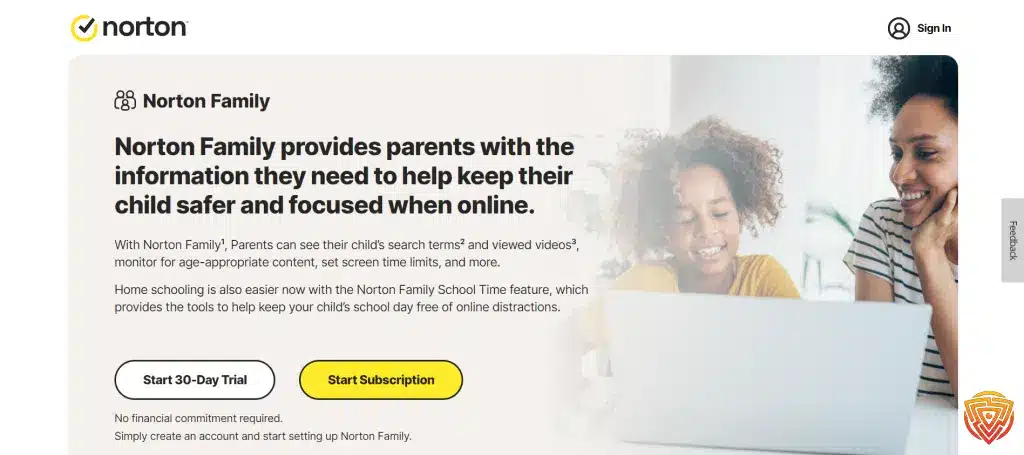
Norton Family is a strong parental control app for tablets if your main priorities are web supervision, school-time structure, and app oversight on Android. It works best for families who want a recognizable brand, solid browser monitoring, and practical daily controls without moving into heavier monitoring software.
Key Features:
- Website supervision and content filtering
- App supervision for Android devices
- Screen-time limits and device scheduling
- Location supervision
- School Time controls for focused study periods
- Video supervision on supported platforms
Pros:
- Strong web filtering and browser oversight
- Useful for structured homework and study routines
- Good fit for Android tablet families
Cons:
- Some features are more limited on iOS and iPad
- Less flexible than the best all-round rivals for mixed-device families
Pricing:
Norton Family is usually bundled inside selected Norton plans, so check the current package and renewal details before publishing.
Best For:
Families who want dependable browser-based supervision and Android tablet app oversight from a well-known security brand.
4. Canopy — Best for Real-Time Image Protection
Overview:
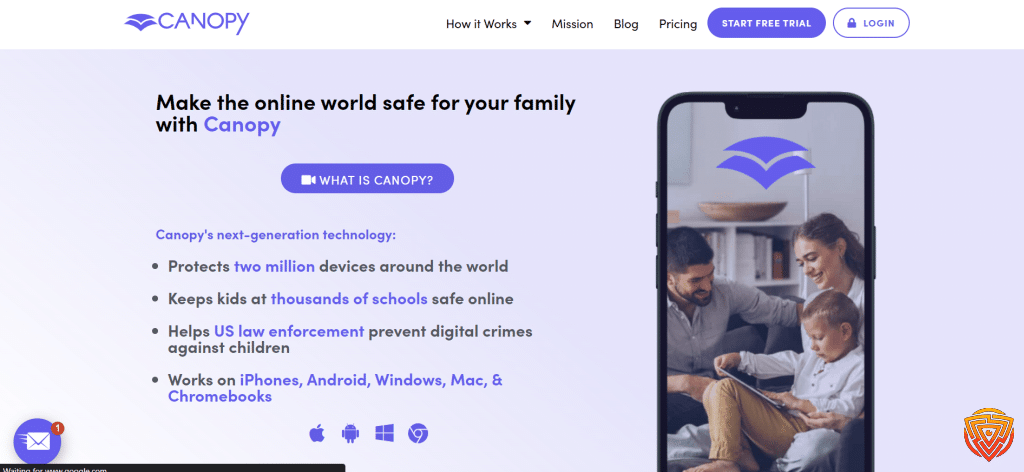
Canopy’s AI filters unsafe images instantly, even inside apps, making it one of the safest tools for younger children.
Key Features:
- Sexting prevention
- Porn blocking
- In-app image filtering
- Safe browsing
Pros:
- Extremely effective visual filtering
- Fast detection
- Great for young kids on tablets
Cons:
- Not a full parental-control suite
- Lacks monitoring features
Pricing:
Expect roughly $95.90/year for smaller plans, with family pricing increasing based on device count.
Best For:
Families who prioritise real-time image filtering and stronger protection against explicit content on tablets.
5. Wondershare FamiSafe – Best for Flexible Tablet Monitoring Across Major Platforms

Overview:
Wondershare FamiSafe is a strong all-round parental control app for tablets if you want flexible monitoring, app controls, and cross-platform support without overcomplicating setup. It is a good fit for families using a mix of iPads, Android tablets, Fire tablets, and Chromebooks.
Key Features:
- Screen-time schedules and daily limits
- App blocking and app usage reports
- Web filtering and safe browsing tools
- Location tracking and geofencing
- YouTube history monitoring
- Cross-platform support for major tablet ecosystems
Pros:
- Broad tablet compatibility
- Good balance of monitoring and controls
- Easier setup than some monitoring-heavy rivals
Cons:
- Not as polished as Qustodio overall
- Some features vary by platform
Pricing:
Pricing changes regularly, so check the current FamiSafe plan before publishing.
Best For:
Families that want a capable, flexible parental control app across different tablet types.
6. Kaspersky Safe Kids – Best Budget Parental Control App

Overview:
A highly underrated parental control suite that provides tremendous value. The unlimited device support makes it ideal for families with multiple tablets.
Key Features:
- App blocking & time limits
- Web filtering & Safe Search
- GPS tracking + battery monitor
- YouTube search history monitoring
- Screen-time schedules
- Unlimited devices
Pros:
- Extremely affordable
- Strong filtering for the price
- Great for families with many tablets
Cons:
- UI feels older
- Social media monitoring limited
Pricing:
Usually one of the cheapest premium parental control options; pricing changes by region, so check the current offer before publishing.
Best For:
Families who want affordable parental control coverage across multiple tablets without paying premium pricing.
7. Mobicip — Best for Multi-Device Families

Overview:
Mobicip provides strong controls with flexible profiles and multi-device management perfect for families with several tablets.
Key Features:
- App & website blocking
- Activity reports
- Screen-time schedules
- Focus mode
- Social media review reports
Pros:
- Great for multiple tablets
- Intuitive modern UI
- Good filtering strength
Cons:
- Pricing higher than average
- More setup needed than others
Pricing:
Standard plans start around $4.99/month billed annually, with premium tiers available for bigger families and more features.
Best For:
Families managing several tablets who want flexible profiles, app controls, and cross-device supervision from one dashboard.
Best Free Parental Control Apps for Tablets
If you are not ready to pay yet, the best free parental control apps for tablets are usually built-in tools or limited free tiers rather than full-featured premium suites. They are useful for basic screen-time rules, app approvals, and content restrictions, but they do not usually match paid apps for monitoring depth or cross-platform flexibility.
- Google Family Link – Best free option for Android tablets and Chromebooks
- Apple Screen Time – Best free built-in option for iPads
- Qustodio Free – Best one-device starter option
- Kaspersky Safe Kids Free – Best budget-friendly free tier to test
- OurPact Free – Best for trying basic screen-time controls before upgrading
This master table compares genuine free parental-control plans and built-in family-safety tools. Individual articles may display only the rows relevant to that platform. Features and child-device compatibility vary by platform and region.
| App | Pricing / Paid Upgrade | Free Access | Key Features | Main Free Limitation | Best For | Child Devices Supported | Review |
|---|---|---|---|---|---|---|---|
| Qustodio Free | Free for 1 child device; paid plans from $59.95/year; 👉 Check Qustodio Pricing | ✔️ Permanent limited free plan | 🌐 Web filtering and Safe Search ⏸️ Restricted times and pause internet 📊 7-day activity reports 📱 Protection for 1 child device | Limited to 1 device; daily time allowances, app blocking, location and advanced monitoring require a paid plan | Best free third-party dashboard with a clear paid upgrade path | Android, iOS, Windows, macOS, Chromebook and Kindle | Read Qustodio Review |
| OurPact Free | Free starter tier; Premium from $6.99/month or $69.99/year; 👉 Check OurPact Pricing | ✔️ 1 child device 5 manual blocks per month 1 automated schedule Web-browser blocking | 🚫 Manual app and device blocking ⏱️ One automated block schedule 🌐 Web-browser blocking 📱 Management of 1 child device | Only 5 manual blocks per month and 1 automated schedule; most controls require Premium | Best simple free screen-time and blocking starter tool for one phone | Android and iOS | Read OurPact Review |
| Kaspersky Safe Kids Free | Free version available; paid plans and prices vary by region; 👉 Check Kaspersky Pricing | ✔️ Permanent free version with basic features | 🌐 Internet monitoring and website blocking 📱 Device-use monitoring 🖥️ App management 🔎 Basic activity visibility | Premium reporting, location and alerts are excluded; availability varies by country | Best free web filtering option where Kaspersky remains available; not recommended for US users | Android, iOS, Windows and macOS; features differ by platform | Read Kaspersky Safe Kids Review |
| Google Family Link | Free; Open Guide | ✔️ Completely free | 📱 App approvals and blocking 🕒 Screen-time limits 📍 Device location 🔎 Google Account supervision | Does not supervise a child’s iPhone or iPad; its main controls are for Google platforms | Best completely free parental control for Android and Chromebook families | Android and Chromebook child devices; parent app available on Android and iOS | Read Google Family Link Review |
| Apple Screen Time | Free and built into Apple devices; Open Guide | ✔️ Completely free | ⏱️ App limits and downtime 🔒 Content and purchase restrictions 📊 App and website activity summaries 👪 Family Sharing controls | Restricted to the Apple ecosystem; less suitable for mixed-device families | Best completely free parental controls for iPhone, iPad and Mac | iPhone, iPad and Mac | Read Apple Screen Time Review |
| Microsoft Family Safety | Free basic family-safety features; some benefits require Microsoft 365 Family; Open Guide | ✔️ Free basic family-safety features | ⏱️ Screen-time and app limits on supported devices 📊 Activity reports 🌐 Microsoft Edge content filtering 🎮 Windows and Xbox integration | Does not provide device-level control over a child’s iPhone; web filtering depends heavily on Microsoft Edge | Best for Windows, Xbox and Microsoft-centred households | Windows and Xbox; Android app and game limits; iOS parent-management app only | Read Microsoft Family Safety Review |
| Samsung Kids | Free and built into supported Samsung Galaxy devices; Open Guide | ✔️ Completely free on supported Samsung devices | 🧒 Child-friendly interface 🔒 Approved apps and content ⏱️ Usage controls 📊 Activity information | A local child environment rather than a full remote parental-control service | Best built-in child mode for younger children using Samsung devices | Supported Samsung Galaxy phones and tablets | Review Coming Soon |
| Amazon Kids | Free parental tools; optional Amazon Kids+ content subscription; Open Amazon Kids | ✔️ Free parental tools; Kids+ is optional | ⏱️ Daily time limits 📚 Educational goals 🔒 Content and age filters 👧 Child profiles | Designed mainly around Amazon devices and services; Kids+ content requires a subscription | Best free parental controls for Amazon Fire tablets and devices | Fire tablets, Kindle e-readers, Echo and supported Amazon devices | Review Coming Soon |
What Are Parental Control Apps For Tablets?

Parental control apps for tablets are basically tools that help you keep tabs on what your kids are doing with their devices. These apps let you set screen time limits, filter content, block certain apps, and even track where the tablet goes.
How Parental Control Apps Work
I usually install the parental control apps for tablets directly onto my kid’s tablet—it’s usually just a quick download. Once it’s on there, it connects securely to my own phone or computer.
Most parental control apps for tablets use the cloud to keep everything synced up. That way, I can change settings from wherever I am, and my child can just keep using their tablet as usual.
The app runs quietly in the background. It keeps an eye on browsing, app usage, and how much time is spent on the device.
Core Functions:
- App blocking – Blocks access to specific apps
- Web filtering – Shuts out inappropriate websites
- Time limits – Lets you set daily or weekly usage caps
- Activity monitoring – Tracks which sites and apps are being used
I get instant alerts if my child tries to get around the rules. Plus, there are regular reports that show me what apps and sites they’re using most.
Some parental control apps for tablets need to be installed on both my device and my child’s. Others work through the tablet’s own settings, which I can tweak remotely.
Key Benefits For Families
Honestly, the biggest win for me is managing screen time. I can set exact hours when the tablet’s usable, and it just locks itself outside those windows.
Content filtering is another biggie—it blocks violent games, adult content, and even certain social media apps, all based on age settings I pick.
Main Family Benefits:
- Less screen addiction
- More consistent sleep
- More family time
- Kids can focus on homework
- Protection from online predators
I like being able to track my child’s location if they take the tablet out. That GPS feature is surprisingly reassuring, especially on school trips or playdates.
Top parental control apps for tablets can help with learning, too. I can block distracting games during study time but leave educational apps open.
Some apps even have emergency features, so my child can still reach me if they need to—even if the tablet’s locked.
Tablets vs. Smartphones In Parental Controls
Tablets have bigger screens, which honestly makes it easier for me to check what my kids are up to. I can see everything at a glance.
Battery life is another factor. Tablets usually last longer, so the monitoring software stays active all day without needing a recharge.
Key Differences:
| Feature | Tablets | Smartphones |
|---|---|---|
| Screen size | Bigger, easier to monitor | Smaller, harder to see |
| Portability | Not as easy to carry around | Super portable |
| App variety | More focused on games and learning | More about communication and social apps |
| Parental oversight | Easier to supervise | Tougher to keep track |
Parental control apps for tablets tend to focus on learning and screen time. On smartphones, it’s more about keeping an eye on communication and location.
Tablets usually stay at home, so geofencing isn’t as important. I usually set up different rules for tablets versus phones, just based on how my kids use them.
Installing these parental control apps for Android tablets can be a little different depending on the device. Tablets often come with stronger built-in controls than phones, at least in my experience.
Essential Features Of Parental Control Apps for Tablets

Most parental control apps for tablets these days come with three main things I rely on: web filtering to keep out the bad stuff, screen time controls to avoid endless scrolling, and location tracking so I know where the tablet ends up.
Web Filtering And Content Blocking
Web filtering is the backbone of tablet safety. It blocks inappropriate sites before my kid can even see them. Most parental control apps for tablets offer content filtering that works across browsers and sometimes even inside apps.
Content blocking works in real time, scanning for adult stuff, violence, and bad language. I can usually tweak the filter strength depending on my child’s age.
Safe search is a must—it helps keep explicit results off Google, Bing, and YouTube. That’s true even if my child uses the default browser or search app.
Key filtering categories:
- Adult content and explicit stuff
- Violence and weapons
- Gambling and illegal activities
- Social media
- Gaming websites
Some apps let me make my own block lists. Others have allow lists, so only approved educational sites and games get through.
Screen Time Limits And Scheduling
Managing screen time is huge for me. I can set daily limits, and the tablet just locks once the time’s up.
Scheduling is handy too—I can block access during dinner, bedtime, or homework.
Popular scheduling options:
- Bedtime mode: Blocks all apps from 8 PM to 7 AM
- School hours: No games or videos during class
- Homework time: Only learning apps allowed from 4-6 PM
Most apps give a warning before time runs out, so my kid can wrap up whatever they’re doing.
I like being able to set different limits for weekdays and weekends. Let’s face it, most of us are a little more relaxed on Saturdays and Sundays.
Location Tracking And Geofencing
Location tracking lets me see where my child’s tablet goes throughout the day. It relies on GPS, so I can check if my child made it safely to school or a friend’s house.
Family locator apps show real-time locations on a map. I can look at movement history and get alerts when the tablet reaches certain destinations.
Geofencing sets up virtual boundaries around places like home, school, or relatives’ houses. I get a ping when my child enters or leaves these spots.
Common geofencing uses:
- School arrival and departure alerts
- Home zone notifications
- Restricted area warnings
- Safe location confirmations
Location history keeps a record of where the tablet’s been over days or even weeks. This helps me spot patterns in my child’s routines and check if they’re sticking to plans.
Some apps have panic buttons that instantly share location during emergencies. That extra layer of security is honestly a relief when my kid is out and about with the tablet.
Advanced Controls And Monitoring Tools

Modern parental control apps for tablets come packed with monitoring tools—tracking app use, filtering content, and sending real-time alerts about what your kid’s doing online. These features let parents keep an eye on things without totally smothering their child’s independence.
App Management And App Filtering
I can decide which apps my child downloads and uses thanks to built-in app management. Most parental control software lets me block specific apps or entire categories, like games, social media, or shopping.
App Usage Tracking shows me exactly how much time my kid spends in each app. I get reports breaking down daily and weekly use.
Many apps let me set time limits for individual applications. When my kid hits the limit, the app locks until tomorrow or until I decide to allow more time.
App Installation Controls mean I have to approve new downloads. I get a notification on my phone when my kid wants to install something.
Some advanced systems use age-based filtering that automatically blocks apps rated above my child’s age. Saves me the headache of checking every app myself.
Social Media And YouTube Monitoring
I can keep tabs on my child’s social media activity—Instagram, TikTok, Snapchat, you name it. Top parental control apps for tablets track messages, friend requests, and posts, often without my kid even noticing.
YouTube monitoring is a must, since kids can get lost in videos for hours. I can block certain channels, filter out mature stuff, and see what my child is actually watching.
Many apps offer keyword alerts to let me know if my child encounters cyberbullying, bad language, or risky topics. These alerts help me start tough but important conversations.
Screen capture features let me see what my kid is looking at on social media. Some apps even take random screenshots throughout the day.
I can also block social media apps at certain times—like during homework or after bedtime. Sometimes you just need a break from the scroll.
Call And Text Monitoring
Call monitoring tells me who my child talks to and for how long. I can view incoming and outgoing calls, with timestamps and contact info.
Text message monitoring shows me SMS content and activity on popular messaging apps. This helps me spot red flags, like strangers reaching out or inappropriate chats.
Most apps let me block specific phone numbers I don’t trust. I can also restrict calls during certain hours, like when my kid should be in class.
Panic button features give my child a way to reach me fast in emergencies. If they hit it, I get their exact location and can call right back.
Some advanced tools keep an eye on messaging apps like WhatsApp, Telegram, and Discord. Honestly, that’s where most kids are chatting these days.
Activity Reports And Real-Time Alerts
I get detailed activity reports that show my child’s digital habits—what apps they’re using, sites they visit, search terms, and how long they’re glued to each activity.
Real-time alerts let me know right away if my child tries to access blocked content or does something concerning online. I can pick which triggers matter most to me.
Battery tracker info tells me when my child’s device is running low or if it’s been switched off. Handy for making sure they can always reach me.
Weekly and monthly summaries help me spot trends—like if screen time is creeping up or if new apps are suddenly popular.
Most apps send reports to my email or as push notifications. I can tweak how often I get updates, depending on my kid’s age and how much I trust them.
Choosing The Best Parental Control Apps For Tablets

Picking the right parental control app really depends on your tablet’s operating system, your budget, and how much security you want. It’s worth thinking about cross-platform compatibility, whether the free version is enough, privacy protections, and how much of a hassle setup is.
Device Compatibility
Your tablet’s operating system is the big decider for which parental control apps for tablets will actually work. Most top-rated parental control apps cover both Android and iOS tablets.
Apps like Qustodio run on Android, iOS, Windows, Mac, and even Chromebook. That’s a lifesaver if your family mixes and matches devices.
Some apps might be missing features on certain platforms. For example, Norton Family gives you fewer controls on iOS tablets than on Android.
Check these compatibility factors:
- Operating system support (Android, iOS, Windows)
- Tablet-specific features vs phone features
- Browser compatibility for web-based controls
- Whether the app works on both new and older tablet models
I’d suggest picking apps that support your current tablets and any you might add later. Saves you the trouble of switching apps every time you upgrade.
Free vs. Paid Parental Control Apps for Tablets
Free parental control apps for tablets offer basic features but with some pretty big limits. Most free parental control options only cover one device and don’t give you much control over screen time.
Qustodio’s free version gives you basic website blocking and time limits, but you miss out on location tracking and detailed activity reports unless you pay.
Free app limitations:
- One device only
- Basic content filtering
- No location tracking
- Limited customer support
Paid apps usually run $30-100 a year. They cover unlimited devices and include advanced features like app blocking, detailed reports, and 24/7 support.
Paid app benefits:
- Multiple device protection
- Advanced content filtering
- Location tracking and geofencing
- Professional customer support
Personally, I think paid apps are worth it for families with more than one tablet or kids who need closer monitoring.
Privacy And Security Considerations
Parental control apps for tablets collect a lot of data on your child’s device use. That can be a privacy risk if the company doesn’t handle your info carefully.
Look for apps using SSL encryption to keep data safe during transfer. You don’t want hackers snooping on your family’s info.
Some parental control brands also bundle extra security features, but for this article the main priority should be tablet controls like filtering, app blocking, screen-time management, and reporting.
Security features to check:
- SSL encryption for data transfer
- Secure data storage practices
- Clear privacy policies
- Regular security updates
Be aware—VPN apps can get around a lot of parental controls. If your child figures out VPNs, they might access blocked stuff anyway.
I always read the privacy policy before installing anything. It’s worth knowing what data is collected and how it’s used.
User Experience And Setup
Easy setup is a lifesaver. The best apps let you scan a QR code or send a simple link to install the child app on tablets fast.
I like apps with dashboards that actually make sense—showing the important stuff up front. Complicated interfaces make it a pain to tweak settings or check on my kid.
Setup factors to consider:
- Installation time and complexity
- Dashboard clarity and navigation
- Mobile app vs web-based controls
- Help documentation quality
Some apps offer one-on-one customer support for setup issues. That’s a big help if tech isn’t really your thing.
The app your child uses shouldn’t slow down the tablet or crash all the time. That just leads to complaints from everyone.
Good apps also have useful guides and tutorials. I look for services that not only show how to use features but explain when and why you’d want to use them.
Tips For Effective Screen Time And Content Management

Setting boundaries while building trust is a bit of an art. Balanced screen time management means making rules that actually work, figuring out how to handle sneaky workarounds, and helping kids build tech habits that last.
Setting Balanced Rules For Kids
I recommend setting specific time limits that change depending on the day and the app type. Weekdays might mean 1-2 hours for fun apps, while weekends can stretch to 3-4 hours if it’s educational.
Age-Based Screen Time Guidelines:
- Ages 6-9: 1 hour weekdays, 2 hours weekends
- Ages 10-12: 1.5 hours weekdays, 3 hours weekends
- Ages 13+: 2 hours weekdays, flexible weekends
Gaming is its own beast—it can be way more addictive. I usually set separate limits for games versus educational or video apps.
Content filtering works best if I talk through the reasons for restrictions. Instead of just blocking stuff, I explain why some content isn’t for them—at least not yet.
Smart home integration can help too. I set devices to cut off internet during homework or after bedtime, so I don’t have to chase them down every night.
Essential Rule Categories:
- Time limits for different app types
- Content restrictions by age appropriateness
- Device-free zones like bedrooms and dining areas
- Mandatory breaks every 30-60 minutes
Dealing With Bypassing Attempts
Kids get creative when it comes to dodging parental controls. I’ve seen everything from using guest Wi-Fi networks to sneaking content through gaming platforms.
The most common tricks include:
- Downloading VPN apps to hide activity
- Using devices that aren’t restricted
- Accessing bad content through game chats
- Making new accounts with fake birthdays
I handle these with regular device checks and open talks. If I catch a bypass attempt, it’s a chance for a conversation—not just a punishment.
Effective Counter-Strategies:
- Regular app audits for unauthorized downloads
- Router-level filtering for all devices
- Gaming platform restrictions to limit chat and downloads
- Screen time control apps with advanced monitoring
Honestly, communication works better than just tech fixes. I explain that breaking the rules means stricter limits next time.
Encouraging Healthy Tech Habits
I try to focus on building a positive relationship with technology—not just saying “no” all the time. That way, kids learn to make good choices on their own.
Modeling good behavior is huge. When I put my phone away during dinner, my kids are more likely to do the same.
Healthy Habit Building:
- Charging stations outside bedrooms
- Family media agreements everyone signs
- Regular “digital detox” times for the whole family
- Fun activities that compete with screen time
Content blocking isn’t as important when kids are motivated to use tech responsibly.
I teach my kids to notice their own screen time patterns. Apps that show usage stats help them see where their time goes.
Cyberbullying prevention starts with open communication. I make sure my kids know they can talk to me about anything online, no matter what.
Daily Structure Elements:
- Morning routines before screen time
- Homework done before entertainment apps
- Physical activity built into every day
- Family time that doesn’t compete with screens
Conclusion & Recommendation
Keeping kids safe on tablets is easier when you choose a parental control app that matches how your family actually uses those devices. For most households, Qustodio is still the best overall parental control app for tablets because it balances filtering, app controls, screen-time tools, reporting, and ease of use better than most rivals.
If you want stronger alerts around online risks, Bark is a smart pick. If you want broad cross-platform flexibility, Wondershare FamiSafe and Mobicip both deserve a look. And if you are starting with no budget, the free section gives you the most practical built-in options for Android tablets, Chromebooks, and iPads.
The best choice depends on your child’s age, your tablet type, and whether you need basic controls or deeper monitoring, but the options above cover the strongest fits for tablet-focused family safety.
Frequently Asked Questions
Parents usually have questions about setup, device compatibility, and whether free tools are enough. Here are the most common questions about parental control apps for tablets.
What is the best parental control app for tablets?
For most families, Qustodio is the best all-round parental control app for tablets because it combines web filtering, app blocking, screen-time schedules, reporting, and broad device support in one place. Bark is a strong option for online-risk alerts, while Google Family Link and Apple Screen Time are the best free built-in starting points.
Can I put parental controls on a tablet?
Yes. You can put parental controls on a tablet using built-in tools like Apple Screen Time or Google Family Link, or by installing a third-party parental control app for stronger filtering, app blocking, reporting, and remote management.
What is the best free parental control app for tablets?
For Android tablets and Chromebooks, Google Family Link is the best free starting point. For iPads, Apple Screen Time is the best built-in free option. Qustodio Free and other limited free tiers are useful, but they are more restricted than paid parental control apps.
Can I control my child’s tablet remotely?
Yes. Most parental control apps for tablets let you manage rules remotely from your own phone or computer. Depending on the app, you can change screen-time settings, block apps, approve downloads, filter websites, and sometimes view location or activity reports.
Which parental control app is best for iPads?
For iPads, Qustodio and Bark are strong third-party options depending on the features you want, while Apple Screen Time is the best built-in free choice. The best option depends on whether you want simple device limits, stronger filtering, or more advanced alerts.
Thats All For Now
Was this article helpful? Thanks for sticking around and reading this guide on parental control apps for tablets.
Hopefully, it shed some light on getting started with the service and maybe even made things feel a bit less daunting.
Check out related articles below!
- best parental control app for android
- best parental control app
- best parental control app for iPhone
Share this article

Stuart Kerr Spindlow is Impulsec’s Publisher, Chief Editor and Lead Reviewer. He writes and maintains coverage of consumer cybersecurity and digital-safety software, with a focus on practical suitability, limitations and the evidence behind product claims. Read Stuart’s full profile.