


Parental control app to block apps tools help parents stop access to games, social media, and other distracting or age-inappropriate apps on a child’s phone, tablet, or computer. If your main goal is blocking specific apps rather than full phone monitoring, the right tool makes that much easier with app rules, schedules, and usage limits.
In this guide, I compare the best parental control app to block apps options for Android, iPhone, Windows, Mac, and mixed-device families. I also explain which tools are best for blocking specific apps, which are better for screen-time scheduling, and when a monitoring-focused app may be the better fit.
If you are looking for a parental control block apps solution, this list focuses on family-safety tools first: Qustodio, Bark, Norton Family, Canopy, Wondershare FamiSafe, Kaspersky Safe Kids, and Net Nanny. That keeps this page aligned with parents who want visible boundaries, safer app access, and less daily conflict over screens.
TL;DR 📌 For most families, Qustodio is the best parental control app to block apps 2026 because it combines app blocking, screen time limits, web filtering, and multi-device coverage in one easy dashboard.
Key Takeaways
- Best overall: Qustodio is the strongest all-round parental control app to block apps for most families.
- Best for alerts plus blocking: Bark adds app blocking alongside alert-based monitoring.
- Best for iPhone-heavy families: Canopy is a strong option if Apple device protection matters most.
- Best budget pick: Kaspersky Safe Kids is a lower-cost choice for basic app management and limits.
- Best built-in alternatives: Apple Screen Time and Google Family Link are useful starting points, but dedicated tools usually give parents more flexibility.
Best Parental Control App to Block Apps (2026)
Below is my ranked list of the best parental control apps for blocking apps, limiting usage, and creating healthier digital boundaries without turning every day into a screen-time argument.
- 🏆 Qustodio – Best overall parental control app to block apps
- Bark – Best for app blocking plus alert-based monitoring
- Norton Family – Best for structured app rules and parent reporting
- Canopy – Best for blocking risky apps and explicit content on iPhone
- Wondershare FamiSafe – Best for flexible app rules and usage limits
- Kaspersky Safe Kids – Best budget pick for basic app blocking
- Net Nanny – Best for app blocking plus web filtering
Quick Comparison Table
This comparison table uses my core parental control block apps picks only, so it stays tightly focused on the apps most relevant to blocking unwanted apps, setting limits, and managing access across family devices.
| Software | Pricing (Devices) | Free Plan / Trial | Key Features | Best For | Key Limitation | Supported Platforms | Review |
|---|---|---|---|---|---|---|---|
 🏆 Qustodio (Editor’s Choice)Read Qustodio Review 🏆 Qustodio (Editor’s Choice)Read Qustodio Review | Basic: US$59.95/year, 5 devices; Complete: US$104.95/year, family devices subject to terms. Check Qustodio Pricing | Check current free/trial eligibility during signup. | 🕒 Screen-time limits and schedules 🌐 Web and app filtering 📍 Location monitoring 📊 Activity reports | Editorial all-round pick for everyday controls and reporting; not a measured test winner. | Calls and messages on iOS require a Windows or Mac computer; other features vary by platform. | 🪟 Windows, 🍎 macOS, 📱 iOS, 🤖 Android, Chromebook, Kindle Fire | Read Qustodio Review |
 BarkRead Bark Review BarkRead Bark Review | Bark App: from US$14/month; unlimited devices and accounts. Phone and Watch are separate products. Check Bark Pricing | 7-day app trial; check signup terms. | 🚨 Concerning-content alerts 💬 Text, email and social-app monitoring 🕒 Screen-time schedules 🌐 Website and app blocking | Best for behaviour-based safety alerts without routinely exposing every conversation | Check country availability and exact account/device coverage; Bark App, Phone and Watch have different capabilities. | iOS and Android app; other devices and connected services depend on the monitoring feature. | Read Bark Review |
 MobicipRead Mobicip Review MobicipRead Mobicip Review | Lite: US$2.99/month for 5 devices; Standard: US$4.99 for 10; Premium: US$7.99 for 20. All billed annually. Check Mobicip Pricing | 7-day Premium trial; check cancellation/refund terms. | 🌐 Website and app blocking 🕒 Screen-time schedules 📍 Family location 📊 Activity and social-media reports | Best for mixed-device families wanting flexible device allowances | Check plan and platform support for each required feature; a supported device does not have every control. | 🪟 Windows, 🍎 macOS, 📱 iOS, 🤖 Android, Chromebook, Kindle Fire | Read Mobicip Review |
 Norton FamilyRead Norton Family Review Norton FamilyRead Norton Family Review | US$49.99 for the first year; check renewal price. Included with selected Norton 360 subscriptions. Check Norton Family Pricing | Check current trial availability in your country. | 🌐 Web, search and video supervision 🕒 Time limits and schedules 📍 Location history and alerts 📊 Email activity reports | Best for large families and households already using Norton | A Mac can manage Norton Family but cannot be monitored as a child device; features differ across platforms | 🪟 Windows, 📱 iOS, 🤖 Android | Read Norton Family Review |
 CanopyRead Canopy Review CanopyRead Canopy Review | Essential: US$8.33/month for 1 device; Plus: US$9.99 for 3; Premium: US$12.50 for up to 10. All billed annually. Check Canopy Pricing | 7-day trial; 30-day guarantee subject to terms. | 🌐 Real-time content filtering 🖼️ Sensitive-image detection 🚫 App and website blocking 🕒 Screen-time management | Best for filtering explicit images and web content | Check coverage for the particular app/browser and device; filtering is not a guarantee that every risk is detected. | 🪟 Windows, 🍎 macOS, 📱 iOS, 🤖 Android, Chromebook | Read Canopy Review |
 Wondershare FamiSafeRead FamiSafe Review Wondershare FamiSafeRead FamiSafe Review | US$59.99/year for up to 10 devices, or US$9.99/month for up to 5 devices. Check FamiSafe Pricing | 3-day annual-plan trial; 7-day money-back guarantee subject to terms. Free tier has restricted/demo features. | 📍 Location and geofencing 🚗 Driving reports 🚫 App and website controls 🕒 Screen-time schedules | Best for families with teenagers and driving-safety needs | Advanced visibility features are platform-specific and should be used transparently with older children | 🪟 Windows, 🍎 macOS, 📱 iOS, 🤖 Android, Chromebook, Kindle Fire | Read FamiSafe Review |
 OurPactRead OurPact Review OurPactRead OurPact Review | Premium: US$69.99/year; Premium+: US$99.99/year. Both cover up to 20 child devices. Check OurPact Pricing | Trial offered; confirm duration and cancellation terms during signup. | 📱 Detailed app rules 🕒 Screen-time schedules and allowances 📍 Live location and location alerts 📸 Screen snapshots with Premium+ | Best for app blocking and detailed schedules across iPhone and Android | Limited to mobile devices; Premium+ is required for screenshots and content monitoring, and initial pairing may require a computer | 📱 iOS, 🤖 Android | Read OurPact Review |
Whether you need simple app blocking, alert-based supervision, stronger iPhone filtering, or a lower-cost starter option, this comparison gives you a faster way to see which parental control app to block apps best fits your family. If you are comparing a parental control block apps solution for everyday use, this table is the quickest place to start.
1) Qustodio – Best for Comprehensive App Blocking (Top Pick 🏆)

Qustodio is the strongest all-round parental control app to block apps if you want one dashboard for app limits, full blocks, screen-time rules, and web filtering. It works well for families that need something practical rather than overcomplicated.
You can block specific apps completely, limit how long they can be used, or build routines for school hours, homework, bedtime, and weekends. That flexibility is what makes Qustodio the safest top pick on this page.
It also supports a wide range of devices, which matters a lot if your household uses a mix of Android, iPhone, tablets, laptops, and Chromebooks.
Overview Summary
- Qustodio offers advanced parental control app to block apps features that go way beyond just blocking apps. It keeps tabs on screen time, tracks location, and gives you detailed activity reports.
- When I tested the app blocking capability, it was solid on different devices. Once you’ve set it up, kids can’t really sneak around the restrictions.
- The interface is user-friendly and not overwhelming for parents. You can manage several kids’ devices from one account, which is a relief.
Key Features
- You can block apps instantly or set up custom schedules for when apps are allowed. It’s pretty flexible.
- Qustodio includes real-time location tracking and geofencing. The web filter blocks questionable sites on its own.
- Screen time tools show you exactly where time goes, app by app. You can get notifications when limits are hit.
- There’s also a panic button for emergencies, and social media monitoring that covers the major platforms.
Pros
- App blocking functionality works well on all the main systems, and there aren’t easy loopholes. Setup is quick—took me less than 15 minutes per device.
- The reports are detailed, so you know exactly how kids spend their time. Location tracking is a nice peace-of-mind feature.
- Support is responsive if something goes wrong. The dashboard is simple enough, even if you’re not super techy.
Cons
- The free version is a bit barebones—most of the good stuff is behind a paywall. Some features only come with the premium plan.
- If your kid has an older phone, battery drain can be noticeable. Sometimes there’s a lag between what you see on your dashboard and what’s happening on the device.
- Premium features come at a higher cost than a few other apps. Also, iOS is a little more limited because of Apple’s restrictions.
Pricing & Refunds

Qustodio offers a free version and paid plans, so it works both as a starting point and as a full premium family solution. For most parents who mainly want strong app blocking, the paid version is the more realistic long-term option.
Rather than hardcoding plan names or prices here, I recommend sending readers straight to the live offer page so they can see the latest plan structure and discount.
Why It Ranks Here
Qustodio ranks first because it gives most families the best balance of parental control app to block apps, screen time controls, web filtering, reporting, and cross-platform coverage. It is the safest all-round recommendation if you want a parental control app to block apps without sacrificing ease of use.
2) Bark – Best for App Blocking Plus Alert-Based Monitoring

Bark is a strong choice if you want app blocking plus smart alerts. It is not as strict as Qustodio, but it gives parents a better mix of boundaries and visibility, especially for older children and teens.
You can block apps and websites, set screen-time rules, and get alerts if Bark spots risky content in messages, social activity, or other supported areas. That makes it a good fit for families who want both prevention and context.
Bark works best when your goal is not just stopping access, but also understanding why a child keeps returning to certain apps in the first place.
Overview Summary
Bark is one of the best parental control app to block apps that combines app blocking, website filtering, and screen time tools with strong alert-based monitoring. It is particularly useful for families with tweens or teens who need guidance and oversight rather than a fully locked-down setup.
Key Features
- App blocking and website filtering
- Screen time schedules and downtime controls
- Alert-based monitoring across supported apps and platforms
- Optional whole-home filtering via Bark Home
- Location alerts and check-ins on supported plans
Pros
- Great balance of app blocking and alert-based supervision
- Strong fit for older children and teens
- More context-rich than simple app-limiting tools
- Useful whole-home option for Wi-Fi filtering
Cons
- Less strict than Qustodio for pure app blocking
- Best value depends on whether you want monitoring alerts too
- Some parents may prefer a simpler dashboard
Pricing & Refunds
Bark is best judged by its feature mix rather than by static price copy here. If you are comparing it mainly for app blocking, focus on whether you also want alert-based monitoring and household-level filtering before you click through.
Why It Ranks Here
Bark ranks second because it adds stronger supervision and risk alerts to app blocking. It is one of the best options for parents who want boundaries around apps without losing sight of the bigger digital-safety picture.
3) Norton Family – Best for Structured App Rules and Parent Reporting

Norton Family is a good fit for parents who want structured supervision around app usage, screen time, and browsing without moving into heavy hidden monitoring. It is especially useful for families that want clear rules and regular parent reports.
Its app supervision tools help you stay informed about what your child downloads or installs, while time supervision lets you schedule device use and create healthier routines around school nights, weekends, and downtime.
Overview Summary
Norton Family focuses on practical family supervision with app oversight, screen time controls, web supervision, and activity reporting. It is best for parents who want a traditional parental control setup with clear household rules.
Key Features
- App supervision and usage visibility
- Screen time schedules and daily time rules
- Web supervision and search visibility
- Activity reports for parents
- Location features on supported devices
Pros
- Clear, structured approach to family device rules
- Good reporting for parents who want regular oversight
- Easy to understand for families that prefer a traditional parental control setup
- Works well as a rules-first option
Cons
- iPhone support is more limited than Android or Windows
- Less modern-feeling than some newer alternatives
- Not as strong as Bark for alert-based monitoring
Pricing & Refunds

Norton Family is often bundled into Norton’s wider family-security ecosystem, so pricing and availability can vary by region and offer. For this listicle, the stronger angle is its structured supervision and parent reporting rather than price-led positioning.
Why It Ranks Here
Norton Family ranks third because it gives parents a dependable, structured way to manage apps and screen time. It is a strong choice for households that value clear rules and regular oversight more than deep monitoring or advanced filtering.
4) Canopy – Best for Blocking Risky Apps and Explicit Content on iPhone
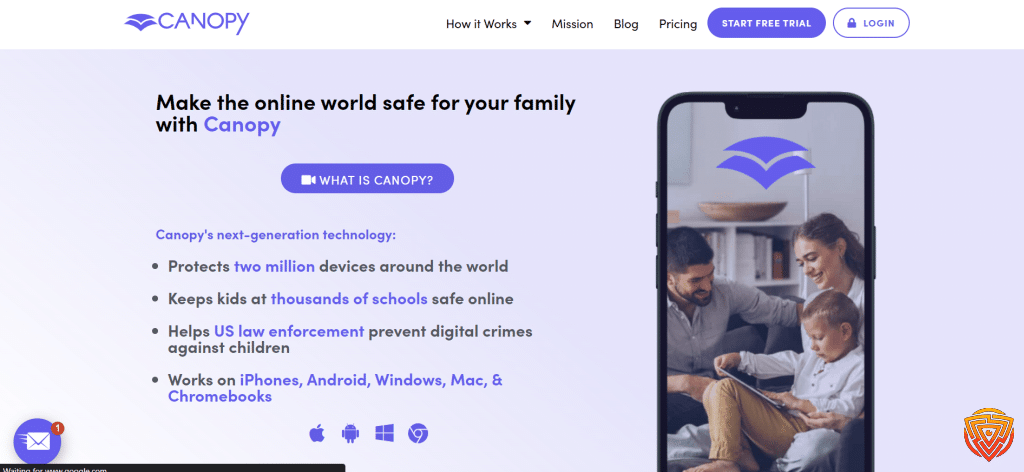
Canopy stands out because it combines app blocking with strong real-time content filtering, which makes it especially appealing for parents who care about iPhone safety and explicit-content protection. It is one of the better options if you want something that feels modern and prevention-focused.
Rather than relying only on simple app limits, Canopy is designed to reduce exposure to harmful content before it appears. That gives it a slightly different value proposition from basic screen-time tools.
Overview Summary
Canopy is best for parents who want app blocking plus stronger protection against explicit websites, images, and risky browsing behavior. It is particularly useful in Apple-heavy households where many competing tools feel limited.
Key Features
- App and website filtering controls
- Real-time explicit-content filtering
- Device-level protection across multiple devices
- Parent dashboard for adjusting rules and filters
Pros
- Strong fit for iPhone-heavy families
- Better content filtering than simple app-limit tools
- Safety-first positioning for families
Cons
- Less established than Qustodio or Bark
- Can feel more protection-focused than routine-focused
- May be more than some families need if they only want simple app limits
Pricing & Refunds
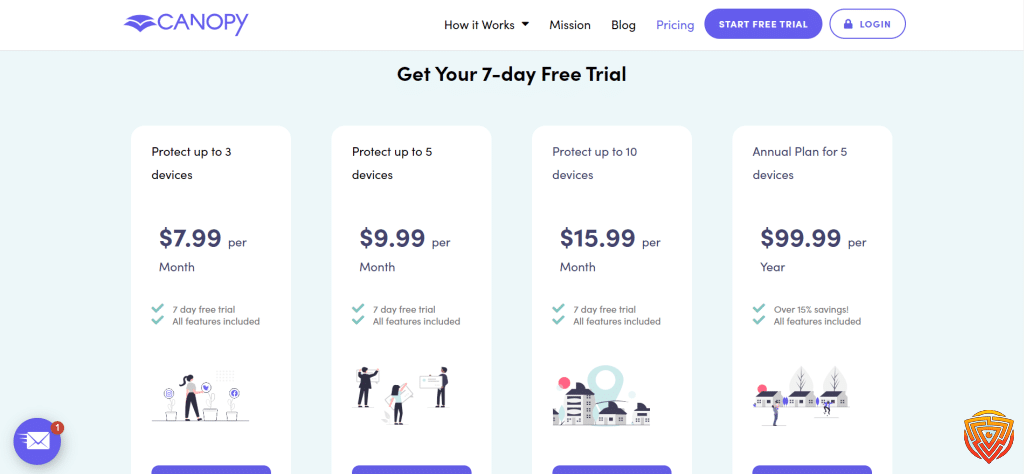
Check Canopy’s live pricing before publishing any fixed numbers. The conversion angle here is stronger when you focus on its iPhone filtering and stronger prevention features.
Why It Ranks Here
Canopy ranks fourth because it fills an important gap for parents who want stronger iPhone-friendly filtering and prevention. It is not the broadest family app on this list, but it is one of the most relevant for Apple-heavy households.
5) Wondershare FamiSafe – Best for Flexible App Rules and Usage Limits

Wondershare FamiSafe is a strong option for parents who want flexible app rules rather than only blunt app blocking. It is especially useful if you want to block some apps fully, limit others, and combine that with broader insight into your child’s digital habits.
What makes FamiSafe fit this keyword well is that app rules are a clear part of its core product, not a minor extra. It also gives you more room to grow into monitoring features later if your needs change.
Overview Summary
FamiSafe works well for families that want app blocking, usage reports, schedules, and location features in one place. It is a better middle-ground option than tools that focus only on either pure blocking or pure monitoring.
Key Features
- App Rules to block or allow specific apps
- Custom screen time limits and schedules
- Detailed activity reports and app usage visibility
- Location tracking and safe-zone alerts
- Extra monitoring tools for families that want more than simple blocking
Pros
- Strong fit for app blocking plus usage control
- More flexible than basic native controls
- Good upgrade path if a family later wants more monitoring detail
Cons
- Can feel broader than necessary if you only want app blocking
- Some families may prefer a simpler interface
- Advanced features can be more than younger-child households need
Pricing & Refunds

Use the live FamiSafe pricing page when updating any cost references. For this page, the conversion angle is stronger when you focus on flexible app rules and screen-time controls rather than static price copy.
Why It Ranks Here
FamiSafe ranks fifth because it gives families a flexible middle-ground between strict blocking and broader monitoring. It is especially useful for parents who want more control than native tools, but do not need the strongest lock-down approach.
6) Kaspersky Safe Kids – Best Budget Pick for Basic App Blocking

Kaspersky Safe Kids is the best budget pick here if your main goal is basic app blocking, screen time control, and safer day-to-day supervision without paying premium-tier prices.
It works across Android, iPhone, Windows, and Mac, which makes it practical for mixed-device families that want one lower-cost system rather than separate tools.
Overview Summary
Kaspersky Safe Kids covers app control, screen time rules, website filtering, and basic family supervision in one lower-cost package. It is a sensible starting point for families that want core controls without jumping straight to a premium option.
Key Features
- App blocking and app-category controls
- Screen time schedules and daily limits
- Website filtering and safer browsing controls
- Location tracking on supported devices
- Reports on app and device activity
Pros
- Strong budget option for core family controls
- Cross-platform support is useful for mixed-device households
- Good starting point for parents who want app blocking without overspending
Cons
- iPhone support is more limited than Android
- Advanced features are weaker than top-tier premium tools
- Reporting is less impressive than higher-ranked picks
Pricing & Refunds
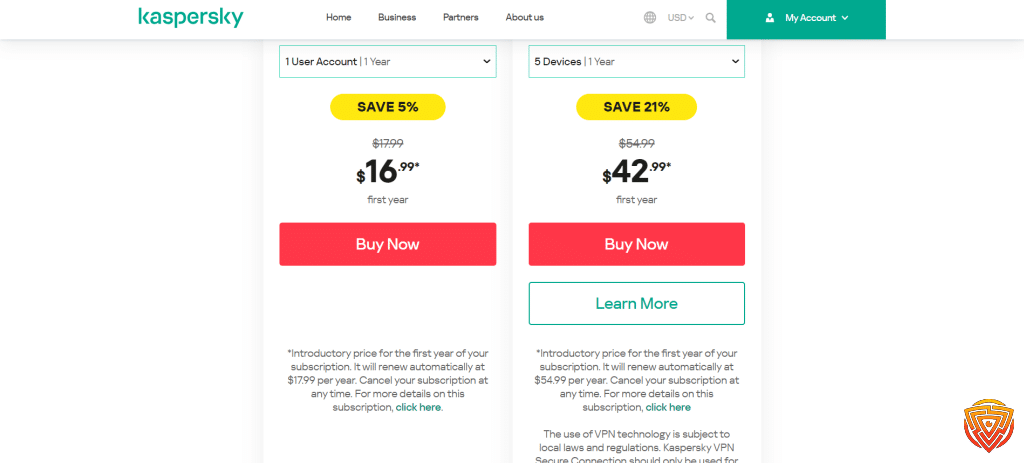
Kaspersky Safe Kids works best here as a value option. If budget matters and you mainly need app blocking, screen time, and simple supervision, it remains one of the more practical lower-cost choices in this category.
Why It Ranks Here
Kaspersky Safe Kids ranks sixth because it gives families a lower-cost path into app blocking and day-to-day supervision. It is not the most advanced tool on this page, but it is one of the easiest to justify on value.
7) Net Nanny – Best for App Blocking Plus Web Filtering

Net Nanny remains a relevant pick for parents who want app blocking plus strong web filtering in the same product. It is not the cheapest option, but it still appeals to families that care more about broad internet safety than about deep monitoring.
Its value on this page is simple: you can see which apps your child is using, block access where needed, and combine that with mature website filtering and reporting.
Overview Summary
Net Nanny is best known for strong website filtering, but it also remains useful for families that want app visibility, time limits, and a broader internet-safety setup. It is a more filtering-led option than some higher-ranked tools.
Key Features
- App visibility and app blocking tools
- Strong web filtering and page-level category controls
- Screen time limits and schedules
- Location tools on supported devices
- Activity reporting for parents
Pros
- Strong web-filtering reputation
- Good fit for families focused on browsing safety
- Useful mix of app visibility and internet filtering
- Established parental control brand
Cons
- Less compelling than higher-ranked options for pure app blocking
- Can feel more web-filtering-led than app-control-led
- Not the strongest value option on this page
Pricing & Refunds

Net Nanny pricing can vary by plan and promotion, so it is better to keep this section benefit-led and send readers to the live pricing page if you want exact current numbers.
Why It Ranks Here
Net Nanny ranks seventh because it is still relevant for app blocking households, but its biggest strength is broader web filtering rather than being the sharpest app-control tool on this list.
Key Features To Look For In a Parental Control App to Block Apps

The best parental control app to block apps should do three things well: stop access reliably, make it easy to manage allowed and blocked apps, and give parents enough visibility to adjust rules without guesswork.
Real-Time App Blocking Capabilities
Real-time blocking means the app shuts things down the second your kid tries to open them. No waiting, no lag.
The top app blocking solutions work across phones, tablets, and computers, so you don’t have to juggle different tools. Top parental control apps usually include app blocking and web filtering that are tough for tech-savvy kids to get around.
I always look for apps that block both installed apps and prevent new ones from being downloaded. Some kids will try to sneak around by reinstalling from the app store, but solid blocking tools catch that too.
Key blocking features include:
- Instant app termination
- Download prevention
- Background app blocking
- Cross-platform compatibility
Ideally, the blocking works even when you’re not watching. Remote blocking from your own phone is a must for me.
Customizable App Whitelists and Blacklists
Whitelists are the apps your kids can always use. Blacklists are for the stuff that’s always off-limits.
I like to set up different lists for different times of day. For example, only educational apps during homework, but games and fun stuff in the evening.
Effective list management offers:
- Easy app addition and removal
- Time-based list switching
- Age-appropriate preset lists
- Category-based grouping
Preset lists make setup a breeze, especially if you’re in a rush. Many apps include lists for certain age groups, which you can tweak as needed.
The best apps let you make separate profiles for each kid. That way, everyone gets a setup that fits their age and maturity.
Usage Monitoring and Activity Reports
Activity reports lay out exactly which parental control apps your kids use and for how long. I check these to get a feel for their digital habits.
Daily and weekly summaries help me spot trends, like which apps get hit most during school hours or weekends.
Important monitoring features:
- Screen time by app
- Usage time stamps
- App launch attempts
- Weekly usage trends
Parental control apps with monitoring capabilities can ping you if your kid sends or gets something inappropriate. Some even scan and block sketchy images or videos.
Real-time alerts pop up on my phone when my kids try to open blocked apps. That’s pretty handy.
Reports should be easy to read—charts and graphs are a plus because I don’t want to dig through piles of numbers.
Free and Built-In Alternatives
If you do not need a full paid parental control app to block apps yet, free and built-in tools can still help. They are best for basic app limits, app approvals, simple supervision, and lighter day-to-day family rules, especially if you only need a basic parental control block apps setup.
This master table compares genuine free parental-control plans and built-in family-safety tools. Individual articles may display only the rows relevant to that platform. Features and child-device compatibility vary by platform and region.
| App | Pricing / Paid Upgrade | Free Access | Key Features | Main Free Limitation | Best For | Child Devices Supported | Review |
|---|---|---|---|---|---|---|---|
| Qustodio FreeRead Qustodio Review | Free for 1 child device; paid plans from $59.95/year; 👉 Check Qustodio Pricing | ✔️ Permanent limited free plan | 🌐 Web filtering and Safe Search ⏸️ Restricted times and pause internet 📊 7-day activity reports 📱 Protection for 1 child device | Limited to 1 device; daily time allowances, app blocking, location and advanced monitoring require a paid plan | Best free third-party dashboard with a clear paid upgrade path | Android, iOS, Windows, macOS, Chromebook and Kindle | Read Qustodio Review |
| OurPact FreeRead OurPact Review | Free starter tier; Premium from $6.99/month or $69.99/year; 👉 Check OurPact Pricing | ✔️ 1 child device 5 manual blocks per month 1 automated schedule Web-browser blocking | 🚫 Manual app and device blocking ⏱️ One automated block schedule 🌐 Web-browser blocking 📱 Management of 1 child device | Only 5 manual blocks per month and 1 automated schedule; most controls require Premium | Best simple free screen-time and blocking starter tool for one phone | Android and iOS | Read OurPact Review |
 Kaspersky Safe Kids FreeRead Kaspersky Safe Kids Review Kaspersky Safe Kids FreeRead Kaspersky Safe Kids Review | Free version available; paid plans and prices vary by region; 👉 Check Kaspersky Pricing | ✔️ Permanent free version with basic features | 🌐 Internet monitoring and website blocking 📱 Device-use monitoring 🖥️ App management 🔎 Basic activity visibility | Premium reporting, location and alerts are excluded; availability varies by country | Best free web filtering option where Kaspersky remains available; not recommended for US users | Android, iOS, Windows and macOS; features differ by platform | Read Kaspersky Safe Kids Review |
 Google Family LinkRead Google Family Link Review Google Family LinkRead Google Family Link Review | Free; Open Guide | ✔️ Completely free | 📱 App approvals and blocking 🕒 Screen-time limits 📍 Device location 🔎 Google Account supervision | Does not supervise a child’s iPhone or iPad; its main controls are for Google platforms | Best completely free parental control for Android and Chromebook families | Android and Chromebook child devices; parent app available on Android and iOS | Read Google Family Link Review |
 Apple Screen TimeRead Apple Screen Time Review Apple Screen TimeRead Apple Screen Time Review | Free and built into Apple devices; Open Guide | ✔️ Completely free | ⏱️ App limits and downtime 🔒 Content and purchase restrictions 📊 App and website activity summaries 👪 Family Sharing controls | Restricted to the Apple ecosystem; less suitable for mixed-device families | Best completely free parental controls for iPhone, iPad and Mac | iPhone, iPad and Mac | Read Apple Screen Time Review |
 Microsoft Family SafetyRead Microsoft Family Safety Review Microsoft Family SafetyRead Microsoft Family Safety Review | Free basic family-safety features; some benefits require Microsoft 365 Family; Open Guide | ✔️ Free basic family-safety features | ⏱️ Screen-time and app limits on supported devices 📊 Activity reports 🌐 Microsoft Edge content filtering 🎮 Windows and Xbox integration | Does not provide device-level control over a child’s iPhone; web filtering depends heavily on Microsoft Edge | Best for Windows, Xbox and Microsoft-centred households | Windows and Xbox; Android app and game limits; iOS parent-management app only | Read Microsoft Family Safety Review |
 Samsung KidsReview Coming Soon Samsung KidsReview Coming Soon | Free and built into supported Samsung Galaxy devices; Open Guide | ✔️ Completely free on supported Samsung devices | 🧒 Child-friendly interface 🔒 Approved apps and content ⏱️ Usage controls 📊 Activity information | A local child environment rather than a full remote parental-control service | Best built-in child mode for younger children using Samsung devices | Supported Samsung Galaxy phones and tablets | Review Coming Soon |
 Amazon KidsReview Coming Soon Amazon KidsReview Coming Soon | Free parental tools; optional Amazon Kids+ content subscription; Open Amazon Kids | ✔️ Free parental tools; Kids+ is optional | ⏱️ Daily time limits 📚 Educational goals 🔒 Content and age filters 👧 Child profiles | Designed mainly around Amazon devices and services; Kids+ content requires a subscription | Best free parental controls for Amazon Fire tablets and devices | Fire tablets, Kindle e-readers, Echo and supported Amazon devices | Review Coming Soon |
These free and built-in options are a good starting point, but dedicated parental control apps usually give parents stronger app blocking, better reports, and more flexibility across multiple devices.
Privacy Considerations When Using Parental Control Solutions

Parental control apps grab a ton of personal data from your family’s devices, which brings up some real privacy questions. Security and privacy risks in parental control solutions are a thing—data leaks or hackers taking over the app do happen.
Data Collection Policies
Most parental control apps collect a lot about your child’s online life, including websites, apps, texts, calls, and location data.
I’d always check privacy policies before installing anything. Look for details on what they grab and how long they keep it.
Common types of data collected:
- Browsing history and search queries
- App usage patterns and screen time
- GPS location and movement tracking
- Contact lists and communication logs
- Photos and files accessed
Some apps store all this on their servers for ages. Others keep it on your device and delete it after a while.
Pay attention to whether the app shares info with advertisers or data brokers. Free apps, in particular, often make money by selling your data.
User Consent and Transparency
Getting age-appropriate consent is tricky with these parental control apps. Kids usually cannot legally agree to data collection, but they still deserve to know what is being tracked and why.
I think it’s best to tell your child what the app’s tracking and why. That way, you build trust and they get why you’re doing it.
Key transparency elements to consider:
- Clear explanation of monitoring features
- Regular family discussions about privacy boundaries
- Age-appropriate consent processes
- Option for children to request data deletion
Some parental control apps actually tell kids when you’re checking their activity. Others just run in the background, totally silent.
Check notification settings and decide if you want your monitoring to be visible or not. It really depends on your family’s style.
Balancing Oversight With Child Privacy
Too much monitoring can backfire and hurt trust, not to mention stop kids from learning how to manage themselves online. Honestly, it’s a balancing act and you’ll probably need to tweak things as your kids grow.
Start simple with younger kids. As they show they can handle it, ease up on the controls.
Privacy balance strategies:
- Use content filtering instead of logging every move
- Set up monitoring schedules that allow for some privacy
- Focus on safety, not total surveillance
- Review and update privacy settings regularly
Your kid’s age and maturity matter a lot here. Teens definitely need a longer leash than little ones.
Some families even write up “privacy agreements” to spell out what’s monitored and why. It’s not a bad idea—it helps everyone know where the lines are.
Parental Control Alternatives Worth Considering
If none of the main seven feels like the perfect fit, there are still several other tools worth considering. Not every parental control app to block apps works equally well for every device mix, family routine, or level of supervision, so it makes sense to compare a few backup options too.
| Software | Pricing (Devices) | Free Plan / Trial | Key Features | Best For | Key Limitation | Supported Platforms | Review |
|---|---|---|---|---|---|---|---|
 KidsloxRead Kidslox Review KidsloxRead Kidslox Review | Pricing varies by plan, region and app store; paid accounts support up to 10 devices; Check Kidslox Pricing | Free plan plus 3-day Premium trial | 🕒 Screen-time limits and schedules 🚫 Individual app blocking 🌐 Web filtering 📍 Location tracking | Best mobile-focused alternative for screen-time and app controls | No Windows, Mac or Chromebook child-device support; monitoring depth and app controls vary between iOS and Android | 📱 iOS, 🤖 Android | Read Kidslox Review |
 Boomerang Parental ControlRead Boomerang Review Boomerang Parental ControlRead Boomerang Review | $19.99/year for 1 Android child device or $39.99/year for up to 10 Android devices; Check Boomerang Pricing | 14-day free trial on Android and iOS child devices | 🕒 Flexible screen-time controls 📱 App approval and blocking 🌐 SPIN Safe Browser 📍 Location tracking | Best budget alternative for Android families | Most paid features and licences are Android-focused; iOS functionality is considerably more limited | 🤖 Android; limited 📱 iOS support | Read Boomerang Review |
 FamilyTimeRead FamilyTime Review FamilyTimeRead FamilyTime Review | $29/year for 1 child device; $49/year for 3 devices; $69/year for 5 devices; Check FamilyTime Pricing | 3-day trial; billing terms vary by purchase route | 📍 Location monitoring and geofencing 🕒 Screen-time schedules 🚫 App and website controls 🆘 SOS and family alerts | Best for mobile location features combined with screen-time rules | Feature depth varies substantially between Android and iPhone; communication-monitoring tools require transparent, lawful use | 📱 iOS, 🤖 Android | Read FamilyTime Review |
 OhanaReview Coming Soon OhanaReview Coming Soon | Currently $49.99/year; regional and app-store pricing may vary; Check Ohana Pricing | Free version plus 7-day trial of Ohana Plus | 🕒 Screen-time schedules 🚫 App blocking 🌐 Web filtering 📊 Family routines and usage insights | Promising alternative for families prioritising healthier screen-time routines | A newer product with less independent comparative evidence and no completed Impulsec review | 📱 iOS, 🤖 Android | Review Coming Soon |
 Aura Parental ControlsRead Aura Parental Controls Review Aura Parental ControlsRead Aura Parental Controls Review | Kids plan $10/month billed annually or $13/month billed monthly for unlimited children and devices; Family plan from $32/month billed annually; Check Aura Pricing | 14-day free trial; 60-day money-back guarantee on annual plans | 🌐 Content filtering and site blocking 🕒 Screen-time limits 🎮 Gaming-safety alerts 🔐 Identity and cybersecurity features on the Family plan | Best for US families wanting parental controls combined with identity and cybersecurity protection | Available only to US customers; considerably more expensive than a standalone parental-control app | 📱 iOS, 🤖 Android; Windows gaming protection on supported plans | Read Aura Parental Controls Review |
 Life360Read Life360 Review Life360Read Life360 Review | Free plan; Silver $7.99/month; Gold $14.99/month; Platinum $24.99/month in the US; Check Life360 Pricing | Free plan plus 7-day trial on paid plans | 📍 Live family location sharing 🗺️ Place and arrival alerts 🚗 Driving reports 🆘 Crash detection and emergency features on supported plans | Best specialist alternative for family location and teen-driving safety | Not a complete parental-control suite; it does not replace web filtering, app blocking or screen-time controls | 📱 iOS, 🤖 Android | Read Life360 Review |
 Net NannyRead Net Nanny Review Net NannyRead Net Nanny Review | $39.99/year for 1 computer; $54.99/year for 5 devices; $89.99/year for 20 devices; Check Net Nanny Pricing | No free trial currently stated | 🌐 Dynamic web filtering 🚫 Website and app blocking 🕒 Screen-time management 📊 Activity reports | Legacy alternative for compatible Windows and iOS households | No Android or Chromebook support; official Mac compatibility stops at macOS 11, making it unsuitable for current Macs | 🪟 Windows 10/11, 📱 iOS 11+, older 🍎 macOS 10.13–11 | Read Net Nanny Review |
Final Verdict: My Personal Recommendation
If your main goal is finding the best parental control app to block apps without overcomplicating family life, Qustodio is still my top recommendation. It gives most parents the best mix of app blocking, screen time control, web filtering, activity reporting, and cross-platform coverage in one place.
That is what makes it the easiest tool to recommend with confidence. Some apps on this list are stronger in one specific area, such as Bark for alert-based supervision or Canopy for iPhone-focused filtering, but Qustodio is the one that feels most complete for everyday family use.
If I were choosing for most households, I would start with Qustodio first. It is the safest all-round pick for parents who want to block distracting or inappropriate apps, create healthier screen habits, and still keep the setup manageable across multiple devices.
If your child is older and you care more about alerts and digital behaviour than strict lock-down controls, Bark would be my second choice. If your household is heavily iPhone-based and stronger content filtering matters most, Canopy is the alternative I would look at next.
If you want one reliable parental control app to block apps without wasting time comparing endless features, Qustodio is the one I would start with first. For parents who mainly want a dependable parental control block apps solution that stays practical across multiple devices, it remains the safest overall choice.
Frequently Asked Questions
Parents usually want quick answers on which parental control app to block apps works best, what works on iPhone or Android, and whether free parental control options are good enough. These are the questions that come up most often.
What is the best parental control app to block apps?
Qustodio is the best overall parental control app to block apps for most families because it combines app blocking, screen time limits, web filtering, and broad device support in one dashboard.
If you want a more alert-based approach, Bark is a strong alternative. If iPhone filtering matters most, Canopy is also worth a look.
Can I block specific apps on my child’s iPhone?
Yes. You can block or limit specific apps on an iPhone, but the level of control depends on the tool you use. Apple Screen Time can handle app limits and restrictions, while dedicated parental control apps like Qustodio and Canopy usually offer more flexibility and easier remote management.
Can I block apps on Android without deleting them?
Yes. Most parental control apps let you block access to apps without uninstalling them. That means you can stop games, social apps, or other distractions during school, homework, bedtime, or other scheduled periods while keeping the apps installed.
Are free parental control app blockers good enough?
Free tools can be enough for basic needs, especially if you use Apple Screen Time, Google Family Link, or a limited free parental control plan. But for stronger app blocking, better reporting, easier multi-device control, and fewer loopholes, paid parental control apps are usually the better long-term option.
What is the difference between app blocking and phone monitoring?
App blocking is about controlling access: stopping certain apps, setting time limits, or restricting use during certain hours. Phone monitoring goes further by showing activity, alerts, messages, social media signals, or location data. This page is focused on app blocking first.
Can you block apps with parental controls?
Yes. Most parental control apps let you block apps completely, set time limits, or restrict access during certain hours such as school, homework, or bedtime. Dedicated tools like Qustodio, Bark, Canopy, and FamiSafe usually give parents more control than basic built-in tools alone.
That’s all for now! 📌
Choosing the best parental control app to block apps comes down to how much control you want, which devices your family uses, and whether you also need alerts, monitoring, or stronger content filtering.
For most families, Qustodio is the safest overall pick. If you want alert-based supervision, Bark is a strong alternative. If iPhone filtering matters most, Canopy deserves a serious look.
Related Articles:
- best parental control app
- best parental control app for android
- best parental control app for iphone
- best free parental control app for iphone and android
- most popular parental control app
- importance of online safety
- best dns parental control
- best screen time app
- best parental monitoring app
- parent app to monitor text messages
Share this article

Stuart Kerr Spindlow is Impulsec’s Publisher, Chief Editor and Lead Reviewer. He writes and maintains coverage of consumer cybersecurity and digital-safety software, with a focus on practical suitability, limitations and the evidence behind product claims. Read Stuart’s full profile.